
1. Introduction
Welcome to the user manual for your Singing Machine iSM1050BT Pedestal Bluetooth Karaoke System. This system is designed to provide an engaging home entertainment experience with its versatile features. It includes Bluetooth connectivity for streaming audio from mobile devices, a hidden CD+G player, and a USB port for MP3+G files. The iSM1050BT features a 7-inch TFT LCD display for clear lyric presentation and powerful tower speakers for amplified sound. This manual will guide you through the setup, operation, and maintenance of your karaoke system, ensuring optimal performance and enjoyment.
2. Important Safety Information
Please read all safety and operating instructions carefully before using this product. Keep these instructions for future reference.
- Power Source: Use only the specified power adapter. Ensure the voltage matches your local power supply.
- Ventilation: Do not block any ventilation openings. Maintain adequate space around the unit for proper airflow.
- Water and Moisture: Do not expose the unit to rain, moisture, or dripping/splashing liquids. Do not place objects filled with liquids, such as vases, on the unit.
- Heat: Do not place the unit near heat sources such as radiators, heat registers, stoves, or other apparatus (including amplifiers) that produce heat.
- Cleaning: Unplug the unit from the wall outlet before cleaning. Use a soft, dry cloth only. Do not use liquid cleaners or aerosol cleaners.
- Servicing: Do not attempt to service this product yourself. Refer all servicing to qualified service personnel.
- Children: This product is not intended for use by young children without adult supervision.
3. Package Contents
Verify that all items listed below are included in your package:
- Singing Machine iSM1050BT Main Unit
- Pedestal Base
- Tower Speakers (2)
- Microphones (2)
- Power Adapter
- RCA Audio/Video Cables
- User Manual (this document)
4. Setup
4.1 Assembly
- Carefully unpack all components from the box.
- Attach the main iSM1050BT unit to the pedestal base. Ensure it is securely fastened.
- Connect the two tower speakers to the main unit using the speaker cables.
4.2 Power Connection
- Plug the power adapter into the DC IN jack on the back of the main unit.
- Plug the other end of the power adapter into a standard wall outlet.
4.3 Microphone Connection
- Plug the microphone cables into the MIC 1 and MIC 2 jacks on the main unit.
- Ensure the ON/OFF switch on each microphone is set to the OFF position before connecting.

Figure 4.1: Top view of the iSM1050BT main unit with a tablet in the integrated cradle and two microphones connected. This image shows the overall layout of the control panel and device placement.

Figure 4.2: A close-up view of one of the included microphones, highlighting the ON/OFF switch for individual microphone control.
4.4 Connecting to a TV or External Audio Device (Optional)
To display lyrics on a larger screen or output audio to an external sound system, use the included RCA cables.
- Connect the red and white plugs of the RCA cable to the AUDIO OUT (R and L) jacks on the back of the iSM1050BT.
- Connect the yellow plug of the RCA cable to the VIDEO OUT jack on the back of the iSM1050BT.
- Connect the other end of the RCA cables to the corresponding AUDIO IN and VIDEO IN jacks on your television or external audio system.

Figure 4.3: The rear connection panel of the iSM1050BT, illustrating the RCA audio and video output ports for connecting to a television or external sound system.
5. Operating Instructions
5.1 Power On/Off
Press the POWER button located on the control panel to turn the unit ON or OFF. The 7-inch TFT LCD display will illuminate when the unit is powered on.
5.2 Bluetooth Pairing and Audio Streaming
The iSM1050BT allows you to stream audio wirelessly from your Bluetooth-enabled devices (smartphones, tablets).
- Press the FUNCTION button repeatedly until the Bluetooth mode is selected on the display. The Bluetooth indicator will flash.
- On your mobile device, enable Bluetooth and search for available devices. Select "Singing Machine" from the list.
- Once paired, the Bluetooth indicator on the iSM1050BT will stop flashing and remain solid. You can now stream audio from your device.
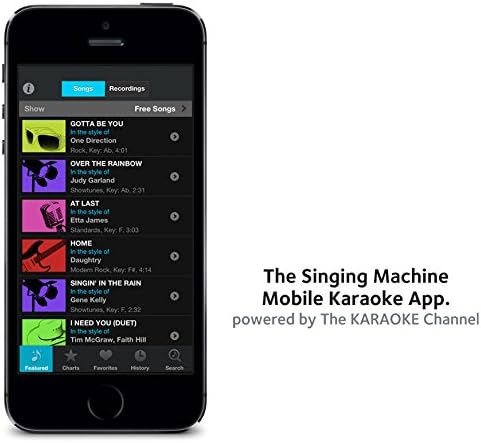
Figure 5.1: An example of the Singing Machine Mobile Karaoke App interface on a smartphone, demonstrating the visual experience when using the app with the system.
5.3 CD+G and Music CD Playback
The system features a hidden CD+G player for karaoke discs with on-screen lyrics.
- Open the CD compartment and insert a CD+G or music CD with the label side facing up. Close the compartment.
- Press the FUNCTION button repeatedly until the CD mode is selected.
- The disc will begin playing automatically. Lyrics for CD+G discs will appear on the 7-inch TFT LCD display and any connected TV.
5.4 USB Playback (MP3 and MP3+G)
Play your downloaded MP3 or MP3+G files from a USB flash drive.
- Insert a USB flash drive containing MP3 or MP3+G files into the USB port on the main unit.
- Press the FUNCTION button repeatedly until the USB mode is selected.
- The system will automatically detect and play the compatible files. Lyrics for MP3+G files will appear on the display.

Figure 5.2: The iSM1050BT main unit, showing the USB port for flash drives and the CD compartment for disc media, illustrating the multiple playback options.

Figure 5.3: A tablet displaying karaoke lyrics, demonstrating how the system can integrate with mobile devices for an enhanced lyric display experience.
5.5 Microphone Controls
Adjust the microphone settings for optimal vocal performance.
- MIC VOLUME: Use the MIC VOLUME knob to adjust the volume of the microphones.
- ECHO: Use the ECHO control to add an echo effect to your vocals.
- AVC (Automatic Voice Control): The AVC feature can automatically reduce the main vocal track of a song when you sing into the microphone.
5.6 Recording
The iSM1050BT allows you to record your vocal performance with the music onto a USB flash drive.
- Ensure a USB flash drive is inserted into the USB port.
- Start playing a CD+G or MP3+G track.
- Press the RECORD button to begin recording your performance.
- Press the RECORD button again to stop recording. The recorded file will be saved as an MP3+G file on your USB drive.

Figure 5.4: A detailed view of the iSM1050BT control panel, highlighting the USB port and the dedicated record button for capturing vocal performances.
5.7 Digital Key and Balance Controls
Adjust the music to better suit your vocal range.
- DIGITAL KEY: Use the KEY controls to raise or lower the musical key of the song. Note that significant key changes may affect audio quality.
- BALANCE: Use the BALANCE control to adjust the balance between the main vocal track and the instrumental music.
6. Maintenance
6.1 Cleaning
To maintain the appearance and functionality of your system:
- Always unplug the unit before cleaning.
- Use a soft, dry, lint-free cloth to wipe down the exterior surfaces.
- Do not use abrasive cleaners, waxes, or solvents as they may damage the finish.
- For the LCD display, use a soft cloth specifically designed for screens.
6.2 Storage
When not in use for extended periods:
- Store the unit in a cool, dry place, away from direct sunlight and extreme temperatures.
- Protect the unit from dust by covering it or storing it in its original packaging.
7. Troubleshooting
If you encounter any issues with your iSM1050BT system, please refer to the following common problems and solutions:
| Problem | Possible Cause | Solution |
|---|---|---|
| No power | Power adapter not connected or faulty outlet. | Ensure the power adapter is securely plugged into the unit and a working wall outlet. Try a different outlet. |
| No sound from speakers | Volume too low; speaker cables disconnected; incorrect input source. | Increase MASTER VOLUME. Check that speaker cables are securely connected. Ensure the correct FUNCTION mode (CD, USB, Bluetooth) is selected. |
| No sound from microphones | Microphone OFF; MIC VOLUME too low; microphone not connected. | Ensure microphone ON/OFF switch is set to ON. Increase MIC VOLUME. Check microphone connections. |
| Bluetooth device won't pair | Device out of range; Bluetooth not enabled on device; incorrect mode selected. | Ensure your device is within 30 feet of the iSM1050BT. Enable Bluetooth on your device. Select Bluetooth mode on the iSM1050BT. |
| Lyrics not displayed | Using a standard audio CD/MP3; TV not connected or incorrect input selected on TV. | Ensure you are playing a CD+G or MP3+G file. If connected to a TV, ensure the TV is on the correct AV input channel. |
| Buttons are unresponsive or delayed | System processing input; temporary software lag. | Allow a few seconds for the system to register button presses. If persistent, power cycle the unit. |
| Sound distortion when changing key | Digital key change limitations. | Significant changes to the digital key may introduce audio artifacts. Use key controls sparingly or accept potential changes in sound quality. |
8. Specifications
| Feature | Description |
|---|---|
| Model Name | iSM1050BT |
| Brand | Singing Machine |
| Color | Black |
| Power Source | Corded Electric |
| Special Feature | Automatic Voice Control (AVC) |
| Recommended Uses | Recreational and home entertainment |
| Number of Speakers | 2 (Tower Speakers) |
| Connector Type | USB |
| Connectivity Technology | Bluetooth, USB |
| Media File Types | CD, USB (MP3, MP3+G) |
| Compatible Devices | Smartphone, Tablet |
| Format | MP3 Audio, CD |
| Item Weight | 18.5 Pounds (8.39 kg) |
| UPC | 047237010501 |
| ASIN | B00F2JH1ZG |
9. Warranty and Support
9.1 Limited Warranty
Singing Machine products are manufactured to the highest quality standards. For specific warranty details, including duration and coverage, please refer to the warranty card included with your product or visit the official Singing Machine website. Keep your proof of purchase for warranty claims.
9.2 Customer Support
If you require further assistance or have questions not covered in this manual, please contact Singing Machine customer support. Contact information can typically be found on the official website or on the product packaging.
- Online Support: Visit the Singing Machine official website for FAQs, product registration, and support resources.
- Telephone Support: Refer to your product packaging or the official website for customer service phone numbers.


