
1. Introduction
The D-Link DIR-808L Wireless AC600 Dual-Band Cloud Router provides high-speed Wi-Fi connectivity with dual-band technology and Fast Ethernet ports. This device is designed to deliver a reliable networking experience for home use, supporting activities such as HD media streaming, online gaming, and web browsing. It includes security features and mydlink Cloud Services for remote network management.
The DIR-808L is backward compatible with existing Wi-Fi devices (802.11a/b/g/n) for seamless integration into your current network setup.
2. Package Contents
Verify that your package contains the following items:
- Wireless AC600 Dual Band Cloud Router (DIR-808L)
- Power Adapter
- Ethernet Cable
- Quick Install Guide
If any of the above items are missing or damaged, please contact your local D-Link reseller.
3. Minimum System Requirements
To set up and use the D-Link DIR-808L router, ensure your computer meets the following minimum requirements:
- Operating System: Windows® 8, Windows® 7, Windows Vista®, Windows® XP SP3, or Mac OS® X (v10.4 or higher)
- Web Browser: Internet Explorer® v6, Mozilla® Firefox®, Google Chrome, or Safari 4 or higher
- Hardware: Network Interface Card (NIC)
For Internet access, you will also need:
- Cable or DSL Modem
- Subscription with an Internet Service Provider (ISP)
4. Hardware Overview
Familiarize yourself with the physical components and ports of your DIR-808L router.

Figure 4.1: Front view of the DIR-808L router with power and internet status indicators.

Figure 4.2: Rear panel of the DIR-808L router, detailing port layout.
Rear Panel Description:
- LAN Ports (1-4): Four Fast Ethernet ports for connecting wired devices such as computers, gaming consoles, or network storage.
- Internet Port: Connects to your modem for internet access.
- Reset Button: Press and hold for 10 seconds to restore the router to factory default settings.
- Power Input: Connect the included power adapter here.
- WPS Button: Use for easy, secure wireless connection to WPS-compatible devices.
5. Setup and Installation
Follow these steps to set up your D-Link DIR-808L router.
5.1 Physical Connection
- Power Off: Disconnect the power from your modem and router (if applicable).
- Connect Modem: Connect an Ethernet cable from your modem's Ethernet port to the Internet port on the back of your DIR-808L router.
- Connect Computer (Optional): For initial setup, connect an Ethernet cable from your computer's Ethernet port to any of the LAN ports (1-4) on the back of your DIR-808L router. You can also connect wirelessly using the default Wi-Fi name and password found on the device label.
- Power On Modem: Connect the power adapter to your modem and power it on. Wait for the modem's indicator lights to stabilize, indicating an active internet connection.
- Power On Router: Connect the included power adapter to the Power Input on the back of your DIR-808L router and plug it into a power outlet. The power LED on the front of the router should illuminate.
5.2 Initial Configuration (Web Browser)
After physical connections are made, configure your router using a web browser.
- Open a web browser (e.g., Chrome, Firefox, Edge) on a computer connected to the router.
- In the address bar, type
http://dlinkrouter.localor192.168.0.1and press Enter. - The D-Link Setup Wizard should appear. Follow the on-screen instructions to configure your Internet connection, wireless network name (SSID), and password.
- Create a unique password for your router's administration interface for security.
5.3 Quick Router Setup Mobile App
Alternatively, you can use the D-Link Quick Router Setup mobile app for convenient setup from your smartphone or tablet.
- Download the "D-Link QRS Mobile" app from the Apple App Store or Google Play Store.
- Connect your mobile device to the router's default Wi-Fi network (SSID and password are on the router's label).
- Launch the QRS Mobile app and follow the instructions to complete the setup.
6. Operation
This section covers the basic operation of your DIR-808L router.
6.1 Dual-Band Wireless Performance
The DIR-808L operates on two frequency bands: 2.4 GHz and 5 GHz.
- 2.4 GHz Band: Provides wider coverage and better penetration through walls, suitable for general internet use and older devices.
- 5 GHz Band: Offers faster speeds and less interference, ideal for high-bandwidth activities like HD video streaming and online gaming, but with a shorter range.
You can configure separate SSIDs (network names) for each band or use a single SSID for both, allowing the router to intelligently assign devices to the optimal band.
6.2 Wired Connectivity
The four Fast Ethernet LAN ports allow you to connect up to four wired devices directly to the router for stable and fast connections.
6.3 mydlink Cloud Management
mydlink Cloud Services enable you to monitor and manage your network remotely from anywhere using the mydlink Lite app or the mydlink web portal.
- Remote Access: View connected devices, block unwanted users, and receive notifications.
- Parental Controls: Manage internet access schedules and block specific websites.
To use mydlink services, you will need to register your router with a mydlink account during or after the initial setup process.
6.4 Wireless Security
The DIR-808L supports WPA/WPA2 encryption to secure your wireless network. It is recommended to use WPA2-PSK (AES) for the strongest security.
- WPS (Wi-Fi Protected Setup): Provides a simple way to connect WPS-compatible devices to your wireless network by pressing the WPS button on the router and the device.
7. Maintenance
Proper maintenance ensures optimal performance and longevity of your router.
- Firmware Updates: Periodically check the D-Link support website for firmware updates. Updating firmware can improve performance, add new features, and fix security vulnerabilities. Instructions for updating firmware are typically provided with the update package.
- Cleaning: Keep the router in a clean, dust-free environment. Use a soft, dry cloth to clean the exterior. Do not use liquid cleaners or aerosols.
- Placement: Place the router in a central location, away from obstructions and devices that may cause interference (e.g., cordless phones, microwaves).
8. Troubleshooting
This section addresses common issues you might encounter with your DIR-808L router.
8.1 No Internet Connection
- Check Cables: Ensure all Ethernet cables are securely connected to the correct ports on the router and modem.
- Power Cycle: Power off your modem, then your router. Wait 30 seconds, then power on your modem first. Once the modem is fully online (indicator lights stable), power on your router.
- Modem Status: Verify that your modem has an active internet connection. Check its indicator lights or consult your modem's manual.
- ISP Settings: Confirm your Internet Service Provider (ISP) settings are correctly entered in the router's web interface.
8.2 Slow Wireless Speed or Poor Range
- Router Placement: Position the router in a central location, elevated, and away from large metal objects, concrete walls, and other electronic devices that may cause interference.
- Interference: Other wireless devices (cordless phones, microwaves, Bluetooth devices) can interfere with Wi-Fi signals. Try changing the wireless channel in the router's settings.
- Dual-Band Usage: Connect devices that require high bandwidth (e.g., streaming devices) to the 5 GHz band, and other devices to the 2.4 GHz band.
- Firmware: Ensure your router's firmware is up to date.
8.3 Cannot Access Router's Web Interface
- IP Address: Ensure your computer is set to obtain an IP address automatically (DHCP).
- Correct Address: Double-check that you are typing the correct address:
http://dlinkrouter.localor192.168.0.1. - Temporary Disable Firewall/Antivirus: Temporarily disable any firewall or antivirus software on your computer that might be blocking access.
- Reset Router: If all else fails, perform a factory reset by pressing and holding the Reset button on the back of the router for 10 seconds. Note: This will erase all your custom settings.
9. Technical Specifications
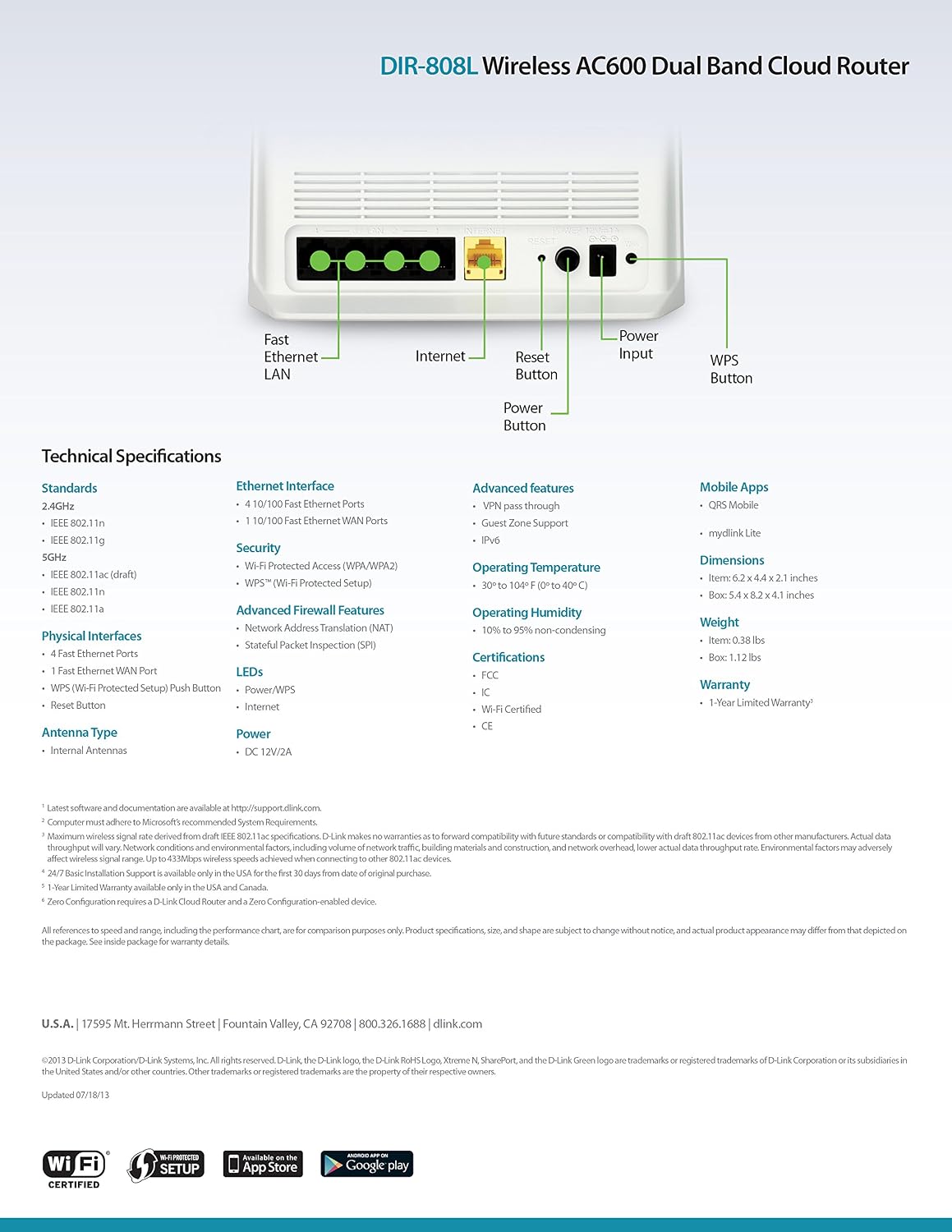
Figure 9.1: Technical specifications and rear panel diagram of the DIR-808L router.
| Feature | Description |
|---|---|
| Model Name | DIR-808L |
| Wireless Type | 802.11ac (AC600), 802.11a/b/g/n |
| Frequency Band Class | Dual-Band (2.4 GHz & 5 GHz) |
| Wired Connectivity | 4 x Fast Ethernet LAN Ports, 1 x Fast Ethernet WAN Port |
| Security | WPA/WPA2, WPS (Wi-Fi Protected Setup) |
| Operating System Compatibility | Windows, Mac, Android |
| Dimensions (LxWxH) | 2.1 x 6.1 x 4.4 inches |
| Item Weight | 7.2 ounces (0.45 Pounds) |
| Power Input | 12V DC, 1A |
| Operating Temperature | 0 to 40°C (32 to 104°F) |
| Operating Humidity | 10% to 95% non-condensing |
| Certifications | FCC, Wi-Fi Certified, CE |
10. Warranty Information
The D-Link DIR-808L Wireless AC600 Dual-Band Cloud Router comes with a 1-Year Limited Warranty from the date of purchase. This warranty covers defects in materials and workmanship under normal use.
For full warranty terms and conditions, please refer to the warranty card included with your product or visit the official D-Link website.
Legal Disclaimer: D-Link is not responsible for honoring warranty claims from unauthorized resellers. Please contact the manufacturer directly for official warranty service.
11. Technical Support
If you encounter problems that are not addressed in this manual, or require further assistance, please contact D-Link Technical Support.
- D-Link Support Website: Visit support.dlink.com for FAQs, documentation, and firmware downloads.
- Phone Support (U.S.): You may contact D-Link customer support at 1-877-453-5465. Please have your product model number (DIR-808L) and serial number ready when calling.


