1. Introduction
This manual provides comprehensive instructions for the installation, operation, and maintenance of your Bticino Swing Sfera Video Intercom Monitor, model 334804. Please read this manual thoroughly before using the product to ensure correct operation and to prevent damage.
The Bticino Swing Sfera Video Intercom Monitor is designed to enhance security and communication at your entrance, allowing you to see and speak with visitors before granting access.
2. Safety Information
Observe the following safety precautions to prevent injury or damage to the product:
- Installation should be performed by qualified personnel in accordance with local electrical codes and regulations.
- Do not expose the monitor to water, moisture, or extreme temperatures.
- Do not attempt to open or repair the unit yourself. Refer all servicing to qualified service personnel.
- Disconnect power before performing any maintenance or installation procedures.
- Use only Bticino approved accessories and spare parts.
3. Product Overview
The Bticino Swing Sfera Video Intercom Monitor features a clear display and intuitive controls for managing your entrance. Below is an illustration of the monitor with its key components.
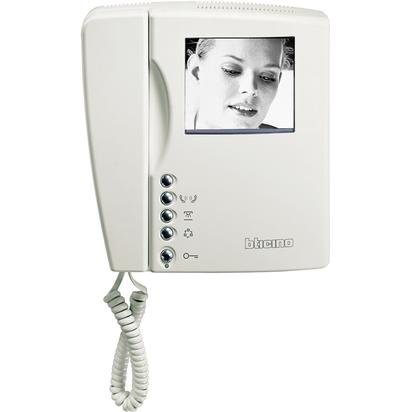
Figure 1: Front view of the Bticino Swing Sfera Video Intercom Monitor. This image shows the white casing, the handset on the left, the screen displaying a person's face, and five silver control buttons arranged vertically on the right side of the screen.
Key Components:
- Display Screen: Shows video feed from the outdoor unit.
- Handset: For private audio communication with visitors.
- Control Buttons: Five buttons for various functions (from top to bottom):
- Call/Answer Button: To answer an incoming call or initiate communication.
- Mute/Privacy Button: To mute the microphone or activate privacy mode.
- Auxiliary Function Button: Typically used for secondary functions like activating a staircase light.
- Door Release Button: To unlock the entrance door or gate.
- Camera View Button: To manually view the camera feed from the outdoor unit or cycle through multiple cameras.
4. Setup and Installation
This section provides general guidelines for setting up your Bticino Swing Sfera Video Intercom Monitor. For detailed wiring diagrams and specific installation instructions, please refer to the dedicated installation guide provided with your product or consult a qualified electrician.
- Mounting: Securely mount the monitor to a wall at an appropriate height for comfortable viewing and operation. Ensure proper clearance for the handset.
- Wiring: Connect the monitor to the intercom system's bus line and power supply according to the wiring diagram. Pay close attention to polarity and connection points.
- Power Connection: Once all connections are secure, connect the system to the main power supply.
- Initial Test: After power-up, perform a functional test to ensure the monitor is communicating correctly with the outdoor unit and other system components.
5. Operating Instructions
Familiarize yourself with the monitor's functions for daily use.
- Receiving a Call: When a visitor presses the call button on the outdoor unit, the monitor will ring and display the visitor's image. Lift the handset or press the Call/Answer Button to establish communication.
- Speaking with a Visitor: Once communication is established, speak into the handset and listen for the visitor's response.
- Opening the Door/Gate: During a call or while viewing the camera, press the Door Release Button to unlock the entrance.
- Viewing the Camera: To manually view the outdoor camera feed without an incoming call, press the Camera View Button. If multiple cameras are installed, repeatedly pressing this button may cycle through them.
- Mute/Privacy Function: Press the Mute/Privacy Button to temporarily disable your microphone or activate a privacy mode where incoming calls are not announced.
- Auxiliary Function: Use the Auxiliary Function Button to activate a connected device, such as a staircase light, if configured in your system.
- Ending a Call: Replace the handset to end the communication. The monitor will automatically turn off after a short period of inactivity.
6. Maintenance
Proper maintenance ensures the longevity and optimal performance of your intercom monitor.
- Cleaning: Use a soft, dry cloth to clean the monitor's screen and casing. For stubborn marks, slightly dampen the cloth with water. Avoid abrasive cleaners, solvents, or chemical sprays.
- Handset Cord: Periodically check the coiled handset cord for any signs of wear or damage.
- Environmental Conditions: Ensure the monitor is kept in a dry environment, away from direct sunlight and heat sources.
7. Troubleshooting
If you encounter issues with your Bticino Swing Sfera Video Intercom Monitor, refer to the following common problems and solutions:
| Problem | Possible Cause | Solution |
|---|---|---|
| No image on screen. | No power, loose connection, camera fault. | Check power supply. Verify all wiring connections. Contact technical support if the issue persists. |
| No audio during a call. | Handset not properly seated, microphone muted, wiring issue. | Ensure handset is correctly placed. Check if the Mute/Privacy button is active. Inspect wiring. |
| Door release not working. | Wiring issue to door strike, faulty door strike, system configuration. | Verify wiring to the door release mechanism. Ensure the system is properly configured for door release. |
| Monitor does not ring. | Privacy mode active, volume too low, wiring issue. | Deactivate privacy mode. Check system volume settings. Inspect wiring. |
If these troubleshooting steps do not resolve the issue, please contact Bticino technical support or a qualified service technician.
8. Specifications
- Manufacturer: Bticino
- Model Number: 334804
- Product Dimensions (L x W x H): 0.03 x 0.03 x 0.03 cm (0.01 x 0.01 x 0.01 inches)
- Product Weight: 9.07 grams (0.32 ounces)
- Quantity of Items: 1
- ASIN: B00EXTRD3G
Note: The provided dimensions and weight appear unusually small for a video intercom monitor. Please refer to the product packaging or official Bticino documentation for precise specifications.
9. Warranty and Support
For warranty information, technical support, or to purchase spare parts, please contact your authorized Bticino dealer or visit the official Bticino website. Keep your purchase receipt as proof of purchase for warranty claims.
Bticino is committed to providing high-quality products and customer service. Do not hesitate to reach out for assistance with your video intercom system.


