
1. Introduction
The ICY DOCK FatCage MB155SP-B is a 5-bay hot-swappable backplane cage designed to accommodate five 3.5" SATA I/II/III hard drives within three standard 5.25" drive bays of a computer chassis. This unit provides efficient data storage expansion with hot-swap capabilities, enhanced cooling, and a robust design for various applications.
2. Product Features
- Accommodates five 3.5" SATA I/II/III (SATA 6Gbps) hard drives.
- Installs into three standard 5.25" device bays.
- Full support for SATA Hot-Swap functionality.
- Integrated 92mm cooling fan with adjustable speed for effective heat dissipation.
- Full metal body construction for durability and thermal performance.
- Compact and space-saving design.
- Interchangeable EZ-Tray design for secure drive installation and maintenance.
- Compatible with DataCage Classic MB45X, ICYBento MB559, and ICYCube MB561 series trays.
- Utilizes 15-pin SATA power connectors for modern system compatibility.
3. Package Contents
Verify that all items are present in the package:
- ICY DOCK FatCage MB155SP-B unit
- 5 x Hard Drive Trays (EZ-Tray)
- Mounting Screws
- User Manual (this document)
4. Installation Guide
4.1 Installing the MB155SP-B into a PC Chassis
- Prepare the Chassis: Ensure your computer is powered off and unplugged. Open the computer case and locate three consecutive empty 5.25" drive bays. Remove any bay covers or brackets as necessary.
- Insert the Cage: Carefully slide the MB155SP-B unit into the three 5.25" bays from the front of the chassis until the mounting holes align.
- Secure the Cage: Use the provided screws to secure the MB155SP-B to the chassis on both sides. Ensure it is firmly seated to prevent vibration.

4.2 Installing Hard Drives into EZ-Trays
- Remove a Tray: Press the release latch on the front of an EZ-Tray and pull the handle to slide the tray out of the MB155SP-B unit.
- Mount the Hard Drive: Place a 3.5" SATA hard drive into the tray. Align the screw holes on the drive with the holes on the tray. Secure the drive using the provided screws.
- Insert the Tray: Slide the loaded EZ-Tray back into the corresponding bay of the MB155SP-B until it clicks into place.


4.3 Connecting Power and Data Cables
- Connect Power: Connect three 15-pin SATA power cables from your power supply unit (PSU) to the corresponding 15-pin SATA power ports on the back of the MB155SP-B.
- Connect Data: Connect five SATA data cables from your motherboard or RAID controller to the five 7-pin SATA data ports on the back of the MB155SP-B. Ensure each drive bay is connected to a dedicated SATA port on your host system.

5. Operating Instructions
5.1 Hot-Swap Functionality
The MB155SP-B supports SATA hot-swap functionality, allowing you to insert or remove hard drives while the system is running, provided your motherboard or RAID controller also supports this feature. Always ensure proper software ejection procedures are followed before physically removing a drive to prevent data loss.
5.2 LED Indicators
Each drive bay features two LED indicators on the front panel:
- Green LED: Indicates that the hard drive is powered on and ready.
- Amber LED: Flashes to indicate hard drive activity (data access).

5.3 Fan Speed Adjustment
The MB155SP-B includes a 92mm cooling fan with adjustable speed settings. A jumper on the backplane allows you to select between "High," "Low," or "Off" fan speeds to balance cooling performance and noise levels. Refer to Figure 4.4 for the location of the fan speed jumper.

6. Maintenance
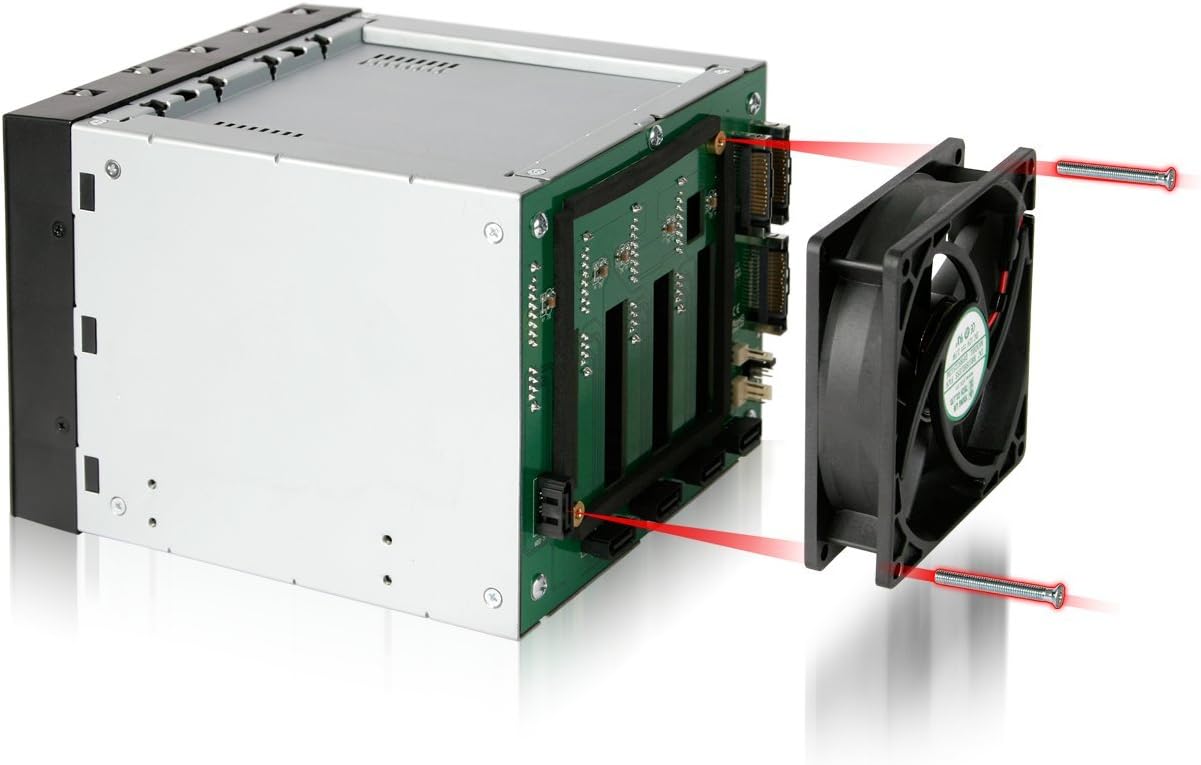
- Fan Cleaning: Periodically inspect the 92mm cooling fan for dust accumulation. If necessary, power down the system, unplug the unit, and carefully clean the fan blades using compressed air or a soft brush. The fan can be removed for thorough cleaning if needed (refer to Figure 6.1).
- General Cleaning: Keep the exterior of the unit clean with a soft, dry cloth. Avoid using liquid cleaners directly on the unit.
- Cable Connections: Ensure all power and data cables remain securely connected to prevent intermittent issues.
7. Troubleshooting
| Problem | Possible Cause | Solution |
|---|---|---|
| Hard drive not detected. |
|
|
| No power to hard drives (Green LED off). |
|
|
| Overheating drives. |
|
|
8. Specifications
| Model Number | MB155SP-B |
| Drive Compatibility | 5 x 3.5" SATA I/II/III Hard Drives |
| Host Interface | 5 x 7-pin SATA Data Ports |
| Power Input | 3 x 15-pin SATA Power Connectors |
| Drive Bay Requirement | 3 x 5.25" Device Bays |
| Data Transfer Rate | Up to 6 Gbps (SATA III) |
| Cooling System | 92mm Cooling Fan with 3-speed control (High/Low/Off) |
| Construction Material | Full Metal Body |
| Dimensions (LxWxH) | 5.76 x 7.89 x 4.92 inches (146.3 x 200.4 x 125 mm) |
| Item Weight | 3.55 pounds (1.61 kg) |
| Compatible Devices | DataCage Classic MB45X, ICYBento MB559 & ICYCube MB561 series trays |
9. Warranty and Support
9.1 Warranty Information
The ICY DOCK FatCage MB155SP-B comes with a 3-year limited warranty from the date of purchase. This warranty covers defects in materials and workmanship under normal use. Please retain your proof of purchase for warranty claims. The warranty does not cover damage caused by misuse, accident, modification, or unauthorized repair.
9.2 Technical Support
For technical assistance, troubleshooting, or warranty inquiries, please visit the official ICY DOCK website or contact their customer support department. Contact information can typically be found on the manufacturer's website.
Website: www.icydock.com


