
1. Introduction
This manual provides essential information for the safe and efficient operation of your faytech FT08267410MW2G60G Touch-PC. Please read this manual thoroughly before using the device and retain it for future reference. The faytech FT08267410MW2G60G is an 8-inch Touch-PC featuring an Intel ATOM N2600 processor, 2GB RAM, 60GB SSD, and Wi-Fi connectivity, designed for various applications requiring a compact and robust computing solution.
2. Safety Information
- Power Supply: Use only the power adapter supplied with the device. Using an incorrect adapter may damage the device and void the warranty.
- Ventilation: Ensure proper ventilation around the device. Do not block ventilation openings.
- Environment: Avoid exposing the device to extreme temperatures, humidity, dust, or direct sunlight.
- Cleaning: Disconnect the power before cleaning. Use a soft, dry cloth. Do not use liquid cleaners or aerosols.
- Servicing: Do not attempt to service the device yourself. Refer all servicing to qualified personnel.
3. Package Contents
Please check the package contents upon unpacking. If any items are missing or damaged, contact your retailer.
- faytech FT08267410MW2G60G Touch-PC
- Power Adapter
- User Manual (this document)
- Antenna (for Wi-Fi)
4. Product Overview
Familiarize yourself with the components and interfaces of your Touch-PC.
4.1 Front and Side View
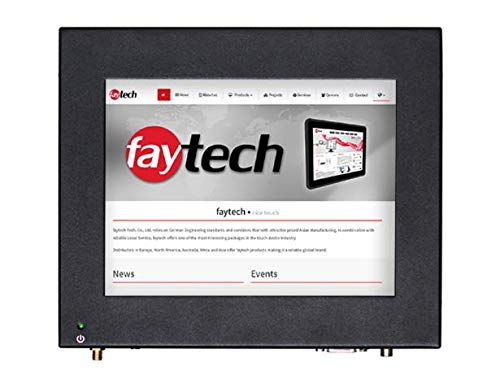
Image 1: Front and side view of the faytech FT08267410MW2G60G Touch-PC, showing the 8-inch display and side ventilation.
4.2 Rear Panel and Ports
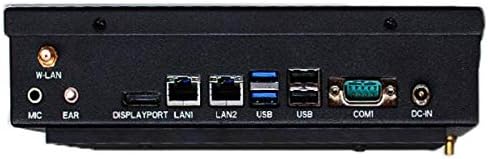
Image 2: Rear view of the Touch-PC, highlighting the various input/output ports. From left to right: W-LAN antenna connector, Microphone input, Earphone output, DisplayPort, LAN1, LAN2, USB 3.0 ports (blue), USB 2.0 ports, COM port (DB9), and DC-IN power input.
4.3 Side Panel with Power Button

Image 3: Side view of the Touch-PC, showing the power button and additional ventilation grilles.
4.4 Rear Mounting and Cooling

Image 4: Rear view of the Touch-PC, illustrating the heat sink design and mounting points, likely for VESA compatibility.
5. Setup
5.1 Connecting the Power Adapter
- Connect the power adapter cable to the DC-IN port on the rear panel of the Touch-PC.
- Plug the power adapter into a suitable electrical outlet.
5.2 Attaching the Wi-Fi Antenna
Screw the provided Wi-Fi antenna onto the W-LAN connector located on the rear panel.
5.3 Connecting Peripherals
Connect your keyboard, mouse, and any other USB devices to the available USB ports. If using an external display, connect it to the DisplayPort.
5.4 Network Connection
- Wired Connection: Connect an Ethernet cable from your router or network switch to either the LAN1 or LAN2 port on the rear panel.
- Wireless Connection: Ensure the Wi-Fi antenna is attached. The device will detect available Wi-Fi networks after booting.
6. Operating
6.1 Powering On/Off
- Power On: Press the power button located on the side panel (refer to Image 3). The device will begin to boot up.
- Power Off: To safely shut down the system, use the operating system's shutdown function. For a forced shutdown, press and hold the power button for approximately 5 seconds.
6.2 Using the Touchscreen
The 8-inch display is a touchscreen interface. Use your finger or a compatible stylus for navigation and input. Standard touch gestures (tap, drag, swipe) are supported by the operating system.
6.3 Operating System (Linux)
This Touch-PC typically comes with a Linux operating system pre-installed. Refer to the specific Linux distribution's documentation for detailed instructions on software installation, network configuration, and system management.
7. Maintenance
7.1 Cleaning the Device
To clean the exterior of the Touch-PC, including the screen, use a soft, lint-free cloth. For stubborn marks, slightly dampen the cloth with water. Avoid using harsh chemicals, abrasive cleaners, or solvents.
7.2 Software Updates
Regularly check for and install operating system and driver updates to ensure optimal performance and security. Consult your Linux distribution's documentation for update procedures.
7.3 Storage and Environment
When not in use for extended periods, store the device in a cool, dry place. Protect it from dust and extreme temperature fluctuations.
8. Troubleshooting
This section addresses common issues you might encounter.
- No Power:
- Ensure the power adapter is securely connected to both the device and the electrical outlet.
- Verify the electrical outlet is functional.
- No Display:
- Check if the device is powered on.
- If an external monitor is connected, ensure it is powered on and the correct input source is selected.
- Wi-Fi Connection Issues:
- Ensure the Wi-Fi antenna is properly attached.
- Check Wi-Fi settings in the operating system to ensure Wi-Fi is enabled and connected to the correct network.
- Restart the device and your Wi-Fi router.
- Touchscreen Unresponsive:
- Restart the device.
- Ensure the screen is clean and free of obstructions.
If problems persist, consult the faytech support website or contact your retailer.
9. Specifications
| Feature | Specification |
|---|---|
| Model Number | FT08267410MW2G60G |
| Brand | faytech |
| Operating System | Linux |
| Processor | Intel ATOM N2600 (2 Cores) |
| RAM | 2 GB DDR3 SDRAM |
| Storage Capacity | 60 GB SSD (64 GB listed in some specs) |
| Screen Size | 8 Inches |
| Human Interface Input | Touchscreen |
| Wireless Technology | Wi-Fi |
| Hardware Connectivity | DisplayPort, USB, Ethernet |
| Product Dimensions (L x W x H) | 21.59 x 18.29 x 5.69 cm (8.5 x 7.2 x 2.24 inches) |
| Item Weight | 2.63 kilograms |
10. Warranty and Support
For warranty information and technical support, please refer to the documentation provided with your purchase or visit the official faytech website. Keep your proof of purchase for warranty claims.


