
Introduction
The CORSAIR Vengeance K65 is a compact mechanical gaming keyboard designed for performance and portability. It features a tenkeyless layout, Cherry MX Red mechanical key switches, and a durable aluminum chassis. This manual provides instructions for setting up, operating, maintaining, and troubleshooting your keyboard.
Key features include:
- Compact 10-Keyless Design for space-saving and portability.
- Cherry MX Red Mechanical Switches for a smooth, linear key response.
- Full-Size Key Spacing for comfortable typing and gaming.
- Brushed Gunmetal Anodized Aluminum Chassis for durability.
- 100% Anti-Ghosting with Full Key Rollover via USB for accurate input.
- Detachable, Braided Cloth USB Cable with cable management.
Setup
To set up your CORSAIR Vengeance K65 keyboard, follow these steps:
- Unpack the Keyboard: Carefully remove the keyboard and its accessories from the packaging.
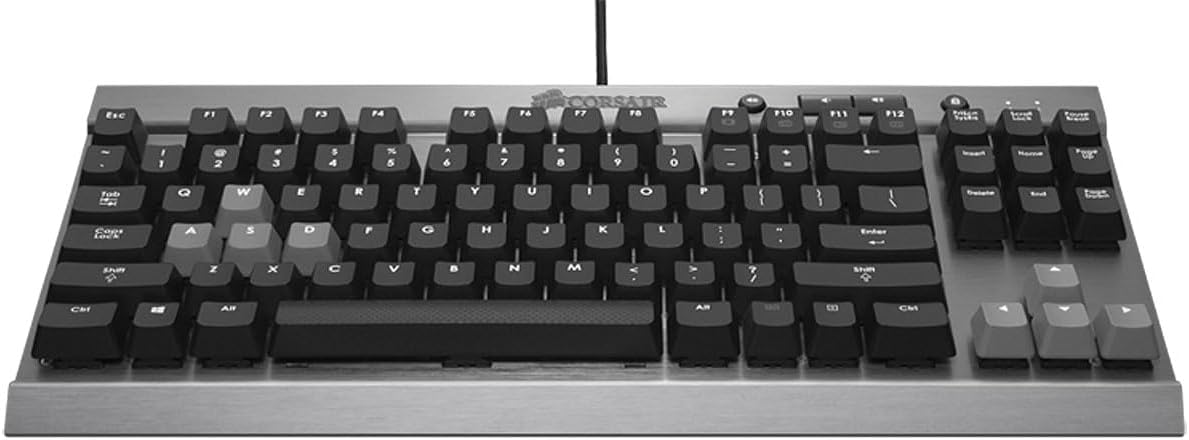
Image: Top-down view of the Corsair Vengeance K65 keyboard, highlighting its compact layout and brushed aluminum finish.
- Connect the USB Cable: Locate the detachable braided USB cable. Connect one end to the micro USB port on the back of the keyboard and the other end to an available USB port on your computer. The keyboard features a channel beneath it for cable routing.

Image: Close-up of the back of the Corsair K65 keyboard, illustrating the detachable USB cable connection and the polling rate switch.
- Adjust Polling Rate (Optional): On the underside of the keyboard, there is a switch to adjust the polling rate. The settings are typically 1, 2, 4, and 8, corresponding to 1000Hz, 500Hz, 250Hz, and 125Hz respectively. For most gaming scenarios, 1000Hz (setting '1') is recommended. If you experience issues booting into BIOS, you may need to adjust this setting.
- Driver Installation: Your operating system should automatically detect and install the necessary drivers. No additional software installation is typically required for basic functionality.
Operating the Keyboard
The CORSAIR Vengeance K65 is designed for responsive and accurate input. Here's an overview of its operational features:
Cherry MX Red Mechanical Switches
The keyboard is equipped with Cherry MX Red mechanical switches. These switches are characterized by a smooth, linear key response, requiring 45g of actuation force. They actuate at 2mm and bottom out at 4mm, making them ideal for rapid key presses without an audible click. Each switch is rated for up to 50 million operations and features gold contacts for reliability.
Video: An overview of the Corsair Vengeance K65 keyboard, demonstrating its compact design, Cherry MX Red switches, anti-ghosting, and dedicated media controls.
Anti-Ghosting and N-Key Rollover
The K65 features 100% anti-ghosting with full key rollover (NKRO) via USB. This ensures that every keystroke is registered accurately, even when multiple keys are pressed simultaneously, which is crucial for fast-paced gaming.
Dedicated Media Controls
The keyboard includes dedicated buttons for volume control (up, down, mute) and a Windows key lockout function. These controls are conveniently located above the function keys for easy access during use.

Image: Top-down view of the Corsair K65 keyboard, showing the dedicated media control buttons and Windows key lock button.
Windows Key Lock
To prevent accidental interruptions during gaming, you can disable the Windows key using the dedicated lock button located near the media controls.
Maintenance
Proper maintenance ensures the longevity and performance of your keyboard:
- Cleaning: Use a can of compressed air to remove dust and debris from between the keycaps. For surface cleaning, gently wipe the keyboard with a soft, damp cloth. Avoid using harsh chemicals or abrasive materials.
- Cable Care: Handle the detachable USB cable with care. Avoid sharp bends or excessive pulling to prevent damage. Utilize the integrated cable management channel to secure the cable.
- Storage: When not in use, especially during travel, disconnect the USB cable and store the keyboard in a protective case to prevent damage to the keys or chassis.
Troubleshooting
If you encounter issues with your CORSAIR Vengeance K65, try the following solutions:
- Keyboard Not Responding:
- Ensure the USB cable is securely connected to both the keyboard and the computer.
- Try connecting the keyboard to a different USB port on your computer.
- Test the keyboard on another computer to determine if the issue is with the keyboard or the computer's setup.
- Specific Keys Not Working:
- Check for any physical obstructions or debris under the affected keycap.
- If the Windows key is not working, ensure the Windows key lockout function is not active.
- Intermittent Input or Lag:
- Verify the polling rate switch is set to the desired rate (e.g., '1' for 1000Hz).
- Ensure no other software or background processes are interfering with keyboard input.
- Computer Fails to Boot with Keyboard Connected:
- Adjust the polling rate switch on the underside of the keyboard to a lower setting (e.g., '8' for 125Hz) before booting. You can change it back after the system has fully loaded.
Specifications
| Feature | Detail |
|---|---|
| Brand | Corsair |
| Model Number | CH-9000040-NA |
| Connectivity Technology | Wired |
| Keyboard Description | Gaming, Compact 10-Keyless |
| Switch Type | Cherry MX Red (Linear) |
| Actuation Force | 45g |
| Key Rollover | Full Key Rollover (NKRO) |
| Anti-Ghosting | 100% |
| Chassis Material | Brushed Gunmetal Anodized Aluminum |
| Cable Type | Detachable, Braided Cloth USB |
| Number of Keys | 87 |
| Item Weight | 1.9 Pounds |
| Compatible Operating Systems | Mac OS 10.15 Catalina, Windows 10 (and newer) |
Warranty and Support
For warranty information, technical support, and additional resources, please visit the official Corsair website or refer to the documentation included with your product. You can also find the User Manual (PDF) at the following link: Corsair K65 User Manual (PDF).


