
ViewSonic VG2039M-LED
ViewSonic VG2039M-LED 20-Inch Ergonomic Monitor User Manual
Model: VG2039M-LED
1. Introduction
This manual provides instructions for the installation, operation, and maintenance of your ViewSonic VG2039M-LED 20-inch ergonomic monitor. Please read this manual thoroughly before using your monitor to ensure proper setup and functionality.
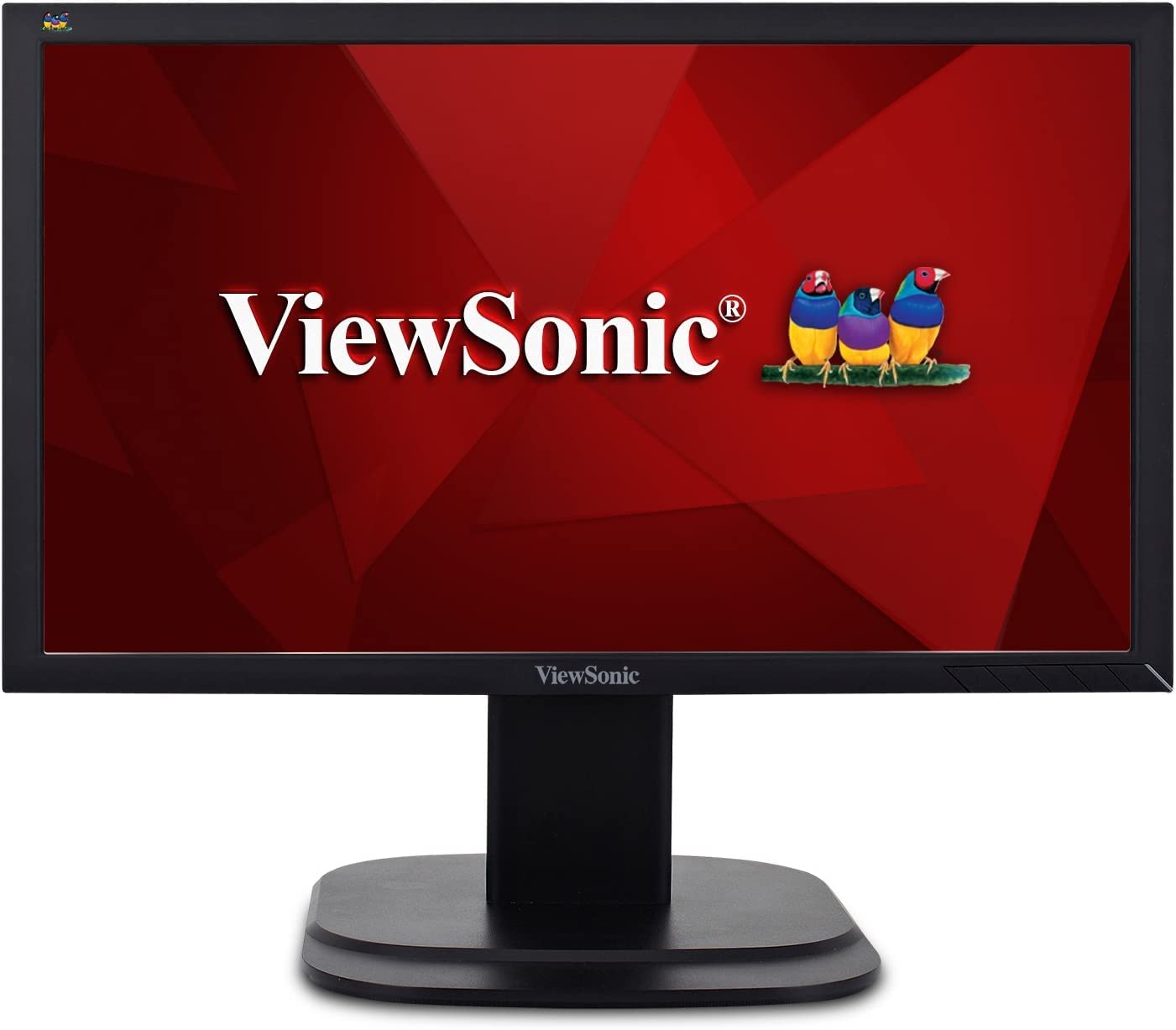
Figure 1: Front view of the ViewSonic VG2039M-LED monitor.
2. Safety Information
Observe the following safety precautions when setting up and using your monitor:
- Do not place the monitor on an unstable cart, stand, or table.
- Do not block ventilation openings.
- Do not use near water or sources of heat.
- Use only the power cord and adapter provided by the manufacturer.
- Refer all servicing to qualified service personnel.
- Disconnect the power plug from the AC outlet if the monitor will not be used for an extended period.
3. Package Contents
Verify that all items are present in your package:
- ViewSonic VG2039M-LED 20-inch Monitor
- Power Cable
- VGA Cable
- DVI Cable
- Audio Cable
- USB Cable
- Stand (Base and Neck)
- Software CD (if included)
4. Setup
4.1 Assembling the Monitor Stand
- Carefully remove the monitor from its packaging and place it face down on a soft, clean surface to prevent scratches.
- Attach the stand neck to the back of the monitor by aligning the tabs and pushing until it clicks into place.
- Attach the stand base to the stand neck. Secure it with the captive screw located on the underside of the base.

Figure 2: Rear view of the monitor, showing stand attachment area and VESA mounting points.
4.2 Connecting Cables
Connect the necessary cables to the corresponding ports on the back of the monitor and your computer.
- Video Connection: Connect one end of the VGA, DVI, or DisplayPort cable to the monitor's input port and the other end to your computer's video output port.
- Audio Connection: If using the monitor's internal speakers, connect the audio cable from your computer's audio output to the monitor's audio input port.
- USB Connection: Connect the USB upstream cable from your computer to the monitor's USB upstream port to enable the monitor's USB hub.
- Power Connection: Connect the power cable to the monitor's power input, then plug the other end into a grounded electrical outlet.

Figure 3: Connectivity ports on the rear of the monitor, including DisplayPort, DVI, VGA, Audio, USB, and Power.
4.3 VESA Mounting
The monitor supports VESA-compatible 100 x 100 mm mounting. To mount the monitor on a wall or an alternative stand, remove the existing stand and attach the VESA-compatible mounting bracket (sold separately) using appropriate screws.
5. Operating the Monitor
5.1 Power On/Off
Press the power button located on the front or bottom right of the monitor to turn it on or off. The power indicator light will illuminate when the monitor is on.
5.2 On-Screen Display (OSD) Menu
Use the control buttons on the monitor's bezel to navigate and adjust settings via the On-Screen Display (OSD) menu. Common adjustments include:
- Brightness/Contrast: Adjust the overall luminance and difference between light and dark areas.
- Color Settings: Modify color temperature, gamma, and individual RGB levels.
- Input Select: Manually switch between VGA, DVI, and DisplayPort inputs.
- Audio: Adjust volume or mute the internal speakers.
- Eco Mode: Activate power-saving modes.
5.3 Ergonomic Adjustments
The VG2039M-LED monitor features ergonomic adjustments for optimal viewing comfort:
- Height Adjustment: Gently push or pull the monitor panel up or down to adjust its height.
- Tilt Adjustment: Tilt the monitor panel forward or backward to find your preferred viewing angle.
- Swivel Adjustment: Rotate the monitor left or right on its base.

Figure 4: Side view of the monitor demonstrating tilt capability.
6. Maintenance
To maintain the performance and appearance of your monitor:
- Cleaning the Screen: Gently wipe the screen with a soft, lint-free cloth. For stubborn marks, dampen the cloth with a mild, non-abrasive screen cleaner. Do not spray cleaner directly onto the screen.
- Cleaning the Casing: Use a soft, dry cloth to wipe the monitor casing. Avoid using strong detergents or solvents.
- Ventilation: Ensure the ventilation openings are clear of dust and obstructions to prevent overheating.
7. Troubleshooting
If you experience issues with your monitor, refer to the following common problems and solutions:
| Problem | Possible Solution |
|---|---|
| No image on screen |
|
| Image is blurry or unclear |
|
| No sound from speakers |
|
| Monitor not recognized by computer |
|
8. Specifications
| Feature | Detail |
|---|---|
| Brand | ViewSonic |
| Model Number | VG2039M-LED |
| Screen Size | 20 inches |
| Native Resolution | 1600 x 900 |
| Aspect Ratio | 1.78:1 |
| Display Type | LED LCD |
| Refresh Rate | 60 Hz |
| Response Time | 5 ms |
| Brightness | 250 cd/m² |
| Contrast Ratio | 1,000:1 |
| Viewing Angle | 178 degrees |
| Connectivity | DisplayPort, DVI-D, VGA, USB 2.0 (hub) |
| Ergonomics | Height Adjust, Swivel, Tilt |
| VESA Mount | 100 x 100 mm |
| Dimensions (D x W x H) | 5.2"D x 20.47"W x 5.2"H (with stand) |
| Weight | 5.8 pounds |
| Additional Features | Eco Mode, MultiScreen, Security Lock, FreeSync |
9. Warranty and Support
Your ViewSonic VG2039M-LED monitor is covered by a 3-Year Limited Warranty. This warranty covers defects in materials and workmanship under normal use. For detailed warranty terms and conditions, please refer to the warranty card included with your product or visit the official ViewSonic website.
For technical support or service inquiries, please contact ViewSonic customer support. Contact information can typically be found on the ViewSonic website or in your product documentation.
Online Support: www.viewsonic.com/us/support
Related documentsVG2039M-LED


Ask a question about this manual
Ask about setup, troubleshooting, compatibility, parts, safety, or missing instructions. Manuals+ will review the question and use this page’s manual context to help answer it.