
1. Introduction
This manual provides essential information for the proper installation, operation, and maintenance of your Olicom OC-3137 Token Ring 16/4 PCI Adapter. Please read this manual thoroughly before attempting to install or operate the device to ensure optimal performance and safety.
The Olicom OC-3137 is a Peripheral Component Interconnect (PCI) adapter designed to provide Token Ring network connectivity at speeds of 16 Mbps or 4 Mbps. It is suitable for integration into compatible computer systems requiring Token Ring network access.
2. Product Overview
The Olicom OC-3137 is a robust network interface card (NIC) that allows a computer to connect to a Token Ring network. It features a standard PCI interface for easy integration into desktop computers with available PCI slots. The adapter supports both 16 Mbps and 4 Mbps Token Ring speeds, automatically adapting to the network environment.
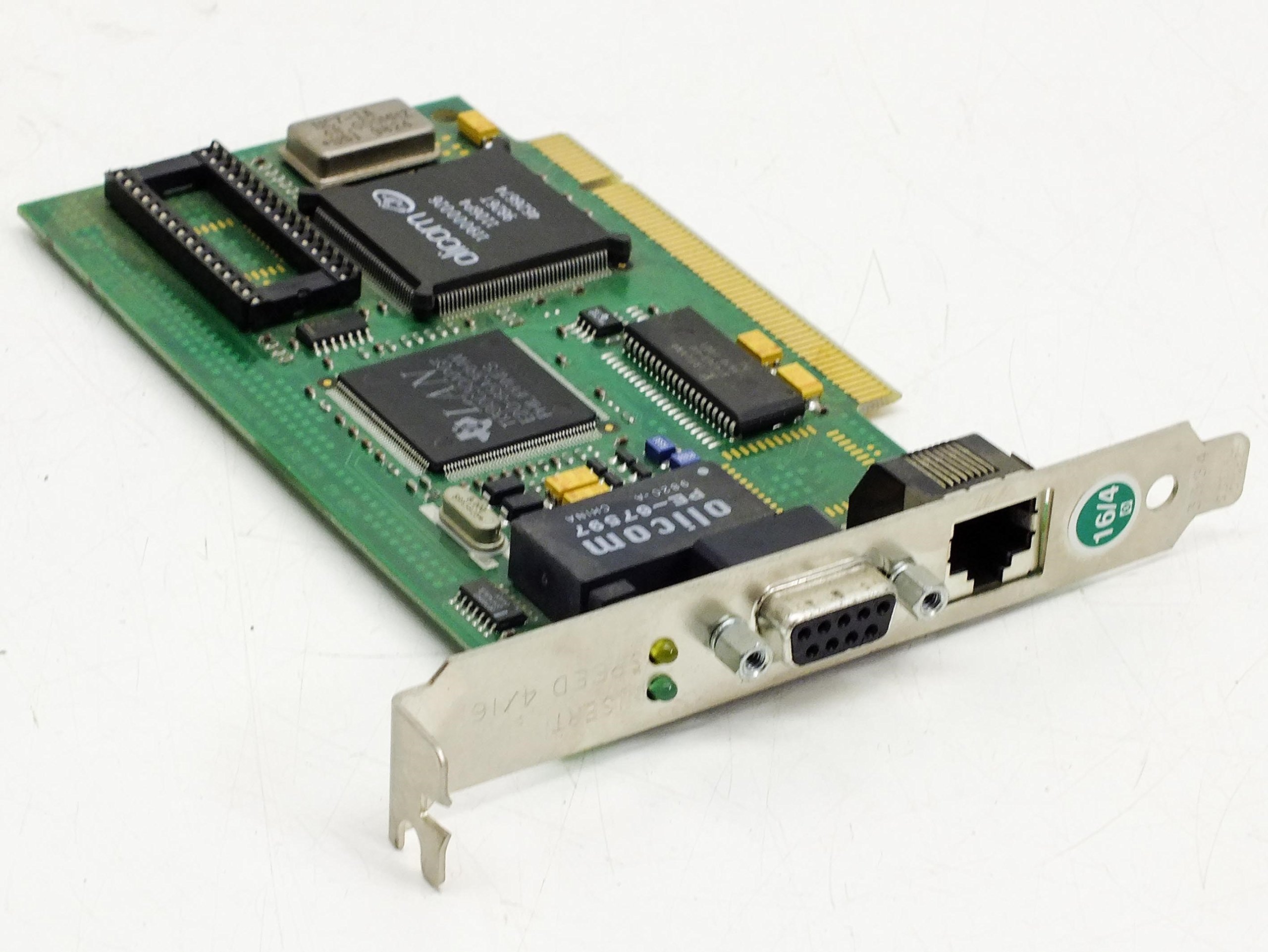
Figure 2.1: Angled view of the Olicom OC-3137 Token Ring 16/4 PCI Adapter. This image shows the PCI connector, the RJ45 network port, and the DB9 connector, along with various integrated circuits on the green PCB.
Key components include the PCI interface, the Token Ring controller, and the necessary connectors for network attachment. The card is identified by its part number P/N: 770001120 and PCB NO: 121 REV 1 P/N 200121100.

Figure 2.2: Top-down view of the Olicom OC-3137 Token Ring 16/4 PCI Adapter. This image provides a clear view of the PCB layout, including the LAN and Olicom branded chips, and the various electronic components.
3. Setup and Installation
3.1 Safety Precautions
- Always power off and unplug your computer before opening the case or installing any internal components.
- Discharge any static electricity from your body by touching a grounded metal object (e.g., the computer chassis) before handling the adapter.
- Handle the adapter by its edges to avoid touching components or connectors.
3.2 System Requirements
Ensure your computer system meets the following minimum requirements:
- Available PCI expansion slot.
- Compatible operating system (e.g., Windows, Linux distributions with Token Ring support).
- Appropriate drivers for the Olicom OC-3137 adapter (typically provided by the operating system or Olicom).
3.3 Hardware Installation
- Power down your computer and disconnect all power cables and peripherals.
- Open the computer case according to your computer's manufacturer instructions.
- Locate an available PCI expansion slot on the motherboard.
- Remove the metal slot cover corresponding to the chosen PCI slot.
- Carefully align the Olicom OC-3137 adapter with the PCI slot and press down firmly until it is securely seated. Do not force the card.
- Secure the adapter with the screw or retention clip provided by your computer case.
- Close the computer case and reconnect all power cables and peripherals.
3.4 Driver Installation
After hardware installation, power on your computer. The operating system may automatically detect the new hardware and attempt to install drivers. If not, you may need to:
- Insert the driver CD (if provided) or download the latest drivers from the Olicom support website (if available).
- Follow the on-screen instructions to complete the driver installation.
- Restart your computer if prompted.
4. Operating Instructions
4.1 Connecting to a Token Ring Network
Once the adapter is physically installed and drivers are loaded:
- Connect a Token Ring cable to the appropriate port on the Olicom OC-3137 adapter. The adapter typically features an RJ45 port for UTP (Unshielded Twisted Pair) or a DB9 port for STP (Shielded Twisted Pair) connections, depending on the specific model variant.
- Ensure the other end of the cable is connected to a functional Token Ring Multistation Access Unit (MAU) or equivalent network device.
- Verify network connectivity through your operating system's network settings. Look for status indicators or network configuration tools to confirm the adapter is recognized and connected.
4.2 LED Indicators
The adapter may feature LED indicators to provide status information. Common indicators include:
- Link/Activity LED: Illuminates when a network link is established and blinks to indicate network activity (data transmission/reception).
- Speed LED: May indicate the current operating speed (e.g., 16 Mbps or 4 Mbps). Refer to the adapter's specific documentation for LED behavior.
5. Maintenance
The Olicom OC-3137 adapter is designed for reliable operation with minimal maintenance. Follow these guidelines to ensure longevity:
- Cleaning: Keep the computer's interior clean and free of dust. Dust accumulation can lead to overheating and component failure. Use compressed air to gently remove dust from the adapter and surrounding components. Ensure the computer is powered off and unplugged before cleaning.
- Environment: Operate the computer in a well-ventilated area, away from direct sunlight, excessive heat, humidity, and corrosive chemicals.
- Firmware/Drivers: Periodically check for updated drivers or firmware from Olicom (if available) to ensure optimal performance and compatibility.
6. Troubleshooting
If you encounter issues with your Olicom OC-3137 adapter, consider the following troubleshooting steps:
6.1 No Network Connectivity
- Check Physical Connections: Ensure the Token Ring cable is securely connected to both the adapter and the network device (MAU).
- Verify Adapter Seating: Power off the computer, open the case, and ensure the adapter is firmly seated in its PCI slot.
- Driver Status: Check Device Manager (Windows) or equivalent system tools to confirm the adapter is recognized and its drivers are installed correctly. Reinstall drivers if necessary.
- Network Device: Confirm the Token Ring MAU or network switch is powered on and functioning correctly.
6.2 Slow Network Performance
- Cable Quality: Inspect the Token Ring cable for damage. Try a different cable if possible.
- Network Congestion: High network traffic can reduce performance. Consult your network administrator.
- Driver Updates: Ensure you are using the latest drivers for the adapter.
6.3 Adapter Not Detected
- Reseat Adapter: Power off, unplug, and reseat the adapter in its PCI slot. Try a different PCI slot if available.
- BIOS/UEFI Settings: Check your computer's BIOS/UEFI settings to ensure the PCI slot is enabled and functioning.
- Hardware Conflict: Check Device Manager for any hardware conflicts indicated by exclamation marks or error codes.
7. Specifications
| Feature | Detail |
|---|---|
| Brand | Olicom |
| Model Number | OC-3137 (P/N: 770001120) |
| Manufacturer Part Number | 200121100 (PCB NO: 121 REV 1) |
| Hardware Interface | PCI |
| Network Type | Token Ring |
| Data Transfer Rate | 16 Mbps / 4 Mbps (Auto-sensing) |
| FCC ID | HST96B |
| Item Weight | Approximately 3 Pounds (1.36 kg) |
| ASIN | B00B86QDM4 |
8. Safety and Compliance Information
This device complies with relevant safety and electromagnetic compatibility standards. Any modifications not expressly approved by Olicom could void the user's authority to operate the equipment.
- Do not expose the adapter to moisture or extreme temperatures.
- Do not attempt to repair or modify the adapter yourself. Refer all servicing to qualified personnel.
- Dispose of electronic waste responsibly according to local regulations.
9. Warranty and Support
For warranty information, please refer to the documentation provided at the time of purchase or contact your reseller. Olicom's official website (if available) may also provide support resources, driver downloads, and contact information.
Keep your purchase receipt as proof of purchase for warranty claims.