
OMOTON FBA_3797733
OMOTON Bluetooth Keyboard Instruction Manual
Model: FBA_3797733
Brand: OMOTON
Introduction
This manual provides comprehensive instructions for the setup, operation, maintenance, and troubleshooting of your OMOTON Bluetooth Keyboard. Designed for seamless connectivity, this keyboard offers a convenient and efficient typing experience across various Bluetooth-enabled devices.

Image: OMOTON Bluetooth Keyboard, showcasing its slim design and full QWERTY layout.
Key Features:
- Cable-Free Bluetooth Connection: Connects wirelessly to your mobile devices, offering an operating distance of up to 10 meters.
- Super Compatibility: Compatible with a wide range of iPads, iPhones, and other Bluetooth-enabled tablets, laptops, and mobile phones, including iPad 10th Generation, iPad 10.2 (9th/8th/7th Generation), iPad Pro 13/12.9/11 inch, iPad Air 13/11 inch, iPad Air 10.9 inch (5th/4th Gen), iPad mini 6/5, and iPhone Pro/SE.
- Reasonable Layout: Features a QWERTY layout with dedicated hotkeys for functions like volume control, music playback, and brightness adjustment.
- Long Battery Life: Provides up to 30 days of continuous use and features an automatic sleep mode for extended battery life (up to half a year between battery changes). Requires 2 AAA batteries (not included).
- Perfect Size: Designed to be large enough for comfortable typing yet compact enough for portability.
Setup
1. Battery Installation
- Locate the battery compartment on the back of the keyboard.
- Open the battery compartment cover.
- Insert two (2) AAA batteries, ensuring correct polarity (+/-).
- Close the battery compartment cover securely.
2. Bluetooth Pairing
Follow these steps to pair your OMOTON Bluetooth Keyboard with your device:
- Ensure the keyboard has fresh batteries installed.
- Slide the power switch on the keyboard to the "ON" position. The power indicator light will illuminate briefly.
- Press the "Connect" button on the keyboard. The Bluetooth indicator light will start blinking, indicating it is in pairing mode.
- On your device (e.g., iPad, iPhone), go to Settings > Bluetooth.
- Ensure Bluetooth is turned "ON". Your device will begin searching for nearby Bluetooth devices.
- Locate "Bluetooth Keyboard" (or a similar name) in the list of available devices and tap on it.
- Your device may display a PIN code. Type this PIN code on the OMOTON keyboard and press the Enter key.
- Once successfully paired, the Bluetooth indicator light on the keyboard will turn off, and your device will show "Connected" next to the keyboard's name.

Image: Step-by-step visual guide for connecting the OMOTON Bluetooth Keyboard, from battery insertion to successful pairing.
Note: The PIN code is randomly generated for security. If pairing fails, try repeating the steps.
Operating Instructions
Basic Usage
Once paired, the keyboard functions like a standard QWERTY keyboard. Simply open any application that requires text input (e.g., notes, email, web browser) and begin typing.
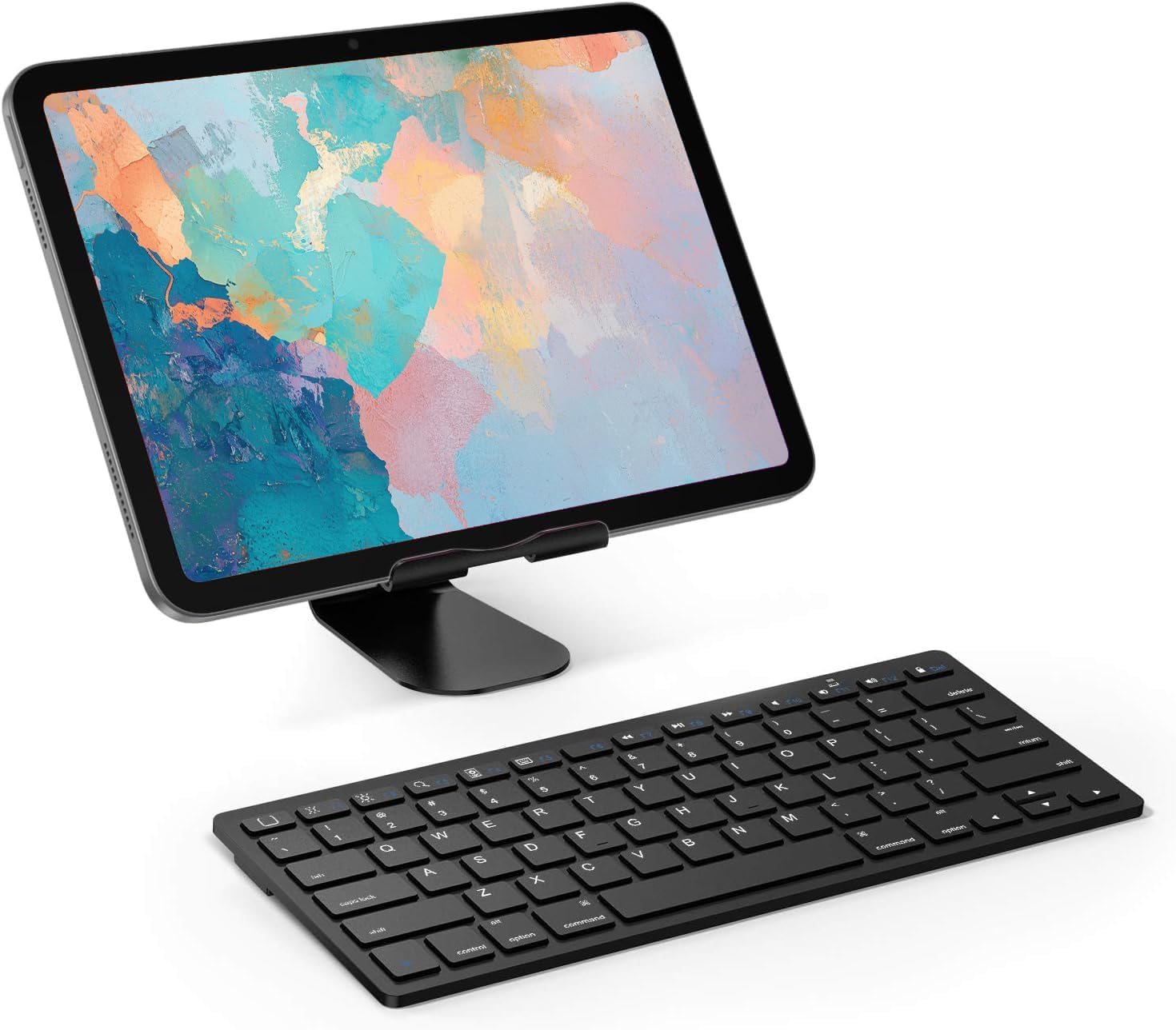
Image: The OMOTON Bluetooth Keyboard positioned in front of a tablet, demonstrating a typical usage scenario.
Optimized Multimedia Keys
The keyboard features a row of dedicated function keys (F1-F12) that provide quick access to various multimedia and system controls, specifically designed for iOS/iPadOS. These keys are typically activated by pressing them directly, or in some cases, in combination with the Fn key.
- F1: Home Screen
- F2: Brightness Down
- F3: Brightness Up
- F4: Search
- F5: Hide/Show Keyboard
- F6: Previous Track
- F7: Play/Pause
- F8: Next Track
- F9: Mute Volume
- F10: Volume Down
- F11: Volume Up
- F12: Lock Screen
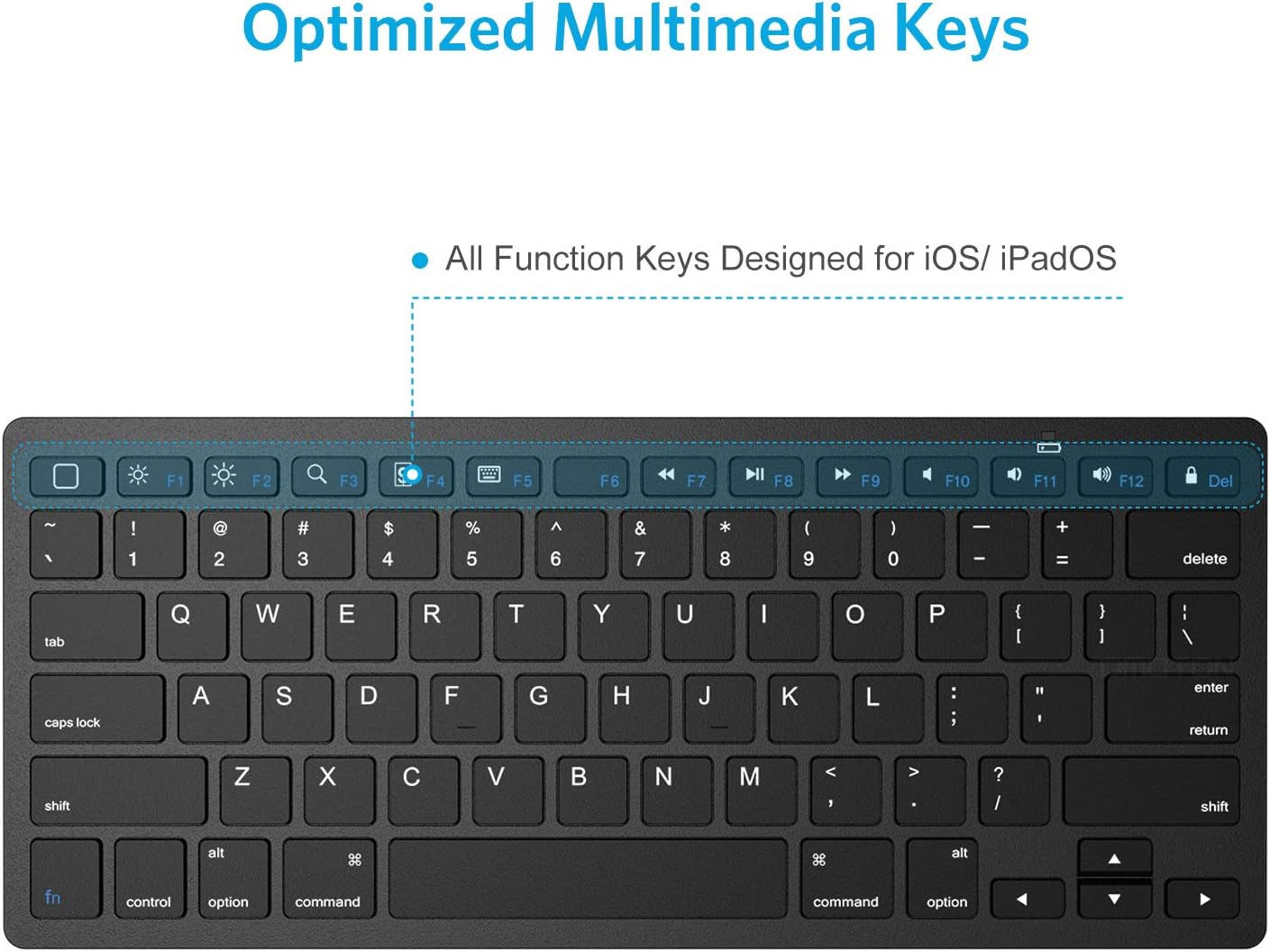
Image: Close-up view of the OMOTON Bluetooth Keyboard, illustrating the dedicated multimedia function keys.
Power Saving Mode
To conserve battery life, the keyboard will automatically enter power saving mode after 10 minutes of inactivity. To wake the keyboard, simply press any key and wait for 2-3 seconds for it to reconnect to your device.
Maintenance
Cleaning the Keyboard
- Before cleaning, ensure the keyboard is turned off.
- Use a soft, lint-free cloth slightly dampened with water or a mild, non-abrasive cleaning solution.
- Gently wipe the surface of the keys and the keyboard body.
- Avoid getting moisture into any openings or between the keys.
- For dust or debris between keys, use compressed air.
Battery Replacement
When the keyboard's performance degrades or it fails to connect, it may be time to replace the batteries. Refer to the "Battery Installation" section under Setup for detailed steps.
Troubleshooting
| Problem | Possible Cause | Solution |
|---|---|---|
| Keyboard does not turn on. | Low or dead batteries; power switch off. | Replace AAA batteries. Ensure the power switch is in the "ON" position. |
| Keyboard does not connect to device. | Bluetooth not enabled on device; keyboard not in pairing mode; device too far; interference. | Ensure Bluetooth is ON on your device. Press the "Connect" button on the keyboard to enter pairing mode. Move keyboard closer to the device. Avoid strong electromagnetic interference. |
| Typing is delayed or unresponsive. | Keyboard in power saving mode; low battery; interference. | Press any key to wake the keyboard (wait 2-3 seconds). Replace batteries. Reduce interference. |
| Incorrect characters appear when typing. | Incorrect keyboard layout selected on device. | Check your device's keyboard settings and ensure the correct layout (e.g., QWERTY) is selected. |
| Hotkeys (F1-F12) are not working. | Device compatibility; incorrect usage. | Ensure your device supports these specific hotkey functions. Some functions may require the Fn key to be pressed simultaneously. |
Specifications
| Feature | Detail |
|---|---|
| Model Number | FBA_3797733 |
| Product Dimensions | 11.22 x 4.72 x 0.24 inches (285 x 120 x 6 mm) |
| Item Weight | 9.9 ounces |
| Connectivity Technology | Bluetooth 3.0 |
| Operating Range | Up to 10 meters / 33 feet |
| Number of Keys | 78 keys (including 13 iPad Hot keys) |
| Power Source | 2 x AAA batteries (not included) |
| Battery Life | 30 days continuous use; up to 6 months in standby (with automatic sleep mode) |
| Material | Superior plastic |
| Color | Black |
| Special Feature | Hotkeys and Media Keys |
| Compatible Devices | iPad 10th Generation, iPad 10.2 (9th/8th/7th Gen), iPad Pro 13/12.9/11 inch, iPad Air 13/11 inch, iPad Air 10.9 inch (5th/4th Gen), iPad Mini (All models), iPad Pro 10.5 inch/9.7 inch, and other Bluetooth-enabled devices. |

Image: Detailed dimensions of the OMOTON Bluetooth Keyboard, including length, width, and thickness.
Warranty and Support
For specific warranty information regarding your OMOTON Bluetooth Keyboard, please refer to the product packaging or visit the official OMOTON website. Warranty terms and conditions may vary.
If you encounter any issues not covered in this manual or require further assistance, please contact OMOTON customer support through their official channels. Contact information can typically be found on the product packaging or the OMOTON brand website.
Ask a question about this manual
Ask about setup, troubleshooting, compatibility, parts, safety, or missing instructions. Manuals+ will review the question and use this page’s manual context to help answer it.