
1. Introduction
This manual provides comprehensive instructions for the installation, operation, and maintenance of your GARRISON 119087 Single Stage Programmable Digital Thermostat. This thermostat features a large LCD display and is designed to operate with most 24-volt or millivolt control systems, including gas, oil, electric boiler, and 2-wire air conditioning systems. Please read this manual thoroughly before installation and use to ensure proper function and safety.
2. Safety Information
Always turn off power to the heating/cooling system at the main fuse or circuit breaker panel before installing or servicing the thermostat. Failure to do so could result in electrical shock or equipment damage.
- Ensure all wiring is compliant with local electrical codes and ordinances.
- Do not short out the terminals on the gas valve or at the heating/cooling system to test the thermostat. This could damage the thermostat and void the warranty.
- Keep batteries out of reach of children. If swallowed, seek medical attention immediately.
- Dispose of used batteries according to local regulations.
3. Package Contents
Verify that all items are present in your package:
- GARRISON 119087 Digital Thermostat Unit
- 1 x AA Battery
- Installation Hardware (screws, wall anchors)
- User Manual (this document)
4. Product Overview
4.1. Thermostat Components
Front View
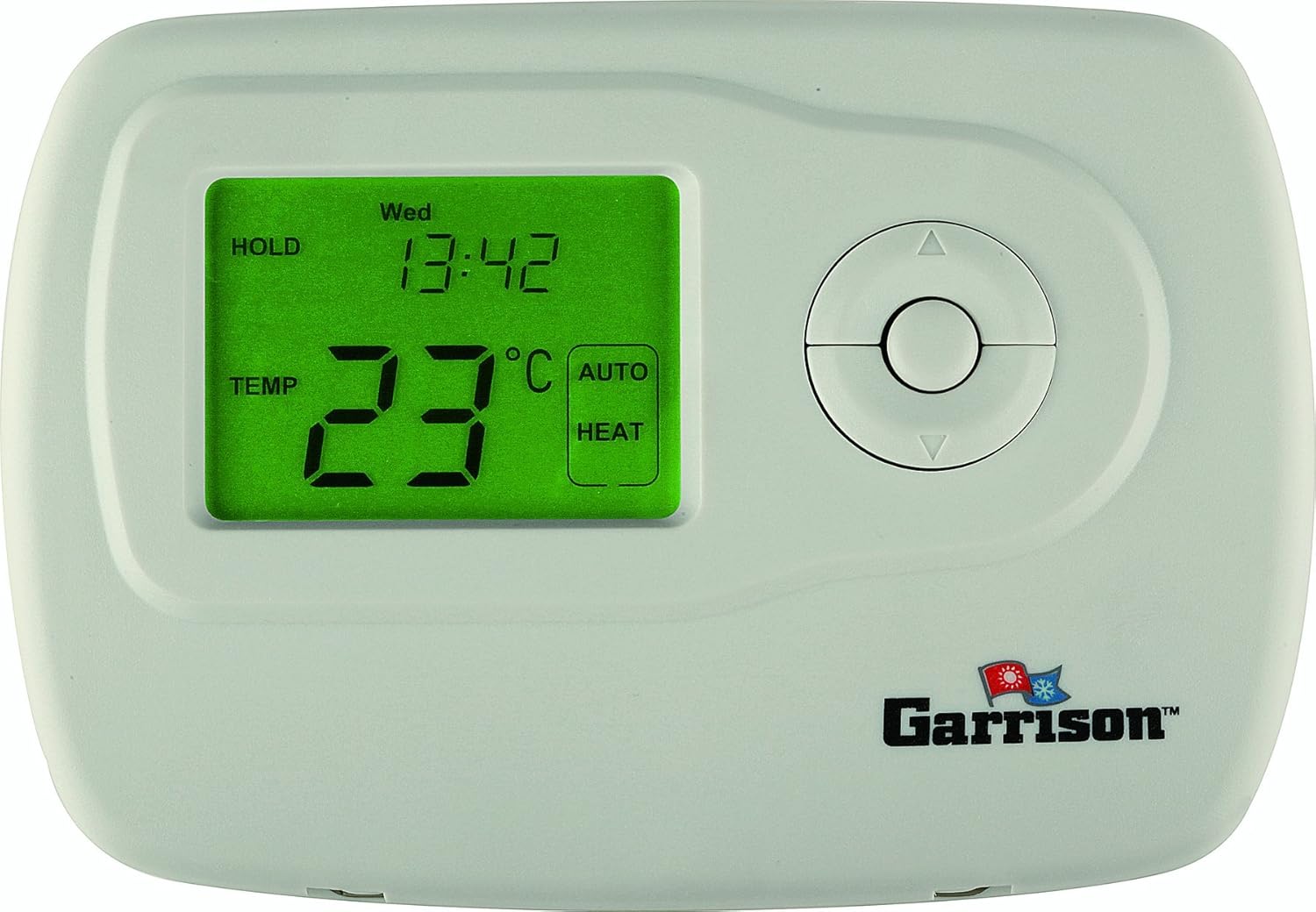
This image shows the front of the GARRISON 119087 thermostat. It features a prominent green backlit LCD screen displaying temperature, time, and operating mode. To the right of the screen are circular navigation buttons for adjusting settings. The GARRISON logo is visible at the bottom right.
Internal View (Cover Open)

This image displays the GARRISON 119087 thermostat with its front cover hinged open. It reveals the internal wiring terminals, the battery compartment, and additional control buttons labeled "hour", "min", "day", "prog", "prog day", and "hold/run". A "Reset" button is also visible. This view is essential for installation and advanced programming.
4.2. LCD Display
The large LCD display provides real-time information about your thermostat's status:
- Current Temperature: Displays the ambient room temperature.
- Set Temperature: Shows the desired temperature setting.
- Time and Day: Indicates the current time and day of the week.
- Operating Mode: Shows the current system mode (e.g., HEAT, COOL, AUTO, OFF).
- Fan Mode: Indicates fan operation (e.g., ON, AUTO).
- Battery Indicator: A "BATT" icon will flash when batteries are low and need replacement.
- Program Indicator: Shows when a program is active or being set.
4.3. Control Buttons
The thermostat features intuitive buttons for easy control:
- Up/Down Arrows: Adjust temperature settings, navigate menus.
- System Switch: Selects operating mode (OFF, HEAT, COOL, AUTO).
- Fan Switch: Selects fan operation (AUTO, ON).
- HOUR / MIN / DAY: Used for setting the current time and day.
- PROG / PROG DAY: Used for setting and reviewing programming schedules.
- HOLD / RUN: Toggles between temporary hold and running the programmed schedule.
- RESET: Resets the thermostat to factory defaults (located under the front cover).
5. Installation and Setup
Important: Turn off power to your heating/cooling system at the main circuit breaker before beginning installation.
5.1. Mounting Location
Install the thermostat on an inside wall, approximately 5 feet (1.5 meters) above the floor. Choose a location away from:
- Drafts from windows, doors, or vents.
- Direct sunlight or heat sources (lamps, fireplaces, appliances).
- Concealed pipes or chimneys.
- Areas with poor air circulation.
5.2. Wiring
This thermostat is compatible with most 24-volt or millivolt control systems, including single-stage gas, oil, electric boiler, and 2-wire air conditioning systems. Refer to your existing thermostat's wiring for guidance. If you are unsure about wiring, consult a qualified HVAC technician.
Typical Wiring Terminals: (Refer to the internal view image for terminal locations)
- R: 24V AC (common for heating and cooling)
- W: Heat call
- Y: Cool call
- G: Fan call
- C: 24V Common (optional, but recommended for continuous power if available)
After wiring, securely attach the thermostat to the wall plate using the provided screws.
5.3. Battery Installation
The thermostat requires one (1) AA battery for operation.
- Open the front cover of the thermostat.
- Locate the battery compartment.
- Insert one new AA alkaline battery, ensuring correct polarity (+/-).
- Close the front cover.
The thermostat should power on and display information.
6. Operating Instructions
6.1. Setting Current Time and Day
- Open the front cover to access the internal buttons.
- Press the DAY button to set the current day of the week.
- Press the HOUR button to set the current hour.
- Press the MIN button to set the current minute.
- Close the front cover.
6.2. Basic Operation (System and Fan Modes)
Use the slide switches on the thermostat to select the desired mode:
- System Switch:
- OFF: Turns off the heating and cooling system.
- HEAT: Activates the heating system when the room temperature falls below the set temperature.
- COOL: Activates the cooling system when the room temperature rises above the set temperature.
- AUTO: Automatically switches between heating and cooling modes to maintain the set temperature range.
- Fan Switch:
- AUTO: The fan runs only when the heating or cooling system is active.
- ON: The fan runs continuously, regardless of heating or cooling calls.
6.3. Adjusting Temperature
Use the Up or Down arrow buttons on the front of the thermostat to adjust the desired temperature. The display will show the new set temperature.
6.4. Programming Schedule (7-Day or 5+2)
The thermostat allows for programmable schedules with 4 ranges per day, either for 7 individual days or a 5-day (weekday) and 2-day (weekend) schedule.
- Open the front cover.
- Press the PROG button. The display will show the first programming period (e.g., "MORN").
- Use the DAY button to select the day(s) you wish to program (e.g., MON-FRI, SAT, SUN, or individual days).
- Use the HOUR and MIN buttons to set the start time for the current program period.
- Use the Up/Down arrows to set the desired temperature for this period.
- Press PROG again to advance to the next program period (e.g., "DAY", "EVE", "NITE").
- Repeat steps 3-5 for all 4 periods for the selected day(s).
- Once all periods are set, press the HOLD/RUN button to exit programming and run the schedule.
6.5. Temporary Override
To temporarily change the temperature without affecting the program:
- Use the Up or Down arrow buttons to adjust the temperature.
- The new temperature will be maintained until the next programmed period begins.
- To cancel the temporary override, press the HOLD/RUN button.
6.6. Permanent Override (Hold Function)
To maintain a specific temperature indefinitely, overriding the program:
- Press the HOLD/RUN button once. "HOLD" will appear on the display.
- Use the Up or Down arrow buttons to set the desired temperature.
- The thermostat will maintain this temperature until you press HOLD/RUN again to resume the program.
6.7. Auto Changeover
When the system switch is set to AUTO, the thermostat will automatically switch between heating and cooling modes as needed to maintain the desired temperature range. This feature provides comfort without manual intervention.
7. Maintenance
7.1. Battery Replacement
When the "BATT" icon flashes on the display, it indicates that the AA battery is low and needs to be replaced.
- Open the front cover of the thermostat.
- Remove the old AA battery.
- Insert a new AA alkaline battery, ensuring correct polarity.
- Close the front cover. The "BATT" icon should disappear.
Replacing batteries within 30 seconds will typically retain your programmed settings.
7.2. Cleaning Your Thermostat
To clean the thermostat, gently wipe the exterior with a soft, damp cloth. Do not use abrasive cleaners, solvents, or chemical sprays, as these can damage the unit.
7.3. Resetting Filter Reminder
If your thermostat is configured to remind you to change your air filter, a "FILTER" icon may appear. To reset this reminder:
- Open the front cover.
- Press and hold the RESET button (located near the internal controls) until the filter reminder disappears.
8. Troubleshooting
If you experience issues with your GARRISON 119087 thermostat, refer to the following common problems and solutions:
| Problem | Possible Cause | Solution |
|---|---|---|
| No display or blank screen. | Dead or incorrectly installed battery. | Replace the AA battery, ensuring correct polarity. |
| Heating/Cooling system not responding. | Power off at circuit breaker; incorrect wiring; system switch in OFF position. | Check circuit breaker; verify wiring connections; ensure system switch is set to HEAT, COOL, or AUTO. |
| Temperature inaccurate. | Thermostat located near heat source/draft; internal sensor issue. | Relocate thermostat if possible; ensure no direct drafts or heat sources. If problem persists, contact support. |
| Programming not working. | Thermostat in HOLD mode; incorrect programming steps. | Press HOLD/RUN to exit HOLD mode; review "Programming Schedule" section (6.4) and re-enter program. |
| "BATT" icon flashing. | Low battery. | Replace the AA battery immediately. |
If the problem persists after trying these solutions, please contact customer support.
9. Specifications
| Feature | Detail |
|---|---|
| Model Number | 119087 |
| Brand | GARRISON |
| Compatibility | Single Stage (Heat/Cool), 24V or Millivolt systems (Gas, Oil, Electric Boiler, 2-wire AC) |
| Power Source | 1 x AA Battery (included) |
| Display Type | Digital LCD with Backlight |
| Control Type | Button Control |
| Programming | 7-day or 5+2 day (4 periods per day) |
| Special Features | Programmable, Auto Changeover, Filter Reminder |
| Product Dimensions | 5.3 x 3.7 x 0.81 inches |
| Item Weight | 8.8 ounces |
10. Warranty and Support
For warranty information, please refer to the documentation provided with your purchase or contact the retailer where the product was acquired.
If you require technical assistance or have questions not covered in this manual, please contact GARRISON customer support. Contact details can typically be found on the manufacturer's official website or on the product packaging.


