
1. Introduction
This manual provides comprehensive instructions for the installation, operation, maintenance, and troubleshooting of your D-Link DGS-1100-08 8 Port Easy Smart Managed Gigabit Network Internet Desktop Switch. Please read this manual thoroughly before using the device to ensure proper functionality and to prevent damage.
2. Safety Information
Observe the following safety guidelines to ensure safe operation of the device:
- Ensure the power adapter is connected to a compatible power source.
- Do not expose the device to water or excessive humidity.
- Do not open the device casing; refer all servicing to qualified personnel.
- Place the device on a stable, flat surface with adequate ventilation.
- Avoid placing the device near heat sources or in direct sunlight.
3. Package Contents
Verify that your package contains the following items:
- D-Link DGS-1100-08 8 Port Easy Smart Managed Gigabit Network Internet Desktop Switch
- Power Adapter
- Documentation (Quick Installation Guide, Warranty Card)
4. Product Overview
The DGS-1100-08 is an 8-port Gigabit Ethernet switch designed for small and medium businesses, offering essential management functions.
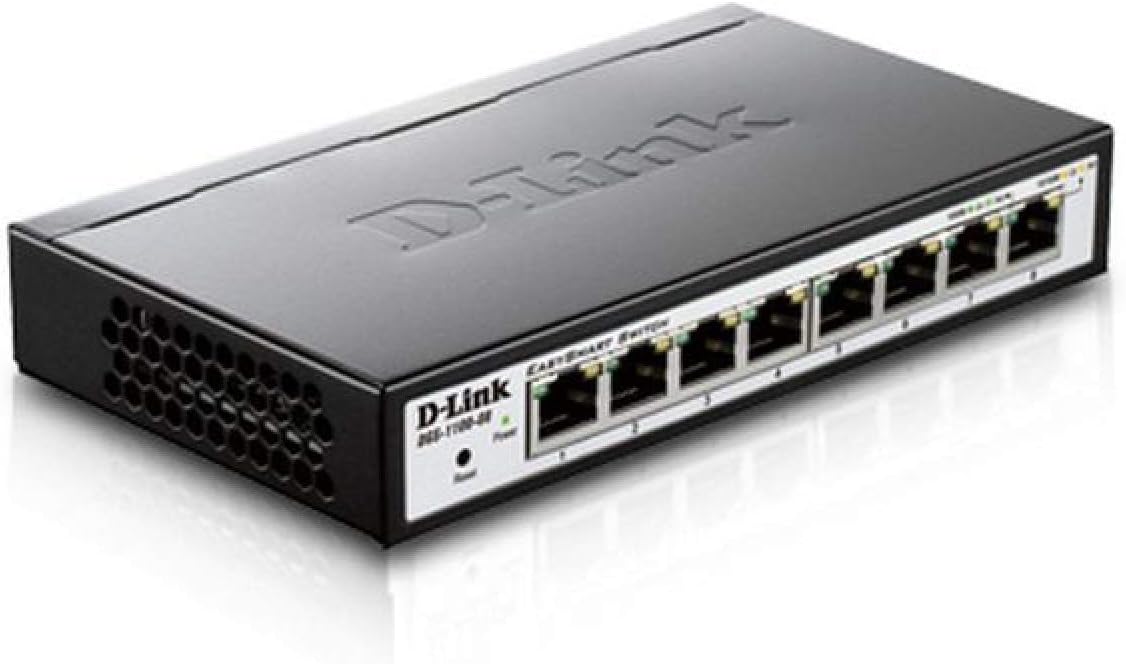
Figure 4.1: Angled view of the D-Link DGS-1100-08 switch, showing the D-Link logo, model number, power and reset buttons, and the eight Gigabit Ethernet ports with their corresponding LED indicators.

Figure 4.2: Front view of the D-Link DGS-1100-08 switch, clearly displaying the eight Gigabit Ethernet ports labeled 1 through 8, along with the Power LED and Reset button.
4.1 Front Panel
- Ethernet Ports (1-8): Eight 10/100/1000BASE-T Gigabit Ethernet ports for network connections.
- Power LED: Indicates the power status of the device.
- Reset Button: Used to reset the device to factory default settings.
4.2 LED Indicators
| LED | Status | Description |
|---|---|---|
| Power | Solid Green | Device is powered on. |
| Link/Act (Per Port) | Solid Green | A valid network connection is established at Gigabit speed. |
| Link/Act (Per Port) | Solid Amber | A valid network connection is established at 10/100 Mbps speed. |
| Link/Act (Per Port) | Blinking | Data is being transmitted or received on the port. |
5. Setup
Follow these steps to set up your DGS-1100-08 switch:
- Physical Connection: Connect your network devices (computers, servers, network printers) to the Ethernet ports (1-8) on the switch using standard Ethernet cables.
- Power Connection: Connect the provided power adapter to the power input on the switch and then plug it into a power outlet. The Power LED should illuminate.
- Initial Access: The switch has a default IP address of 10.90.90.90 and a default username/password of admin/admin. To access the web management interface, you may need to temporarily configure your computer's IP address to be in the same subnet (e.g., 10.90.90.100 with a subnet mask of 255.0.0.0).
- Web Interface Access: Open a web browser and enter
http://10.90.90.90in the address bar. Log in with the default credentials. - Firmware Update: It is recommended to check for and install the latest firmware version from the D-Link support website to ensure optimal performance and access to the latest features and bug fixes.
6. Operating Instructions
The DGS-1100-08 is a managed switch, offering various features configurable via its web management interface:
- VLANs (Virtual Local Area Networks): Configure 802.1Q VLANs for network segmentation and enhanced security.
- Quality of Service (QoS): Prioritize network traffic for critical applications like voice and video.
- Bandwidth Limiting: Control the maximum bandwidth for specific ports to manage network congestion.
- Link Aggregation: Combine multiple physical links into a single logical link for increased bandwidth and redundancy.
- IGMP Snooping: Optimize multicast traffic delivery, preventing unnecessary flooding to all ports.
- Port Mirroring: Copy traffic from one or more source ports to a destination port for network monitoring and analysis.
Refer to the online help within the web management interface for detailed configuration steps for each feature.
7. Maintenance
To ensure the longevity and optimal performance of your switch:
- Keep the device clean and free from dust. Use a soft, dry cloth for cleaning.
- Ensure proper ventilation by keeping the vents clear of obstructions.
- Regularly check the D-Link support website for firmware updates and apply them as recommended.
- Perform periodic backups of your switch configuration to a local file.
8. Troubleshooting
If you encounter issues with your DGS-1100-08 switch, consider the following:
- No Power: Ensure the power adapter is securely connected to both the switch and a working power outlet. Check the Power LED.
- No Link on Port: Verify that the Ethernet cable is properly connected at both ends. Test with a different cable or port. Ensure the connected device is powered on and functioning correctly.
- Cannot Access Web Interface: Double-check your computer's IP address configuration to ensure it is in the same subnet as the switch (default 10.90.90.90). Clear your browser's cache or try a different browser.
- Network Performance Issues: Check for excessive network traffic, loopbacks (ensure loopback detection is enabled), or incorrect QoS configurations.
- Reset to Factory Defaults: If issues persist, use the reset button on the front panel to restore the switch to its original factory settings. This will erase all custom configurations.
9. Specifications
| Feature | Detail |
|---|---|
| Model Number | DGS-1100-08 |
| Number of Ports | 8 x 10/100/1000BASE-T Gigabit Ethernet |
| Data Transfer Rate | 1000 Megabits Per Second |
| Product Dimensions (LxWxH) | 6.75 x 3.94 x 1.13 inches |
| Item Weight | 15 ounces |
| Management Type | Easy Smart Managed |
| Power Savings | D-Link Green Technology, IEEE 802.3az (Energy Efficient Ethernet) |
| Included Components | Switch - 8 ports - managed |
10. Warranty and Support
D-Link provides a Lifetime Warranty for the DGS-1100-08 switch, ensuring long-term reliability and peace of mind.
For further assistance, technical support, or to download the full user guide and latest firmware, please visit the official D-Link support website or refer to the User Guide (PDF) available at https://manuals.plus/m/ecc0db5b29561c67ba510c6e291c2f520d486733cbbed65950841084a1c2cb4f.
You can also visit the D-Link Store for more product information and resources: D-Link Store on Amazon.


