Introduction
This manual provides instructions for the installation, operation, and maintenance of your Manhattan 2-Port Compact KVM Switch, Model 151252. This device allows you to control two USB-enabled computers from a single keyboard, monitor, and mouse, streamlining your workspace and improving efficiency.
Package Contents
Verify that your package contains the following items:
- 1 x Manhattan 2-Port Compact KVM Switch (Model 151252)
Setup
Follow these steps to set up your KVM switch:
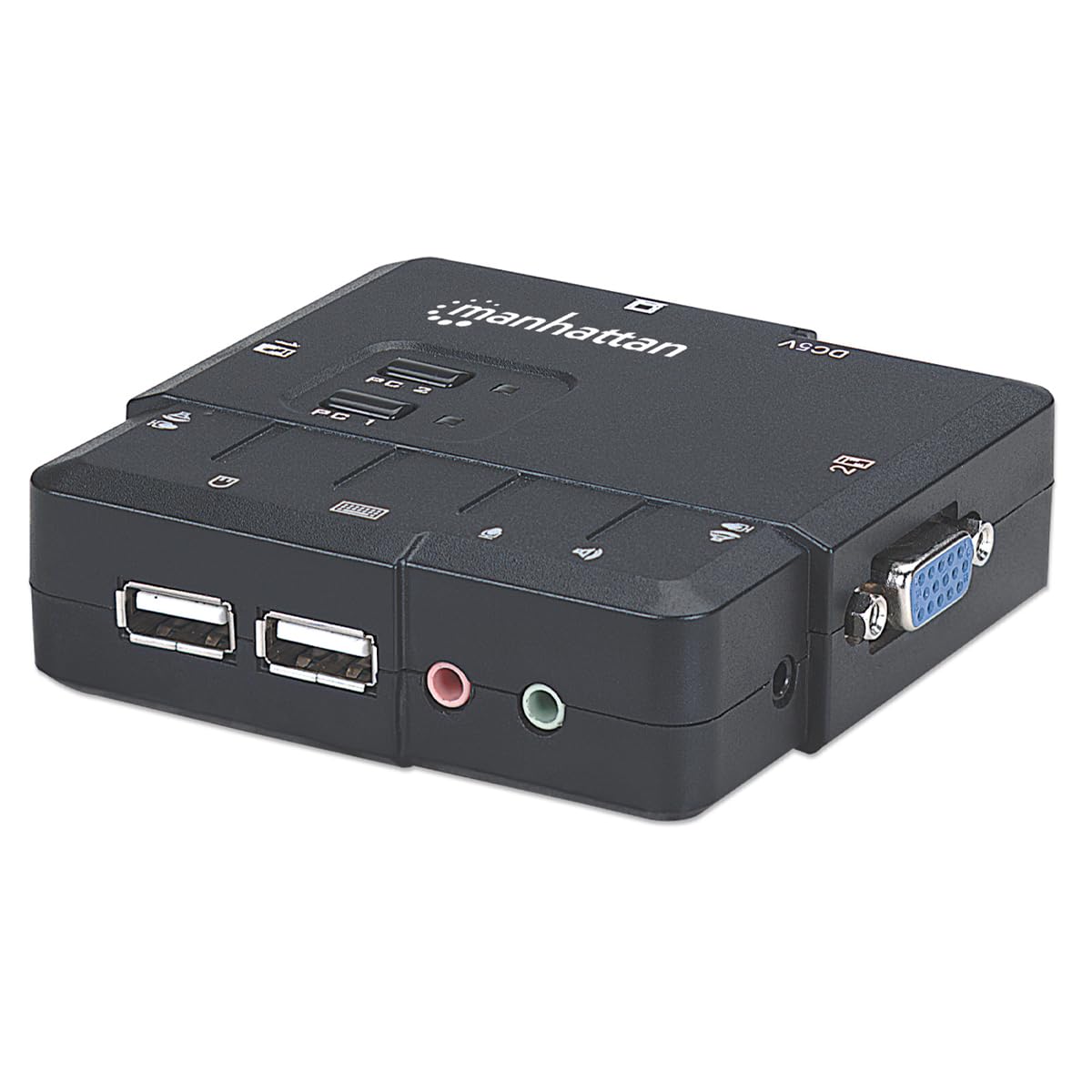
- Connect Keyboard and Mouse: Plug your USB keyboard and USB mouse into the designated USB Type-A ports on the front of the KVM switch.
- Connect Monitor: Connect your VGA monitor to the VGA output port on the KVM switch.
- Connect Audio Devices: If desired, connect your speakers and microphone to the 3.5mm audio jacks on the front of the KVM switch.
- Connect to Computers: Connect the KVM switch to your two computers using the appropriate cables. Each computer will require a VGA cable, a USB cable, and audio cables (if using audio). Ensure the VGA and USB cables from each computer are connected to the corresponding PC 1 or PC 2 input ports on the KVM switch.
- Power On: Ensure all connections are secure before powering on your computers. The KVM switch draws power from the USB connections, so an external power adapter is typically not required unless specified.


Operating Instructions
Using your Manhattan KVM switch is straightforward:
- Switching Computers: To switch between connected computers, press the corresponding 'PC 1' or 'PC 2' button located on the top of the KVM switch. The active computer's indicator LED will illuminate.
- Hot-Plugging: The KVM switch supports hot-plugging, allowing you to connect or disconnect PCs for maintenance without powering down the KVM switch or the computers.
- Audio and Microphone Switching: Audio and microphone switching is integrated, providing an uninterrupted multimedia experience across platforms as you switch between computers.

Maintenance
To ensure the longevity and optimal performance of your KVM switch, follow these maintenance guidelines:
- Cleaning: Keep the KVM switch in a dry, dust-free environment. Clean the exterior with a soft, dry cloth. Do not use liquid cleaners, abrasive materials, or solvents, as these can damage the device.
- Ventilation: Ensure proper ventilation around the device to prevent overheating. Do not block any ventilation openings.
- Cable Management: Organize cables neatly to prevent strain on ports and accidental disconnections.
Troubleshooting
If you encounter issues with your KVM switch, refer to the following common problems and solutions:
- No Display on Monitor:
- Check all VGA cable connections between the monitor, KVM switch, and both computers.
- Ensure the selected PC is powered on and functioning correctly.
- Try connecting the monitor directly to a computer to verify the monitor's functionality.
- Keyboard or Mouse Unresponsive:
- Ensure the keyboard and mouse are connected to the correct USB ports on the KVM switch.
- Try reconnecting the keyboard and mouse.
- Test the keyboard and mouse by connecting them directly to a computer.
- No Audio or Microphone Functionality:
- Verify all 3.5mm audio cable connections between the KVM switch, speakers, microphone, and computers.
- Check the audio settings on your computer to ensure the correct audio output/input device is selected.
- Switching Issues:
- Ensure the KVM switch buttons are pressed firmly.
- If the KVM switch is unresponsive, disconnect and reconnect the USB cables from the computers to reset the device.
Specifications
| Feature | Specification |
|---|---|
| Model Number | 151252 |
| Standards | USB 1.1 |
| Video Resolution | Max. 1600 x 900 |
| Connector Type | 2 x USB Type A (Keyboard, Mouse), 2 x HD15 Male (Video), 2 x 3.5mm Audio Jacks (Microphone and Speaker) |
| Dimensions (L x W x H) | 3.4 x 1 x 3.4 inches (8.6 x 2.5 x 8.6 cm) |
| Item Weight | 1.1 pounds (0.5 kg) |
| Color | Black |
| Material | Plastic |
| International Protection Rating | IP54 |

Product Videos
Manhattan KVM Switch Overview (2:23)
This video provides a general overview of the Manhattan KVM Switch, demonstrating its features and functionality.
Manhattan KVM Switch Setup Guide (2:26)
This video offers a detailed guide on how to set up the Manhattan KVM Switch, including connecting all necessary peripherals and computers.
Warranty Information
Specific warranty details for the Manhattan 2-Port Compact KVM Switch Model 151252 are not provided in this manual. Please refer to the manufacturer's official website, the product packaging, or your purchase documentation for comprehensive warranty terms and conditions.
Support
For technical support, troubleshooting assistance, or further inquiries regarding your Manhattan 2-Port Compact KVM Switch, please visit the official MANHATTAN website or contact their customer service department. Contact information can typically be found on the manufacturer's website or product packaging.


