
1. Introduction
This manual provides detailed instructions for the installation, operation, maintenance, and troubleshooting of the APC G50NETB20A2 Network Manageable 20 Ampere G-Type Rack Power Filter. This device is designed to protect sensitive electronic equipment from power surges and line noise, while offering advanced network-based management capabilities for individual outlets and power monitoring.
Please read this manual thoroughly before operating the unit to ensure proper functionality and safety.
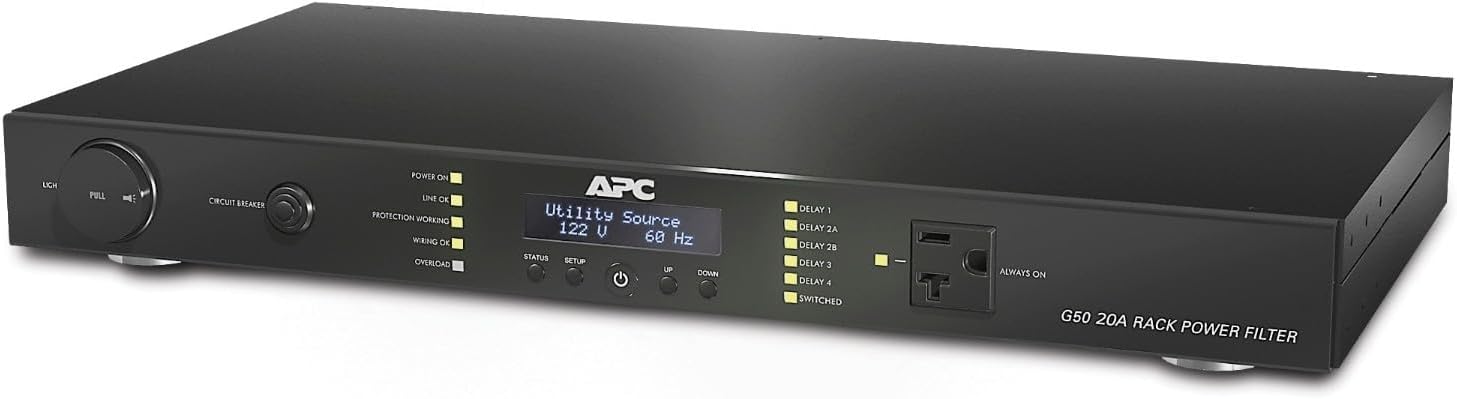
Figure 1.1: Front view of the APC G50NETB20A2 Rack Power Filter, showing the display, control buttons, and front outlet.
2. Key Features
The APC G50NETB20A2 offers a robust set of features for comprehensive power management:
- Surge Protection: Advanced surge suppression to protect connected equipment from damaging power transients.
- Power Filtering: G-Type power filtering to reduce line noise and improve power quality for sensitive electronics.
- Network Manageable: Remote management capabilities via network interface, allowing for monitoring and control of the unit.
- Individual Outlet Control: Ability to remotely switch individual outlets (outlets 3-8) on or off, enabling remote rebooting of connected devices.
- Energy Monitoring: Provides real-time energy consumption data for connected loads.
- Host Ping Feature: Can ping a connected host to determine its operational status, useful for automated reboots.
- Rack-Mountable Design: Designed for easy integration into standard IT racks.
- 20 Ampere Capacity: Supports high-power equipment with a 20 Ampere rating.
3. Setup and Installation
3.1 Unpacking and Inspection
Carefully unpack the power filter and inspect it for any shipping damage. Report any damage to your carrier and dealer immediately. The package should contain the APC G50NETB20A2 Power Filter and any included mounting hardware.
3.2 Mounting the Unit
The G50NETB20A2 is designed for rack installation. Secure the unit into a standard 19-inch equipment rack using the provided mounting brackets and screws. Ensure adequate ventilation around the unit.
Figure 3.1: The APC G50NETB20A2 installed in a rack, demonstrating its rack-mountable design.
3.3 Connecting Power
Connect the power filter's input cord to a dedicated 20 Ampere electrical circuit. Ensure the circuit is properly grounded and can support the total load of all connected equipment.
3.4 Connecting Equipment
Plug your electronic equipment into the outlets on the rear of the power filter. Note that outlets 3-8 are individually controllable via the network interface, while outlets 1 and 2 (and the front outlet) are typically 'always on' or master-controlled.

Figure 3.2: Rear view of the APC G50NETB20A2, illustrating the various power outlets and network connectivity options.
3.5 Network Connection
Connect an Ethernet cable from your network switch or router to the network port on the power filter. This connection is essential for accessing the network management features.
4. Operating Instructions
4.1 Initial Power On
Once all connections are secure, press the power button on the front panel. The display will illuminate, and the unit will perform a self-test. Observe the status indicators for normal operation.
4.2 Accessing the Network Interface
The power filter can be managed via a web browser or command-line interface (CLI) over the network. Refer to the unit's display or network configuration settings to obtain its IP address. Enter the IP address into your web browser to access the web GUI.
4.3 Outlet Control
From the web interface or CLI, you can individually control outlets 3-8. This allows for remote power cycling of connected devices. Ensure you understand which device is connected to which outlet before performing any power operations.
4.4 Monitoring
The network interface provides real-time monitoring of input voltage, current draw, and power consumption. This data is crucial for managing power loads and identifying potential issues.
4.5 Configuration
The network interface allows for configuration of various settings, including network parameters (IP address, subnet mask), user accounts, outlet naming, and alert thresholds. It is recommended to change default login credentials immediately after initial setup.
5. Maintenance
5.1 Cleaning
Periodically clean the exterior of the unit with a soft, dry cloth. Do not use liquid or aerosol cleaners. Ensure the unit is powered off and disconnected from the power source before cleaning.
5.2 Firmware Updates
Check the APC support website periodically for firmware updates. Keeping the firmware up-to-date ensures optimal performance, security, and access to new features. Follow the instructions provided with the firmware update package carefully.
5.3 Circuit Breaker
The unit is equipped with a resettable circuit breaker. If an overload occurs, the breaker will trip to protect the unit and connected equipment. Reduce the load, then press the circuit breaker button to reset it.
6. Troubleshooting
This section addresses common issues you may encounter with the APC G50NETB20A2.
| Problem | Possible Cause | Solution |
|---|---|---|
| Unit does not power on. | No input power; tripped circuit breaker. | Verify power cord is securely plugged in. Check building circuit breaker. Reset unit's circuit breaker. |
| Cannot access network interface. | Incorrect IP address; network cable disconnected; network configuration error. | Verify IP address. Check network cable connection. Ensure network settings (subnet mask, gateway) are correct. Try pinging the unit's IP address. |
| Outlets not responding to commands. | Incorrect outlet selected; communication error; outlet already in desired state. | Verify the correct outlet number/name. Check network connection. Some commands may return an error if the outlet is already in the requested state (e.g., trying to turn on an outlet that is already on). |
| CLI login issues (e.g., "No supported authentication methods available"). | Non-standard SSH client behavior; incorrect password handling. | Ensure correct username and password. If using a CLI client like PuTTY or TeraTerm, try a different client or ensure your client is up-to-date. Sometimes a second attempt may succeed. The web GUI login typically behaves as expected. |
| "Parameter Error" in CLI. | Incorrect command syntax; system confusion. | Double-check command syntax. Log out and log back in, then re-enter the command. This can sometimes resolve transient issues. |
If problems persist after attempting these solutions, please contact APC technical support for further assistance.
7. Specifications
| Attribute | Value |
|---|---|
| Model Number | G50NETB20A2 |
| Product Dimensions | 10 x 12 x 5 inches |
| Item Weight | 8 pounds |
| Manufacturer | APC |
| ASIN | B005SQI6F2 |
| Date First Available | April 20, 2012 |
| What's in the Box | Power Filter |
8. Warranty and Support
For detailed warranty information, please refer to the warranty card included with your product or visit the official APC website. APC provides technical support for its products. For assistance, please visit the support section of the APC website or contact their customer service directly. Have your product model number (G50NETB20A2) and serial number ready when contacting support.
Online Resources:
- APC Official Website: www.apc.com
- Product Support Page: Refer to the support section on the APC website for drivers, firmware, and additional documentation specific to the G50NETB20A2.


