1. Introduction
This manual provides essential instructions for setting up, operating, and maintaining your BlackBerry BB 9900 Bold Touch smartphone. Please read this guide thoroughly to ensure proper use and to maximize the device's capabilities. The BlackBerry BB 9900 Bold Touch combines a capacitive touchscreen with a full QWERTY keyboard, running on BlackBerry OS 7.
3. Device Overview
Familiarize yourself with the physical features of your BlackBerry BB 9900 Bold Touch.
3.1 Front View

Image: Front view of the BlackBerry BB 9900 Bold Touch, highlighting the 2.8-inch touchscreen and the physical QWERTY keyboard below it. The device also features a trackpad and call/end buttons.
- Touchscreen Display: 2.8-inch capacitive display for interactive navigation.
- QWERTY Keyboard: Full physical keyboard for efficient typing.
- Optical Trackpad: For precise navigation and selection.
- Call/End Buttons: Standard telephony controls.
3.2 Rear View

Image: Rear view of the BlackBerry BB 9900 Bold Touch, featuring the 5-megapixel camera lens, LED flash, and the BlackBerry logo.
- 5MP Camera: Primary camera with autofocus and LED flash.
- Battery Cover: Removable cover for battery and SIM card access.
3.3 Side View
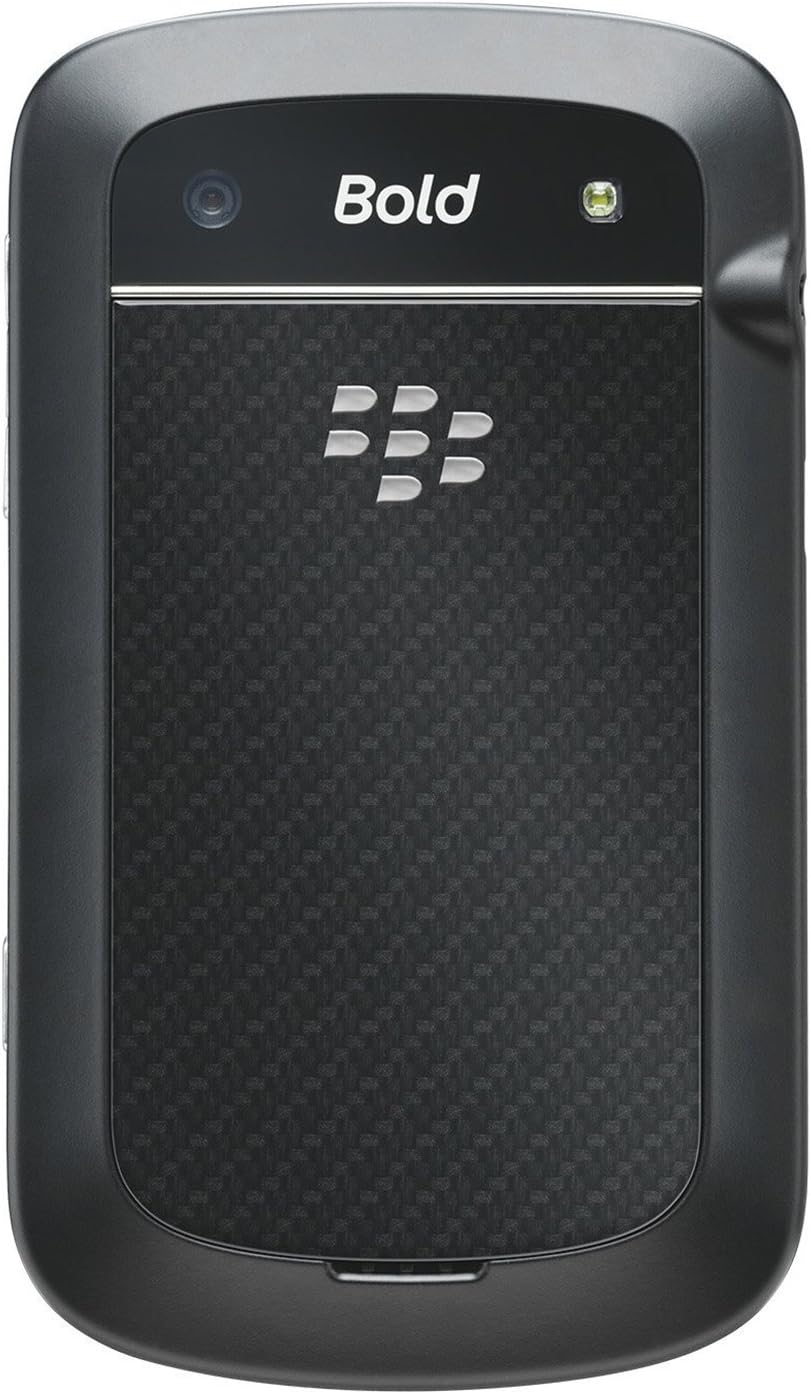
Image: Side view of the BlackBerry BB 9900 Bold Touch, illustrating the placement of the volume control buttons and a customizable convenience key.
- Volume Buttons: Adjust audio levels.
- Convenience Key: Customizable shortcut button.
5. Operating Instructions
5.1 Touch Screen Navigation
- Tap: Touch the screen briefly to open applications, select items, or activate buttons.
- Swipe: Drag your finger across the screen to scroll through lists or switch between home screen panels.
- Pinch-to-Zoom: Use two fingers to zoom in or out on photos, web pages, or maps.
5.2 Using the QWERTY Keyboard
The physical QWERTY keyboard allows for fast and accurate text entry. Each key corresponds to a letter, number, or symbol. Use the 'Alt' key for alternate characters and the 'Shift' key for capitalization.
5.3 Making Calls
- From the home screen, tap the Phone icon or press the green Call button.
- Enter the phone number using the keyboard.
- Press the green Call button to initiate the call.
- To end a call, press the red End Call button.
5.4 Sending Messages
- Tap the Messages icon from the home screen.
- Select 'Compose New' or similar option.
- Enter the recipient's number or select from contacts.
- Type your message using the QWERTY keyboard.
- Tap 'Send'.
5.5 Using the Camera
- Tap the Camera icon to open the camera application.
- Frame your shot using the screen as a viewfinder.
- Tap the screen or press the convenience key (if configured) to take a photo.
- The 5MP camera features autofocus and an LED flash for improved image quality.
5.6 Connecting to Wi-Fi
- Go to 'Options' > 'Networks and Connections' > 'Wi-Fi'.
- Turn Wi-Fi on. The device will scan for available networks.
- Select your desired network and enter the password if prompted.
- Once connected, the Wi-Fi indicator will appear in the status bar.
5.7 Using NFC (Near Field Communication)
The BlackBerry BB 9900 Bold Touch supports NFC for short-range wireless communication. This allows for quick pairing with compatible accessories or sharing data with other NFC-enabled devices by tapping them together.
- Ensure NFC is enabled in your device settings.
- Hold your device close to another NFC-enabled device or tag.
- Follow on-screen prompts to complete the desired action (e.g., pairing, data transfer).
9. Support and Warranty
9.1 Customer Support
For technical assistance, troubleshooting beyond this manual, or service inquiries, please visit the official BlackBerry support website or contact your local service provider. Refer to the packaging or official website for specific contact details.
9.2 Warranty Information
Your BlackBerry BB 9900 Bold Touch is covered by a limited warranty. Please refer to the warranty card included in your product packaging or visit the official BlackBerry website for detailed terms and conditions, including warranty period and coverage specifics. Keep your proof of purchase for warranty claims.


