
Introduction
Thank you for choosing the Maxell 2.4 GHz Wireless Optical Touch Mouse. This manual provides essential information for setting up, operating, and maintaining your new device. Please read these instructions carefully before use to ensure optimal performance and longevity of your mouse.
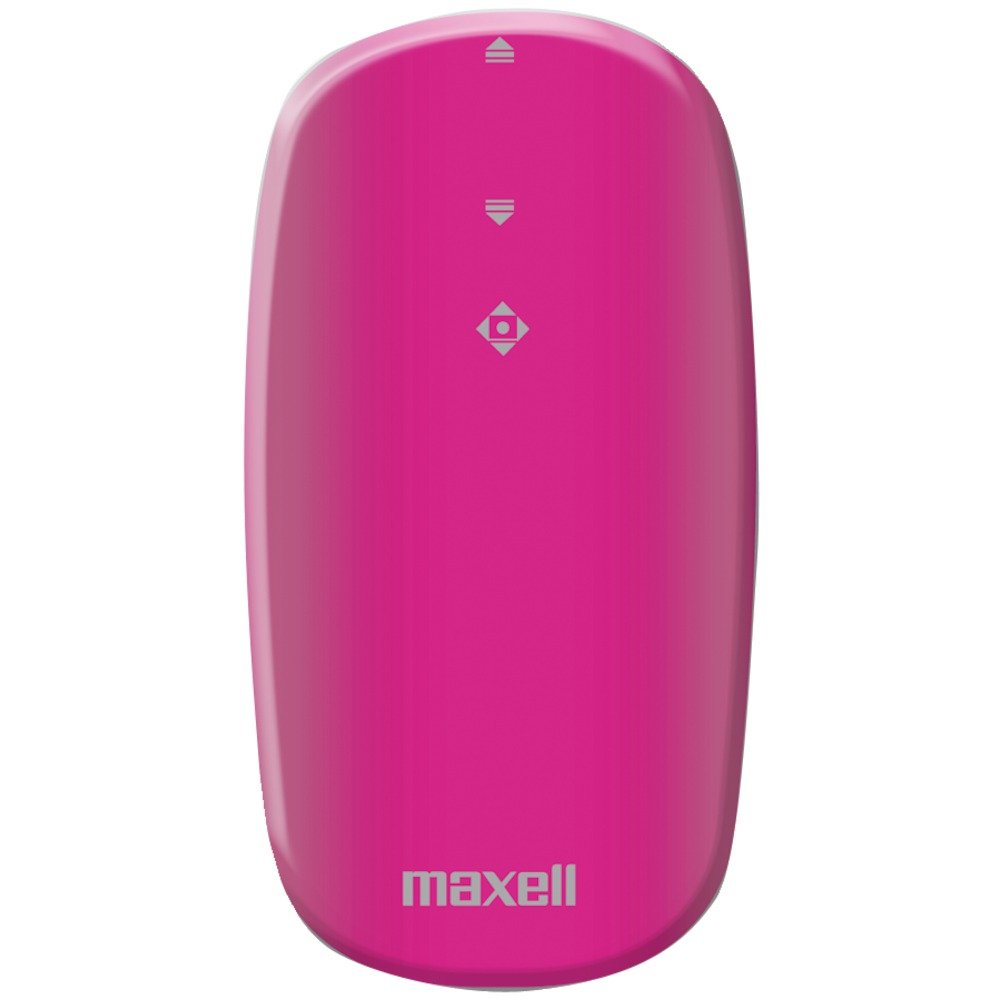
Image: Maxell 2.4 GHz Wireless Optical Touch Mouse in purple. This compact and sleek mouse is designed for portability and ease of use.
Key Features
- Ambidextrous Design: Comfortable for both right and left-handed users.
- Button-less Touch Scrolling: Innovative touch-sensitive surface for smooth navigation.
- Flat, Slim, and Portable: Ideal for travel and on-the-go use.
- 2.4 GHz Wireless Connectivity: Ensures less signal loss and reliable performance.
- Optical Movement Detection: Precise tracking on various surfaces.
- Wide Compatibility: Works with Windows 7, Vista, XP, and Mac OS 9 or above.
Setup Guide
1. Battery Installation
- Locate the battery compartment on the underside of the mouse.
- Gently slide open the battery cover.
- Insert two (2) AAA batteries, ensuring correct polarity (+/-).
- Close the battery compartment cover securely.
2. Connecting the Wireless Receiver
- Locate the USB wireless receiver, typically stored within the battery compartment or packaged separately.
- Plug the USB receiver into an available USB port on your computer (desktop, laptop, or compatible device).
- The operating system should automatically detect and install the necessary drivers. This may take a few moments.
- Turn on the mouse using the On/Off switch, usually located on the underside.
- Once the drivers are installed, the mouse should be ready for use.
Operating Instructions
Basic Functions
- Movement: Move the mouse across a flat surface to control the cursor on your screen. The optical sensor provides precise tracking.
- Left Click: Press the left side of the mouse button to select items or activate functions.
- Right Click: Press the right side of the mouse button to access context menus or secondary functions.
- Touch Scrolling: Glide your finger up or down the central touch-sensitive area for smooth vertical scrolling.
Ambidextrous Use
The symmetrical design of the Maxell Optical Touch Mouse allows for comfortable use by both right-handed and left-handed individuals. Simply adjust your grip as preferred.
Maintenance
- Cleaning: Use a soft, dry cloth to clean the surface of the mouse. For the optical sensor, use a cotton swab lightly dampened with rubbing alcohol. Avoid excessive moisture.
- Battery Replacement: Replace batteries when the mouse becomes unresponsive or the indicator light (if present) signals low power. Always use fresh AAA batteries.
- Storage: When not in use for extended periods, turn off the mouse to conserve battery life. Store the USB receiver inside the mouse's battery compartment to prevent loss.
Troubleshooting
Mouse Not Responding
- Ensure the mouse is turned ON.
- Check if the batteries are correctly installed and have sufficient charge. Replace if necessary.
- Verify that the USB receiver is securely plugged into a working USB port on your computer. Try a different USB port.
- Restart your computer.
Erratic Cursor Movement
- Clean the optical sensor on the underside of the mouse.
- Ensure you are using the mouse on a suitable surface. Highly reflective or transparent surfaces may affect tracking. A mouse pad is recommended.
Scrolling Issues
- Ensure your finger is making proper contact with the touch-sensitive scrolling area.
- Clean the touch scrolling area to remove any debris.
Specifications
| Brand | Maxell |
| Model Number | 191124 |
| Operating System Compatibility | Mac OS 9, Windows 7, Windows Vista, Windows XP |
| Item Weight | 1.6 ounces |
| Product Dimensions (LxWxH) | 4 x 6 x 1 inches |
| Power Source | Battery Powered (2 AAA batteries required) |
| Connectivity Technology | Wireless (2.4 GHz) |
| Movement Detection Technology | Optical |
Warranty and Support
For warranty information and customer support, please refer to the documentation included with your product packaging or visit the official Maxell website. Keep your purchase receipt as proof of purchase for any warranty claims.
Important Notes
No official product videos from the seller were available for embedding in this manual. Please refer to the text instructions and images for guidance.