
Introduction
This manual provides comprehensive instructions for the setup, operation, and maintenance of your Plantronics B230-M Voyager Pro UC V2 Bluetooth Headset. Designed for unified communications, this headset offers advanced audio technology for clear communication and seamless connectivity with both mobile devices and computers.
Product Overview
The Plantronics B230-M Voyager Pro UC V2 is a Bluetooth earpiece featuring A2DP for streaming audio, an iPhone headset battery meter, and voice alerts. It incorporates Smart Sensor technology, QuickPair technology, and Multipoint technology for enhanced usability. Key features include:
- AudioIQ2 Technology: Two noise-canceling microphones and Active Digital Signal Processing (DSP) for superior noise cancellation.
- WindSmart® Technology: Enhanced stainless steel windscreens, GORE™ acoustic vents, and electronic filter in mic circuitry for wind noise reduction.
- Smart Sensor Technology: Automatically answers calls when the headset is placed on your ear.
- Multipoint Technology: Connects to multiple Bluetooth devices simultaneously.
- A2DP Support: Streams music, podcasts, GPS directions, and other audio.
- Voice Alerts: Provides notifications for low battery and other status updates.
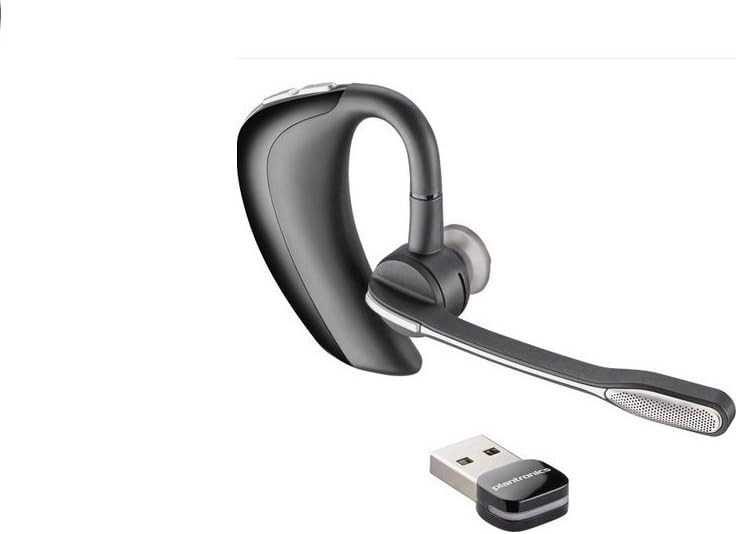
Image 1: The Plantronics B230-M Voyager Pro UC V2 Bluetooth Headset, shown with its accompanying USB dongle for computer connectivity. The headset features an over-ear design with a microphone boom.
Headset Controls
- Power Button: Located on the base of the unit for turning the headset on or off.
- Volume Controls: Buttons for adjusting the listening volume up or down.
- Call Control Button: A button on the earpiece to answer or end calls. This button can also be used to mute a call.
Setup
1. Charging the Headset
- Connect the micro USB cable to the headset's charge connector.
- Plug the other end of the USB cable into a compatible AC/DC 100–240V wall adapter or a computer's USB port.
- Allow approximately 1.5 hours for a full charge. The headset's indicator light will change to indicate charging status.
2. Pairing with a Mobile Device
- Ensure the headset is fully charged and powered off.
- Press and hold the power button until the indicator light flashes red and blue, indicating pairing mode.
- On your mobile device, navigate to the Bluetooth settings and enable Bluetooth.
- Select "Plantronics B230-M" or "Voyager Pro UC V2" from the list of available devices.
- If prompted for a passcode, enter "0000" (four zeros).
- Once paired, the headset will announce "pairing successful" or the indicator light will stop flashing.
3. Connecting to a Computer (Unified Communications)
- Insert the Plantronics USB dongle into an available USB port on your computer.
- The computer should automatically recognize and install the necessary drivers.
- Ensure the headset is powered on and in proximity to the USB dongle. The headset and dongle should automatically connect.
- Configure your computer's audio settings to use the Plantronics headset as the default input and output device for communication applications like Microsoft Lync or Skype.
Operating Instructions
Wearing the Headset
The headset is designed for comfortable wear over either ear. Adjust the ear tip and microphone boom for optimal fit and microphone positioning. The microphone boom can be tilted up and away from your face when not in use.
Making and Receiving Calls
- Answering a Call: When a call comes in, place the headset on your ear to automatically answer (Smart Sensor feature), or press the Call Control button.
- Ending a Call: Press the Call Control button.
- Making a Call: Dial the number on your phone. The call will automatically transfer to the headset.
- Muting a Call: During an active call, press the Call Control button to mute or unmute your microphone.
Audio Streaming (A2DP)
The headset supports A2DP profile, allowing you to stream audio from your mobile device, such as music, podcasts, and GPS navigation instructions. Ensure A2DP is enabled in your device's Bluetooth settings if you experience issues.
Voice Alerts
The headset provides voice alerts for important status updates, including low battery warnings and connection status. For example, it may announce "Talk time is 6 hours" upon connection.
Maintenance
- Cleaning: Gently wipe the headset with a soft, dry cloth. Avoid using harsh chemicals or abrasive materials.
- Storage: Store the headset in a cool, dry place away from direct sunlight and extreme temperatures.
- Ear Tips: Periodically check and clean the ear tips. Replace them if they become worn or damaged to maintain comfort and audio quality. The headset comes with multiple ear tip sizes for optimal fit.
Troubleshooting
- Headset not pairing:
- Ensure the headset is in pairing mode (flashing red and blue light).
- Make sure Bluetooth is enabled on your device and it is discoverable.
- Try restarting both the headset and your device.
- No audio or poor audio quality:
- Check the volume levels on both the headset and your connected device.
- Ensure the headset is selected as the audio output device on your computer or phone.
- Move closer to your connected device to avoid range issues.
- Verify the ear tip is properly seated in your ear.
- Headset not comfortable or falling out:
- Experiment with different ear tip sizes provided with the headset to find the best fit.
- Adjust the over-ear hook for a secure placement.
- Issues with PC connectivity:
- Ensure the USB dongle is securely plugged into a working USB port.
- Verify that the Plantronics headset is selected as the default communication device in your computer's sound settings and within your UC application (e.g., Lync, Skype).
- Try unplugging and re-plugging the USB dongle.
Specifications
| Model Number | 38884-01 |
| Bluetooth Version | 2.1 + Enhanced Data Rate (EDR) Technology and eSCO |
| Bluetooth Profiles Supported | Advanced Audio Distribution (A2DP), Audio/Video Remote Control (AVRCP), Hands-free v1.5 (HFP), Headset v1.1 (HSP), Secure Simple Pairing (SSP) |
| Talk Time | Up to 6 hours |
| Standby Time | Up to 5 days |
| Weight | 17 grams (0.64 ounces) |
| Noise Cancellation | AudioIQ2 Technology (Two noise-canceling microphones, Active Digital Signal Processing (DSP), Acoustic echo cancellation, Sidetone detection) |
| Wind Noise Reduction | WindSmart® Technology (Enhanced stainless steel windscreens, GORE™ acoustic vents, Electronic filter in mic circuitry) |
| Battery Type | Rechargeable non-replaceable Lithium-ion polymer |
| Charge Connector | Micro USB |
| Charge Time | 1.5 hours for full charge |
| Product Dimensions | 10 x 1.75 x 7 inches |
| Manufacturer | Plantronics |
| Date First Available | January 27, 2011 |
Warranty and Support
For warranty information, technical support, or further assistance with your Plantronics B230-M Voyager Pro UC V2 headset, please refer to the official Plantronics website or contact their customer support directly. Specific warranty terms and conditions may vary by region and purchase date.
You can typically find support resources, FAQs, and contact details on the Plantronics official website.


