
1. Introduction
This manual provides detailed instructions for the installation, operation, and maintenance of your Rosewill R101-P-BK-450W MicroATX Mid Tower Computer Case. Please read this manual thoroughly before beginning installation to ensure proper setup and safe operation. Keep this manual for future reference.
Safety Information
- Always disconnect the power supply from the wall outlet before performing any installation or maintenance inside the computer case.
- Handle all components with care to prevent damage from static electricity. Consider using an anti-static wrist strap.
- Ensure all cables are properly routed and secured to avoid interference with cooling fans or other moving parts.
- Do not block ventilation openings on the case. Proper airflow is crucial for component longevity.
2. Package Contents
Verify that all items listed below are present in your package. If any items are missing or damaged, please contact Rosewill customer support.

Image 2.1: Contents of the Rosewill R101-P-BK-450W package, including the computer case, power cable, and various installation screws and accessories.
- Rosewill R101-P-BK-450W MicroATX Mid Tower Computer Case with integrated 450W Power Supply
- Power Cable
- Accessory Kit (screws, standoffs, cable ties)
- User Manual (this document)
3. Setup and Installation
3.1 Opening the Case
To access the interior of the case for component installation, remove the side panel. Typically, this involves unscrewing two thumbscrews at the rear of the case and sliding the panel backward.

Image 3.1: Interior view of the case with the side panel open, revealing the internal structure, drive bays, and pre-installed power supply.
3.2 Motherboard Installation
The Rosewill R101-P-BK-450W supports Micro ATX motherboards. Install the necessary standoffs onto the motherboard tray according to your motherboard's mounting holes. Carefully place your motherboard onto the standoffs and secure it with screws.
3.3 Drive Installation
The case offers three 5.25" external drive bays and six 3.5" drive bays (two external and four internal).
- 5.25" External Drives (e.g., Optical Drives): Remove the front bezel cover for the desired bay. Slide the drive into the bay from the front and secure it with screws from the side.
- 3.5" External Drives (e.g., Card Readers): Similar to 5.25" drives, remove the appropriate front bezel cover, slide the drive in, and secure.
- 3.5" Internal Drives (e.g., Hard Disk Drives): Slide the hard drive into an available 3.5" internal bay and secure it with screws on both sides.

Image 3.2: A closer look at the internal drive bays and the pre-routed power supply cables, illustrating the available space for component installation.
3.4 Power Supply Connections
The case comes with a pre-installed 450W power supply. Connect the appropriate power cables to your motherboard (24-pin ATX, 4/8-pin CPU), graphics card, and all installed drives (SATA power, Molex). Ensure all connections are firm and secure.
3.5 Front I/O Panel Connections
Connect the front panel cables to the corresponding headers on your motherboard. These include:
- USB 2.0: Connect the USB 2.0 header cable to your motherboard's USB 2.0 header. The case provides two USB 2.0 ports.
- Audio: Connect the HD Audio or AC'97 cable to your motherboard's audio header for the front headphone and microphone jacks.
- Power/Reset/LEDs: Connect the power switch, reset switch, power LED, and HDD activity LED cables to their respective pins on the motherboard's front panel header. Refer to your motherboard manual for exact pin assignments.

Image 3.3: The front panel of the case, detailing the accessible power button, reset button, two USB 2.0 ports, and audio input/output jacks.
3.6 Cooling System
The Rosewill R101-P-BK-450W includes one 120mm exhaust fan pre-installed at the rear. The case also features a CPU air duct and video card vents to facilitate efficient ventilation and effective system cooling. Ensure these vents are not obstructed.
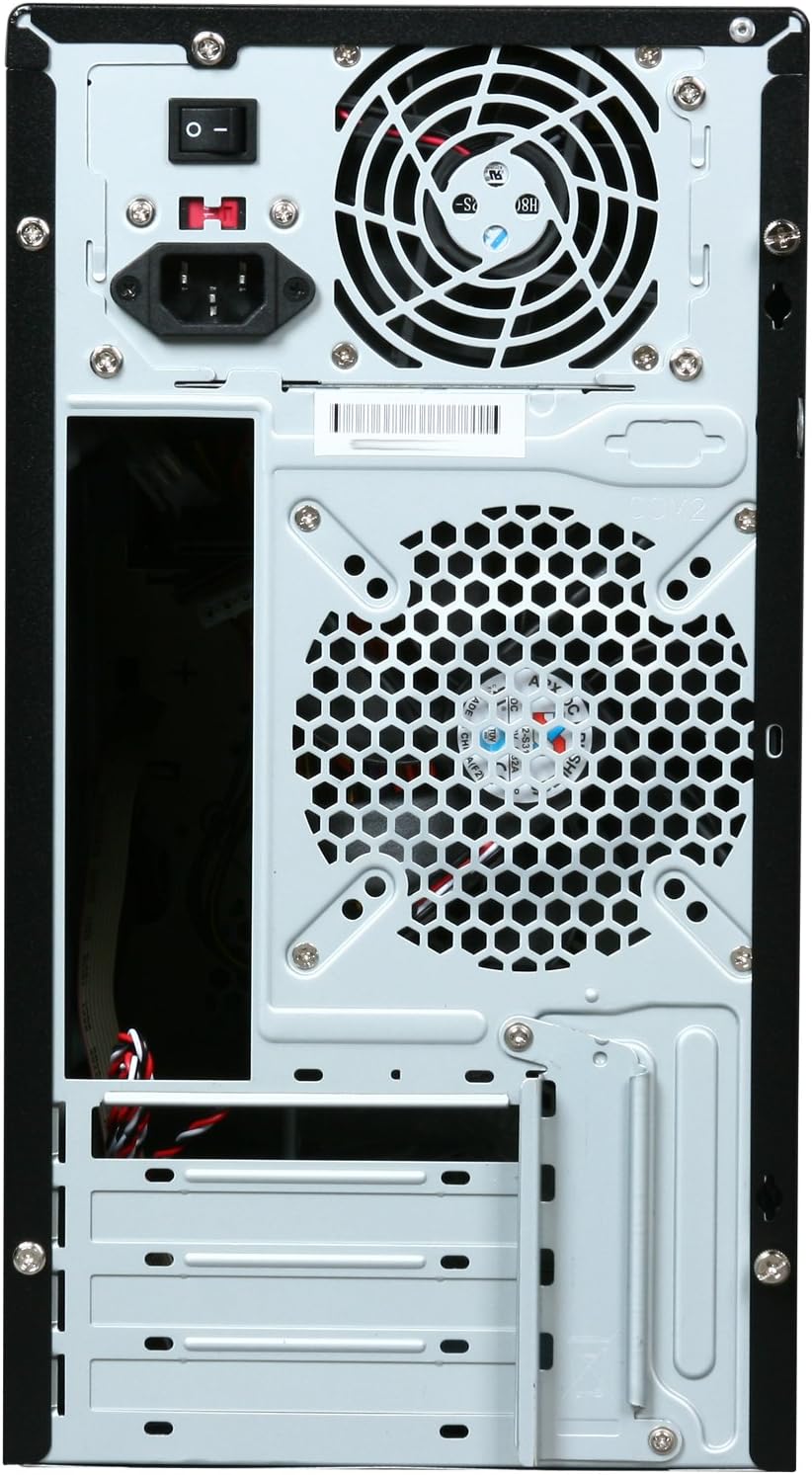
Image 3.4: The rear of the case, highlighting the pre-installed 120mm exhaust fan and the power supply unit.
4. Operating Instructions
4.1 Powering On/Off
- To Power On: After all components are installed and cables connected, plug the power cable into the power supply and a wall outlet. Press the power button located on the front panel of the case.
- To Power Off: Use the operating system's shutdown procedure. In case of an unresponsive system, press and hold the power button for several seconds to force a shutdown.
5. Maintenance
5.1 Cleaning
- Regularly clean the exterior of the case with a soft, damp cloth. Avoid harsh chemicals.
- Periodically open the case and use compressed air to remove dust buildup from internal components, especially fans and heatsinks. Ensure the system is powered off and unplugged before cleaning the interior.
- Clean the fan vents on the side and rear panels to maintain optimal airflow.
6. Troubleshooting
If you encounter issues with your computer system, consider the following common troubleshooting steps:
- No Power: Ensure the power cable is securely connected to both the power supply and the wall outlet. Check the power switch on the back of the power supply (if present) is in the 'On' position. Verify front panel power switch connections to the motherboard.
- No Display: Confirm that your monitor is connected to the correct video output on your graphics card or motherboard and that the monitor is powered on. Reseat your graphics card and RAM modules.
- Overheating: Ensure all case fans and CPU cooler fans are spinning. Check for dust buildup obstructing airflow. Verify proper thermal paste application on the CPU.
- Unusual Noises: Identify the source of the noise. Loose cables, vibrating components, or failing fans can cause unusual sounds.
For more complex issues, consult your motherboard and component manuals or seek assistance from a qualified technician.
7. Specifications
Below are the technical specifications for the Rosewill R101-P-BK-450W MicroATX Mid Tower Computer Case:
| Feature | Specification |
|---|---|
| Model Number | R101-P-BK-450W |
| Case Type | MicroATX Mid Tower |
| Motherboard Compatibility | Micro ATX |
| External 5.25" Drive Bays | 3 |
| External 3.5" Drive Bays | 2 |
| Internal 3.5" Drive Bays | 4 |
| Front I/O Ports | 2 x USB 2.0, Audio In/Out |
| Included Power Supply | 450W |
| Cooling Method | Air |
| Included Fans | 1 x 120mm Rear Exhaust Fan |
| Product Dimensions (L x W x H) | 49.53 x 40.01 x 24.13 cm (19.5 x 15.75 x 9.5 inches) |
| Product Weight | 6.35 kg (14 lbs) |
| UPC | 898745013726 |
8. Warranty and Support
For warranty information, technical support, or to inquire about replacement parts, please visit the official Rosewill website or contact their customer service department. Keep your purchase receipt as proof of purchase.
Rosewill Official Website: www.rosewill.com


