Introduction
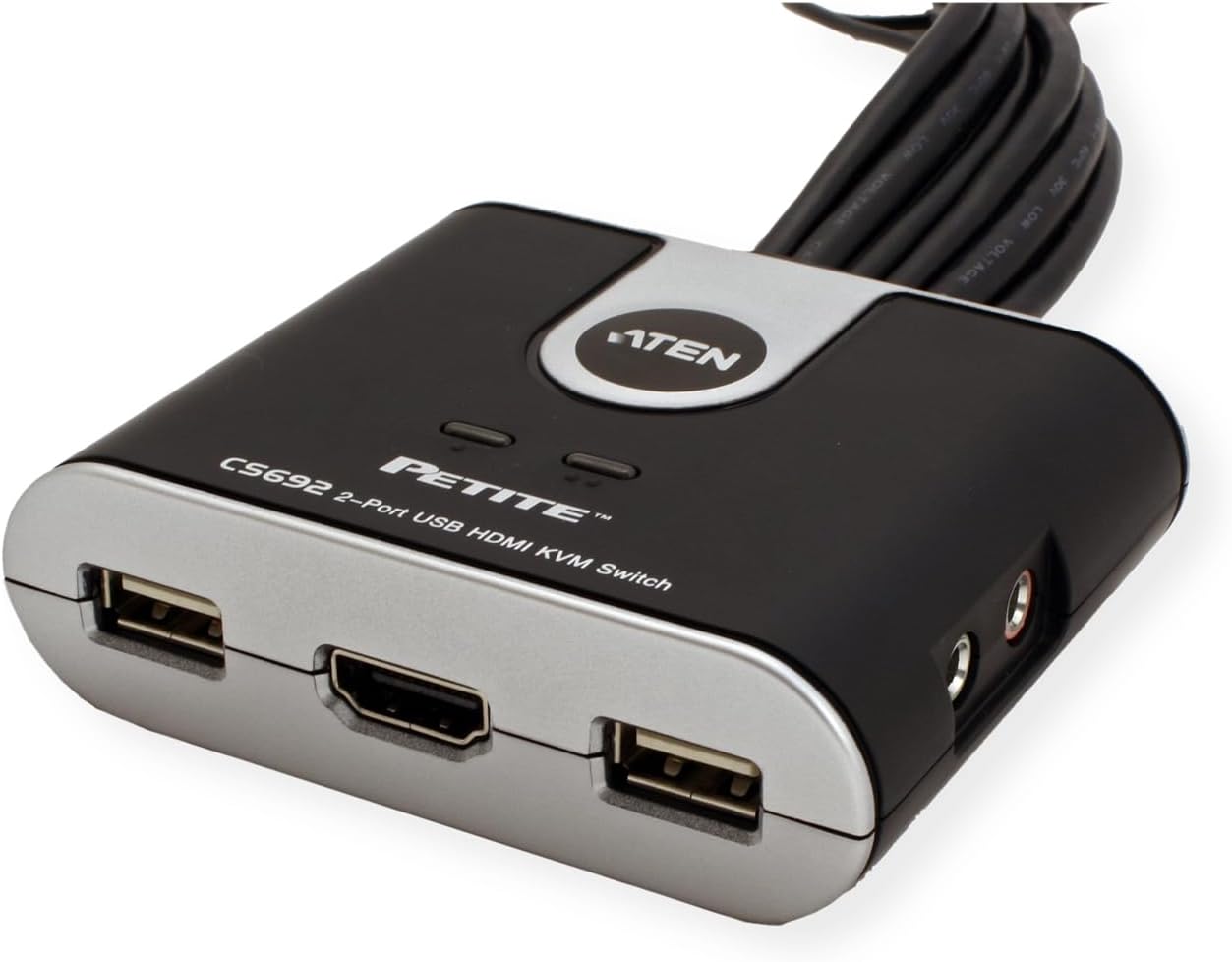
The ATEN CS692 is a 2-Port USB HD Audio/Video KVM Switch designed to link two HDMI-enabled personal computers or devices to a single USB keyboard, USB mouse, and HDMI display console. This switch offers full HDMI functionality, USB 2.0 peripheral sharing, and a firmware upgrade function to ensure compatibility with the latest devices and technologies. It provides a seamless and efficient solution for managing multiple systems from one workstation.
Key Features
- Controls two HDMI-enabled PCs or devices from a single console.
- HDMI 1.3a and HDCP compatible for high-definition video.
- Multiple computer selection methods: remote port selector, hotkeys, and USB mouse.
- Audio-enabled with full bass response for 2.1 channel surround sound systems.
- Independent switching of KVM (Keyboard, Video, Mouse) and Audio focus.
- Multiplatform support for Windows, Mac, and Linux operating systems.
- Compact design with built-in all-in-one cables (2 x 1.2 m).
- Superior video quality supporting resolutions up to 1920 x 1200 and 1080p.
- Compatible with widescreen LCD monitors.
- Features Video DynaSync technology to eliminate boot-up display problems and optimize resolution.
- Power on detection automatically switches to the active computer if one is powered off.
- Supports gaming and multimedia keyboards, as well as multifunction and wireless keyboards and mice.
- Console mouse port emulation/bypass feature supports most mouse drivers and multifunction mice.
- Mac keyboard support and emulation.
- USB 2.0 mouse port can be used for USB hub and USB peripheral sharing.
- Non-powered operation.
- Firmware upgradable for future compatibility.
Setup
What's in the Box
- 1 x ATEN CS692 2-Port USB HD Video/Audio KVM Switch
- 2 x Built-in KVM Cables (HDMI, USB, Audio)
- 1 x Remote Port Selector
- 1 x User Instructions (this manual)
System Requirements
- Two computers with HDMI video output, USB ports, and audio output/input ports.
- One HDMI display monitor.
- One USB keyboard.
- One USB mouse.
- Speakers and microphone (optional, for audio functionality).
- Supported Operating Systems: Windows, Mac, Linux.
Connection Diagram


Installation Steps
- Power Off All Devices: Ensure all computers, the monitor, and the KVM switch are powered off and unplugged from their power sources.
- Connect Console Devices:
- Connect your USB keyboard to the USB keyboard port on the CS692.
- Connect your USB mouse to the USB mouse port on the CS692.
- Connect your HDMI monitor to the HDMI output port on the CS692.
- (Optional) Connect your speakers and microphone to the corresponding audio jacks on the CS692.
- Connect Computers to KVM: For each computer (PC 1 and PC 2):
- Connect the HDMI cable from the CS692 to the HDMI output port of the computer.
- Connect the USB cable from the CS692 to an available USB port on the computer.
- (Optional) Connect the audio cables (speaker and microphone) from the CS692 to the audio output and input ports of the computer.
- Connect Remote Port Selector: Plug the remote port selector into its dedicated port on the CS692.
- Power On Devices:
- Power on the monitor.
- Power on the connected computers.
- The KVM switch will automatically detect the active computer. If both are on, it will default to the first detected.


Operating the KVM Switch
Switching Between Computers
The ATEN CS692 offers multiple methods to switch control between the connected computers:
- Remote Port Selector: Press the button on the remote port selector to cycle between the connected computers. The LED indicators on the KVM unit will show which port is currently active.
- Hotkeys: Use specific keyboard hotkey combinations to switch ports. The default hotkey sequence is typically [Scroll Lock] + [Scroll Lock]. Refer to the full user manual (available on the ATEN website) for advanced hotkey functions, including independent KVM and audio switching.
- USB Mouse: Double-click the scroll wheel of your USB mouse to switch between ports. This feature may require specific mouse drivers or settings; consult the full manual for compatibility and configuration.
Independent KVM and Audio Switching
The CS692 allows for independent switching of the KVM focus (keyboard, video, mouse) and the audio focus. This means you can be viewing and controlling one computer while listening to audio from the other. This advanced feature is controlled via specific hotkey combinations. Please refer to the comprehensive user manual for detailed instructions on configuring and utilizing independent switching.
Firmware Upgrades
ATEN periodically releases firmware updates to improve performance, enhance compatibility with new devices, and address potential issues. It is recommended to check the official ATEN website for the latest firmware for the CS692 model. The firmware upgrade process typically involves connecting the KVM to a computer in a specific mode and running an update utility. Detailed instructions for firmware upgrades are provided on the ATEN support page for this product.
Maintenance
To ensure the longevity and optimal performance of your ATEN CS692 KVM Switch, follow these maintenance guidelines:
- Cleaning: Use a soft, dry cloth to clean the exterior of the KVM unit. Do not use liquid cleaners or aerosol sprays, as they may damage the device.
- Environment: Operate the KVM switch in a clean, dry environment, away from excessive heat, humidity, and dust. Ensure proper ventilation around the unit.
- Cable Management: Avoid bending or crimping the integrated cables excessively. Proper cable management can prevent damage and ensure reliable connections.
- Storage: If storing the device for an extended period, disconnect all cables and store it in a cool, dry place.
Troubleshooting
If you encounter issues with your ATEN CS692 KVM Switch, refer to the following common troubleshooting steps:
| Problem | Possible Cause / Solution |
|---|---|
| No video display or distorted image. |
|
| Keyboard or mouse not responding. |
|
| No audio or distorted audio. |
|
| KVM switches unexpectedly or does not switch. |
|
Specifications
| Feature | Detail |
|---|---|
| Model | CS692 |
| Operation Mode | Manual |
| Connector Type | HDMI, USB |
| Dimensions (L x W x H) | 47.24 x 1 x 1 inches (approximate, including cables) |
| Circuit Type | 2-way |
| Actuator Type | Push Button (Remote Port Selector) |
| Number of Positions | 2 |
| Control Method | Remote, Hotkey, USB Mouse |
| Connectivity Protocol | HDMI |
| Color | Black |
| Wattage | 2.65 watts |
| Number of USB 2.0 Ports | 2 (for keyboard/mouse) |
| Supported Operating Systems | Windows, Mac, Linux |
| Item Weight | 1 pound |
| Voltage | 5 Volts |
| Max Resolution | 1920 x 1200; 1080p |
Warranty and Support
For detailed warranty information and technical support, please visit the official ATEN Technologies website. ATEN provides resources including FAQs, troubleshooting guides, driver downloads, and firmware updates for their products. You can also contact ATEN customer service for direct assistance with product issues or inquiries.
ATEN Official Website: www.aten.com


