
plustek SmartOffice PS286 Plus
Plustek SmartOffice PS286 Plus Document Scanner User Manual
Model: SmartOffice PS286 Plus
Brand: Plustek
1. Introduction
The Plustek SmartOffice PS286 Plus is a compact and efficient document scanner designed for fast and reliable digitization of various documents. It is ideal for office environments requiring quick processing of paper documents and rigid cards.
Key Features:
- Advanced image enhancement for automatic straightening, rotation, brightness adjustment, and cropping.
- Ability to scan rigid cards, including ID cards and driver's licenses.
- Equipped with a 50-sheet Automatic Document Feeder (ADF) for batch scanning.
- Supports duplex scanning (scanning both sides of a document simultaneously).
- Fast scan speed of up to 25 pages per minute (50 images per minute for duplex).
- Daily duty cycle of 1500 pages.
- Single-touch customizable buttons for automating up to 9 frequent scanning jobs.

Figure 1.1: Plustek SmartOffice PS286 Plus Document Scanner (Closed)
2. Setup
2.1 Package Contents
Before you begin, ensure all items are present in the package:
- Plustek SmartOffice PS286 Plus Scanner
- AC Power Adapter
- USB Cable
- Quick Guide
- Installation CD (or download instructions for drivers/software)
2.2 Physical Setup
- Place the scanner on a stable, flat surface with adequate space for document feeding and output.
- Open the Automatic Document Feeder (ADF) cover and extend the output tray.
- Connect the USB cable from the scanner to an available USB port on your computer.
- Connect the AC power adapter to the scanner's power input, then plug it into a power outlet.
- Press the power button to turn on the scanner.

Figure 2.1: Scanner with ADF Open and Output Tray Extended
2.3 Software Installation
To use the scanner, you must install the necessary drivers and software. The SmartOffice PS286 Plus is TWAIN compliant, ensuring compatibility with various imaging applications.
- Insert the Installation CD into your computer's optical drive. If your computer does not have an optical drive, download the latest drivers and software directly from the official Plustek website (www.plustek.com).
- Follow the on-screen instructions to complete the installation process. This typically includes installing the scanner driver, Plustek's scanning utility, and any bundled software.
- Restart your computer if prompted after installation.
3. Operating Instructions
3.1 Loading Documents
The scanner's Automatic Document Feeder (ADF) can hold up to 50 sheets of paper. It also supports scanning of rigid cards up to 1.2mm thick without additional adjustments.
- Standard Documents: Fan the edges of the paper stack to prevent misfeeds. Place the documents face down into the ADF, ensuring they are aligned with the paper guides.
- Rigid Cards: Insert rigid cards (e.g., ID cards, driver's licenses) one at a time into the designated card slot or feed them through the ADF if supported for mixed batches.

Figure 3.1: Loading Documents into the ADF
3.2 Scanning Documents
The SmartOffice PS286 Plus offers one-touch scanning for convenience.
- Load your documents into the ADF as described above.
- On the scanner's control panel, select a pre-configured scan job using the function buttons (1-9). These jobs can be customized via the scanning utility software to define scan settings such as destination, file format, and resolution.
- Press the 'Scan' button to initiate the scanning process. The scanner will automatically feed and scan the documents.
- Scanned images will be processed and saved to the specified location on your computer.
3.3 Image Enhancement Features
The scanner includes several built-in image processing functions to improve scan quality and reduce manual adjustments:
- Auto Color Detection: Automatically detects and scans documents in color, grayscale, or black and white.
- Auto Rotate for Text Orientation: Automatically rotates scanned pages so text is correctly oriented.
- Multi-image Output: Allows saving multiple images from a single scan.
- Blank Pages Removal: Automatically deletes blank pages from duplex scans.
- Punch Holes Removal: Digitally removes punch hole marks from scanned images.
- Remove Background: Cleans up background noise for clearer images.
- Denoise: Reduces image noise for cleaner scans.
- Character Enhancement: Improves the readability of text.

Figure 3.2: Smart Archiving and Labeling Solution
4. Maintenance
4.1 Cleaning the Scanner
Regular cleaning ensures optimal performance and extends the life of your scanner.
- Exterior: Wipe the exterior of the scanner with a soft, dry, lint-free cloth. Do not use abrasive cleaners or solvents.
- Glass Surfaces: Gently clean the glass scanning surfaces with a soft cloth dampened with a non-abrasive glass cleaner. Ensure no residue is left behind.
- Rollers: Periodically clean the paper feed rollers with a lint-free cloth lightly dampened with isopropyl alcohol. This helps maintain proper paper feeding.
Always power off and unplug the scanner before cleaning.
4.2 Consumables
Over time, certain parts of the scanner, such as the feed rollers, may wear out and require replacement. Refer to the Plustek website or contact customer support for information on purchasing replacement parts and service kits.
5. Troubleshooting
This section addresses common issues you might encounter with your Plustek SmartOffice PS286 Plus scanner.
5.1 Common Issues and Solutions
| Problem | Possible Cause / Solution |
|---|---|
| Scanner not recognized by computer / "Program was unable to allocate enough memory" error. | Ensure USB cable is securely connected. Try a different USB port. Verify scanner is powered on. Close other demanding applications to free up system memory. Reinstall the latest drivers from the official Plustek website. |
| Paper jams frequently. | Ensure documents are fanned and aligned correctly in the ADF. Do not overload the ADF. Check for any foreign objects in the paper path. Clean the feed rollers as described in the Maintenance section. |
| Scanned images are black or blank. | Check if the scanner's light source is active. Ensure the document is placed correctly (face down). Reinstall scanner drivers. If the issue persists, contact technical support. |
| Scanner freezes or makes unusual noises during scanning. | Power off the scanner, unplug it, and check for any jammed paper or obstructions. Clean the scanner. Ensure drivers are up to date. Reboot your computer. |
| Poor scan quality (streaks, blurry images). | Clean the scanner's glass surfaces and rollers. Adjust scan resolution and image enhancement settings in the software. Ensure original documents are clean and flat. |
5.2 Technical Support
If you encounter issues that cannot be resolved using the troubleshooting steps above, Plustek offers comprehensive customer support.
- Online Support: Visit the official Plustek website (www.plustek.com) for FAQs, driver downloads, and online support resources.
- Phone Support: Contact Plustek's US-based customer support for direct assistance. Refer to the Plustek website for current contact numbers and operating hours.
- Email Support: Send your inquiries via email for detailed assistance.
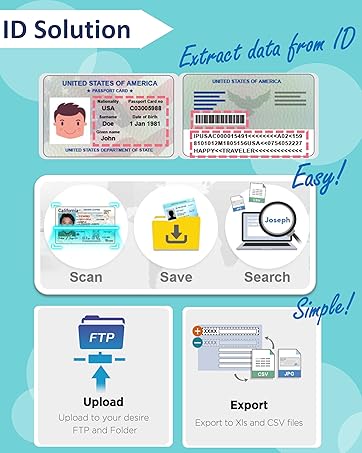
Figure 5.1: Plustek US-Based Customer Support
6. Specifications
Detailed technical specifications for the Plustek SmartOffice PS286 Plus Document Scanner:
| Specification | Value |
|---|---|
| Product Dimensions | 14.2 x 9.9 x 11.8 inches |
| Item Weight | 3.66 pounds |
| Model Name | SmartOffice PS286 Plus |
| Scanner Type | Document |
| Connectivity Technology | USB |
| Resolution | 600 dpi (Optical) |
| Wattage | 18 watts |
| Sheet Size | A4, Letter, Legal |
| Color Depth | 24 bpp |
| Scan Speed | 25 ppm (50 ipm duplex) at 200dpi, LTR |
| Daily Duty Cycle | 1500 pages |
| Operating System Compatibility | Windows XP / Vista / 7 / 8 / 10, Mac 10.8.x ~ 10.14.x, Linux (SANE for Systems Integrator) |

Figure 6.1: Scanner Dimensions
7. Warranty Information
Plustek provides a limited warranty for the SmartOffice PS286 Plus scanner. The warranty period and terms may vary by region. Please refer to the warranty card included with your product or visit the official Plustek website for detailed warranty information and registration procedures.
Keep your purchase receipt as proof of purchase for warranty claims.
Related documentsSmartOffice PS286 Plus


Ask a question about this manual
Ask about setup, troubleshooting, compatibility, parts, safety, or missing instructions. Manuals+ will review the question and use this page’s manual context to help answer it.