
1. Introduction
The Conceptronic CSATAI23U is a versatile adapter designed to connect Serial ATA (SATA) and Integrated Drive Electronics (IDE) devices to a computer via a USB 2.0 interface. This device facilitates data transfer, backup, and recovery from various storage and optical drives, including 2.5-inch and 3.5-inch hard drives, CD-ROMs, CD-RWs, DVD-RWs, and Blu-ray drives.
This manual provides detailed instructions for the proper setup, operation, maintenance, and troubleshooting of your Conceptronic CSATAI23U adapter.
2. Package Contents
Please verify that all items are present in your package:
- Conceptronic CSATAI23U Adapter
- USB 2.0 Cable
- AC Power Adapter
- 4-pin Power Cable (for IDE devices)
- SATA Data Cable
- SATA Power Cable
3. Setup Instructions
Follow these steps to connect your storage or optical drive to the Conceptronic CSATAI23U adapter.
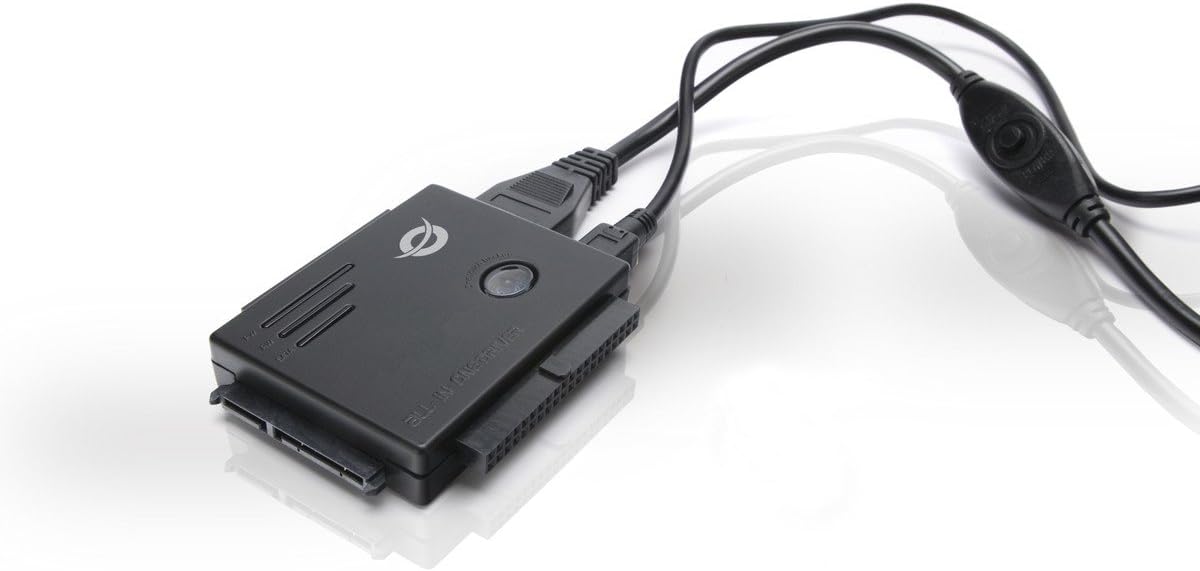
Image: The Conceptronic CSATAI23U adapter with various cables connected, illustrating its compact design and multiple interface options for SATA and IDE devices.
3.1. Connecting an IDE Device (2.5-inch or 3.5-inch)
- Identify the IDE Port: Locate the 40-pin IDE connector on the adapter. For 2.5-inch IDE drives, use the smaller 44-pin connector if available, or the 40-pin with an appropriate adapter (not included).
- Connect the IDE Drive: Carefully align and connect your IDE hard drive or optical drive to the corresponding IDE port on the adapter. Ensure a firm connection.
- Connect Power to IDE Drive: For 3.5-inch IDE drives, connect the 4-pin power cable from the AC power adapter directly to the IDE drive's power input. For 2.5-inch IDE drives, power is typically supplied via the IDE data cable, but some may require external power.
- Connect Adapter Power: Connect the AC power adapter to the Conceptronic CSATAI23U adapter's power input.
- Connect to Computer: Plug the USB 2.0 cable into the adapter and then into an available USB port on your computer.
3.2. Connecting a SATA Device (2.5-inch or 3.5-inch)
- Identify the SATA Port: Locate the SATA data and power connectors on the adapter.
- Connect the SATA Drive: Connect the SATA data cable from the adapter to the SATA data port on your hard drive or optical drive.
- Connect Power to SATA Drive: Connect the SATA power cable from the AC power adapter to the SATA power port on your drive.
- Connect Adapter Power: Connect the AC power adapter to the Conceptronic CSATAI23U adapter's power input.
- Connect to Computer: Plug the USB 2.0 cable into the adapter and then into an available USB port on your computer.
Important Note on Power: Always ensure the external power supply is connected to both the adapter and the drive (if required by the drive) before connecting the USB cable to your computer. This ensures stable power delivery and proper device recognition.
4. Operating Instructions
Once the device is physically connected as described in the Setup section, follow these steps to operate the adapter:
- Power On: If your adapter has a power switch, turn it on. The power LED on the adapter should illuminate.
- Device Recognition: Your computer's operating system (Windows, macOS, Linux) should automatically detect and install the necessary drivers for the USB 2.0 device. This is typically a plug-and-play process.
- Accessing the Drive:
- For Windows: Open "This PC" or "My Computer." The connected drive should appear as a new removable disk. If it's a new or unformatted drive, you may need to initialize and format it using Disk Management.
- For macOS: The drive icon should appear on your desktop or in Finder under "Locations." If it's a new or unformatted drive, you may need to use Disk Utility to initialize and format it.
- Data Transfer: You can now drag and drop files to and from the connected drive, or use backup software as needed.
- Safe Removal: Before disconnecting the adapter or drive, always safely eject the device from your operating system to prevent data corruption.
- For Windows: Click the "Safely Remove Hardware and Eject Media" icon in the system tray.
- For macOS: Drag the drive icon to the Trash or click the Eject button next to the drive in Finder.
5. Maintenance
Proper maintenance ensures the longevity and reliable performance of your adapter.
- Cleaning: Use a soft, dry cloth to clean the adapter. Avoid liquid cleaners or solvents.
- Storage: Store the adapter in a cool, dry place away from direct sunlight and extreme temperatures when not in use.
- Handling: Handle the adapter and connected drives with care to avoid physical damage to connectors or internal components.
- Cable Management: Avoid bending or kinking cables sharply, as this can damage internal wires.
6. Troubleshooting
If you encounter issues with your Conceptronic CSATAI23U adapter, refer to the following common solutions:
- Device Not Recognized:
- Ensure all cables (USB, power to adapter, power to drive) are securely connected.
- Verify the power adapter is plugged into a working outlet and the adapter's power switch (if present) is on.
- Try connecting the adapter to a different USB port on your computer.
- Ensure the drive itself is functional by testing it in another system if possible.
- For new drives, ensure they are initialized and formatted in your operating system's Disk Management (Windows) or Disk Utility (macOS).
- Connection Sequence Issues: Some users report that the connection sequence can affect recognition. Try this sequence:
- Connect the drive to the adapter.
- Connect the external power supply to the drive (if required) and then to the adapter.
- Turn on the adapter's power (if applicable).
- Connect the USB cable from the adapter to your computer.
- Slow Data Transfer:
- Ensure you are using a USB 2.0 port on your computer. While compatible with USB 1.1, performance will be limited.
- Check the condition of the USB cable; a damaged cable can affect speed.
- Drive Disconnects Randomly:
- Verify the external power supply is providing sufficient and stable power to both the adapter and the drive.
- Ensure all connections are firm and not loose.
- Avoid using long USB extension cables, which can lead to power or signal degradation.
7. Specifications
| Feature | Detail |
|---|---|
| Brand | Conceptronic |
| Model Number | CSATAI23U |
| Product Dimensions | 7.3 x 6.2 x 1.3 cm |
| Product Weight | 430 g |
| USB Ports | 1 (USB 2.0) |
| Power Consumption | 2 Watts |
| Compatible Devices | Personal Computer |
| Connector Type | SATA, IDE, USB |
| Supported Drive Types | 2.5" / 3.5" SATA HDD/SSD, 2.5" / 3.5" IDE HDD, 5.25" Optical Drives (CD-ROM, CD-RW, DVD-RW, Blu-ray) |
8. Warranty and Support
For warranty information and technical support, please refer to the documentation included with your purchase or visit the official Conceptronic website. Keep your proof of purchase for warranty claims.
For further assistance, you may contact Conceptronic customer service through their official support channels.


