
Introduction
Welcome to the user manual for your Flipper Big Button Remote. This remote is designed for simplicity and ease of use, especially for seniors, allowing control of two devices: a television and a cable/satellite/DTV box. Its intuitive design and large, color-coded buttons simplify the viewing experience.
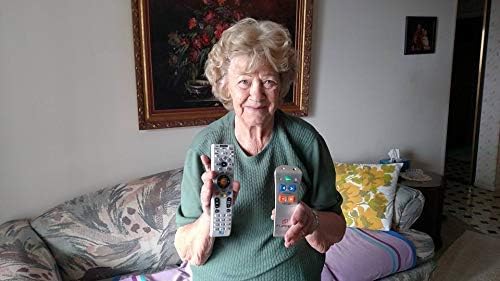
Image: An older woman demonstrates the Flipper remote's simplicity by holding it alongside a more complex standard remote, emphasizing its user-friendly design.
Safety Information
Please read all safety instructions before using the Flipper remote to ensure safe operation and prevent damage.
- Do not expose the remote to water or excessive moisture.
- Do not mix old and new batteries. Do not mix alkaline, standard (carbon-zinc), or rechargeable (nickel-cadmium) batteries.
- Dispose of used batteries properly according to local regulations.
- Keep out of reach of small children.
Package Contents
Your Flipper Big Button Remote package should contain the following items:
- 1 x Flipper Big Button Remote (Model A22)
- 1 x User Manual (this document)
Product Overview
Remote Control Layout
The Flipper remote features a simplified layout for common functions and a hidden sliding panel for advanced controls such as direct channel entry.

Image: The Flipper remote with its main, large, color-coded buttons visible: green ON/OFF, gray MUTE, blue CHANNEL up/down, and orange VOLUME up/down.

Image: The Flipper remote with its lower panel slid open, exposing the numeric keypad (0-9), LC (Last Channel), TV, STB (Set Top Box), ADD, and DEL buttons.
Main Buttons:
- ON/OFF (Green): Powers on/off both the TV and Set Top Box simultaneously.
- MUTE (Gray): Mutes/unmutes the TV audio.
- CHANNEL (Blue Arrows): Changes channels up or down.
- VOLUME (Orange +/-): Adjusts volume up or down.
Hidden Panel Buttons:
Slide down the lower panel to access these functions:
- Numeric Keypad (0-9): For direct channel entry.
- LC (Last Channel): Returns to the previously viewed channel.
- TV: Selects TV mode for programming or direct control.
- STB (Set Top Box): Selects Set Top Box mode for programming or direct control.
- ADD: Used for adding favorite channels.
- DEL: Used for deleting favorite channels.
Setup
Battery Installation
The Flipper remote requires two (2) AAA batteries (not included).
- Open the battery compartment cover on the back of the remote.
- Insert two AAA batteries, ensuring correct polarity (+ and -).
- Close the battery compartment cover securely.
Device Pairing (Simple Setup)
The Flipper remote is designed for easy setup with most TVs and cable/satellite boxes. Follow these steps:

Image: A visual guide illustrating the three steps for setting up the Flipper remote: 1. Test presets using VOL and CH buttons. 2. Sync TV by holding TV button, entering codes, and pressing VOL. 3. Sync STB by holding STB button, entering codes, and pressing CH.
- Test Presets: The Flipper remote is pre-synced to many TVs and Set Top Boxes (cable boxes). Test by pressing the VOLUME and CHANNEL buttons. If one or both presets do not work, proceed to the next steps.
- Sync TV:
- Press and hold the TV button (under the sliding panel) until the red light on the remote turns solid.
- Enter the 3-digit code for your TV brand (refer to the Flipper website or included code list for common codes). The light will turn off.
- Press VOLUME to test. If it doesn't work, try another code for your TV brand.
- Special Note for no STB/cable box: If you only have a TV and no Set Top Box, press and hold TV until the light is solid, then enter 970. This syncs the Channel buttons to the TV.
- Sync STB (Set Top Box):
- Press and hold the STB button (under the sliding panel) until the red light on the remote turns solid.
- Enter the 3-digit code for your cable, satellite, or DTV box brand (refer to the Flipper website or included code list). The light will turn off.
- Press CHANNEL to test. If it doesn't work, try another code for your STB brand.
- Tip: For Xfinity boxes, you may need to look behind the TV or furniture to find the box.
- Once both devices are synced, the ON/OFF button will control both simultaneously.
Operating Instructions
Basic Control
- Power: Press the green ON/OFF button to turn both your TV and Set Top Box on or off.
- Channel: Use the blue CHANNEL arrows to navigate through channels.
- Volume: Use the orange VOLUME +/- buttons to adjust the sound level.
- Mute: Press the gray MUTE button to silence the audio. Press again to unmute.
Favorite Channel Feature
Program up to 30 of your favorite channels for quick access.
- Ensure the remote is in STB mode (if using a cable/satellite box) or TV mode (if only controlling TV channels directly).
- Press and hold the ADD button (under the sliding panel) until the red light turns solid.
- Enter the channel number you wish to add using the numeric keypad.
- Press ADD again. The light will flash and turn off, indicating the channel is saved.
- Repeat for all desired favorite channels.
- To scroll through favorite channels, use the blue CHANNEL arrows.
Locking Feature (Prevent Reprogramming)
The Flipper remote includes an optional locking feature to prevent accidental reprogramming.
- To Lock the remote: Press and hold ADD and DEL simultaneously for 5 seconds until the red light flashes twice.
- To Unlock the remote: Press and hold ADD and DEL simultaneously for 5 seconds until the red light flashes three times.
Maintenance
Cleaning
Wipe the remote with a soft, dry cloth. Do not use liquid cleaners or abrasive materials, as these may damage the remote's surface or internal components.
Battery Replacement
Replace batteries when the remote's response becomes sluggish or the indicator light does not illuminate consistently. Refer to the "Battery Installation" section for instructions.
Troubleshooting
Common Issues and Solutions
| Problem | Possible Cause | Solution |
|---|---|---|
| Remote not working. | Dead or incorrectly inserted batteries. | Replace batteries with new AAA batteries, ensuring correct polarity. |
| Remote controls one device but not the other. | Only one device is programmed, or incorrect code used. | Re-program the unresponsive device using the "Device Pairing" instructions. Try alternative codes for your device brand. |
| ON/OFF button only controls one device. | Both devices are not properly synced for the one-touch power feature. | Ensure both TV and STB are programmed correctly. The ON/OFF button will then control both. |
| Cannot add or delete favorite channels. | Remote is locked. | Unlock the remote using the "Locking Feature" instructions. |
Specifications
Technical Details
- Model: A22
- Brand: Flipper
- Manufacturer: Flipper LLC
- Compatible Devices: TV, Set Top Box (Cable, Satellite, DTV)
- Max Number of Supported Devices: 2
- Power Source: 2 x AAA Batteries (not included)
- Connectivity Technology: Infrared
- Human Interface Input: Buttons, Keypad
- Product Dimensions: 17.78 x 5.08 x 5.08 cm
- Item Weight: 141.75 g
- Special Features: Favorite channel feature (up to 30 channels), Locking feature to prevent reprogramming, Large tactile friendly buttons.
Warranty and Support
Warranty Information
Specific warranty details are typically provided with your purchase documentation or on the manufacturer's official website. Please refer to those resources for the most accurate and up-to-date warranty terms regarding your Flipper remote.
Customer Support
For further assistance, troubleshooting, or to find device codes not listed in this manual, please visit the official Flipper website or contact their customer support.
Note: Contact information and support resources may vary by region. Please check the product packaging or manufacturer's website for details.


