
Introduction
The Brookstone iDesign Flip Speaker Dock provides a compact and portable audio solution for your iPod and iPhone devices. It features a unique flip design, allowing for both vertical and horizontal device orientation, and delivers clear stereo sound through its two built-in speakers. This manual provides instructions for proper setup, operation, and maintenance of your speaker dock.
Package Contents
Please verify that all items are present in your package:
- Brookstone iDesign Flip Speaker Dock
- AC Power Adapter
- Audio Cable (3.5mm auxiliary)
- User Manual (this document)
Product Overview
Familiarize yourself with the components of your speaker dock:
- Docking Connector: For connecting your iPod or iPhone.
- Speaker Grilles: Cover the two built-in stereo speakers.
- Power Button: Turns the unit on or off.
- Volume Controls: Adjusts the audio output level.
- Auxiliary Input (AUX IN): For connecting external audio devices.
- DC IN Jack: For connecting the AC power adapter.
- Battery Compartment: Located on the underside for optional battery power.
- Rotational Base: Allows the dock to flip for horizontal viewing.
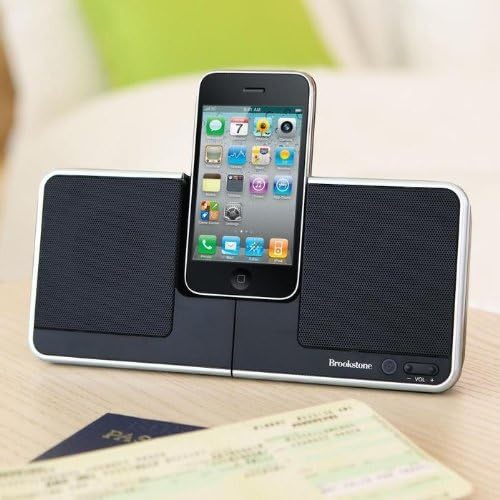
Image: The Brookstone iDesign Flip Speaker Dock with an iPhone device docked in the vertical position, showcasing its primary use.
Setup
Powering the Speaker Dock
The speaker dock can be powered by the included AC adapter or by batteries (not included).
- AC Power: Connect the small end of the AC power adapter to the DC IN jack on the back of the speaker dock. Plug the other end into a standard wall outlet.
- Battery Power: Open the battery compartment on the underside of the unit. Insert the required number of batteries (refer to the compartment label for type and quantity), ensuring correct polarity. Close the compartment securely.
Docking Your Device
- Ensure the speaker dock is powered on.
- Carefully align your iPod or iPhone with the docking connector.
- Gently push your device down onto the connector until it is seated firmly.
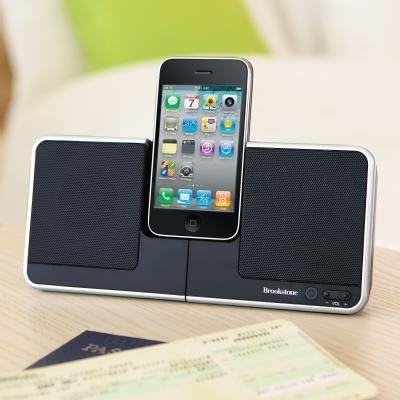
Image: A close-up view of the Brookstone iDesign Flip Speaker Dock with an iPhone securely docked in the upright, vertical position.
Connecting External Audio (AUX IN)
To play audio from devices without a docking connector:
- Connect one end of the 3.5mm audio cable to the AUX IN jack on the speaker dock.
- Connect the other end of the audio cable to the headphone jack or audio output of your external device.
- Ensure your external device's volume is set to a moderate level before playing audio.
Operating Instructions
Power On/Off
Press the Power button located on the front of the unit to turn the speaker dock on or off. An indicator light may illuminate when the unit is powered on.
Playing Audio
Once your iPod, iPhone, or external device is connected and the speaker dock is powered on, begin playback on your device. Audio will be routed through the speaker dock's speakers.
Volume Control
Use the Volume Up (+) and Volume Down (-) buttons on the speaker dock to adjust the audio output level. Note that the volume control may have a slight delay in response and a limited number of distinct volume levels.
Using the Flip Feature
The speaker dock features a rotational base to change your device's orientation:
- With your device docked vertically, gently rotate the central section of the dock.
- The dock will pivot, allowing your device to rest in a horizontal (landscape) orientation.
- To return to vertical orientation, gently rotate the central section back.

Image: The Brookstone iDesign Flip Speaker Dock with an iPhone device docked in the horizontal (landscape) position, demonstrating the flip feature.
Automatic Shut-off Feature
The speaker dock is designed with an automatic shut-off feature to conserve power. If no audio is playing or no activity is detected for a period of time (typically 5-30 minutes), the unit may automatically power down. This feature cannot be disabled.
Maintenance
Cleaning
To clean the speaker dock, ensure it is powered off and unplugged. Use a soft, dry cloth to wipe down the surfaces. Do not use liquid cleaners or abrasive materials, as these may damage the finish or internal components.
Battery Replacement
If using battery power and the unit's performance diminishes, replace all batteries with new ones of the specified type and quantity. Always dispose of used batteries responsibly according to local regulations.

Image: The Brookstone iDesign Flip Speaker Dock shown in its compact, folded configuration, ideal for travel and storage.
Troubleshooting
If you encounter issues with your speaker dock, please refer to the following common solutions:
| Problem | Possible Solution |
|---|---|
| No power | Ensure the AC adapter is securely connected to both the dock and a working power outlet. If using batteries, check that they are correctly inserted and not depleted. |
| No sound from speakers | Verify the speaker dock is powered on. Increase the volume on both the dock and your connected device. Ensure your device is properly docked or the AUX cable is fully inserted. If using AUX, try unplugging and re-plugging the cable. |
| Device not charging | Ensure the speaker dock is connected to AC power. Re-seat your device on the docking connector. Check for any debris in the docking port of your device or the dock. |
| Unstable power connection | Ensure the AC power adapter is firmly seated in the DC IN jack. Avoid moving the unit excessively while connected to power. |
| Volume control unresponsive or limited | This unit may have a slight delay in volume adjustment and a limited number of volume steps. Adjust gradually. |
| Dock feels unstable / topples easily | Ensure the small feet on the underside of the dock are fully extended and locked into position. Place the dock on a flat, stable surface. |
| Automatic shut-off occurs unexpectedly | This is a built-in power-saving feature and cannot be disabled. The unit will power off after a period of inactivity or no audio playback. |
Specifications
- Model: iDesign Flip Speaker Dock
- Brand: Brookstone
- ASIN: B0028P09RY
- Package Dimensions: 10.1 x 8 x 2.2 inches
- Item Weight: 1.5 pounds
- Power Source: AC Adapter or Batteries (not included)
- Audio Output: Stereo Speakers
- Connectivity: Docking Connector for iPod/iPhone, 3.5mm Auxiliary Input
- Manufacturer: Brookstone
- Date First Available: May 5, 2003
Warranty and Support
Specific warranty information for this product is not available in this manual. Please refer to the original product packaging or contact Brookstone customer support for details regarding warranty coverage and technical assistance.

