
motorola SB6120
Motorola SURFboard SB6120 DOCSIS 3.0 Cable Modem User Manual
Model: SB6120
1. Introduction
The Motorola SURFboard SB6120 is a high-performance DOCSIS 3.0 cable modem designed to provide ultra-fast internet access. It is engineered to deliver exceptional broadband speeds, significantly enhancing your online experience for activities such as streaming, gaming, and large file transfers. This manual provides comprehensive instructions for setting up, operating, maintaining, and troubleshooting your SB6120 cable modem.
Key features include:
- Next Generation DOCSIS 3.0; backwards compatible to DOCSIS 2.0
- Up to 4x faster than DOCSIS 2.0 cable modems
- 10/100/1000Base-T Gigabit Port for incredible wired network speeds
- Intuitive, easy-to-read front panel operational status LEDs
2. Package Contents
Verify that all items are present in your product package:
- Motorola SB6120 SURFboard eXtreme Cable Modem
- Quick Start Guide
- Installation CD-ROM
- Ethernet Cable
- Power Adapter and Cord
- Install Sheet
- Warranty Card
3. Product Overview
Front Panel Indicators
The front panel of the SB6120 features several LED indicators that provide real-time status information about the modem's operation. Understanding these lights is crucial for proper setup and troubleshooting.
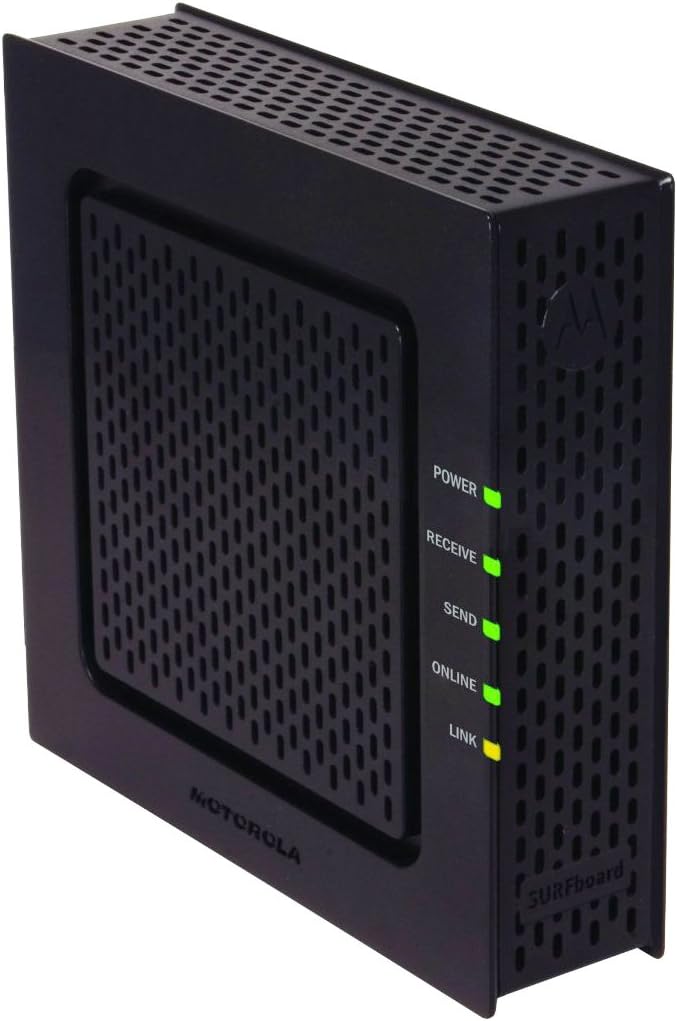
Image: Front view of the Motorola SB6120 cable modem, showing the Power, Receive, Send, Online, and Link LED indicators.
- Power: Indicates the modem is receiving power.
- Receive: Indicates downstream channel connectivity. Blinking means scanning for a connection, solid means connected.
- Send: Indicates upstream channel connectivity. Blinking means scanning for a connection, solid means connected.
- Online: Indicates internet connectivity. Blinking means registering, solid means online.
- Link: Indicates Ethernet connection to a computer or router. Blinking means data activity, solid means connected.
Rear Panel Connections
The rear panel provides all the necessary ports for connecting your modem to the cable network, your computer, and power.

Image: Rear view of the Motorola SB6120 cable modem, highlighting the Ethernet port (top), Coaxial cable connector (middle), and Power input (bottom).
- Ethernet Port: Connects to your computer or router using an Ethernet cable.
- Coaxial Cable Connector: Connects to your cable wall outlet or cable splitter.
- Power Input: Connects to the provided power adapter.
4. Setup Guide
Before You Begin
Ensure you have the following before starting the installation:
- An active cable internet service subscription.
- A computer with an Ethernet port or a wireless router.
- Access to a cable wall outlet.
Step-by-Step Installation
- Connect Coaxial Cable: Connect one end of the coaxial cable to the cable wall outlet and the other end to the COAX connector on the rear of your SB6120 modem. Ensure the connections are finger-tight.
- Connect Ethernet Cable: Connect one end of the supplied Ethernet cable to the Ethernet port on the rear of your SB6120 modem. Connect the other end to the Ethernet port on your computer or the WAN/Internet port on your wireless router.
- Connect Power Adapter: Connect the power cord to the POWER port on the rear of your SB6120 modem. Plug the other end of the power adapter into an electrical outlet.
- Power On: The modem will automatically power on. Allow a few minutes for the modem to initialize and connect to the cable network.
- Verify LED Status: Observe the front panel LEDs. The Power, Receive, Send, and Online LEDs should eventually turn solid green. The Link LED should be solid or blinking yellow/green depending on your connection speed and activity. Refer to Section 5 for detailed LED status meanings.
- Activate with ISP: Contact your Internet Service Provider (ISP) to activate your new modem. You will typically need to provide them with the modem's MAC address, which is usually found on a sticker on the bottom or back of the modem.
5. Operating Instructions
Understanding LED Indicators
The LEDs on the front panel provide important information about the modem's operational status. Refer to the table below for a detailed explanation of each indicator.
| LED Name | Status | Description |
|---|---|---|
| Power | Solid Green | Modem is powered on. |
| Receive | Blinking Green | Scanning for a downstream channel connection. |
| Solid Green | Downstream channel connected. | |
| Send | Blinking Green | Scanning for an upstream channel connection. |
| Solid Green | Upstream channel connected. | |
| Online | Blinking Green | Registering IP address and configuration. |
| Solid Green | Modem is online and ready for internet access. | |
| Link | Solid Yellow | Ethernet connection at 10/100 Mbps. |
| Solid Green | Ethernet connection at 1000 Mbps (Gigabit). | |
| Blinking Yellow/Green | Data activity over the Ethernet connection. |
Basic Operation
Once the SB6120 modem is successfully installed and activated with your ISP, it operates continuously to provide internet connectivity. There are no user-configurable settings directly on the modem itself. All network configurations, such as Wi-Fi settings or port forwarding, are managed through your connected router or computer's network settings.
6. Maintenance
To ensure optimal performance and longevity of your Motorola SB6120 cable modem, consider the following maintenance tips:
- Ventilation: Place the modem in a well-ventilated area, away from direct sunlight or heat sources. Ensure that the ventilation holes are not blocked.
- Cleaning: Periodically wipe the exterior of the modem with a soft, dry cloth. Avoid using liquid cleaners or abrasive materials.
- Power Cycling: If you experience connectivity issues, a simple power cycle can often resolve them. Disconnect the power adapter from the modem, wait for 10-15 seconds, and then reconnect it. Allow the modem to fully restart and re-establish connection.
- Cable Connections: Occasionally check that all coaxial and Ethernet cable connections are secure and not loose.
7. Troubleshooting
If you encounter issues with your SB6120 modem, refer to the table below for common problems and their solutions.
| Problem | Possible Cause | Solution |
|---|---|---|
| No Power (Power LED Off) | Power adapter not connected or faulty outlet. | Ensure power adapter is securely connected to modem and a working electrical outlet. Try a different outlet. |
| Receive/Send LEDs Blinking | Modem is searching for a connection or having trouble locking onto channels. | Check coaxial cable connections. Ensure cable service is active. Power cycle the modem. If issue persists, contact your ISP. |
| Online LED Blinking | Modem is registering or unable to obtain an IP address. | Wait a few minutes. If it continues to blink, contact your ISP to ensure the modem is properly activated on their network. |
| No Internet Access | Modem not online, router issue, or computer network settings. | Verify all modem LEDs are solid green. Power cycle modem and router (if applicable). Check computer's network settings. Contact ISP if modem LEDs are correct but no internet. |
| Slow Internet Speed | Network congestion, ISP issue, or modem signal quality. | Power cycle modem and router. Test speed with a wired connection directly to the modem. Contact your ISP to check signal levels and service plan. |
8. Technical Specifications
Below are the key technical specifications for the Motorola SB6120 SURFboard Cable Modem:
| Feature | Specification |
|---|---|
| Model Number | SB6120 (545101-011-00) |
| DOCSIS Standard | DOCSIS 3.0 (Backward compatible with 2.0) |
| Data Transfer Rate (Downstream) | Up to 343 Mbps |
| Data Transfer Rate (Upstream) | Up to 120 Mbps |
| Ethernet Port | 1 x 10/100/1000Base-T Gigabit Ethernet |
| Connectivity Technology | Ethernet |
| Dimensions (H x W x D) | 24.13 x 17.78 x 6.99 cm |
| Weight | 453.59 g |
| Operating System Compatibility | Windows, Macintosh, UNIX |
9. Warranty and Support
Limited Warranty
The Motorola SB6120 SURFboard Cable Modem comes with a 2-year limited warranty from the date of purchase. This warranty covers defects in materials and workmanship under normal use. Please refer to the warranty card included in your package for full terms and conditions.
Customer Support
For technical assistance, troubleshooting beyond this manual, or warranty claims, please contact Motorola customer support. Have your modem's model number and serial number ready when you call. You may also visit the official Motorola support website for additional resources, FAQs, and updated drivers or firmware (if applicable).
Related documentsSB6120


Ask a question about this manual
Ask about setup, troubleshooting, compatibility, parts, safety, or missing instructions. Manuals+ will review the question and use this page’s manual context to help answer it.