
Introduction
This manual provides detailed instructions for the setup, operation, maintenance, and troubleshooting of your MSI StarMouse SW-103 Wireless Laser Mouse. Please read this manual thoroughly before using the product to ensure optimal performance and longevity.
Product Overview
The MSI StarMouse SW-103 is a wireless laser mouse designed for reliable and precise navigation. It features advanced laser motion detection technology, wireless radio connectivity, and four buttons for enhanced functionality. Its ambidextrous design ensures comfortable use for both left and right-handed users.
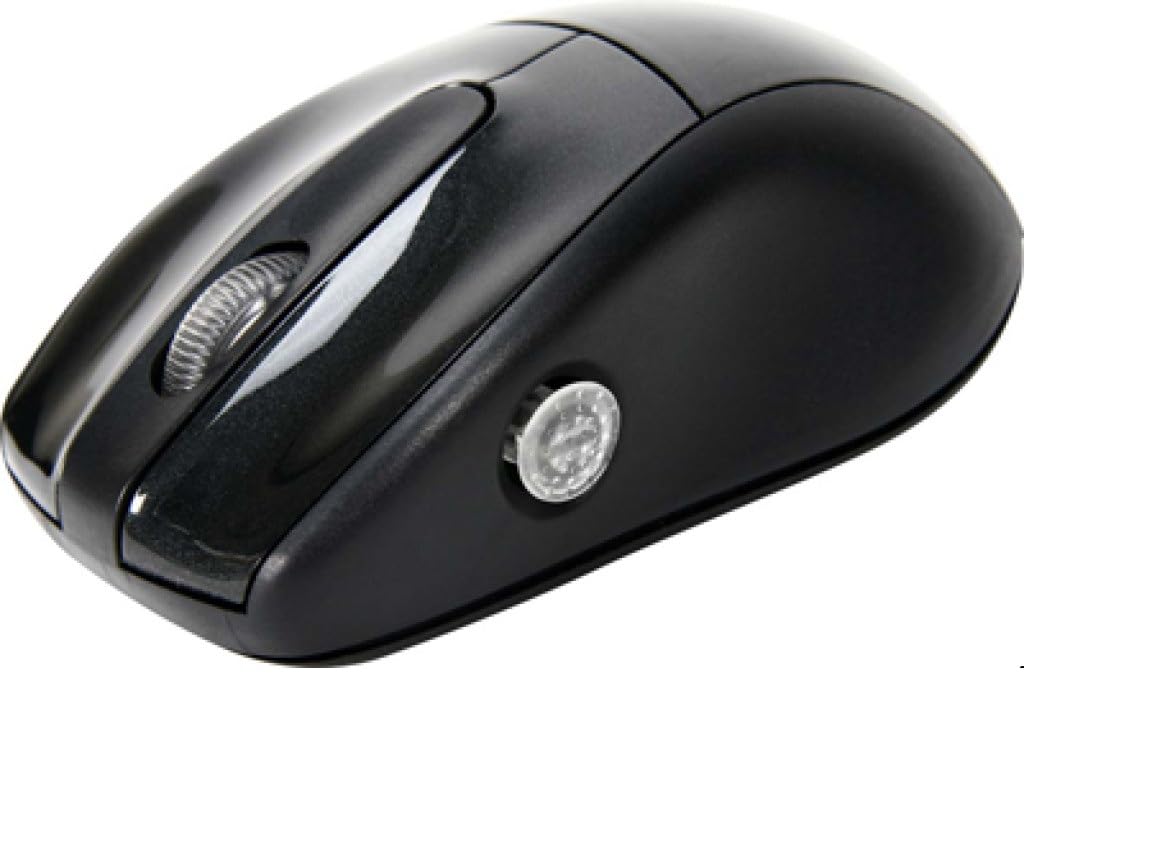
Figure 1: MSI StarMouse SW-103 Wireless Laser Mouse. This image displays the top-down view of the black wireless mouse, highlighting its ergonomic shape, the central scroll wheel, and a circular button located on the left side of the mouse body.
Package Contents
Please check the package contents carefully. If any items are missing or damaged, contact your retailer.
- MSI StarMouse SW-103 Wireless Laser Mouse
- USB Wireless Receiver
- AA Battery (typically included, check packaging)
- User Manual (this document)
Setup
1. Installing Batteries
- Locate the battery compartment cover on the underside of the mouse.
- Slide or lift the cover to open the compartment.
- Insert one AA battery, ensuring the positive (+) and negative (-) terminals align correctly with the indicators inside the compartment.
- Close the battery compartment cover securely.
2. Connecting the Receiver
- Locate the USB wireless receiver, usually stored within the mouse's battery compartment or packaged separately.
- Plug the USB receiver into an available USB port on your computer.
- Your computer should automatically detect and install the necessary drivers. This process may take a few moments.
3. Powering On/Off
Some wireless mice include a power switch on the underside. If present, slide the switch to the 'ON' position to activate the mouse. To conserve battery life, slide the switch to 'OFF' when the mouse is not in use for extended periods.
Operating Instructions
Basic Functions
- Left Button: Primary click function, used for selecting items, opening files, and executing commands.
- Right Button: Secondary click function, typically used to open context-sensitive menus.
- Scroll Wheel: Used for scrolling through documents and web pages. Pressing the scroll wheel often acts as a middle click button, which can open links in new tabs or enable auto-scrolling.
Additional Buttons
The MSI StarMouse SW-103 features four buttons. Beyond the standard left, right, and scroll wheel (which also functions as a button), there is an additional button. This button's function may vary depending on the operating system or specific software, but it is commonly used for tasks such as DPI switching or forward/back navigation in web browsers.
Maintenance
Cleaning
To maintain optimal performance, keep your mouse clean. Use a soft, lint-free cloth slightly dampened with water or a mild cleaning solution to wipe the exterior. Avoid using harsh chemicals or abrasive materials. Do not allow liquids to enter the mouse.
Battery Replacement
When the mouse's performance degrades or it stops responding, it may be time to replace the battery. Follow the battery installation steps outlined in the 'Setup' section to replace the AA battery.
Troubleshooting
| Problem | Solution |
|---|---|
| Mouse not responding |
|
| Cursor erratic or jumps |
|
| Poor wireless range |
|
Specifications
| Feature | Value |
|---|---|
| Brand | MSI |
| Model Number | SW-103 (S12-0400410-I66) |
| Connectivity Technology | Radio Frequency (Wireless) |
| Movement Detection Technology | Laser |
| Movement Resolution (DPI) | 1600 DPI |
| Number of Buttons | 4 |
| Hand Orientation | Ambidextrous |
| Item Weight | 70 Grams |
| Color | Black |
Warranty and Support
For warranty information and technical support, please refer to the warranty card included with your product or visit the official MSI website. Keep your purchase receipt as proof of purchase for warranty claims.


