
Charter C4000 & S4000
Charter Ocap–4 (C4000 & S4000) 4-Device Universal Remote Control User Manual
Model: C4000 & S4000
1. Introduction
This manual provides instructions for the setup, operation, and maintenance of your Charter Ocap–4 (C4000 & S4000) 4-device universal remote control. This remote is designed to simplify your home entertainment experience by controlling up to four different audio/video devices, including your television, DVR, cable box, and other compatible equipment.

Image 1.1: Angled view of the Charter Ocap-4 universal remote control. This image displays the silver-colored remote with various gray, blue, red, and green buttons for different functions, including power, channel, volume, and device selection. The Charter logo is visible at the bottom right.
2. Key Features
The Charter Ocap–4 remote control offers several features for enhanced usability:
- Universal Control: Preprogrammed to operate cable converters provided by your cable service provider.
- DVR/PVR Functionality: Dedicated keys for controlling popular functions on your Digital Video Recorder (DVR) or Personal Video Recorder (PVR).
- Programmable Master Power: A single key to turn on/off multiple home entertainment devices simultaneously.
- Color-Coded Keys: Buttons are color-coded to help quickly locate frequently used functions.
- Extensive Code Library: Includes a comprehensive code library for various video and audio devices.
- Volume Lock: Allows you to lock the volume controls to a specific device mode or to individual modes.
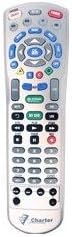
Image 2.1: Front view of the Charter Ocap-4 universal remote control. This image provides a clear, straight-on view of all buttons and their labels, including the device selection buttons (TV, VCR, DVD, CBL), number pad, navigation, and function keys.
3. Setup
3.1. Battery Installation
- Remove the battery cover on the back of the remote control.
- Insert two (2) AA batteries, ensuring correct polarity (+ and -) as indicated inside the battery compartment.
- Replace the battery cover.
3.2. Device Programming
To control your devices, the remote must be programmed with the correct codes. The following steps outline the general programming procedure. For specific device codes, refer to the code library provided with your remote or consult your cable service provider's website.
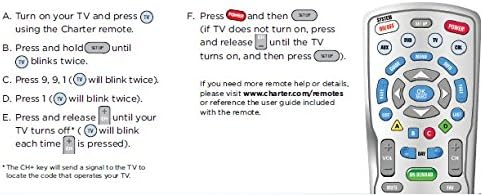
Image 3.1: Diagram illustrating the steps for programming the Charter Ocap-4 remote control to a television. The image shows a simplified remote layout and six steps (A-F) for code entry and verification.
General Programming Steps (Example for TV):
- Turn on your TV and press the TV button on the Charter remote.
- Press and hold the SETUP button until the TV button blinks twice.
- Enter the 3-digit code 991. The TV button will blink twice.
- Press the POWER button.
- Press and release the CH+ (Channel Up) button repeatedly until your TV turns off. The TV button will blink each time CH+ is pressed.
- Once the TV turns off, press the SETUP button to save the code. The TV button will blink twice to confirm.
Note: If your TV does not turn on after programming, press and release the POWER button until the TV turns on, then press SETUP. Repeat this process for other devices (VCR, DVD, CBL) using their respective device buttons.
4. Operating the Remote Control
After programming, you can use your Charter Ocap–4 remote to control your devices.
- Device Selection: Press the desired device button (TV, VCR, DVD, CBL) to select the device you wish to control. The selected device button will illuminate.
- Power On/Off: Press the POWER button to turn the selected device on or off.
- Master Power: To use the programmable Master Power feature, program it according to the instructions in your full user guide (if available) or your cable provider's website. This allows a single press to control multiple devices.
- Volume Control: Use the VOL+ and VOL- buttons to adjust the volume. The MUTE button silences the audio.
- Channel Navigation: Use the CH+ and CH- buttons to change channels. The number pad can be used for direct channel entry.
- DVR/PVR Functions: Utilize the dedicated REC, PLAY, PAUSE, STOP, FF (Fast Forward), and REW (Rewind) buttons for controlling your DVR or PVR.
- Menu and Guide: Access your device's menu or program guide using the MENU and GUIDE buttons.
- Volume Lock: This feature allows you to control the volume of one specific device (e.g., your TV) regardless of which device mode the remote is currently in. Consult your cable provider's instructions for setting up Volume Lock.
5. Maintenance
- Cleaning: Wipe the remote control with a soft, dry cloth. Avoid using abrasive cleaners or solvents.
- Battery Replacement: Replace batteries when the remote's indicator light becomes dim or the remote stops responding consistently. Always replace both batteries at the same time with new AA alkaline batteries.
- Storage: Store the remote in a cool, dry place away from direct sunlight and extreme temperatures.
6. Troubleshooting
If you encounter issues with your remote control, try the following solutions:
- Remote Not Responding:
- Ensure there are fresh batteries installed correctly.
- Check for any obstructions between the remote and the device.
- Verify that the correct device button (TV, VCR, DVD, CBL) is selected.
- Device Not Responding After Programming:
- The entered code may be incorrect. Repeat the programming steps (Section 3.2) and try other codes listed for your device brand in the remote's code library.
- Ensure the device is powered on before attempting to program.
- Some Functions Not Working:
- Not all functions may be supported by every device.
- Ensure the remote is in the correct device mode for the function you are trying to use.
7. Specifications
| Brand | Charter |
| Model Numbers | C4000, S4000 |
| Product Dimensions | 8 x 2.2 x 1.4 inches |
| Item Weight | 1 ounce |
| Batteries Required | 2 AA batteries |
| Max Supported Devices | 4 |
| Compatible Devices | Television, DVR, Cable Box, VCR, DVD (after programming) |
| Color | Silver |
8. Support
For additional assistance, device codes, or advanced programming instructions, please refer to the official user guide provided by your cable service provider or visit their support website.
Example Link: www.charter.com/remotes (This is a placeholder link based on the image content, actual link may vary).
9. Warranty Information
Specific warranty details for the Charter Ocap–4 remote control are typically provided at the time of purchase or can be found on the manufacturer's or your cable service provider's official website. Please retain your proof of purchase for warranty claims.
Related documentsC4000 & S4000


Ask a question about this manual
Ask about setup, troubleshooting, compatibility, parts, safety, or missing instructions. Manuals+ will review the question and use this page’s manual context to help answer it.