
Fellowes 5218301
Fellowes Galaxy E Electric Comb Binding Machine (Model 5218301)
User Instruction Manual
Product Overview
The Fellowes Galaxy E Comb Binding Machine is designed for high-performance binding in large office environments. It offers electric operation for efficient punching and binding of documents. Key features include a high sheet punch capacity, large binding capacity, and user-friendly design elements to ensure professional results.
- Automatically punches up to 25 sheets of paper at a time with a single touch.
- Binds up to 500 sheets using a 2-inch comb.
- Features vertical document loading for accurate punch alignment.
- Includes a removable binding mechanism for increased productivity, allowing two users to work simultaneously.
- Equipped with releasable dies for various document sizes.
- Built-in comb storage tray and integrated document measurement device for convenience.
- Adjustable edge guide for precise document centering.
- Front-access waste tray for easy disposal of paper chips.
Setup Instructions
- Unpack the Machine: Carefully remove the binding machine from its packaging. Ensure all components and accessories are present.
- Placement: Place the machine on a stable, flat surface with adequate space around it for operation and paper handling.
- Power Connection: Plug the power cord into a grounded electrical outlet. Ensure the power switch is in the "off" position before plugging in.
- Waste Tray: Verify the front-access waste tray is properly inserted. This tray collects paper chips during punching.
- Removable Binding Mechanism (Optional): If utilizing the removable binding mechanism for dual operation, detach it from the main unit as needed. It can be reattached for integrated use.

Figure 1: The Fellowes Galaxy E Electric Comb Binding Machine in its closed, compact state.
Operating Instructions
1. Punching Documents
- Prepare Documents: Ensure all pages are aligned and free from staples or paper clips. The machine can punch up to 25 sheets of 20lb paper at once.
- Adjust Edge Guide: Use the adjustable edge guide to center your documents for precise punching. This ensures consistent hole placement across all pages.
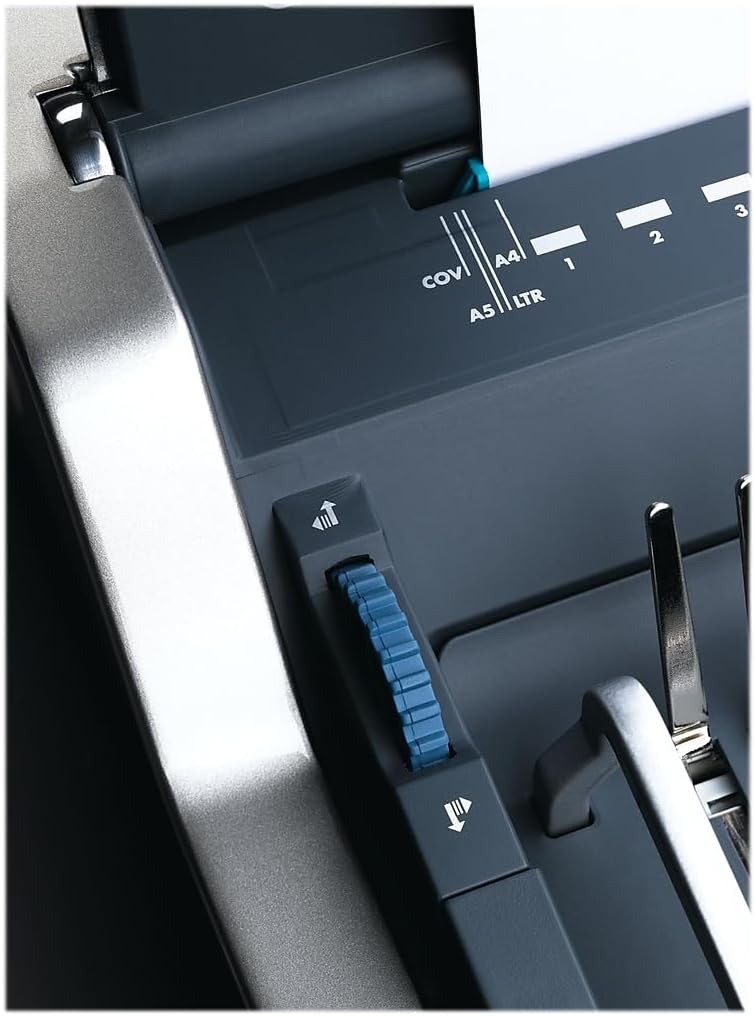
Figure 2: Adjusting the edge guide for accurate document alignment.
- Load Documents: Load your documents vertically into the punching slot. This vertical loading mechanism aids in accurate alignment.

Figure 3: Document loaded vertically into the punching slot.
- Punch: Press the electric punch button to create the holes. The machine will automatically punch the sheets.

Figure 4: The electric punch button for effortless operation.
- Repeat: Repeat the punching process for all sections of your document.
2. Selecting and Preparing Binding Combs
- Measure Document Thickness: Use the integrated document measurement device located in the comb storage tray to determine the correct comb size for your document.
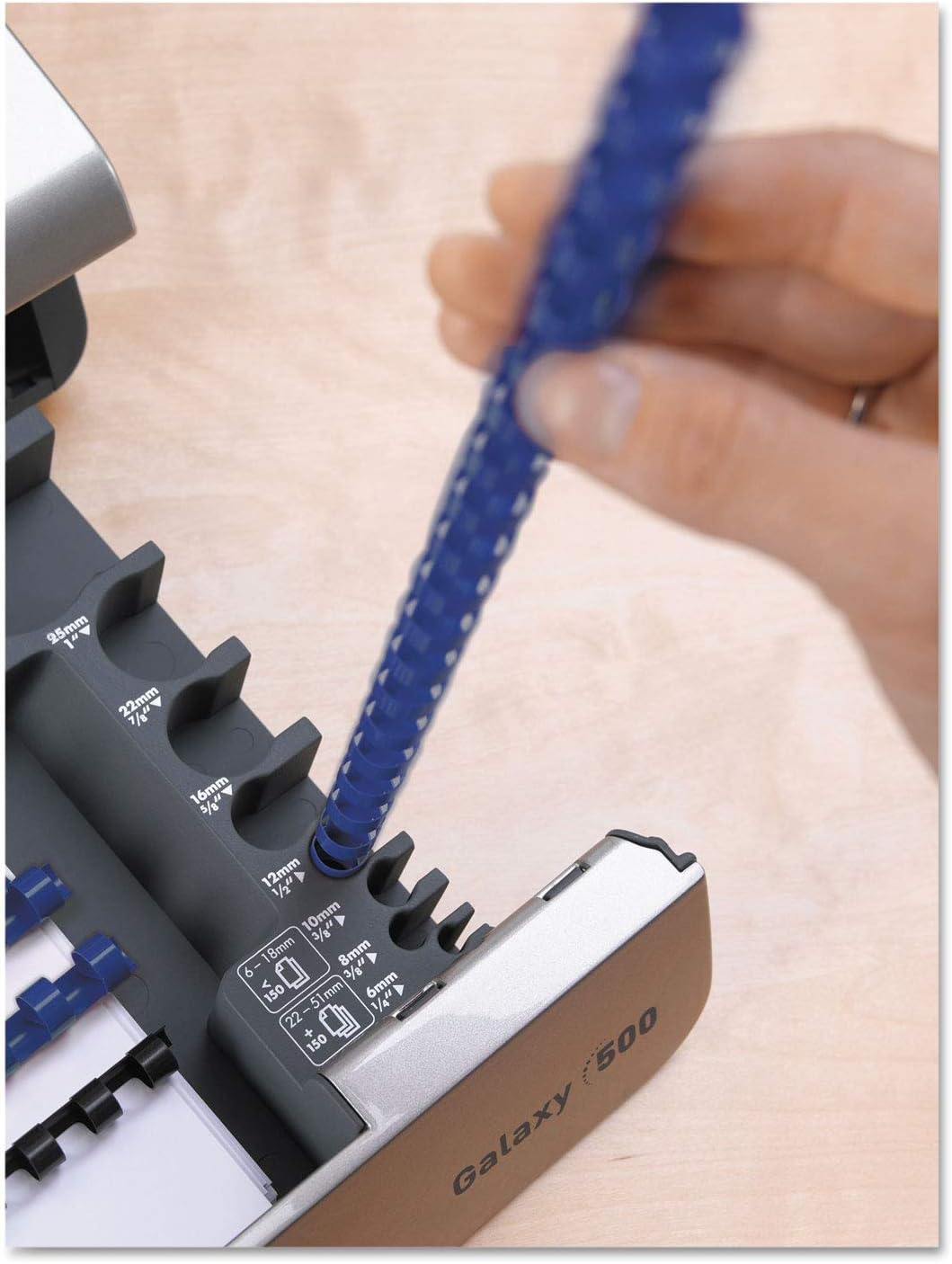
Figure 5: Using the integrated document measurement tool to select the appropriate comb size.
- Access Comb Storage: The machine features a built-in comb storage tray for convenient access to your binding combs.

Figure 6: The convenient built-in comb storage tray.
3. Binding Documents
- Open Comb: Place the selected binding comb onto the comb opener. Use the lever to open the comb rings.
- Load Pages: Carefully load the punched pages onto the open comb rings. Start with the back cover, then the main document pages, and finally the front cover.
- Close Comb: Once all pages are loaded, use the lever to close the comb rings securely.
- Remove Document: Remove your bound document from the machine.
Product Demonstration Video
Video 1: A demonstration of the Fellowes Galaxy E Electric Comb Binding System, showcasing its features and operation, including punching and binding processes. This video highlights the machine's efficiency and ease of use for office binding tasks.
Maintenance
- Empty Waste Tray: Regularly check and empty the front-access waste tray to prevent paper chip buildup, which can affect punching performance.
- Clean Exterior: Wipe the exterior of the machine with a soft, dry cloth. Do not use abrasive cleaners or solvents.
- Die Maintenance: Periodically check the punching dies for any debris. The releasable dies allow for easier cleaning if necessary.
Troubleshooting
| Problem | Possible Cause | Solution |
|---|---|---|
| Machine does not power on. | Power cord not securely plugged in; power switch is off; no power from outlet. | Ensure power cord is fully inserted into the machine and a working electrical outlet. Check if the power switch is in the "on" position. Test the outlet with another device. |
| Pages are not punched cleanly. | Too many sheets loaded; dull dies; paper chips obstructing dies. | Reduce the number of sheets per punch (do not exceed 25 sheets). Empty the waste tray. Inspect dies for obstructions and clean if necessary. |
| Pages are not aligned correctly after punching. | Edge guide not properly set; pages not loaded vertically. | Adjust the edge guide to firmly hold documents in place. Ensure documents are loaded vertically and pushed completely into the punching slot. |
| Binding comb does not close properly. | Incorrect comb size for document thickness; comb not properly seated on opener. | Verify the comb size matches the document thickness using the measurement tool. Ensure the comb is correctly placed on the comb opener before closing. |
Specifications
- Model: Fellowes Galaxy E (5218301)
- Punch Capacity: Up to 25 sheets (20lb paper)
- Binding Capacity: Up to 500 sheets (with 2-inch comb)
- Operation: Electric
- Dimensions: 19.75 x 8.31 x 23 inches (L x W x H)
- Weight: 32 pounds
- Color: Metallic Silver/Black
- Features: Vertical document loading, adjustable edge guide, removable binding mechanism, comb storage tray, document measurement tool, front-access waste tray.
Warranty and Support
For warranty information, technical support, or to purchase replacement parts and accessories, please visit the official Fellowes website or contact their customer service department. Retain your proof of purchase for warranty claims.
Online Support: www.fellowes.com/support
Customer Service: Refer to your product packaging or the official Fellowes website for regional contact information.
Related documents5218301


Ask a question about this manual
Ask about setup, troubleshooting, compatibility, parts, safety, or missing instructions. Manuals+ will review the question and use this page’s manual context to help answer it.