
Introduction
This manual provides detailed instructions for the setup, programming, and operation of your RCA 6-Device Universal Remote Control, model RCR6473Z. This remote is designed to consolidate control of up to six different audio/video devices, simplifying your home entertainment experience. Please read these instructions carefully before use to ensure proper functionality and to maximize the remote's capabilities.
Package Contents
- RCA 6-Device Universal Remote Control (RCR6473Z)
Note: Two AAA batteries are required and are not included in the package.
Key Features
- Controls up to 6 devices: TV, Satellite/Cable, Digital-to-Analog Converter (DTC), DVD, DVR, AUX, Audio, or VCR.
- Expanded DVD and DVR capabilities.
- Ergonomic design for comfortable handling.
- Multiple programming methods: Automatic, Direct Code Entry, Brand Code Search, and Manual Code Search.
- Device mode indicators for easy identification of the active device.
- Glow keys for improved visibility in low-light conditions.
- Dedicated buttons for Menu, Guide, Info, and Clear functions.
- Full playback controls including Play, Stop, Pause, Record, Reverse, Forward, Skip Back, and Skip Forward.
Setup
1. Battery Installation
To power your remote control, follow these steps:
- Locate the battery compartment cover on the back of the remote control.
- Press down on the tab and slide the cover off.
- Insert two new AAA alkaline batteries, ensuring the positive (+) and negative (-) terminals align with the markings inside the compartment.
- Slide the battery cover back into place until it clicks securely.
Note: Replace batteries when the remote's performance diminishes or when the indicator light does not illuminate during button presses.
2. Programming Your Remote
The RCA universal remote can be programmed using several methods. It is recommended to try the Automatic Code Search first, then Direct Code Entry, followed by Brand Code Search, and finally Manual Code Search if other methods are unsuccessful. You will need the original remote control for the device you wish to program, or the device itself, to test functionality.
Automatic Code Search
This method scans through codes until it finds one that operates your device.
- Turn on the device you want to control (e.g., TV, DVD player).
- Press and hold the desired device button (e.g., TV, DVD) on the universal remote until the indicator light illuminates.
- While holding the device button, press and hold the POWER button. Release both buttons. The indicator light should blink once and then stay lit.
- Point the remote at the device and repeatedly press the PLAY button (or POWER button for some devices) until the device turns off. Pause briefly between presses to allow the device to respond.
- Once the device turns off, press the STOP button to save the code. The indicator light will turn off.
- Test the remote's functions (e.g., volume, channel, power) to ensure proper operation. If not all functions work, repeat the process to find a better code.
Direct Code Entry
This method requires you to enter a specific code for your device's brand, usually found in a code list provided with the full manual.
- Turn on the device you want to control.
- Locate the code list for your device's brand and type (e.g., TV, DVD).
- Press and hold the desired device button (e.g., TV, DVD) on the universal remote until the indicator light illuminates.
- Enter the 4-digit code using the number buttons. As you enter each digit, the indicator light should blink.
- If the code is valid, the indicator light will turn off. If the code is invalid, the light will flash rapidly and remain lit, indicating you should try another code.
- Test the remote's functions. If the device does not respond or not all functions work, try another code from the list.
Brand Code Search
This method searches through codes for a specific brand.
- Turn on the device you want to control.
- Press and hold the desired device button (e.g., TV, DVD) on the universal remote until the indicator light illuminates.
- Press and hold the BRAND button (if available, or a combination like CODE SEARCH). Release both buttons. The indicator light should blink once and then stay lit.
- Point the remote at the device and repeatedly press the POWER button until the device turns off. Pause briefly between presses.
- Once the device turns off, press the STOP button to save the code. The indicator light will turn off.
- Test the remote's functions.
Manual Code Search
This method allows you to manually cycle through all available codes.
- Turn on the device you want to control.
- Press and hold the desired device button (e.g., TV, DVD) on the universal remote until the indicator light illuminates.
- Press and hold the CODE SEARCH button (or a similar button combination). Release both buttons. The indicator light should blink once and then stay lit.
- Point the remote at the device and repeatedly press the POWER button. Each press sends a new code. Pause briefly between presses.
- Once the device turns off, press the STOP button to save the code. The indicator light will turn off.
- Test the remote's functions. If not all functions work, repeat the process to find a better code.
Operating Your Remote
The RCA 6-Device Universal Remote Control features a logical button layout for intuitive operation. Refer to the image below for a visual guide to the remote's buttons.
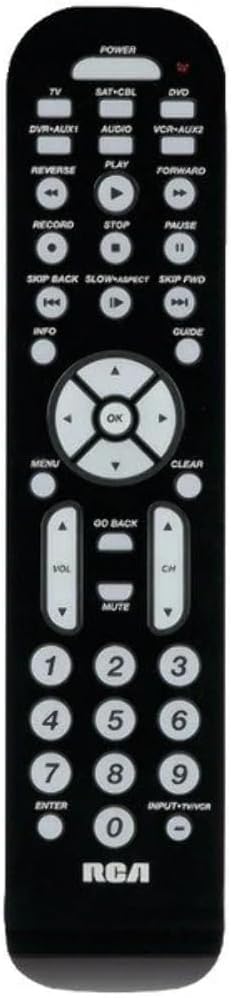
Image: Front view of the RCA 6-Device Universal Remote Control (RCR6473Z). The remote is black with white buttons. At the top are device selection buttons: TV, SAT-CBL, DVD, DVR-AUX1, AUDIO, VCR-AUX2, and a large POWER button. Below these are playback controls: REVERSE, PLAY, FORWARD, RECORD, STOP, PAUSE, SKIP BACK, SLOW/ASPECT, SKIP FWD. A central navigation pad with OK button is surrounded by arrow keys. Other buttons include MENU, CLEAR, INFO, GUIDE, GO BACK, VOL (volume up/down), CH (channel up/down), MUTE, and a numeric keypad (0-9) with ENTER and INPUT-TV/VCR buttons. The RCA logo is at the bottom.
Device Selection
To control a specific device, press the corresponding device button at the top of the remote. The indicator light will illuminate to confirm the selected device mode.
- TV: For your television.
- SAT-CBL: For satellite receiver or cable box.
- DVD: For DVD players.
- DVR-AUX1: For Digital Video Recorders or an auxiliary device.
- AUDIO: For audio receivers or sound systems.
- VCR-AUX2: For VCRs or a second auxiliary device.
Basic Functions
- POWER: Turns the selected device on or off.
- VOL ▲/▼: Increases or decreases the volume.
- CH ▲/▼: Changes the channel up or down.
- MUTE: Silences the audio output.
- Numeric Keypad (0-9): Used for direct channel entry or code input during programming.
- ENTER: Confirms channel selection or other inputs.
- INPUT-TV/VCR: Switches between video inputs on the selected device.
Playback Controls
- PLAY: Starts playback of media.
- STOP: Stops playback.
- PAUSE: Pauses playback.
- RECORD: Initiates recording (if supported by the device).
- REVERSE: Rewinds media.
- FORWARD: Fast forwards media.
- SKIP BACK: Skips to the previous track/chapter.
- SKIP FWD: Skips to the next track/chapter.
- SLOW/ASPECT: Activates slow motion playback or changes aspect ratio (functionality varies by device).
Navigation and Menu Functions
- MENU: Accesses the on-screen menu of the selected device.
- OK: Confirms selections within menus.
- Arrow Buttons (▲/▼/◀/▶): Navigates through on-screen menus and options.
- CLEAR: Clears entries or exits certain menus.
- INFO: Displays information about the current program or media.
- GUIDE: Accesses the electronic program guide (EPG).
- GO BACK: Returns to the previous menu or screen.
Maintenance
Battery Replacement
When the remote's range decreases or buttons become unresponsive, it's time to replace the batteries. Always replace both AAA batteries at the same time with new ones. Do not mix old and new batteries, or different types of batteries.
Cleaning
To clean your remote control, use a soft, dry cloth. Do not use liquid cleaners or abrasive materials, as these can damage the remote's surface or internal components.
Troubleshooting
- Remote does not operate your device:
- Ensure the remote is in the correct device mode (e.g., TV button pressed for TV).
- Verify that the batteries are fresh and inserted correctly.
- Reprogram the remote using a different code from the code list or try another programming method.
- Ensure there are no obstructions between the remote and the device's infrared sensor.
- Some buttons do not work:
- Not all functions of your original remote may be supported by the universal remote.
- Try reprogramming the remote with a different code for your device, as some codes may offer better functionality.
- Indicator light does not illuminate:
- Check battery installation and replace batteries if necessary.
Specifications
| Model Number | RCR6473E (also known as RCR6473Z) |
| Brand | RCA |
| Max Number of Supported Devices | 6 |
| Product Dimensions | 2.5 x 6 x 1 inches (approximately) |
| Item Weight | 12.8 ounces |
| Batteries Required | 2 AAA batteries (not included) |
| Manufacturer | Audiovox Accessories Corporation |
Warranty and Support
Legal Disclaimer
Warranty does not cover misuse of the product.
Manufacturer Information
For further assistance or specific product inquiries, please refer to the contact information provided by Audiovox Accessories Corporation, the manufacturer of this RCA product. Additional support resources may be available on the official RCA website.


