
Nyrius LT12
Nyrius LT12 Digital Translator User Manual
Model: LT12
1. Introduction
This manual provides comprehensive instructions for the operation and maintenance of your Nyrius LT12 Digital Translator. The LT12 is designed to facilitate communication across 12 international languages, offering a convenient solution for travelers and language learners.
The device features a speaking function for phrases, a backlit LCD screen for visibility in various lighting conditions, and an organized database of over 8,400 travel-related phrases across eight conversational categories.
2. Package Contents
Verify that all items listed below are present in your package:
- 1 Nyrius LT12 Pocket Translator
- 2 Lithium Batteries (pre-installed in unit)
- 2 Extra Lithium Batteries
- 1 Carrying Pouch
- 1 Neck Strap
- 1 Instruction Manual (this document)
3. Device Overview
Familiarize yourself with the components of your Nyrius LT12 Digital Translator.
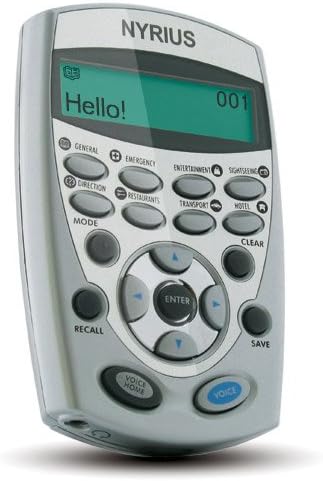
Figure 3.1: Front View of Nyrius LT12 Translator. This image shows the device with its LCD screen displaying "Hello!" and the various function buttons, including category buttons (General, Emergency, Entertainment, Sightseeing, Direction, Restaurants, Transport, Hotel), navigation buttons, and Voice/Voice Home buttons.
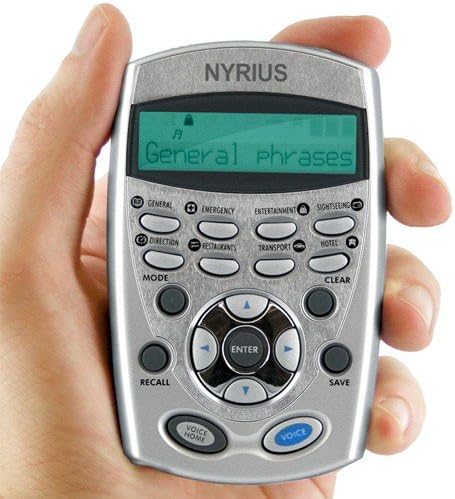
Figure 3.2: Nyrius LT12 Translator in Hand. This image illustrates the compact size of the device, held comfortably in an adult's hand. The screen displays "General phrases," indicating a category selection. The layout of the buttons is clearly visible.
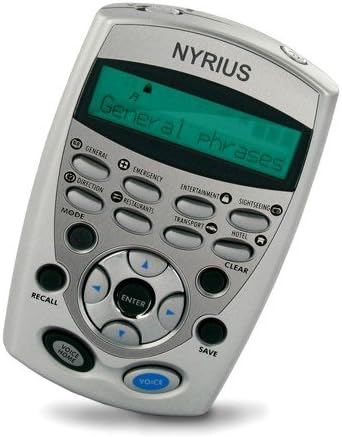
Figure 3.3: Angled View of Nyrius LT12 Translator. This image provides an angled perspective of the device, highlighting its ergonomic design. The screen shows "General phrases," and the various buttons for navigation and function selection are visible.
3.1 Key Components
- LCD Display: Shows phrases, menu options, and settings. Features a backlight for low-light conditions.
- Category Buttons: Dedicated buttons for General Speech, Emergency, Entertainment, Sightseeing, Direction, Restaurants, Transport, and Hotel & Accommodation.
- Navigation Buttons: Up, Down, Left, Right, and ENTER buttons for menu navigation and selection.
- MODE Button: Switches between different functions and settings.
- CLEAR Button: Clears current input or returns to the previous screen.
- RECALL Button: Accesses saved phrases or phone book entries.
- SAVE Button: Saves current phrase or contact information.
- VOICE Button: Activates the speaking function for the displayed phrase.
- VOICE HOME Button: Returns to the home screen and may activate a default voice function.
- Headphone Jack: For private listening of translated phrases.
4. Setup
4.1 Battery Installation
Your Nyrius LT12 comes with two lithium batteries pre-installed. If replacement is necessary, follow these steps:
- Locate the battery compartment cover on the back of the device.
- Carefully slide or unclip the cover to open the compartment.
- Remove the old batteries, noting their polarity (+/-).
- Insert new lithium batteries, ensuring correct polarity.
- Replace the battery compartment cover securely.
Note: Dispose of used batteries according to local regulations.
5. Operating Instructions
5.1 Power On/Off
To power on the device, press and hold the MODE button until the screen illuminates. To power off, press and hold the MODE button again until the screen turns off.
5.2 Language Selection
The LT12 supports cross-translation between 12 languages: English, French, German, Spanish, Italian, Dutch, Russian, Turkish, Japanese, Portuguese, Mandarin Chinese, and Swedish.
- From the home screen, press the MODE button to access the main menu.
- Use the navigation buttons (Up/Down) to select "Language" and press ENTER.
- Select your desired source and target languages using the navigation buttons and ENTER.
- Press the CLEAR button to return to the home screen.
5.3 Accessing Phrase Categories
The device organizes over 8,400 phrases into eight categories for quick access:
- General Speech
- Emergency
- Entertainment
- Sightseeing
- Direction
- Restaurants
- Transport
- Hotel & Accommodation
To select a category, simply press the corresponding dedicated button on the device's front panel.
5.4 Displaying and Speaking Phrases
- Select a language pair as described in Section 5.2.
- Press one of the eight category buttons (e.g., GENERAL).
- Use the navigation buttons (Up/Down) to scroll through the available phrases within that category.
- Once the desired phrase is displayed on the LCD screen, press the VOICE button to hear the phrase spoken aloud in the selected target language.
- To listen privately, connect headphones to the headphone jack.
5.5 Backlight Function
The LCD screen features a backlight for improved visibility in dim lighting conditions. The backlight typically activates automatically when a button is pressed and may turn off after a period of inactivity to conserve battery life.
5.6 Phone Book
The LT12 includes an electronic phone book for storing contact information. This feature can be protected with a password.
- From the home screen, press MODE to enter the main menu.
- Navigate to "Phone Book" and press ENTER.
- Follow the on-screen prompts to add, edit, or view contacts.
- To set or change the password, access the "Settings" menu and locate the "Password Protection" option.
5.7 Home and World Time Display
The device can display both your home time and the current time in 24 worldwide cities/time zones.
- From the home screen, press MODE to enter the main menu.
- Navigate to "Time" or "World Time" and press ENTER.
- Set your home time and select desired cities for world time display.
5.8 Alarm Clock
The built-in alarm clock can be set to assist with your schedule.
- From the home screen, press MODE to enter the main menu.
- Navigate to "Alarm" and press ENTER.
- Set the desired alarm time and activate the alarm.
6. Maintenance
- Cleaning: Use a soft, dry cloth to clean the device. Do not use liquid cleaners or abrasive materials.
- Storage: Store the translator in a cool, dry place away from direct sunlight and extreme temperatures.
- Battery Care: If the device will not be used for an extended period, remove the batteries to prevent leakage.
- Avoid Impact: Protect the device from drops and impacts, which can damage internal components.
7. Troubleshooting
| Problem | Possible Cause | Solution |
|---|---|---|
| Device does not power on. | Low or depleted batteries. Incorrect battery installation. | Replace batteries with new ones, ensuring correct polarity. |
| No sound from speaker. | Volume too low. Headphones connected. | Increase volume. Disconnect headphones if not needed. |
| Screen is dim or unreadable. | Backlight off. Low battery. | Ensure backlight is active. Replace batteries. |
| Device freezes or is unresponsive. | Temporary software glitch. | Remove and reinsert batteries to reset the device. |
8. Specifications
- Model: LT12
- Dimensions: 2.5 x 0.5 x 4 inches (6.35 x 1.27 x 10.16 cm)
- Weight: 2.4 ounces (68 grams)
- Supported Languages: English, French, German, Spanish, Italian, Dutch, Russian, Turkish, Japanese, Portuguese, Mandarin Chinese, Swedish
- Phrase Count: Over 8,400 travel-related phrases
- Power Source: Lithium Batteries
- Manufacturer: Nyrius
- ASIN: B000WS1SBU
9. Warranty and Customer Support
9.1 Warranty Information
The Nyrius LT12 Digital Translator comes with a 1-Year Limited Warranty from the date of purchase. This warranty covers defects in materials and workmanship under normal use. It does not cover damage caused by misuse, accident, unauthorized modification, or external causes.
Please retain your proof of purchase for warranty claims.
9.2 Customer Support
For technical assistance, troubleshooting, or warranty inquiries, please contact Nyrius Customer Support. Lifetime customer support is available 24/7.
Refer to the official Nyrius website or the product packaging for current contact information.
Ask a question about this manual
Ask about setup, troubleshooting, compatibility, parts, safety, or missing instructions. Manuals+ will review the question and use this page’s manual context to help answer it.