Introduction
This manual provides detailed instructions for the installation, operation, and maintenance of your Elite Screens Spectrum Electric Motorized Projector Screen, Model ELECTRIC120V. Please read this manual thoroughly before using your projector screen to ensure proper setup and optimal performance.

Figure 1: Elite Screens Spectrum Electric Motorized Projector Screen
Installation and Setup
Unpacking and Components
Carefully unpack all components and verify that all items listed below are present. If any parts are missing or damaged, please contact Elite Screens customer support.
- Projector Screen
- Infrared (IR) Remote
- Detachable 3-Way Wall Switch
- 12V Trigger Cable
- Bubble Level
- Batteries (2 AAA, included)

Figure 2: Projector Screen Casing and Installation Kit
Mounting Options
The durable casing of the Spectrum series screen is designed for easy installation on either a wall or ceiling. The included installation kit contains the necessary hardware for mounting. Ensure the mounting surface is structurally sound to support the screen's weight (approximately 26.6 pounds).
Power Connection
The screen ships fully assembled and is ready for plug-and-play operation. Connect the screen to a standard electrical outlet using its 3-prong power connection.
Operation
Control Methods
Your Elite Screens Spectrum projector screen offers multiple control options:
- Infrared (IR) Remote: Use the included IR remote for wireless control of the screen's up, down, and stop functions. Ensure the remote is pointed towards the screen's IR receiver.
- Detachable 3-Way Wall Switch: A wired wall switch is provided for convenient control directly from your wall.
- 12V Trigger Cable: Connect the 12V trigger cable to your projector's 12V output. This allows the screen to automatically drop or rise in synchronization with your projector's power cycle.

Figure 3: Remote Control and Wall Switch
Screen Movement
The screen features a synchronous motor designed for silent operation and low power consumption (applicable for 84"-128" models, including your 120-inch model). Use any of the control methods to extend or retract the screen. The screen will automatically stop at its fully extended or retracted positions.
Care and Maintenance
Screen Material Cleaning
The MaxWhite screen material is durable and designed for easy maintenance. To clean the screen surface, use a soft cloth dampened with mild soap and water. Gently wipe the screen in a horizontal or vertical motion. Avoid using harsh chemicals, abrasive cleaners, or excessive force, as this may damage the screen surface.

Figure 4: MaxWhite Screen Material Detail
Troubleshooting
If you encounter any issues with your projector screen, please review the following common troubleshooting steps:
- No Power: Ensure the power cord is securely plugged into both the screen and a working electrical outlet. Check if the outlet has power.
- Remote Not Responding: Verify that the batteries in the IR remote are correctly installed and not depleted. Replace batteries if necessary. Ensure there are no obstructions between the remote and the screen's IR receiver.
- Screen Not Moving: Confirm that the screen is receiving power. If using the 12V trigger, ensure the projector is powered on and the cable is correctly connected.
- Uneven Rolling: If the screen appears to roll unevenly, ensure the screen housing is mounted perfectly level. Use the included bubble level during installation to verify.
For persistent issues or further assistance, please contact Elite Screens Technical Support.
Product Specifications
General Specifications
- Model Number: ELECTRIC120V
- ASIN: B000MX5XPM
- Item Weight: 26.6 pounds
- Manufacturer: Elite Screens
- Date First Available: January 25, 2007
- Mounting Type: Wall / Ceiling Mount
- Material: Alloy Steel (Casing)
Screen Details
- Diagonal Size: 120-inch
- Aspect Ratio: 4:3
- View Size: 72.0" H x 96.0" W
- Overall Size: 82.0" H x 109.2" W x 3.1" D
- Screen Material: MaxWhite, 1.1 Gain
- Viewing Angle: 180 degrees
- Compatibility: Active 3D, 4K Ultra HD, and HDR ready
- Features: Multi-layer weave, textured surface, black masking borders, black backed to prevent light penetration/loss.
- Certifications: GreenGuard and GreenGuard GOLD Certified | UL 2818
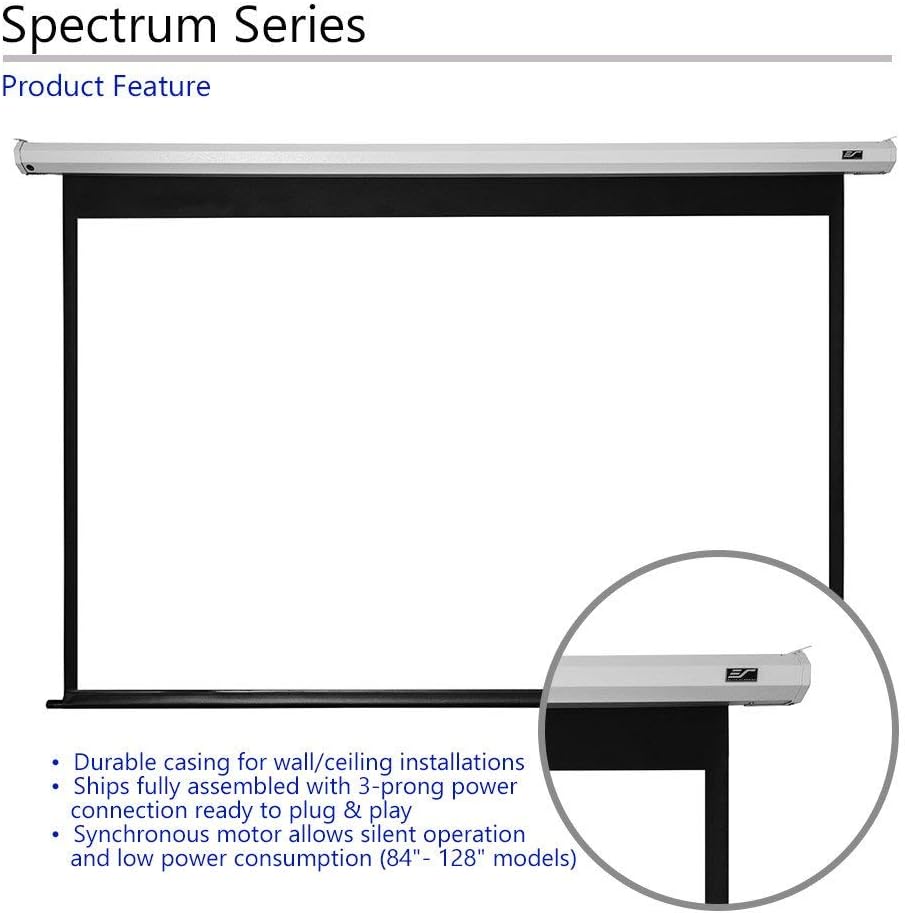
Figure 5: Product Feature Overview
Warranty and Support
Manufacturer's Warranty
Elite Screens provides a 2-Year / 3-Year ENR-G Manufacturer's Warranty for this product. This warranty covers defects in materials and workmanship under normal use. Please refer to the official Elite Screens website for full warranty terms and conditions.
Technical Support
Elite Screens offers lifetime technical support for its products. If you require assistance, you can contact their professional service team via Email, Web Chat, or Toll-Free Phone Call.

Figure 6: Lifetime Technical Support


