1. Introduction
This manual provides instructions for the setup, operation, and maintenance of your Polycom SoundPoint IP 430 phone. The SoundPoint IP 430 is a two-line desktop IP phone designed for clear voice communication, featuring a full-duplex speakerphone with Polycom Acoustic Clarity Technology.
2. Setup
2.1 Unpacking
Carefully remove all components from the packaging. Ensure the following items are present:
- Polycom SoundPoint IP 430 Phone Unit
- Handset
- Handset Cord
- Ethernet Cable
- Phone Stand
- (Note: Power supply is not included with this specific product offering and must be acquired separately if Power over Ethernet (PoE) is not available.)
2.2 Connecting the Phone
- Attach the Phone Stand: Align the stand with the slots on the back of the phone unit and snap it into place.
- Connect the Handset: Plug one end of the coiled handset cord into the handset and the other end into the handset port on the phone unit (typically marked with a handset icon).
- Connect to Network: Plug one end of the Ethernet cable into the LAN port on the phone (marked with a network icon) and the other end into an active network port (e.g., a wall jack or network switch).
- Connect Power (if not using PoE): If your network does not provide Power over Ethernet (PoE), connect an appropriate external power adapter (not included) to the power port on the phone unit and then to a power outlet.
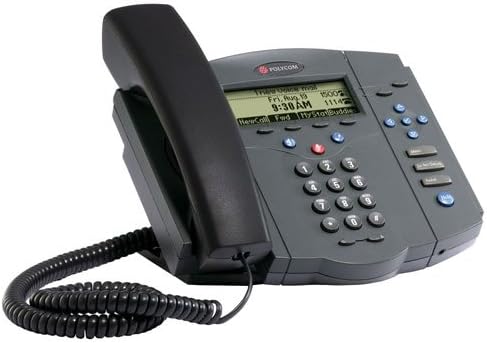
Figure 1: Polycom SoundPoint IP 430 Phone. This image displays the complete phone unit, including the main body, handset, and coiled handset cord. The phone features a monochrome LCD display, a numeric keypad, and various function buttons for call management.
Once connected, the phone will power on and begin its boot-up sequence. This may take a few moments as it connects to the network and registers with your VoIP system.
3. Operating Instructions
3.1 Basic Call Functions
- Making a Call:
- Pick up the handset, press the Speaker button, or press a Line button.
- Dial the desired number using the keypad.
- Press the "Dial" soft key or wait for the call to connect automatically.
- Answering a Call:
- Pick up the handset, press the Speaker button, or press the flashing Line button.
- Ending a Call:
- Hang up the handset, press the Speaker button again, or press the "End Call" soft key.
3.2 Speakerphone and Mute
- Using Speakerphone: Press the Speaker button to toggle speakerphone mode on or off.
- Muting the Microphone: During a call, press the Mute button to mute your microphone. The button will illuminate when active. Press again to unmute.
3.3 Volume Control
Use the Volume buttons (located below the display) to adjust the volume of the handset, speakerphone, or ringer, depending on the phone's current state.
3.4 Hold and Transfer
- Placing a Call on Hold: During an active call, press the Hold soft key. To resume the call, press the flashing Line button or the "Resume" soft key.
- Transferring a Call:
- During an active call, press the Transfer soft key. The current call will be placed on hold.
- Dial the number of the party you wish to transfer the call to.
- Once the second party answers, you can announce the call (consulted transfer) or press the Transfer soft key again to complete the transfer (blind transfer).
3.5 Voicemail Access
Press the Messages button (envelope icon) to access your voicemail. Follow the audio prompts to retrieve your messages.
4. Maintenance
4.1 Cleaning the Phone
- Use a soft, slightly damp, lint-free cloth to clean the phone's exterior.
- Do not use abrasive cleaners, waxes, or solvents.
- Avoid spraying liquids directly onto the phone.
- Ensure the phone is disconnected from power before cleaning.
4.2 General Care
- Keep the phone away from excessive heat sources, direct sunlight, and moisture.
- Avoid dropping the phone or subjecting it to strong impacts.
5. Troubleshooting
This section addresses common issues you might encounter with your Polycom SoundPoint IP 430 phone.
| Problem | Possible Cause | Solution |
|---|---|---|
| Phone does not power on. | No power supply or faulty connection. |
|
| No dial tone. | Network connectivity issue or phone not registered. |
|
| Cannot hear caller / Caller cannot hear me. | Volume settings, mute active, or faulty handset/speaker. |
|
6. Specifications
Key technical specifications for the Polycom SoundPoint IP 430 phone:
| Feature | Detail |
|---|---|
| Product Dimensions | 14 x 12.5 x 6 inches |
| Item Weight | 3.55 pounds |
| Model Number | IP 430 |
| Brand | Polycom |
| Color | Grey |
| Telephone Type | Corded |
| Power Source | Corded Electric (PoE compatible, external adapter not included) |
| Dialer Type | Single Keypad |
| Answering System Type | Digital |
| Conference Call Capability | 2-way |
| Manufacturer | Polycom Inc. |
7. Warranty and Support
7.1 Warranty Information
For specific warranty details regarding your Polycom SoundPoint IP 430 phone, please refer to the warranty documentation provided at the time of purchase or visit the official Polycom (now Poly) website. Warranty terms typically cover manufacturing defects for a specified period.
7.2 Technical Support
If you require technical assistance beyond the scope of this manual, please contact your VoIP service provider or IT department. For direct manufacturer support, visit the Poly (formerly Polycom) support website for resources, FAQs, and contact information.


