
1. Introduction
This manual provides detailed instructions for the setup, operation, and maintenance of your Mitsubishi WD-65731 65-Inch 1080p DLP HDTV. This television features a 1080p DLP chip and the TurboLight150 lamp system for high-definition viewing. It includes Mitsubishi's 6-Primary Color System and Plush 1080p video processing for enhanced picture quality.
The WD-65731 is designed for ease of use with features like ClearThought Easy Connect and a variety of digital and analog inputs.
2. Setup
2.1 Unpacking and Placement
Carefully remove the television from its packaging. Ensure the TV is placed on a stable, level surface or securely mounted according to manufacturer guidelines. Allow adequate ventilation around the unit.
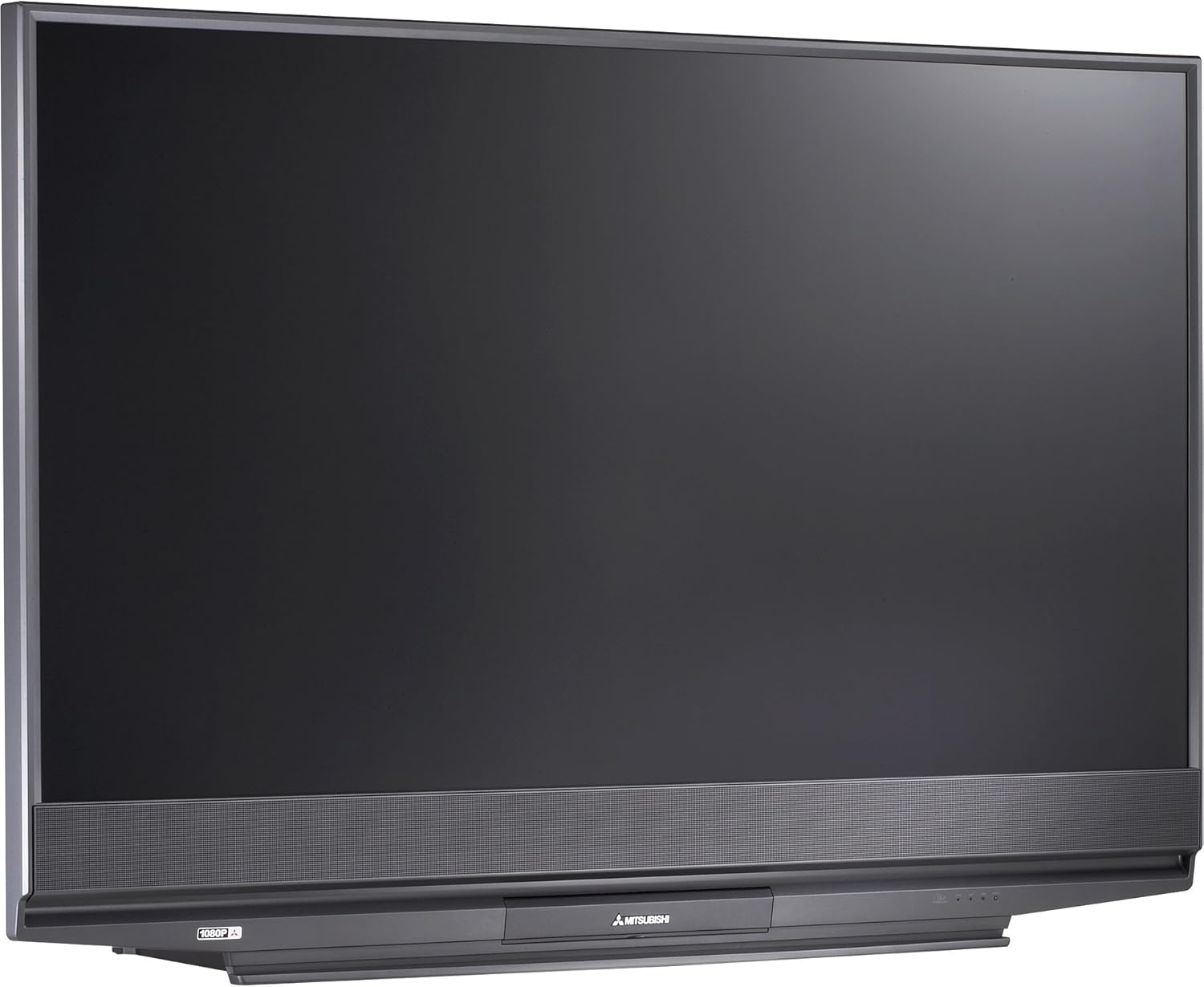
Figure 2.1: Front view of the Mitsubishi WD-65731 65-Inch 1080p DLP HDTV. This image shows the television's display and integrated speaker bar.
2.2 Connecting Devices
The Mitsubishi WD-65731 features ClearThought Easy Connect, which automatically recognizes inputs as they are plugged in.
- Connect your cable box, satellite receiver, DVD player, or gaming console to the appropriate input ports (HDMI, Component, Composite, S-Video).
- For high-definition sources, use the HDMI or Component inputs.
- Connect your antenna or cable directly to the RF input for broadcast or basic cable reception.
- Ensure all audio and video cables are securely connected.
2.3 Initial Power On
Plug the power cord into a wall outlet. Press the power button on the TV or remote control. Follow any on-screen prompts for initial setup, such as language selection and channel scanning.
3. Operating Instructions
3.1 Picture Enhancement Technologies
- Plush 1080p: This technology up-converts lower resolution signals (analog, digital broadcasts, DVD, game consoles) to 1080p for enhanced detail and clarity. It also reformats 720p and 1080i HDTV signals for precise scaling.
- PerfectColor: Adjust the screen's color palette with six independent color controls (magenta, red, yellow, green, cyan, blue) for personalized color accuracy.
- 4D Video Noise Reduction: Analyzes multiple frames to identify and remove video noise or snow, providing a cleaner picture, especially in fast-moving scenes.
3.2 Audio Features
- Level Sound Dynamics Limiter: This feature evens out program sound levels, reducing sudden volume changes, particularly during commercial breaks.
- The integrated speaker system provides 20 watts of total audio output (10 watts per channel).
3.3 Convenience Features
- TV Guide On Screen: An 8-day program guide system to browse television listings.
- Picture-in-Picture (PIP): View two programs simultaneously using the two tuner PIP function.
- Split Screen: Display content from two different sources side-by-side.
- V-Chip Parental Controls: Manage and restrict viewing of certain programs based on ratings.
- Sleep Timer: Set the television to automatically turn off after a specified period.
- Full-Screen Image Freeze: Pause the live picture on screen.
- Aspect Ratio Modes: Six 4:3 aspect ratio modes and two 16:9 aspect ratio modes are available.
4. Connectivity
The WD-65731 offers a comprehensive range of input and output options for connecting various devices.
| Connection Type | Quantity | Description |
|---|---|---|
| HDMI | 2 in | High-Definition Multimedia Interface for digital audio and video. |
| Component Video | 2 in | For high-quality analog video signals. |
| Composite AV (RCA) | 3 in (1 front), 1 out | Standard analog video and stereo audio. |
| S-Video | 3 in (1 front) | Improved analog video quality over composite. |
| RF | 2 in | For antenna or coaxial cable connection. |
| PC DVI-I | 1 in | Digital Visual Interface for computer connection. |
| IEEE 1394 (Firewire/i.Link) | 2 in | High-bandwidth digital connection for camcorders and compatible PCs. |
| Analog Audio Output | 1 out | For connecting to external audio systems. |
| Digital Audio Output (Coaxial) | 1 out | For connecting to digital audio receivers. |
5. CableCARD Setup
The WD-65731 is Digital Cable Ready and features a CableCARD slot, allowing you to receive digital cable television services directly without an external cable box.
- Obtain a CableCARD from your local cable television provider.
- Locate the CableCARD slot on the back of your television.
- Carefully insert the CableCARD into the designated slot.
- Contact your cable provider to activate the CableCARD and enable subscribed channels.
When a digital cable TV channel is received via the CableCARD, it is decoded and remains a digital video signal to the screen, ensuring optimal picture quality. Standard-definition digital channel signals are up-converted by the Plush imaging feature for an HD-quality picture.
6. Maintenance
6.1 Lamp System
The television utilizes a 150-watt TurboLight lamp system. The lifespan of the lamp can vary based on usage. If the picture becomes dim or the lamp indicator light illuminates, the lamp may need replacement. Refer to the troubleshooting section or contact customer support for lamp replacement procedures.
6.2 Cleaning
- Screen: Gently wipe the screen with a soft, lint-free cloth. For stubborn marks, slightly dampen the cloth with water or a screen-cleaning solution specifically designed for televisions. Do not spray liquid directly onto the screen.
- Cabinet: Wipe the cabinet with a soft, dry cloth. Avoid using abrasive cleaners or solvents.
- Ensure the television is unplugged before cleaning.
7. Troubleshooting
If you experience issues with your television, consult the following common problems and solutions.
- No Power / TV does not turn on:
- Check if the power cord is securely plugged into both the TV and the wall outlet.
- Ensure the wall outlet is functional by testing it with another device.
- If the TV cycles power multiple times or shows a blinking green light, it may indicate an internal issue or a lamp problem.
- No Picture / Dim Picture:
- Verify that the correct input source is selected.
- Check all video cable connections between the TV and your source devices.
- A dim picture or no picture with the lamp light on might indicate a failing lamp. The TurboLight150 lamp has a finite lifespan and may require replacement.
- No Sound:
- Ensure the volume is not muted or set to minimum.
- Check audio cable connections.
- If using external audio, ensure the TV's internal speakers are not disabled and the external system is properly configured.
- Picture Quality Issues (Noise, Distortion):
- Ensure all cables are securely connected and not damaged.
- Adjust picture settings (brightness, contrast, sharpness, color).
- The 4D Video Noise Reduction feature can help reduce noise from various sources.
For persistent issues, refer to the warranty and support section for contact information.
8. Specifications
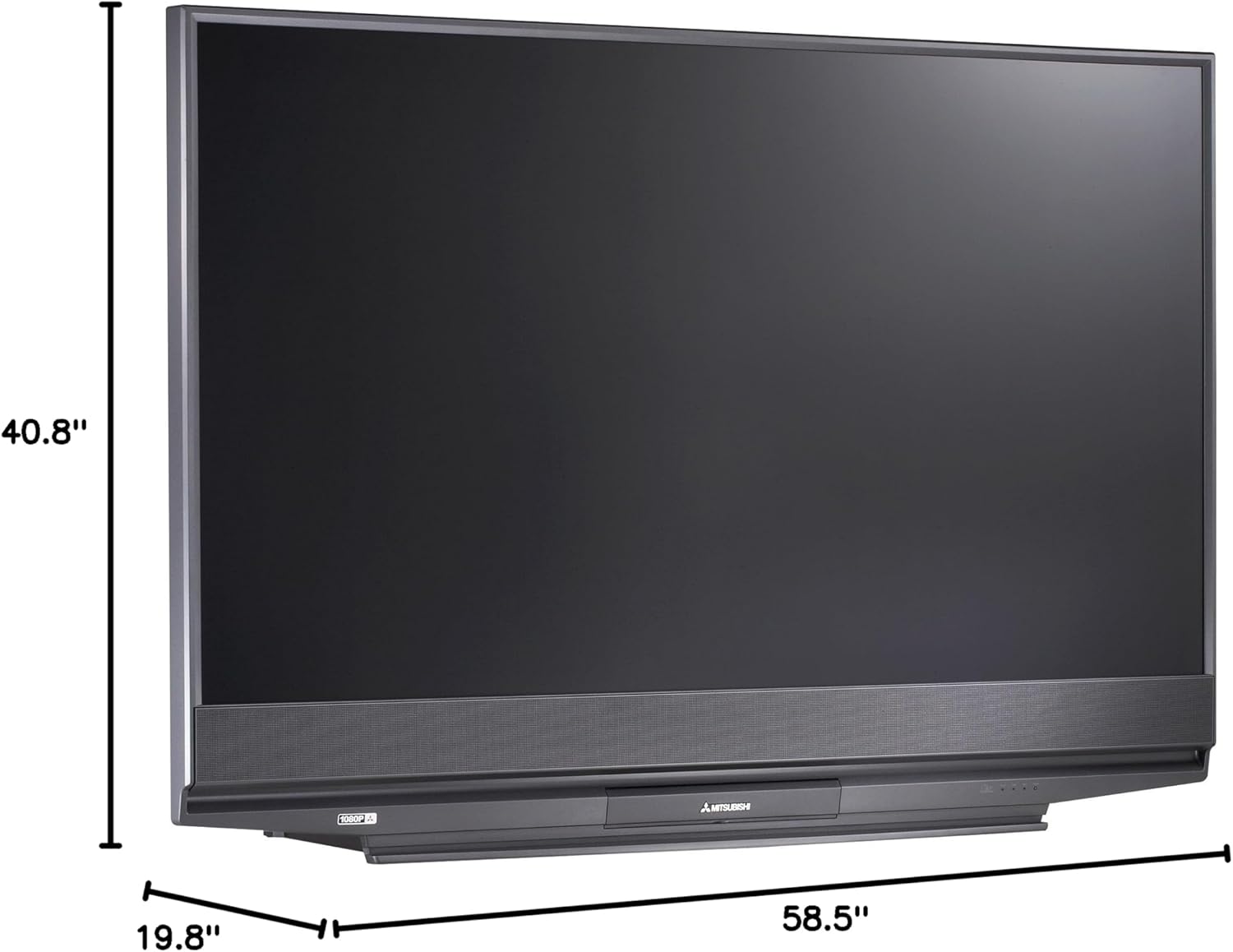
Figure 8.1: Dimensions of the Mitsubishi WD-65731 65-Inch 1080p DLP HDTV. The image indicates a width of 58.5 inches, height of 40.8 inches, and depth of 19.8 inches.
| Feature | Detail |
|---|---|
| Model Name | WD-65731 |
| Screen Size | 65 Inches |
| Display Technology | DLP (Digital Light Processing) |
| Resolution | 1080p (1920 x 1080 pixels) |
| Aspect Ratio | 16:9 |
| Lamp System | 150-watt TurboLight |
| Audio Output | 20 Watts (10W x 2) |
| Tuner Type | ATSC, QAM |
| Connectivity Technology | HDMI, Component, Composite, S-Video, RF, PC DVI, Firewire |
| Product Dimensions (D x W x H) | 19.8"D x 58.5"W x 40.8"H |
| Item Weight | 58.3 Pounds |
| Color | Black |
| Parental Control | V-Chip |
| Included Components | Stand, TV |
9. What's in the Box
Upon unpacking, ensure all the following items are present:
- Mitsubishi WD-65731 65-Inch 1080p DLP HDTV Unit
- Multibrand NetCommand Remote Control (with 2 AA batteries)
- IR Emitter Cable
- Power Cord
- User Manual (this document)
- TV Stand (if purchased as a bundle or included)
10. Warranty and Support
10.1 Warranty Information
Your Mitsubishi WD-65731 DLP HDTV comes with the following warranty:
- Parts: One year
- Labor: One year
- In-home service: Included
Please retain your proof of purchase for warranty claims. The warranty period begins from the date of purchase.
10.2 Customer Support
For technical assistance, service inquiries, or to locate an authorized repair center, please contact Mitsubishi Customer Support. Refer to the official Mitsubishi website or your purchase documentation for the most current contact information.


