
1. Introduction
This manual provides comprehensive instructions for the installation, operation, and maintenance of your Soundstream VCM-112 11.2" Widescreen Universal Ceiling Mount Monitor. Please read this manual thoroughly before using the product to ensure proper function and safety.
The Soundstream VCM-112 is designed to provide in-vehicle entertainment with its 11.2-inch widescreen display, universal ceiling mount, and customizable aesthetics through three snap-on color skins.
2. Product Features
- 11.2" Universal Ceiling-Mount Monitor with 800 x 480 display resolution and 16:9 aspect ratio.
- On-screen display (OSD) for intuitive menu navigation and feature control.
- Swivel screen functionality allows for optimal viewing angles for all passengers.
- Integrated on-board dome lights for enhanced visibility within the vehicle cabin at night.
- Includes three snap-on color skins (Gray, Beige, Black) for interior matching.
- NTSC/PAL video selection for broad compatibility.
- Slim, compact design suitable for installation in most vehicles.
- Extra trim ring included for a sculptured ceiling finish.
3. Package Contents
Please verify that all items are present in the package:
- Soundstream VCM-112 11.2" Ceiling Mount Monitor
- Gray Snap-on Color Skin
- Beige Snap-on Color Skin
- Black Snap-on Color Skin
- Mounting Hardware (screws, brackets, etc. - specific items may vary)
- Wiring Harness
- Extra Trim Ring
- User Manual (this document)
4. Safety Information
Observe the following safety precautions during installation and operation:
- Professional installation is recommended for vehicle electronics to prevent damage to the product or vehicle.
- Ensure the vehicle's electrical system is disconnected before beginning installation.
- Mount the monitor securely to prevent it from dislodging during vehicle movement.
- Do not operate the monitor in a manner that distracts the driver or obstructs their view of the road.
- Avoid exposing the unit to extreme temperatures, moisture, or direct sunlight for prolonged periods.
- Do not attempt to disassemble or modify the unit. Refer all servicing to qualified personnel.
5. Installation and Setup
5.1 Mounting the Monitor
The VCM-112 is designed for universal ceiling mounting. Select a suitable location in your vehicle's ceiling that does not interfere with airbags, structural components, or passenger head clearance. Use the provided mounting hardware to secure the bracket to the ceiling, then attach the monitor to the bracket.
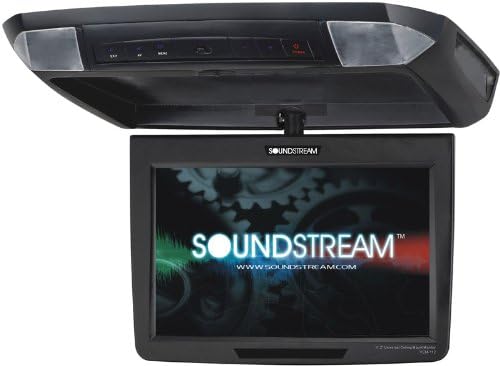
Image 1: Soundstream VCM-112 11.2-inch Widescreen Universal Ceiling Mount Monitor. The image shows the monitor in its folded-up position, attached to the ceiling mount, with the screen folded down displaying the Soundstream logo.
5.2 Wiring Connections
Connect the power, ground, and video input cables according to your vehicle's electrical system and the monitor's wiring diagram (refer to the diagram included with your product for specific details). Ensure all connections are secure and properly insulated.
5.3 Attaching Color Skins
The VCM-112 comes with three interchangeable snap-on color skins (Gray, Beige, Black) to match your vehicle's interior. To attach a skin, align it with the monitor's housing and gently press until it snaps into place. To remove, carefully pry it off from the edges.

Image 2: Three snap-on color skins (Gray, Beige, Black) for the Soundstream VCM-112 monitor, stacked to show the different color options available for customization.
5.4 NTSC/PAL Video Selection
The monitor supports both NTSC and PAL video formats. This setting can typically be adjusted via the on-screen display (OSD) menu to ensure compatibility with your video source.
6. Operation
6.1 Powering On/Off
Press the power button located on the unit to turn the monitor on or off. Ensure your vehicle's ignition is on for the monitor to receive power.
6.2 Using the On-Screen Display (OSD)
The VCM-112 features an on-screen display for adjusting various settings such as brightness, contrast, color, and input source. Use the control buttons on the unit to navigate through the OSD menu and make selections.
6.3 Media Playback
The monitor supports various media playback options, including DVD/DVD-RW, SD cards, USB devices, and RCA input. Select the desired input source via the OSD menu. Insert your media into the appropriate slot or connect your external device to the RCA input.
- Memory Card Slot: Supports DVD+RW and DVD-R media.
- Media Playback Supported: DVD/DVD-RW, SD, USB, RCA.
6.4 Swivel Screen Function
The monitor's screen can be swiveled to provide optimal viewing angles for passengers seated in different positions within the vehicle. Gently adjust the screen to the desired angle.
6.5 Dome Lights
The integrated dome lights can be activated to provide illumination within the vehicle cabin. Refer to the unit's controls for operating the dome lights.
7. Maintenance
7.1 Cleaning the Monitor
To clean the monitor screen and housing, use a soft, dry cloth. For stubborn marks, lightly dampen the cloth with water or a mild, non-abrasive cleaner specifically designed for electronics. Avoid using harsh chemicals or abrasive materials, as these can damage the surface.
7.2 General Care
Ensure the monitor is folded up when not in use or when the vehicle is in motion to protect the screen. Avoid placing heavy objects on the unit or exposing it to excessive vibration.
8. Troubleshooting
If you encounter issues with your Soundstream VCM-112 monitor, refer to the following common problems and solutions:
- No Power: Check all power connections and ensure the vehicle's ignition is on. Verify the vehicle's fuse for the monitor circuit.
- No Picture: Confirm the correct video input source is selected via the OSD. Check video cable connections. Ensure the video source is functioning correctly.
- Distorted Picture: Verify the NTSC/PAL setting matches your video source. Check video cable integrity.
- No Sound: Ensure the audio output from the monitor is connected to your vehicle's audio system. Check volume settings on both the monitor and your vehicle's audio system.
- Buttons Not Responding: Power cycle the unit by turning it off and then on again. If the issue persists, consult Soundstream support.
For issues not covered here, please contact Soundstream customer support.
9. Specifications
| Feature | Specification |
|---|---|
| Item Weight | 5.4 pounds |
| Product Dimensions | 13 x 11 x 2.5 inches |
| Item Model Number | VCM-112 |
| Display Type | LCD |
| Display Resolution | 800x480 |
| Screen Size | 11.2 Inches |
| Aspect Ratio | 16:9 |
| Wireless Remote | No |
| Memory Card Slot | DVD+RW, DVD-R |
| Media Playback Supported | DVD/DVD-RW, SD, USB, RCA |
| Color | Black/Beige/Gray Skins Included |
| Manufacturer | Soundstream |
10. Warranty and Support
For warranty information, technical support, or service inquiries regarding your Soundstream VCM-112 monitor, please refer to the warranty card included with your purchase or visit the official Soundstream website. Contact information for customer support can typically be found on their website or in your product packaging.