
Cisco AIR-WLC4404-100-K9
Cisco 4400 Series Wireless LAN Controller User Manual
Model: AIR-WLC4404-100-K9
1. Introduction
This manual provides essential information for the installation, operation, and maintenance of the Cisco 4400 Series Wireless LAN Controller, model AIR-WLC4404-100-K9. This device is designed to manage wireless access points and provide centralized control over your wireless network infrastructure.
2. Product Overview
The Cisco 4400 Series Wireless LAN Controller is a robust solution for managing enterprise-class wireless networks. It supports various wireless standards and offers high-speed data transmission capabilities.

Figure 2.1: Front view of the Cisco 4400 Series Wireless LAN Controller, showing the brand logo and general chassis design.
2.1 Key Features
- Centralized management for wireless access points.
- Support for 2.4 GHz IEEE 802.11b/g and 5 GHz IEEE 802.11a frequency bands.
- Transmission speeds up to 54Mbps with auto-fallback.
- Multiple Ethernet interfaces for network connectivity.
- Console port for direct management access.
3. Safety Information
Always observe the following safety precautions when installing, operating, or maintaining the device:
- Ensure proper grounding before connecting power.
- Do not operate the device in wet or damp conditions.
- Use only the specified power cables and adapters.
- Avoid blocking ventilation openings to prevent overheating.
- Refer all servicing to qualified personnel.
4. Setup and Installation
4.1 Unpacking and Inspection
Carefully unpack the controller and inspect it for any signs of damage during transit. Report any damage to your supplier immediately.
4.2 Physical Installation
The Cisco 4400 Series Controller is designed for rack mounting. Ensure adequate ventilation around the unit.

Figure 4.1: Top view of the Cisco 4400 Series Wireless LAN Controller, showing the chassis and screw points for rack mounting.
4.3 Connecting Power
Connect the appropriate power cables to the power inlets at the rear of the unit. Ensure the power switches are in the OFF position before connecting, then switch them ON after all connections are secure.
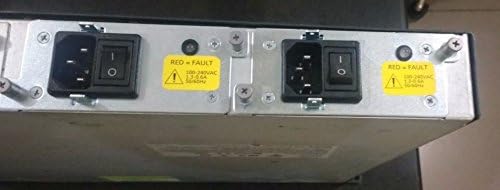
Figure 4.2: Rear view of the controller, highlighting the dual power input modules with power switches and fault indicators.
4.4 Network and Console Connections
Connect your network cables to the appropriate RJ-45 Ethernet ports. For initial configuration and direct management, connect a console cable to the DB-9 console port.

Figure 4.3: Detailed rear view of the controller, showing the SERVICE and UTILITY Ethernet ports, CONSOLE port, and multiple numbered Ethernet ports with associated LINK and ACT LEDs.
- SERVICE Port: RJ-45 10/100Base-TX Ethernet port.
- UTILITY Port: RJ-45 10/100/1000Base-TX Ethernet port.
- Numbered Ports (1-4): Additional RJ-45 Ethernet ports.
- CONSOLE Port: DB-9 serial port for command-line interface (CLI) access.
5. Operating the Controller
5.1 Initial Configuration
After physical installation and power-up, access the controller via the console port using a terminal emulator (e.g., PuTTY, Tera Term) with appropriate serial settings (typically 9600 baud, 8 data bits, no parity, 1 stop bit, no flow control). Follow the on-screen prompts for initial setup, including IP address assignment and basic network parameters.
5.2 Web Interface and CLI Management
Once configured with an IP address, the controller can be managed via its web-based graphical user interface (GUI) or through the command-line interface (CLI) via SSH/Telnet or the console port. Refer to the Cisco documentation for detailed configuration guides on managing access points, creating WLANs, and setting up security policies.
6. Maintenance
6.1 Cleaning
Regularly clean the exterior of the controller with a soft, dry cloth. Ensure ventilation openings are free from dust and debris to maintain optimal airflow and prevent overheating.
6.2 Firmware Updates
Periodically check the Cisco support website for firmware updates. Keeping the controller's firmware up-to-date ensures access to the latest features, security patches, and performance improvements. Follow Cisco's official procedures for firmware upgrades to avoid system disruption.
7. Troubleshooting
7.1 LED Indicators
The controller features various LED indicators to provide status information:
- STATUS LED: Indicates the operational status of the controller.
- ALARM LED: Illuminates when a system alarm or fault is detected.
- LINK/ACT LEDs (per port): Indicate network link status and activity for each Ethernet port.
7.2 Common Issues
- No Power: Check power cable connections and power switches. Verify power outlet functionality.
- No Network Connectivity: Check Ethernet cable connections, port LEDs, and network configuration.
- Controller Unresponsive: Attempt to access via console port. If unresponsive, power cycle the unit.
For more advanced troubleshooting, consult the Cisco documentation or contact Cisco technical support.
8. Specifications
| Feature | Detail |
|---|---|
| Manufacturer | Cisco Systems, Inc. |
| Model Number | AIR-WLC4404-100-K9 |
| Product Type | Wireless LAN Controller |
| Frequency Bands | 2.4 GHz (IEEE 802.11b/g ISM Band), 5 GHz (IEEE 802.11a) |
| Transmission Speed | 54Mbps (IEEE 802.11a/g auto-fallback), 11Mbps (IEEE 802.11b auto-fallback) |
| Ethernet Interfaces | 1 x RJ-45 10/100Base-TX, 1 x RJ-45 10/100/1000Base-TX, Multiple additional RJ-45 ports |
| Console Interface | 1 x DB-9 Console Management |
| Dimensions (H x W x D) | 1.75" x 17.45" x 15.75" (Product Dimensions: 1.77 x 17.44 x 15.75 inches) |
| Weight | 15.3 lb (15.3 pounds) |
| ASIN | B000E120GC |
| Date First Available | October 4, 2006 |
9. Warranty and Support
Specific warranty terms and conditions for the Cisco 4400 Series Wireless LAN Controller are not detailed in this manual. Please refer to the official Cisco website or your purchase documentation for comprehensive warranty information.
For technical support, software downloads, and additional documentation, visit the official Cisco Support website or contact your authorized Cisco reseller.
You can find more information at the Cisco Store on Amazon.
Related documentsAIR-WLC4404-100-K9


Ask a question about this manual
Ask about setup, troubleshooting, compatibility, parts, safety, or missing instructions. Manuals+ will review the question and use this page’s manual context to help answer it.