
Cisco CISCO3845
Cisco CISCO3845 Integrated Services Router User Manual
Model: CISCO3845 | Brand: Cisco
1. Introduction
This manual provides comprehensive instructions for the installation, operation, and maintenance of the Cisco CISCO3845 Integrated Services Router. Designed for high performance, this router delivers multiple concurrent services at wire-speed T3/E3 rates, making it suitable for various networking environments.
Key features include:
- Up to two 10/100/1000 Mbps built-in routed ports
- Up to 112 10/100 Mbps switch ports with optional Power over Ethernet (PoE), for providing DC power to network devices such as IP phones
- Up to 2500 VPN tunnels
- Support for wireless LAN standards 802.11a/b/g
- Support for a Small Form-Factor Pluggable (SFP) port for Gigabit Ethernet
2. Product Overview
The Cisco 3845 Integrated Services Router is a robust networking device engineered to provide secure, wire-speed delivery of concurrent data, voice, and video services. Its modular design allows for flexible configuration and expansion to meet evolving business needs. The router integrates advanced security features, quality of service (QoS), and high availability to ensure reliable network performance.
2.1 Physical Description
The CISCO3845 router has physical dimensions of approximately 15.98 x 17.24 x 5.24 inches and weighs around 41.1 pounds. It is designed for rack-mounting or desktop placement in a secure environment.

Figure 2.1: Angled front view of the Cisco 3845 Integrated Services Router, showcasing its compact and robust design.

Figure 2.2: Rear view of the Cisco 3845 Integrated Services Router, highlighting the various module slots and network ports for connectivity.

Figure 2.3: Close-up view of the Product ID (PID) and Vendor ID (VID) label on the Cisco 3845, showing "CISCO3845-MB V06".
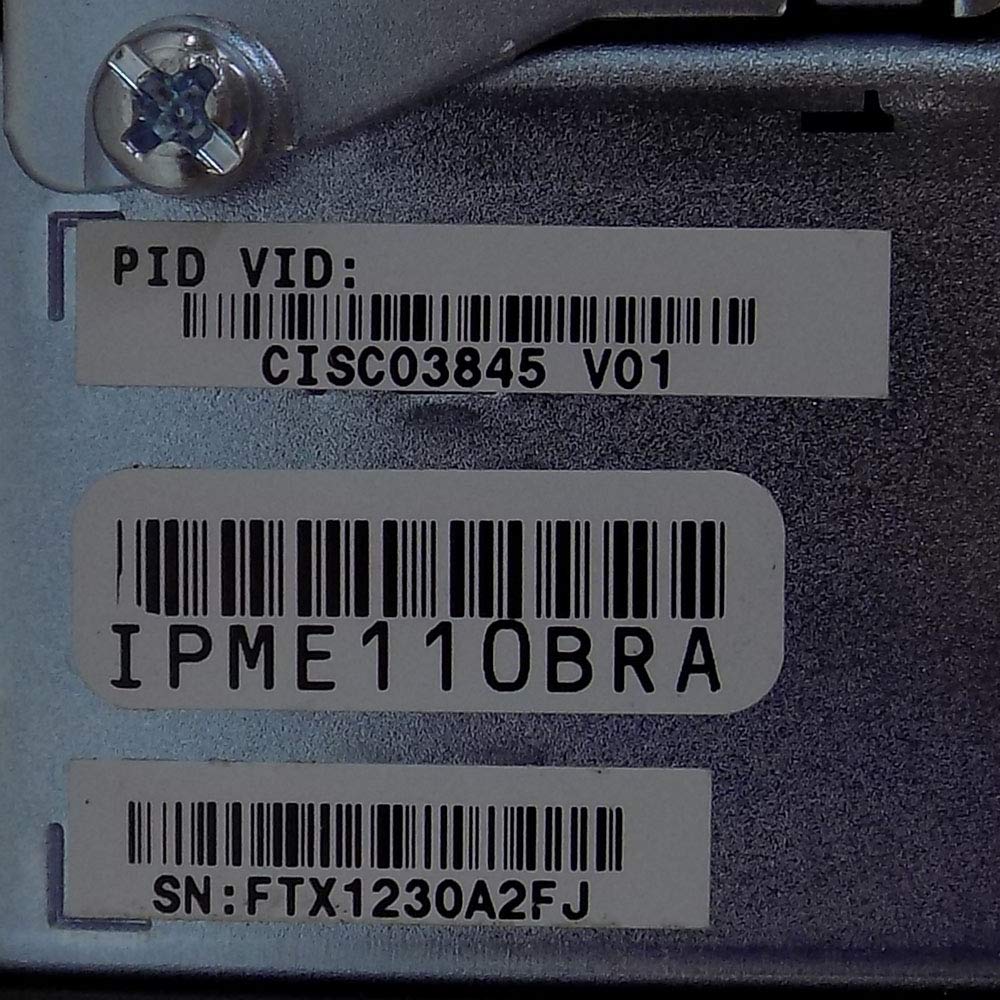
Figure 2.4: Close-up view of the Product ID (PID), Vendor ID (VID), and Serial Number (SN: FTX1230A2FJ) labels on the Cisco 3845.

Figure 2.5: Rear view of a Cisco 3800 Series router, illustrating the power input port and ventilation grilles for heat dissipation.
3. Setup Instructions
3.1 Unpacking and Inspection
- Carefully remove the router from its packaging.
- Inspect the router for any signs of physical damage. If damage is found, contact your vendor immediately.
- Verify that all components listed in the packing list are present.
3.2 Site Preparation
- Ensure the installation site is clean, dry, and well-ventilated.
- Maintain adequate clearance around the router for proper airflow.
- Provide a stable surface for the router, whether on a desktop or in a rack.
- Ensure a reliable power source is available with appropriate grounding.
3.3 Connecting the Router
- Power Connection: Connect the power cord to the router's power input and then to a grounded electrical outlet.
- Console Connection: For initial configuration, connect a console cable from your computer to the router's console port.
- Network Connections: Connect Ethernet cables from your network devices (switches, computers, modems) to the appropriate LAN/WAN ports on the router. Utilize the Gigabit Ethernet ports for high-speed connections.
- Module Installation (if applicable): If your configuration requires additional modules (e.g., voice, wireless, or additional WAN interfaces), refer to the specific module installation guide.
4. Operating Instructions
4.1 Powering On
Once all connections are secure, press the power switch on the router. Observe the system indicator lights to ensure proper boot-up. The system status LED should eventually turn solid green, indicating successful initialization.
4.2 Initial Configuration
Access the router's command-line interface (CLI) via the console port using a terminal emulation program (e.g., PuTTY, Tera Term). Follow the Cisco IOS configuration guide for initial setup, including IP addressing, routing protocols, and security settings. For detailed configuration steps, refer to the official Cisco documentation available on Cisco's website.
4.3 Network Connectivity
After initial configuration, verify network connectivity by pinging devices on your network and external resources. Ensure that all connected devices are receiving IP addresses and can access the internet (if configured for WAN access).
5. Maintenance
5.1 Regular Checks
- Periodically check the router's status indicator lights for any anomalies.
- Ensure proper ventilation by keeping the area around the router clear of obstructions.
- Regularly back up your router's configuration to prevent data loss.
5.2 Firmware Updates
Keep the router's firmware (Cisco IOS) updated to the latest stable version. Firmware updates often include security patches, bug fixes, and new features. Refer to Cisco's official support portal for information on available updates and the update procedure.
5.3 Cleaning
Gently clean the exterior of the router with a soft, dry cloth. Do not use liquid cleaners or aerosols directly on the device. Ensure the router is powered off before cleaning.
6. Troubleshooting
This section provides solutions to common issues you might encounter with your Cisco CISCO3845 router.
6.1 No Power
- Check Power Cord: Ensure the power cord is securely connected to both the router and the electrical outlet.
- Verify Outlet: Test the electrical outlet with another device to confirm it is functional.
- Power Switch: Make sure the power switch on the router is in the 'On' position.
6.2 No Network Connectivity
- Cable Connections: Verify that all Ethernet cables are properly connected to the correct ports on the router and connected devices.
- Indicator Lights: Check the link/activity LEDs on the router ports. A solid green light usually indicates a good connection, while blinking indicates activity. No light suggests a cable or port issue.
- IP Configuration: Ensure that your devices are configured to obtain IP addresses automatically (DHCP) or have correct static IP settings.
- Router Configuration: Access the router's CLI to verify that interfaces are enabled and configured correctly.
6.3 Slow Performance
- Network Congestion: Check for high network traffic or bandwidth-intensive applications.
- Router Load: Monitor the router's CPU and memory utilization via the CLI. High utilization can indicate a bottleneck.
- Firmware: Ensure the router is running the latest stable firmware.
7. Specifications
| Feature | Detail |
|---|---|
| Product Dimensions | 15.98 x 17.24 x 5.24 inches |
| Item Weight | 41.1 pounds |
| Model Number | CISCO3845 |
| Brand | Cisco |
| Connectivity Technology | Ethernet |
| Wireless Communication Standard | 802.11a, 802.11ab (with optional modules) |
| Frequency Band Class | Dual-Band (with optional modules) |
| Manufacturer | CISCO SYSTEMS - ENTERPRISE |
| Date First Available | November 19, 2004 |
| Recommended Uses | Business |
| Color | Black, Blue, Stainless steel |
8. Warranty and Support
8.1 Legal Disclaimer
Cisco 3845 with advanced IP services installed. No upgrades or changes were made to the device. This information is provided for general guidance only and does not supersede any specific contractual agreements or official Cisco documentation.
8.2 Technical Support
For technical assistance, troubleshooting beyond this manual, or warranty claims, please contact Cisco Systems directly through their official support channels. Visit the Cisco Support Website for comprehensive resources, documentation, and contact information.
Ensure you have your product's serial number (e.g., FTX1230A2FJ) and model number (CISCO3845) ready when contacting support.
Related documentsCISCO3845

Ask a question about this manual
Ask about setup, troubleshooting, compatibility, parts, safety, or missing instructions. Manuals+ will review the question and use this page’s manual context to help answer it.