
1. Introduction
This manual provides comprehensive instructions for the Koss SB40 Computer Headset with Microphone. Designed for clear communication and immersive audio, this headset is suitable for various computer applications, including gaming and voice calls. Please read this manual thoroughly to ensure proper setup, operation, and maintenance of your device.
2. Safety Information
To prevent damage to the headset or personal injury, please observe the following safety guidelines:
- Avoid exposing the headset to extreme temperatures, humidity, or direct sunlight.
- Do not disassemble or attempt to repair the headset yourself. Refer all servicing to qualified personnel.
- Keep the headset away from water or other liquids.
- Adjust volume to a comfortable level to prevent hearing damage during prolonged use.
3. Package Contents
Verify that all items are present in the package:
- Koss SB40 Computer Headset with Microphone
- User Manual (this document)

Figure 1: Front view of the Koss SB40 Computer Headset, showing the over-ear design and attached microphone boom.
4. Setup
4.1 Connecting the Headset
The Koss SB40 headset features a dual-entry cable design with two 3.5mm plugs for separate audio and microphone connections:
- Locate the 3.5mm TRS plug (Tip-Ring-Sleeve) for headphone audio. Insert this plug into your computer's headphone jack (typically marked with a headphone icon or green color).
- Locate the 3.5mm TS plug (Tip-Sleeve) for the microphone. Insert this plug into your computer's microphone input jack (typically marked with a microphone icon or pink color).

Figure 2: The Koss SB40 headset showing its dual 3.5mm audio and microphone plugs for connection to a computer.
4.2 Microphone Configuration (Windows PC)
For optimal microphone performance on a Windows PC, especially with Realtek audio drivers, consider adjusting the following settings:
- After connecting the headset, the Realtek audio manager may automatically open. If not, access it through your system tray or Control Panel.
- Navigate to the Microphone tab.
- Enable Noise Suppression to reduce background noise.
- Enable Acoustic Echo Cancellation to prevent echoes during calls.
- Adjust the Microphone Boost. Click the microphone icon next to the volume slider and increase the boost to +10dB for clearer voice pickup.
- Additionally, configure microphone settings within your communication applications (e.g., Steam, Zoom, Skype) for push-to-talk or specific mute options.
5. Operating Instructions
5.1 Audio Playback
The SB40 headset delivers a frequency response of 20 to 20 kHz, an impedance of 120 ohms, and a sensitivity of 96 dB SPL, ensuring clear and dynamic sound reproduction. Adjust the audio volume using your computer's system volume controls or within individual applications.
5.2 Microphone Usage
The integrated noise-cancelling microphone is designed to minimize ambient background noise, focusing on your voice for clear communication. Position the microphone boom approximately 1-2 inches from your mouth for optimal voice pickup.
5.3 Comfort and Fit
The headset features large, closed leatherette earcups that comfortably surround the ear, providing maximum sound isolation and reducing external noise. The adjustable headband ensures a secure and comfortable fit for extended periods of use.
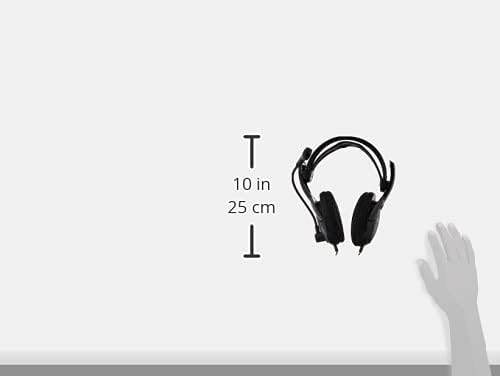
Figure 3: Side view of the Koss SB40 headset illustrating its dimensions, which contribute to its lightweight and comfortable design.
6. Maintenance
To maintain the performance and longevity of your Koss SB40 headset:
- Clean the earcups and headband with a soft, dry cloth. Do not use harsh chemicals or abrasive cleaners.
- Store the headset in a clean, dry place when not in use.
- Avoid pulling on the cables excessively to prevent internal damage.
7. Troubleshooting
7.1 No Audio Output
- Ensure the 3.5mm TRS audio plug is fully inserted into the correct headphone jack on your computer.
- Check your computer's volume settings and ensure they are not muted or set too low.
- Verify that the correct audio output device is selected in your operating system's sound settings.
7.2 Microphone Not Working
- Confirm the 3.5mm TS microphone plug is fully inserted into the correct microphone input jack.
- Check your computer's microphone settings and ensure the microphone is not muted and input levels are adequate. Refer to Section 4.2 for detailed PC microphone configuration.
- Verify that the correct microphone input device is selected in your operating system's sound settings and within your communication applications.
7.3 Distorted Audio
- Reduce the volume level on your computer or application.
- Ensure the audio source is of good quality.
- The headset is designed for low total harmonic distortion (less than 0.2%), so persistent distortion may indicate an issue with the audio source or connection.
8. Specifications
| Feature | Specification |
| Frequency Response | 20 Hz - 20 kHz |
| Impedance | 120 ohms |
| Sensitivity | 96 dB SPL |
| Total Harmonic Distortion | Less than 0.2% |
| Connectivity | Wired (Dual 3.5mm plugs: TS for mic, TRS for headphone) |
| Microphone | Noise-cancelling |
| Ear Placement | Over-Ear |
| Material | Plastic, Leatherette earcups |
| Color | Black |
| Product Dimensions | 4 x 7.06 x 9.19 inches |
| Item Weight | 0.023 ounces (approx. 0.66 grams) |
9. Product Overview Video
For a visual overview of the Koss SB40 Computer Headset, please watch the following video:
Video 1: An official product video showcasing the key features and design of the Koss SB40 Computer Headset with Microphone.
10. Warranty Information
The Koss SB40 Computer Headset is covered under the Koss Stereophones Limited Lifetime Warranty. For detailed information regarding warranty terms, conditions, and claims, please refer to the official Koss website or contact Koss customer support.
11. Support
If you require further assistance, have questions, or encounter issues not covered in this manual, please contact Koss customer support through their official website or the contact information provided with your product packaging.


