
Product Overview
The C2G 02798 DB25 Male to Centronics 36 Male Parallel Printer Cable provides a reliable connection between your personal computer and uni-directional, dot-matrix, or older laser printers. This cable is designed for durability and data integrity, suitable for various environments.
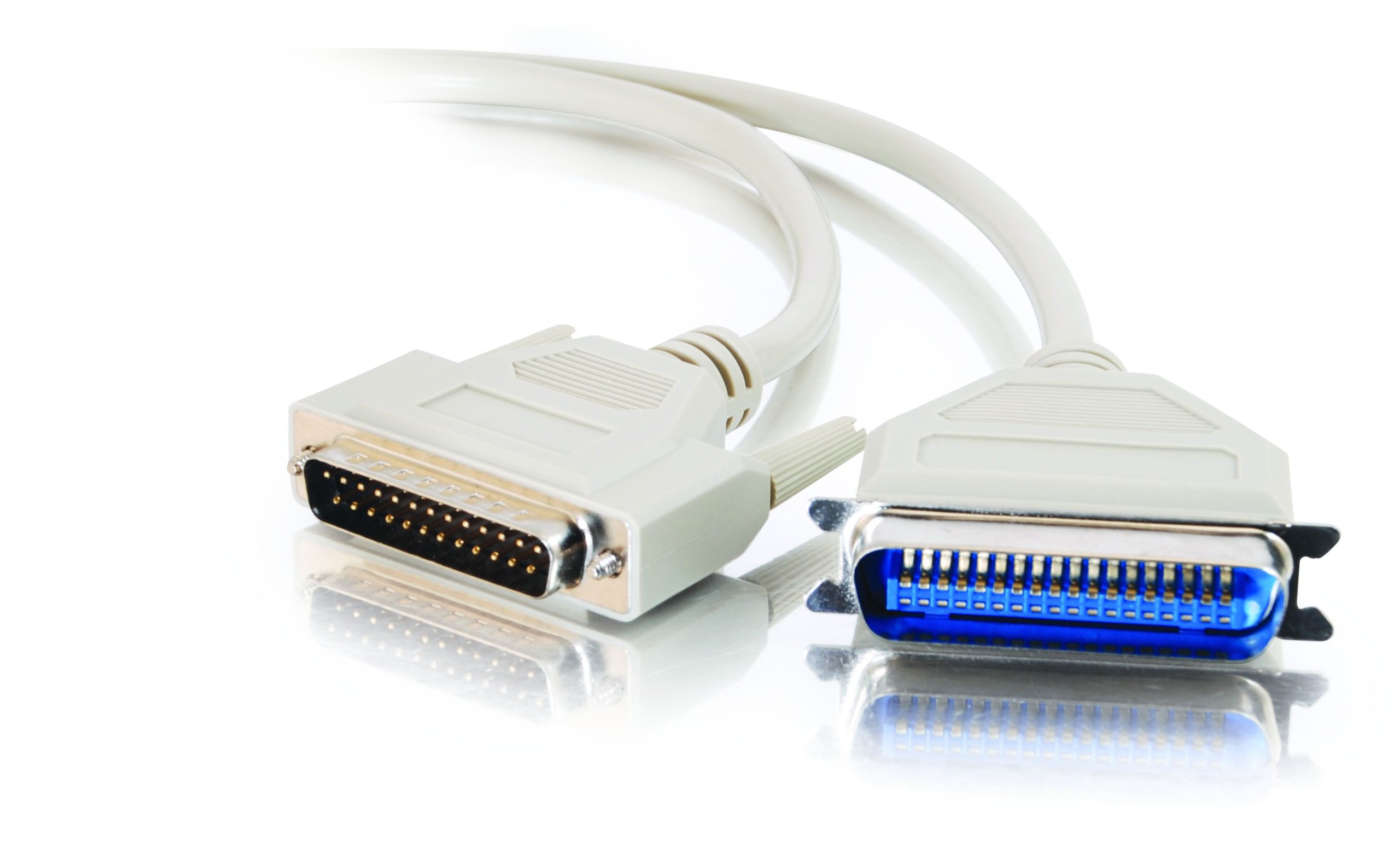
Image: The C2G 02798 DB25 to Centronics 36 Parallel Printer Cable, beige in color, coiled to show both connectors.
Key Features
- Connectors: DB25 Male to Centronics 36 Male.
- Compatibility: Designed for connecting PCs to parallel dot-matrix printers, older laser printers, or other uni-directional Centronics peripherals.
- Durability: Fully molded design for excellent strain relief, ensuring longevity.
- Data Protection: Features foil shielding to protect valuable data from EMI/RFI interference.
- Ease of Use: Connectors include slotted, textured thumbscrews for easy attachment and removal.
- Wiring: All 25 conductors are wired for broad compatibility.
Video: An overview of the C2G Professional Printer Cable, highlighting its features and compatibility with various printers and PCs.
Setup Instructions
- Identify Ports: Locate the DB25 parallel port on your computer (often a D-shaped port with 25 pins) and the Centronics 36 parallel port on your printer (a larger port with 36 pins).
- Connect DB25 End: Carefully align the DB25 male connector of the cable with the DB25 port on your computer. Gently push it in until it is seated firmly.
- Secure DB25 End: Tighten the slotted thumbscrews on the DB25 connector to secure the cable to the computer port. Do not overtighten.
- Connect Centronics 36 End: Align the Centronics 36 male connector of the cable with the Centronics 36 port on your printer. Push it in until it is fully seated.
- Secure Centronics 36 End: If your Centronics port has clips or screws, ensure the connector is secured.
- Power On: Once the cable is securely connected at both ends, power on your printer and computer.
- Install Drivers: Ensure the correct printer drivers are installed on your computer for the connected printer model. Refer to your printer's manual for driver installation instructions.

Image: A close-up view of the DB25 Male connector, showing the 25 pins.
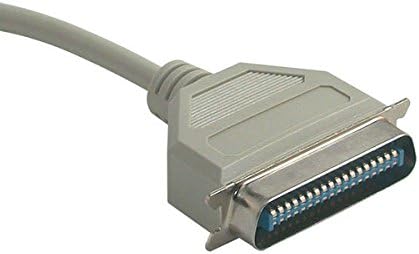
Image: A close-up view of the Centronics 36 Male connector, showing the 36 pins.
Operating Instructions
After successful physical connection and driver installation, your computer should recognize the printer. You can now send print jobs from your applications. Ensure the printer is powered on and has paper and ink/toner.
- Select your connected printer from the print dialog box in your application.
- Adjust print settings as needed (e.g., paper size, orientation, print quality).
- Initiate the print job.
Maintenance
To ensure the longevity and optimal performance of your C2G parallel printer cable, follow these simple maintenance guidelines:
- Keep Clean: Periodically wipe the cable and connectors with a dry, soft cloth to remove dust and debris. Avoid using liquid cleaners directly on connectors.
- Avoid Bending: Do not sharply bend or crimp the cable, especially near the connectors, as this can damage internal wires and shielding.
- Proper Storage: When not in use, coil the cable loosely and store it in a dry, cool place away from direct sunlight and extreme temperatures.
- Handle with Care: Always grasp the connector housing when plugging or unplugging the cable, rather than pulling on the cable itself.
- Inspect Regularly: Check the cable and connectors for any signs of wear, fraying, or damage. Replace the cable if any damage is observed to prevent potential issues.
Troubleshooting
If you encounter issues while using your parallel printer cable, consider the following troubleshooting steps:
- No Print Output:
- Ensure both the computer and printer are powered on.
- Verify the cable is securely connected to both the computer's parallel port and the printer's Centronics port. Tighten thumbscrews.
- Check if the printer has paper and ink/toner.
- Confirm that the correct printer is selected in your computer's print dialog.
- Restart both the computer and the printer.
- Garbled Print Output:
- This often indicates a driver issue. Reinstall or update your printer drivers.
- Check for any loose connections.
- Ensure the cable is not damaged. Try a different parallel cable if available.
- Printer Not Detected:
- Verify the cable is fully inserted and secured.
- Check your computer's Device Manager (Windows) or System Information (macOS) to see if the parallel port is recognized and functioning correctly.
- Ensure the printer is set to the correct interface (parallel) if it has multiple connection options.
- Slow Printing:
- Parallel connections are generally slower than modern USB connections. This is normal for this type of cable.
- Ensure your printer drivers are up to date.
Product Specifications
| Feature | Specification |
|---|---|
| Brand | C2G |
| Model Name | 02798 |
| Connector Type | DB25 Male, Centronics 36 Male |
| Cable Type | Parallel |
| Compatible Devices | Personal Computer, Printer (dot-matrix, older laser, uni-directional Centronics peripherals) |
| Special Feature | Data Transfer |
| Color | Beige |
| Connector Gender | Male-to-Male |
| Number of Pins | DB25 (25 pins), Centronics 36 (36 pins) |
| Unit Count | 1 Count |
| Item Weight | 2.4 Ounces |
| Product Dimensions | 9 x 5 x 1 inches |
| Maximum Voltage | 5 Volts (DC) |
| Outer Material | Polyvinyl Chloride (PVC) |
Warranty Information
This C2G product is covered by a manufacturer's warranty. For specific details regarding warranty duration and terms, please refer to the documentation included with your purchase or visit the official C2G website. Keep your proof of purchase for warranty claims.
Customer Support
For further assistance, technical support, or inquiries about the C2G 02798 Parallel Printer Cable, please contact C2G customer service through their official website or the contact information provided with your product packaging. You can also visit the C2G Store on Amazon for more product information.

