1. Introduction
The Teslong NTG150 series borescopes are advanced tools designed for precise inspection of firearm barrels. These devices offer high-resolution imaging and video recording capabilities, allowing users to thoroughly examine the internal condition of barrels for cleanliness, erosion, tool marks, rifling wear, chamber damage, and fouling. With Wi-Fi connectivity, the borescope can be easily integrated with iOS, Android, and PC devices for convenient viewing and analysis.
Video: Teslong NTG150W Borescope First Use - Unboxing and basic setup demonstration.
2. Package Contents
Upon receiving your Teslong NTG150 series borescope, please verify that all the following items are included:
- Borescope Probe (NTG150PW, NTG150HW, or NTG150W model)
- WF150 Wi-Fi Adaptor / Wireless Transmitter
- 3x 0.2 inch (5 mm) Side-view Mirrors
- Aviation to USB-A Connector Cable
- USB-A to Micro-USB Charging Cable
- USB-C Adaptor
- Instruction Card (with QR code for app download)

Image: Overview of the Teslong borescope system with Wi-Fi transmitter and mobile devices.
3. Product Overview
The Teslong NTG150 series offers three main variations, each designed for specific inspection needs:
- NTG150W (45-inch Flexible Rifle Borescope): Ideal for inspecting longer firearm barrels due to its extended flexible probe.
- NTG150HW (26-inch Rigid Rifle Borescope): Features a rigid probe suitable for rifle barrels, often long enough to inspect from one end.
- NTG150PW (10-inch Rigid Pistol Borescope): A more compact, rigid probe designed for easier inspection of pistol barrels.
All models are compatible with .22 caliber or larger barrels and include a Wi-Fi adaptor for wireless connectivity.
Wi-Fi Transmitter Controls
The Wi-Fi transmitter features several controls for easy operation:
- Camera Shutter Button: Located at the top left, used to capture images.
- Ring Light Brightness Button: The middle button on the left side, used to adjust the intensity of the LED ring light.
- Zoom In/Out Function: A long press on the ring light brightness button will zoom the view in or out.
- Power On/Off Button: The bottom button on the left side. A long press will turn the device on or off.
- Micro-USB Charge Port: Located at the bottom of the transmitter for recharging the internal battery.
- Camera Probe Plug (USB-A Port): Located at the top of the transmitter, where the borescope probe connects.

Image: Teslong NTG150PW Pistol Borescope with Wi-Fi transmitter.

Image: Teslong NTG150W Flexible Rifle Borescope with Wi-Fi transmitter.

Image: Teslong NTG150HW Rigid Rifle Borescope with Wi-Fi transmitter.
4. Setup Instructions
4.1. Charging the Wi-Fi Transmitter
Before first use, ensure the Wi-Fi transmitter is fully charged. Connect the provided USB-A to Micro-USB charging cable to the Micro-USB charge port on the transmitter and a suitable USB power source (e.g., wall adapter, computer USB port). The battery charge indicator will illuminate during charging.
4.2. Connecting the Borescope Probe
- Thread the aviation plug of the borescope probe onto the probe cable.
- Plug the USB-A connector of the probe cable into the USB-A port on top of the Wi-Fi transmitter.
4.3. App Installation (for Mobile Devices)
To use the borescope with your smartphone or tablet (iOS or Android), you need to install the companion app:
- Search for "Smart Endoscope" (or "Mo View" for some models) in the Apple App Store (for iOS) or Google Play Store (for Android).
- Download and install the app.
- Alternatively, scan the QR code provided on the "Smart Endoscope App Instructions" card included in your package to directly access the download link.
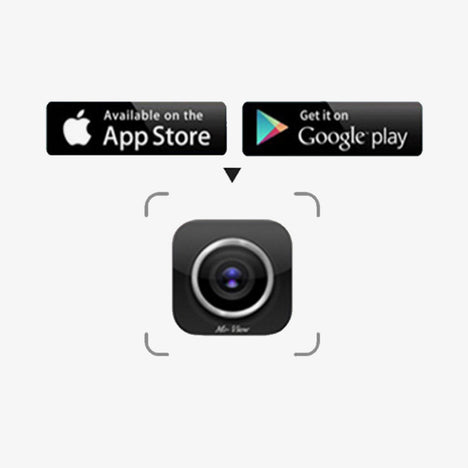
Image: Step 1 - Search for and install the 'Smart Endoscope' app.
4.4. Wi-Fi Connection (for Mobile Devices)
- Long-press the power button on the Wi-Fi transmitter to turn it on. The battery charge indicator will light up, followed by the Wi-Fi signal indicator after about 5 seconds.
- On your mobile device, go to your Wi-Fi settings.
- Connect to the Wi-Fi network named "WIFI Cam_******" (where ****** are several characters unique to your device). This is an unsecured network.
- Once connected, open the "Smart Endoscope" app. The live feed from the borescope should appear.
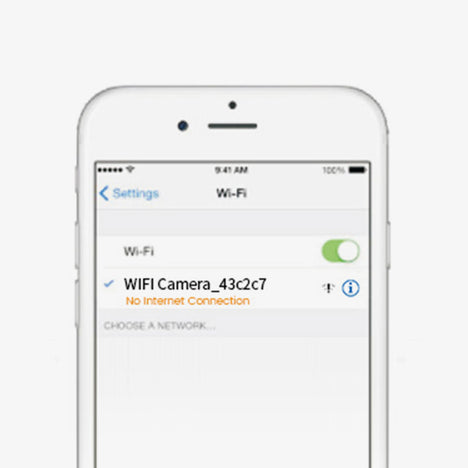
Image: Step 2 - Connect to the borescope's Wi-Fi network.
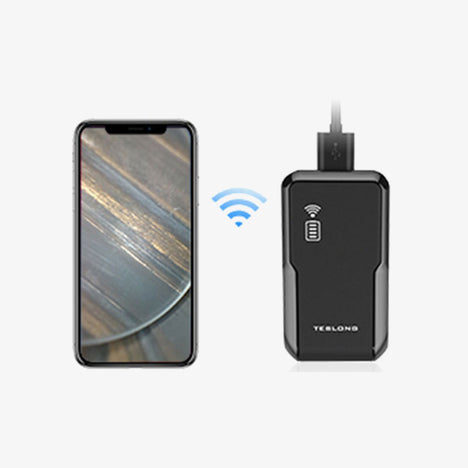
Image: Step 3 - Open the app after connecting to Wi-Fi.
4.5. PC Connection (Wired)
The borescope can also be used with PC and Apple computers without the Wi-Fi transmitter:
- Connect the borescope probe to the Aviation to USB-A cable.
- Plug the USB-A end of the cable directly into a USB port on your computer.
- Install the appropriate software or driver for your operating system (Windows or macOS) if not automatically detected. Refer to the Teslong website for specific software downloads.

Image: Teslong borescope connected to a laptop for direct viewing.
5. Operation
5.1. Powering On/Off
Long-press the power button on the Wi-Fi transmitter to turn the device on or off. The battery indicator and Wi-Fi signal indicator will confirm the power status.
5.2. Adjusting LED Brightness
Press the middle button on the left side of the Wi-Fi transmitter to cycle through three levels of LED light brightness or to turn the light off. Adjust the illumination to achieve the best view in dark inspection areas.
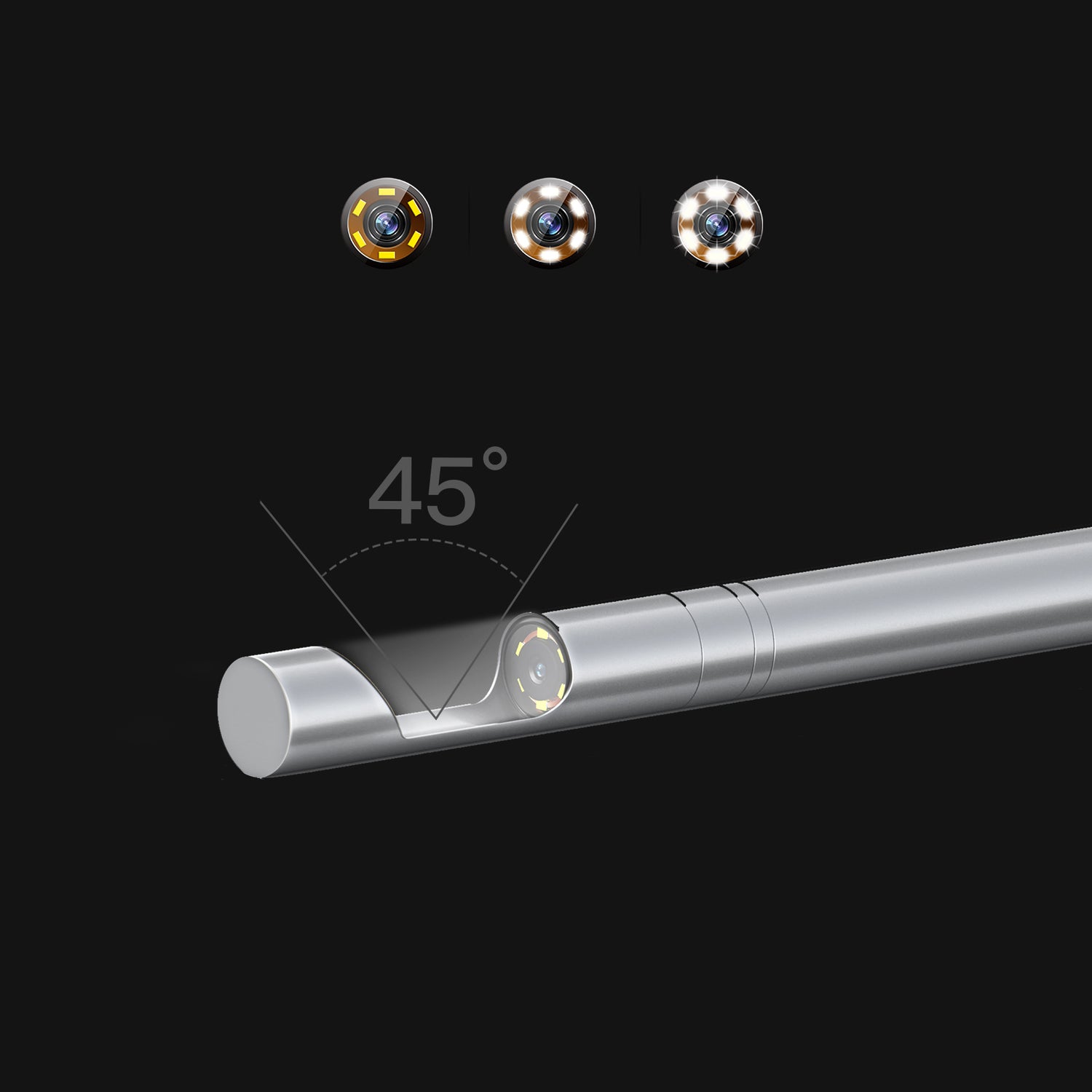
Image: Innovative close-focusing camera with 6 LED ring lights.
5.3. Zoom Function
Perform a long press on the ring light brightness button to zoom the view in or out within the app interface.
5.4. Capturing Images/Video
Press the top button on the left side of the Wi-Fi transmitter (camera shutter button) to capture still images. The app also provides controls for recording video.
5.5. Using Side-View Mirrors
The borescope comes with three adjustable, detachable 90° side-view mirrors. These mirrors allow you to inspect the barrel wall. They can be removed to check the firing pin or for direct forward viewing.
5.6. Inspection Guidelines
The Teslong borescope is an excellent tool for evaluating various aspects of your firearm's barrel. Use it to inspect for:
- Cleanliness and residue buildup
- Throat erosion
- Tool marks
- Rifling wear
- Chamber damage
- Fouling
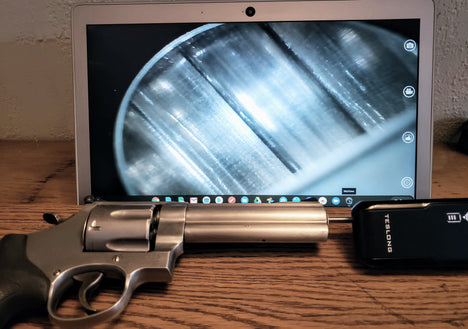
Image: Inspection of a Smith & Wesson M629 .44 Magnum barrel.
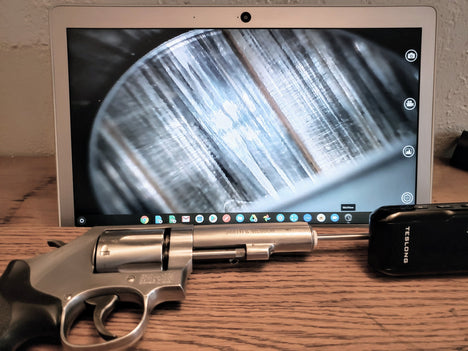
Image: Inspection of a Smith & Wesson M10 .38 Special barrel.
6. Maintenance
6.1. Cleaning the Probe and Mirrors
After each use, especially when inspecting dirty barrels, gently clean the borescope probe and side-view mirrors. Use a soft, lint-free cloth and a small amount of isopropyl alcohol to wipe the lens and mirror surfaces. Ensure no debris remains that could obstruct the view or scratch the optics. Do not submerge the probe or transmitter in liquids.
6.2. Battery Care
To prolong battery life, charge the Wi-Fi transmitter regularly and avoid completely draining the battery. Store the device in a cool, dry place when not in use.
7. Troubleshooting
- Device Not Powering On: Ensure the Wi-Fi transmitter is charged. Connect it to a power source using the Micro-USB cable.
- No Wi-Fi Signal Detected: Make sure the Wi-Fi transmitter is powered on. If the battery is low, charge the device. Try restarting the transmitter and your mobile device.
- App Not Displaying Image: Verify that your mobile device is connected to the "WIFI Cam_******" network. Ensure the correct device model is selected within the app if prompted. Close and reopen the app.
- Poor Image Quality: Adjust the LED ring light brightness using the dedicated button on the transmitter. Clean the borescope lens and side-view mirror for any smudges or debris.
- Borescope Not Connecting to PC: Ensure the USB-A cable is securely connected to both the probe and the computer. Check if the necessary drivers or software are installed on your computer.
8. Specifications
| Feature | NTG150W (Flexible Rifle) | NTG150HW (Rigid Rifle) | NTG150PW (Rigid Pistol) |
|---|---|---|---|
| Compatibility | iOS & Android (Wi-Fi), PC (Wired) | ||
| Connection Type | Wi-Fi wireless connection for iOS and Android; USB wired connection for PC | ||
| Probe Type | 45-inch flexible | 26-inch rigid | 10-inch rigid |
| Image Capturing Resolution | 1280x720 pixels | ||
| Video Recording Resolution | 1280x720 pixels | ||
| Battery | Built-in battery (in Wi-Fi adaptor) | ||
| Light Source | LED ring light | ||
| Fits Caliber | .22 Caliber or Larger Barrels | ||
| Accessories | 3x 0.2 in (5 mm) Side-view Mirrors, Aviation to USB-A Connector, USB-C Adaptor | ||

Image: Detailed comparison of Teslong borescope models and their specifications.
9. User Tips
- Optimal Lighting: Always adjust the LED brightness to avoid glare and ensure clear visibility of the barrel's interior. Too much light can wash out details.
- Smooth Insertion: Insert the borescope probe slowly and carefully into the barrel to prevent damage to the probe or the firearm.
- Mirror Usage: Experiment with the side-view mirrors to get the best angle for inspecting rifling and chamber walls. Remember to remove them for forward-facing views.
- Regular Cleaning: Keep the probe and mirrors clean to maintain optimal image clarity. Dust or residue can significantly degrade the view.
- Battery Management: Charge the Wi-Fi transmitter fully before extended use to avoid interruptions during inspection.
- Software Updates: Periodically check the Teslong website or your app store for any software or firmware updates to ensure optimal performance and compatibility.
10. Warranty and Support
For warranty information, technical support, or service inquiries, please refer to the official Teslong website or contact your retailer. Keep your purchase receipt as proof of purchase.


