

WOLF 8909319 Interface Module

Specifications
- Product: Link Home / Link Pro
- Firmware: 4.00 and above
- Model Number: 8909319 | 202410
Product Description
The Link Home / Link Pro is an interface module designed for use with specific firmware versions. It provides connectivity options for various functionalities.
Safety
Qualifications and safety requirements must be adhered to when installing and operating the product.
Product Features
The product features LED indicators, buttons, and interface options for seamless operation.
LED Indicators
- Yellow LED: Indicates status related to the WOLF-Smartset-Portal connection.
- Red LED: Indicates eBus / Modbus connection status.
Buttons
- Access Point Button: Start Access Point functionality.
- WPS Button: Start WPS functionality.
- Reset Button: Restore factory settings.
Usage Instructions
Preparation for Commissioning
- Download the Smartest App from the respective app store (iOS or Android).
Commissioning Process
- Ensure the product is powered on and in a stable position.
- Follow the instructions provided in the manual for seamless setup.
FAQ
- Q: What should I do if the LED indicators show no connection to the WOLF-Smartset Portal?
- A: Check your network connection and ensure that the settings are correctly configured. If issues persist, consult the troubleshooting section in the manual.
About this document
- Read this document before you start working on or with the product.
- Follow the instructions in this document.
Failure to comply with the specifications in this document will void the manufacturer’s warranty.
Digital information
All the information you need to commission your WOLF Link, including these instructions in many other languages and as a video, is provided digitally:
Scope of application of document
This document applies to: WOLF Link home/pro.
Target group
- This document is intended for operators and users of the product.
- Operators are persons who have been trained in the use of the product by a qualified person and own and operate the product.
- Users are persons who have been trained to use the product by a qualified person and use the product.
Other applicable documents
- Operating instructions for contractors WOLF Link home/pro
- All documents relating to the appliances and control components that are connected to the WOLF Link home/pro accessory.
The documents for all accessory modules and other accessories also apply where relevant. All documents are available at www.wolf.eu/downloadcenter
Safekeeping of this document
The operator is responsible for the safekeeping of this document.
- Hand this document over to the operator after the installation of the product.
- The document must be kept in a suitable location and must be available at all times.
- The document must be included if the product is passed on to a third party
Presentation conventions
Symbols
The following symbols are used in this document:
Abbreviations
- DHCP Dynamic Host Configuration Protocol: Network protocol that the router (server) uses to assign IP addresses to devices (clients) on the network.
- LAN Local Area Network: Wired computer network in the form of a home or company network.
- SSID Service Set Identifier: Public name of the WiFi network.
- WLAN Wireless Local Area Network: Wireless LAN, wireless network.
- WPS Wi-Fi Protected Setup Push Button Configuration: Function to easily connect devices to a network with the push of a button on the router and device
Safety
Required Qualifications
- All work on the product must be performed by a specialist contractor.
- Only qualified electricians are permitted to work on electrical components.
- The product may only be serviced or repaired by the WOLF customer service team or a specialist authorized by WOLF.
- Have all inspection and maintenance work performed by a specialist contractor trained by WOLF.
Intended use
Only use the product in conjunction with WOLF products. The product enables remote access to WOLF control components to display states or measured values and change parameters via a secure internet connection.
Incorrect use
Any use other than the intended use is not permissible. Any other use or changes to the product at any time including during assembly and installation invalidate all warranty claims. The user has sole liability for such use. This appliance is not intended to be operated by persons (including children) with restricted physical, sensory or mental capacities or who lack the necessary experience and/or knowledge, unless they are supervised by a person responsible for their safety or have received instructions on how to use the appliance from this person.
Safety measures
- Never remove, bypass or otherwise disable any safety or monitoring equipment.
- Only operate the product if it is in perfect technical condition.
- Immediately rectify any faults and damage that impair safety.
- All faulty components must be replaced with original WOLF spare parts.
- Wear personal protective equipment
Product description
Important information about the product
Overview

Product identification
Type plate
- Password
- Serial number
Controls and displays
Button
Depending on the duration of a button press, various functions can be selected. The LEDs start to light up when the button is pressed.

LEDs
Commissioning
General information
Requirements for commissioning
- This WOLF Link is installed by a contractor in accordance with the operating instructions for contractors.
- An internet connection via LAN or WLAN (sufficiently strong and stable wireless network) is available in the installation room of the heating or ventilation appliance.
Recommendations
WOLF generally recommends establishing a wired internet connection (LAN). This ensures a stable, uninterrupted connection that requires no further effort even when changing the router or WLAN password. The easiest and fastest way to set up the WOLF Link is via the commissioning assistant in the WOLF Smartset app ☞ Commissioning via Smartset app (LAN or WLAN with WPS) [} 19]. The connection can be established via LAN or WLAN. If the paths described in the Smartset app are unavailable due to local conditions, such as a long distance between router and heating appliance or the nature of the router used, or if no DHCP is available (e.g. company network), an alternative method of manual commissioning is described here ☞ Manual commissioning when connected to the internet via WLAN (wireless) [} 19].
Preparation for commissioning
- Download the Smartset app:

- Open the Smartest app and use the login button to register
Commissioning via Smartset app (LAN or WLAN with WPS)
- An internet connection via LAN or WLAN (sufficiently strong and stable wireless network) is available in the installation room of the heating or ventilation appliance.
- The network uses DHCP.
- To establish a connection via WLAN: The WPS function is available on the router.
- The heating or ventilation appliance is switched on.
- Smartphone on the same network to which the WOLF Link is to be connected.
- The Smartset app is installed on the smartphone, the user is registered and logged in. (☞ Preparation for commissioning [} 18]).
- In the Smartset app, select Profile > System List > + > Commissioning Assistant.
- The commissioning assistant will guide you through the commissioning process.
INFO
Setting up a WLAN connection via WPS button
It may take a few minutes to establish a connection. The connection is successfully established as soon as the red LED is permanently lit.
Manual commissioning when connected to the internet via WLAN (wireless)
This procedure is appropriate if one of the following conditions is met:
- WLAN is to be used, but no WPS is available.
- Commissioning using the commissioning assistant in the Smartset app is not possible due to local conditions such as the physical distance between the router and heating or ventilation appliance or the nature of the router used.
- DHCP is not available (e.g. corporate network).
Procedure
- An internet connection via LAN or WLAN (sufficiently strong and stable wireless network) is available in the installation room of the heating or ventilation appliance.
- The heating or ventilation appliance is switched on.
- Smartphone on the same network to which the WOLF Link is to be connected.
- The Smartset app is installed on the smartphone, the user is registered and logged in. (☞ Preparation for commissioning [} 18]).
- The “Mobile data” option is temporarily disabled on the smartphone you are using.
- In the WLAN settings of the smartphone, select the network WOLFLINK- (…).
- Enter the individual WOLF Link password next to “PW:” on the sticker.
- If the message WOLFLINK- (…) has no internet access is displayed, confirm this with Yes.
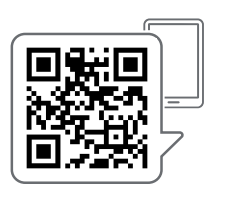
- Scan the following QR code or, alternatively, open an internet browser on your smartphone, enter http://192.168.1.1 (do not use https://…!) in the address bar and confirm.
- On the opened web page, select Network.
- Enter and confirm your login details in the pop-up window
- User: admin
Password: the individual password next to “PW:” on the sticker
- User: admin
- Select the home network under WLAN settings and enter the password. The pre-selected WLAN encryption method is usually appropriate, but this can be adjusted if necessary
INFO
No DHCP (e.g. corporate network) If no DHCP is available, uncheck Automatically obtain network settings (DHCP) and enter all required data (fixed IP address). If necessary, ask the network administrator for the information. - Select Connect.
- If the Smartset portal (web or app) is to be used to remotely control the system via the internet, ☞ Step 4. [} 20], otherwise ☞ Step 7. [} 20].
- On the opened web page, select Settings.
- Check Activate internet connection with the WOLF SmartSet portal.
- Select Save settings.
After the restart, the system can be managed via the Smartset portal. - Select Restart.
- Open the Smartset app.
- Select Add system or select Profile > System List > +.
- Select Add manually.
- Fill in the data fields Desired system name, Interface module serial number (see WOLF Link type plate) and Interface module password (see WOLF Link type plate) and confirm with Add.
- Select system from the System List.
- Enter the serial number of the heating or ventilation appliance (sticker with bar code on the appliance) under Information > Appliance serial number and save.
- The system is now available in the Smartset app.
SmartHome integration
Instructions for integrating the WOLF Link into a smart home system:
Contact
- WOLF GmbH | Industriestraße 1 | 84048 Mainburg | DE
- +49 8751 74-0
- www.wolf.eu
- Anregungen und Korrekturhinweise gerne an feedback@wolf.eu
Documents / Resources
 | 8909319 Interface Module |
References
- 192.168.1.1192.168.1.1
- Welcome to the home of the experts for a healthy indoor environmentwww.wolf.eu
- wolf.eu/commissioning-linkwww.wolf.eu
- WOLF Downloadcenterwww.wolf.eu
- wolf.eu/inbetriebnahme-linkwww.wolf.eu
- WOLFwww.wolf.eu
- WOLF Downloadcenterwww.wolf.eu
- WOLFwww.wolf.eu
- User Manualmanual.tools