
1. Product Overview
The Picun UW05 Wireless Gaming Headsets offer a versatile audio solution for gaming and multimedia. These over-ear headphones feature Active Noise Cancelling (ANC), a detachable boom microphone, and support for both 2.4Ghz wireless and Bluetooth connectivity. Designed for comfort and immersive sound, they are compatible with various devices including PC, PS5/PS4, laptops, and cellphones.

Image: Picun UW05 Headsets demonstrating multi-platform compatibility.
2. What's in the Box
Upon unboxing your Picun UW05 Wireless Gaming Headsets, you should find the following items:
- Picun P28S Bluetooth headphones (UW05 model)
- User Manual (this document)
- USB-Micro Charging Cable
- 3.5mm Audio Cable
- USB-A dongle for 2.4Ghz wireless connection
- Detachable 2.5mm microphone
Video: An overview of the Picun P28S (UW05) Wireless Stereo Headphones, highlighting features like EQ Bass Mode, LED Battery Indicator, advanced battery life, and dual driver speaker units.
3. Setup
3.1 Charging the Headsets
Before initial use, fully charge your Picun UW05 headsets. Connect the provided USB-Micro Charging Cable to the headset's charging port and a compatible USB power source. The LED Battery Indicator will show charging status.
- Charging Time: Approximately 1.5-2 hours for a full charge.
- Quick Charge: 10 minutes of charging can provide up to 4 hours of music playback.
- Battery Life: Up to 40 hours of music enjoyment or 40 hours of clear talking on a full charge. Standby time up to 300 hours.
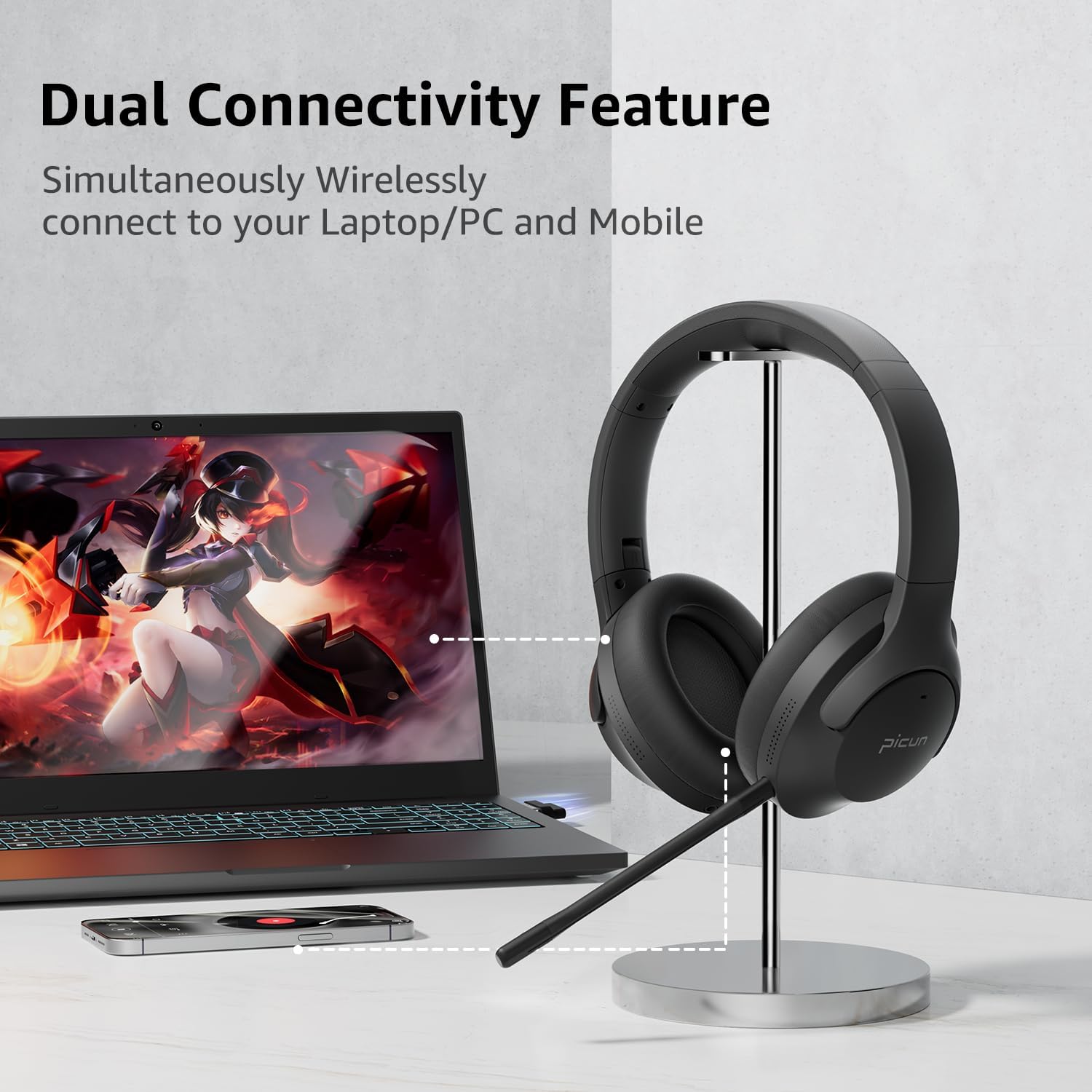
Image: Picun UW05 Headsets demonstrating dual connectivity with a laptop and mobile phone.
3.2 Powering On/Off
- Power On: Long press the Power/M button for 3-5 seconds. The indicator light will show red and blue, and you will hear "power on".
- Power Off: Long press the Power/M button until the headset powers off.
3.3 Connecting via Bluetooth
- Ensure the headset is powered on (see 3.2). The indicator light should be flashing red and blue, indicating pairing mode.
- On your device (smartphone, tablet, laptop), enable Bluetooth and search for available devices.
- Select "P28S" from the list of available devices.
- Once connected, you will hear "Connected."
3.4 Connecting via 2.4Ghz Wireless (USB Dongle)
For PC or PS5/PS4, insert the USB-A wireless dongle into an available USB port on your device. The headset should automatically connect to the dongle. Refer to your device's settings if a connection is not established automatically.
3.5 Connecting via 3.5mm Audio Cable
To use the headsets in wired mode, connect one end of the 3.5mm audio cable to the headset's audio jack and the other end to your device's 3.5mm audio output. Note that the detachable microphone only functions in wireless mode.
4. Operating Instructions
4.1 Controls Overview
The headset features intuitive controls located on the earcup:
- Power/M Button: Long press for Power ON/OFF.
- Volume Down (-): Short press for volume decrease. Long press for previous song.
- Volume Up (+): Short press for volume increase. Long press for next song.
- Play/Pause/Answer/Hang Up Button: Press to play/pause music or answer/end calls.
- EQ Mode Switch: Short press "V+" and "V-" buttons together to switch the EQ mode (e.g., for powerful HiFi stereo bass sound).

Image: Picun UW05 Headsets showcasing 3D Virtual Spatial Surround Audio.
4.2 Active Noise Cancelling (ANC)
The Picun UW05 features hybrid Active Noise Cancelling technology. Locate the ANC button on the earcup to toggle this feature on or off. ANC helps reduce ambient noise for a more focused listening experience.

Image: Picun UW05 Headsets illustrating Hybrid Active Noise Cancelling with internal and external microphones.
4.3 Detachable Boom Microphone
Attach the boom microphone to the designated port on the headset for clear voice communication during gaming or calls. The microphone utilizes ENC (Environmental Noise Cancellation) technology to pick up your voice clearly. A mute button is available on the microphone itself.
Note: The detachable microphone only works in wireless (Bluetooth or 2.4Ghz dongle) mode, not when connected via the 3.5mm audio cable.

Image: Picun UW05 Headsets highlighting the detachable ENC Noise Reduction Microphone.
5. Maintenance
- Cleaning: Use a soft, dry cloth to clean the headset. Avoid using abrasive cleaners or solvents.
- Storage: Store the headset in a cool, dry place away from direct sunlight and extreme temperatures.
- Earpads: While the earpads are designed for comfort, they are not explicitly stated as replaceable. Handle with care to prolong their lifespan.
- Water Resistance: The headsets are water-resistant. Avoid submerging them in water or exposing them to heavy rain.
6. Troubleshooting
If you encounter issues with your Picun UW05 headsets, refer to the following common solutions:
- No Power: Ensure the headset is fully charged. Connect it to a power source using the USB charging cable.
- Cannot Pair via Bluetooth:
- Ensure the headset is in pairing mode (flashing red and blue indicator light).
- Turn off and on your device's Bluetooth.
- Move the headset closer to your device (within 10 meters).
- Forget "P28S" from your device's Bluetooth list and attempt to pair again.
- No Sound:
- Check the volume levels on both the headset and your connected device.
- Ensure the headset is properly connected (Bluetooth, 2.4Ghz dongle, or 3.5mm cable).
- If using the 3.5mm cable, ensure it is fully inserted into both the headset and the audio source.
- Microphone Not Working:
- Ensure the detachable boom microphone is securely attached.
- Verify that the microphone is not muted (check the mute button on the mic).
- Confirm the headset is in wireless mode (Bluetooth or 2.4Ghz dongle), as the mic does not work in wired mode.
- Check your device's audio input settings to ensure the headset microphone is selected.
- Poor Sound Quality / Disconnections:
- Ensure there are no obstructions between the headset and your device.
- Move closer to your device to reduce interference.
- Avoid using the headset near strong electromagnetic fields.
7. Specifications
| Feature | Detail |
|---|---|
| Model Name | UW05 (P28S) |
| Connectivity Technology | Wireless (Bluetooth, 2.4Ghz) |
| Wireless Communication Technology | Bluetooth 4.0 |
| Bluetooth Range | 10 Meters |
| Noise Control | Active Noise Cancellation |
| Audio Driver Type | Dynamic Driver (Dual Driver Unit per earcup) |
| Battery Life | 35-40 Hours (Music/Talk) |
| Charging Time | 1.5-2 Hours |
| Standby Time | Up to 300 Hours |
| Control Method | Buttons |
| Ear Placement | Over Ear |
| Form Factor | Over Ear |
| Special Feature | Foldable |
| Item Weight | 9.12 ounces |
| Product Dimensions | 8.66 x 8.26 x 3.53 inches |
| Water Resistance Level | Water Resistant |
| Compatible Devices | Bluetooth-enabled devices (PC, PS5/PS4, Laptop, Cellphones) |
8. Warranty and Support
For warranty information and customer support, please refer to the product packaging or visit the official Picun website. Keep your purchase receipt as proof of purchase for any warranty claims.
Manufacturer: PICUN


