1. Bubuka
This manual provides essential information for the setup, operation, maintenance, and troubleshooting of your Thunderobot Zero 18 Pro Gaming Laptop. Please read this manual thoroughly before using your device to ensure optimal performance and longevity.
2. Setélan
2.1 Unboxing sareng Inspeksi Awal
Cabut sadaya komponén tina bungkusna kalayan ati-ati. Pariksa yén sadaya barang anu didaptarkeun dina bagian "Naon Anu Aya dina Kotak" aya sareng henteu ruksak. Upami aya barang anu leungit atanapi ruksak, langsung hubungi layanan palanggan.
- Laptop THUNDEROBOT Zero 18
- Adaptor kakuatan
- Dokuméntasi (manual ieu)
2.2 Nyambungkeun Adaptor Daya
Connect the power adapter to the laptop's power input port and then plug it into a wall outlet. It is recommended to fully charge the battery before initial use.
Gambar: Tukangeun view of the Thunderobot Zero 18 Pro laptop showing the power input port and other connections.
2.3 Boot-up Awal sareng Setup Windows
Press the power button to turn on the laptop. Follow the on-screen instructions to complete the Windows 11 Home setup process. This includes selecting your region, language, connecting to a network, and creating a user account.
3. Parentah Operasi
3.1 Kibor sareng Touchpad
The laptop features a full-featured backlit keyboard with a numeric pad and a responsive touchpad. Refer to the image below for key layout and special function keys.
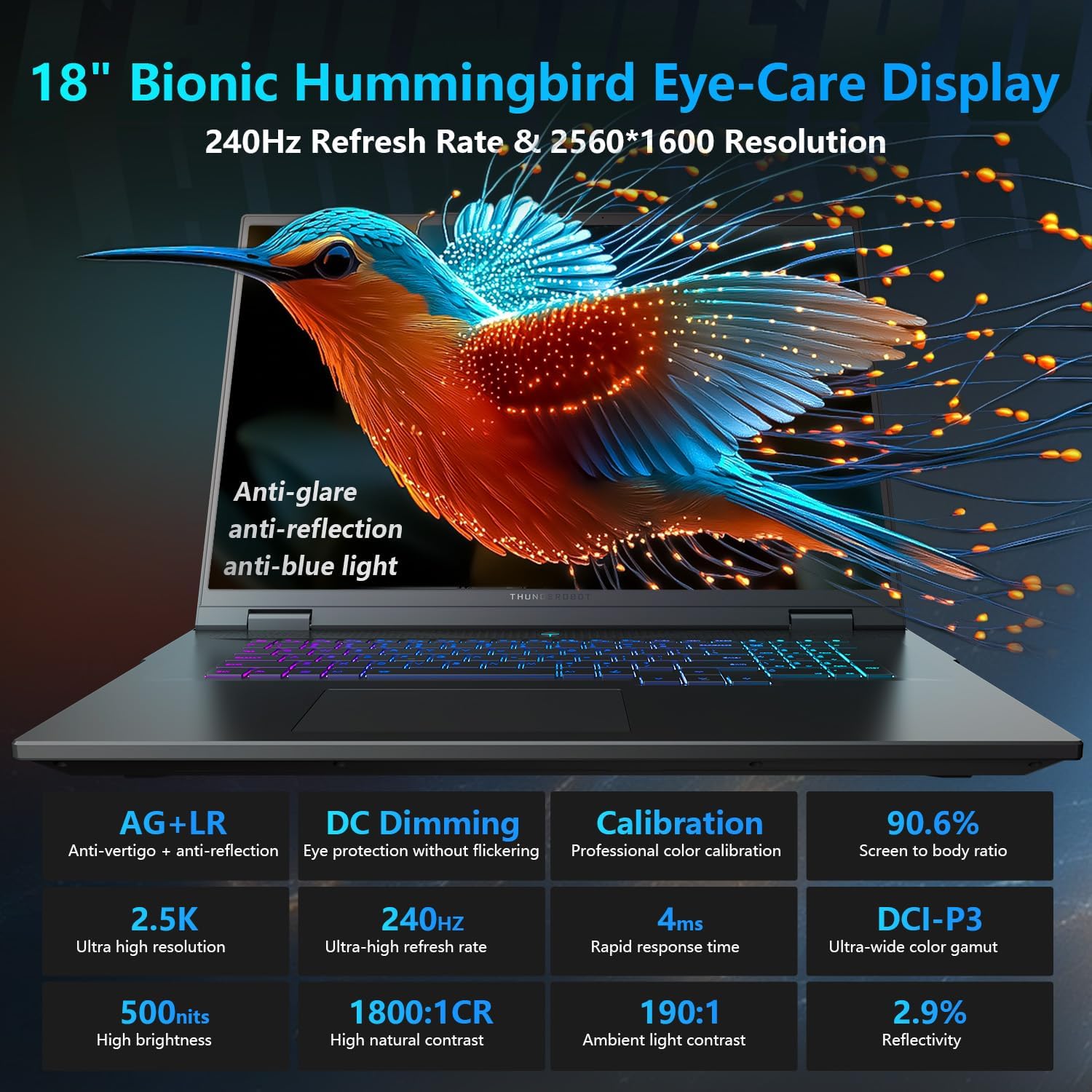
Image: Close-up of the Thunderobot Zero 18 Pro's per-key RGB backlit keyboard and touchpad.
Tombol Fungsi: Ngagunakeun éta Fn key in combination with the F1-F12 keys for various functions such as adjusting brightness, volume, and toggling Wi-Fi.
3.2 Fitur tampilan
Your laptop is equipped with an 18-inch QHD+ 2.5K Eye-Care display with a 240Hz refresh rate. This display offers anti-glare, anti-reflection, and blue-light reduction features for extended viewing kanyamanan.

Image: The Thunderobot Zero 18 Pro laptop display showcasing its vibrant QHD+ resolution and narrow bezels.
3.3 Palabuhan konektipitas
The laptop provides a range of ports for connecting peripherals and external devices:
- 3x SuperSpeed USB-A ports
- 2x USB-C ports (including Thunderbolt 5)
- port HDMI
- Palabuhan RJ-45 Ethernet
- Jack audio

Gambar: Sisi view of the Thunderobot Zero 18 Pro laptop highlighting the various connectivity ports.
3.4 AI Intelligent Control Center
Utilize the pre-installed AI Intelligent Control Center software to manage performance modes, RGB lighting, and monitor system status. System mode switching requires the device to be connected to a power source.
Image: Screenshot of the AI Intelligent Control Center software interface, showing options for performance tuning, intelligent light adjustment, and comprehensive system adjustments.
4. Pangropéa
4.1 Ngabersihan Laptop
Regularly clean the screen with a soft, lint-free cloth and a screen-safe cleaning solution. Use a soft brush or compressed air to remove dust from the keyboard and ventilation grilles. Avoid using harsh chemicals or abrasive materials.
4.2 Perawatan Batré
To prolong battery life, avoid fully discharging the battery frequently. Store the laptop in a cool, dry place when not in use for extended periods. The laptop supports 100W PD charging.
4.3 Apdet parangkat lunak
Keep your operating system and drivers updated to ensure optimal performance and security. Check the Thunderobot official website for the latest driver updates for your specific model.
5. Cara ngungkulan
5.1 Laptop Teu Dihurungkeun
- Pastikeun adaptor kakuatan disambungkeun sacara aman ka laptop sareng stopkontak listrik anu tiasa dianggo.
- Pastikeun stop kontak listrik berpungsi ku cara nyolokkeun alat sejen.
- Upami batre tos lemes, beunang ngecas sahenteuna 30 menit sateuacan nyobian hurung.
5.2 Masalah tampilan
- If the screen is black, try adjusting the brightness using the function keys.
- Connect an external monitor to check if the issue is with the laptop's display or the graphics card.
- Update your graphics drivers via the AI Intelligent Control Center or Thunderobot's official websitus.
5.3 Perlambatan Kinerja
- Check for background applications consuming high CPU or RAM resources using Task Manager.
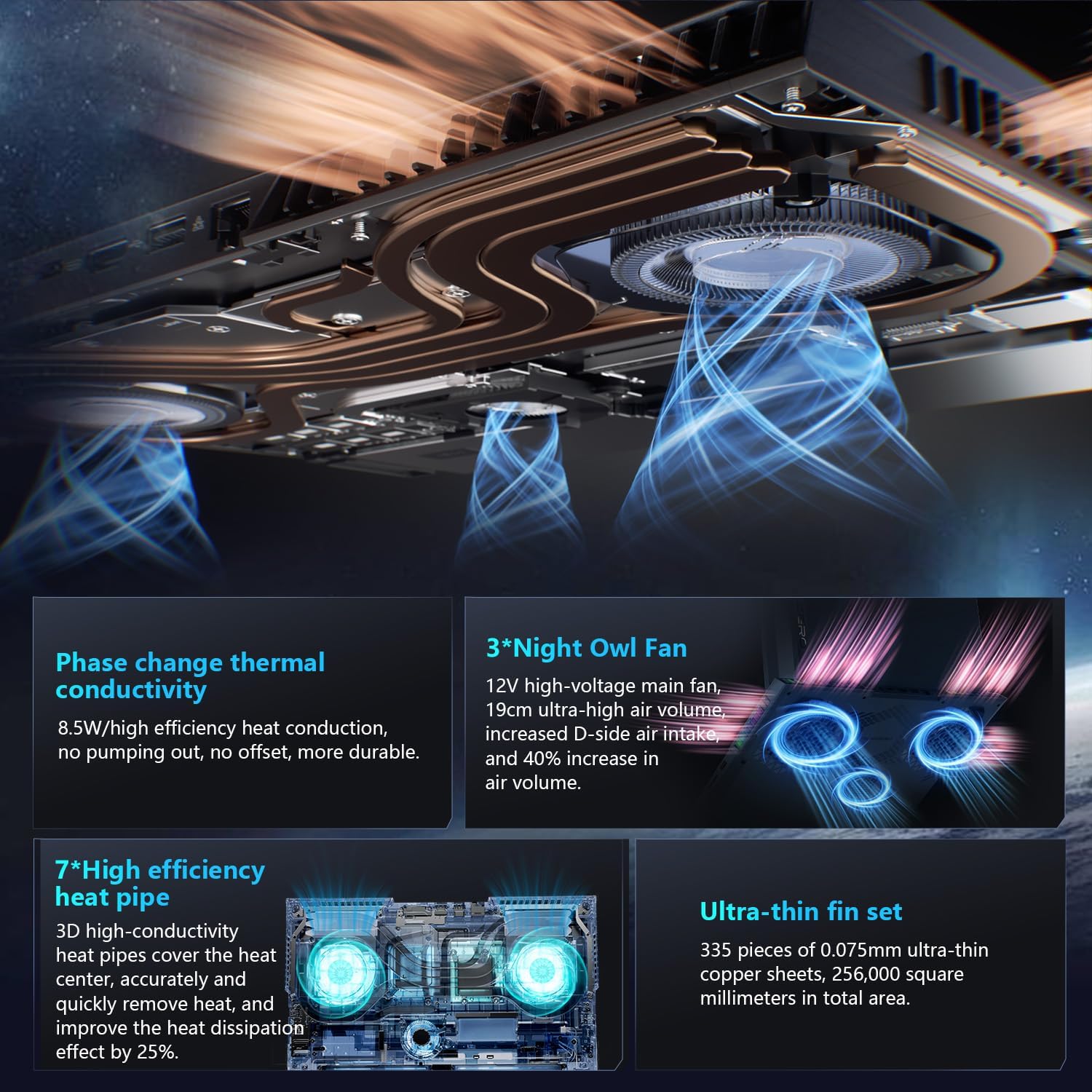
- Ensure the laptop's cooling system is not obstructed and is functioning correctly. Use the AI Intelligent Control Center to monitor temperatures and fan speeds.
- Jalankeun beberesih sareng defragmentasi disk (pikeun HDD) atanapi TRIM (pikeun SSD) pikeun ngaoptimalkeun panyimpenan.
6. Spésifikasi
| Fitur | Rincian |
|---|---|
| Ngaran modél | NOL 18 Pro |
| Prosesor | Intel Core Ultra 9 275HX (24 Cores, up to 5.40GHz) |
| Grafika | GeForce RTX 5070 Ti (Dedicated) |
| Ram | 32GB DDR5 (4800 MHz) |
| Panyimpenan | SSD PCIe M.1 2TB |
| tampilan | 18-inch QHD+ (2560x1600) 240Hz Eye-Care Display |
| Sistem operasi | Windows 11 Imah |
| Konéktipitas Wireless | Wi-Fi 6E, Bluetooth |
| Palabuhan | 3x USB-A, 2x USB-C (Thunderbolt 5), HDMI, RJ-45, Audio Jack |
| Sistim cooling | 270W Thermal System with 3x Night Owl fans, 7x heat pipes |
| Ukuran (L x W x H) | 16.04 x 11.78 x 1.41 inci |
| Beurat | 15 pon |
7. Garansi jeung Rojongan
Every Thunderobot laptop includes a 12-month warranty, offering expert support, thorough diagnostics, and genuine parts if a repair is needed. A 90-day warranty is provided on all warranty replacement parts, ensuring hassle-free repairs.
For technical assistance, warranty claims, or further information, please visit the official Thunderobot support website or contact their customer service. Upgrading RAM or adding a second SSD may void the warranty; please consult with customer service before making such modifications.
Image: Graphic detailing Thunderobot's warranty and support policy.
8. Video produk
8.1 THUNDEROBOT Gaming E-Sports Partner
Video: Hiji leuwihview of Thunderobot's involvement in e-sports and their commitment to gaming performance.
8.2 THUNDEROBOT Series Display
Video: A demonstration of the display features and visual quality of the Thunderobot Zero series laptops.
8.3 Thunderobot RGB lights
Video: A showcase of the customizable RGB lighting features on Thunderobot laptops, including keyboard and chassis lighting.


