
Émbaran Kasalametan penting
Please read all instructions carefully before using this monitor. Keep this manual for future reference.
- Do not place the monitor near water or in humid environments.
- Mastikeun ventilasi ditangtoskeun sabudeureun monitor pikeun nyegah overheating.
- Anggo ngan ukur adaptor daya anu disayogikeun sareng monitor.
- Ulah nepi ka monitor kakeunaan sinar panonpoé langsung atawa suhu anu ekstrim.
- Ulah nyobian ngalereskeun monitor sorangan. Serahkan sadaya perawatan ka tanaga anu mumpuni.
- Bersihkeun layar nganggo lawon anu lemes sareng teu aya serat. Hindarkeun ngagunakeun bahan kimia anu kasar.
Eusi pakét
Punten parios yén sadaya item di handap ieu kalebet dina pakét anjeun:
- 31.5-inch 2K 120Hz Monitor (x1)
- Monitor Stand (x1)
- Pituduh Mimitian Gancang (QSG) (x1)
- Kabel HDMI (x1)
- Adaptor Daya (x1)
- Kabel Daya (x1)

An image showing the monitor's dimensions and a list of included accessories: monitor, QSG, HDMI cable, adapter, power cord, and monitor stand.
Disetél
Majelis Monitor
Turutan léngkah-léngkah ieu pikeun ngarakit dudukan monitor sareng masangkeunana kana panel layar:
- Taliti cabut monitor jeung nangtung komponén tina bungkusan.
- Attach the base to the stand column, securing it with the provided screw.
- Align the assembled stand with the mounting points on the back of the monitor panel.
- Dorong dudukan kana tempatna lalaunan dugi ka ngaklik pageuh.
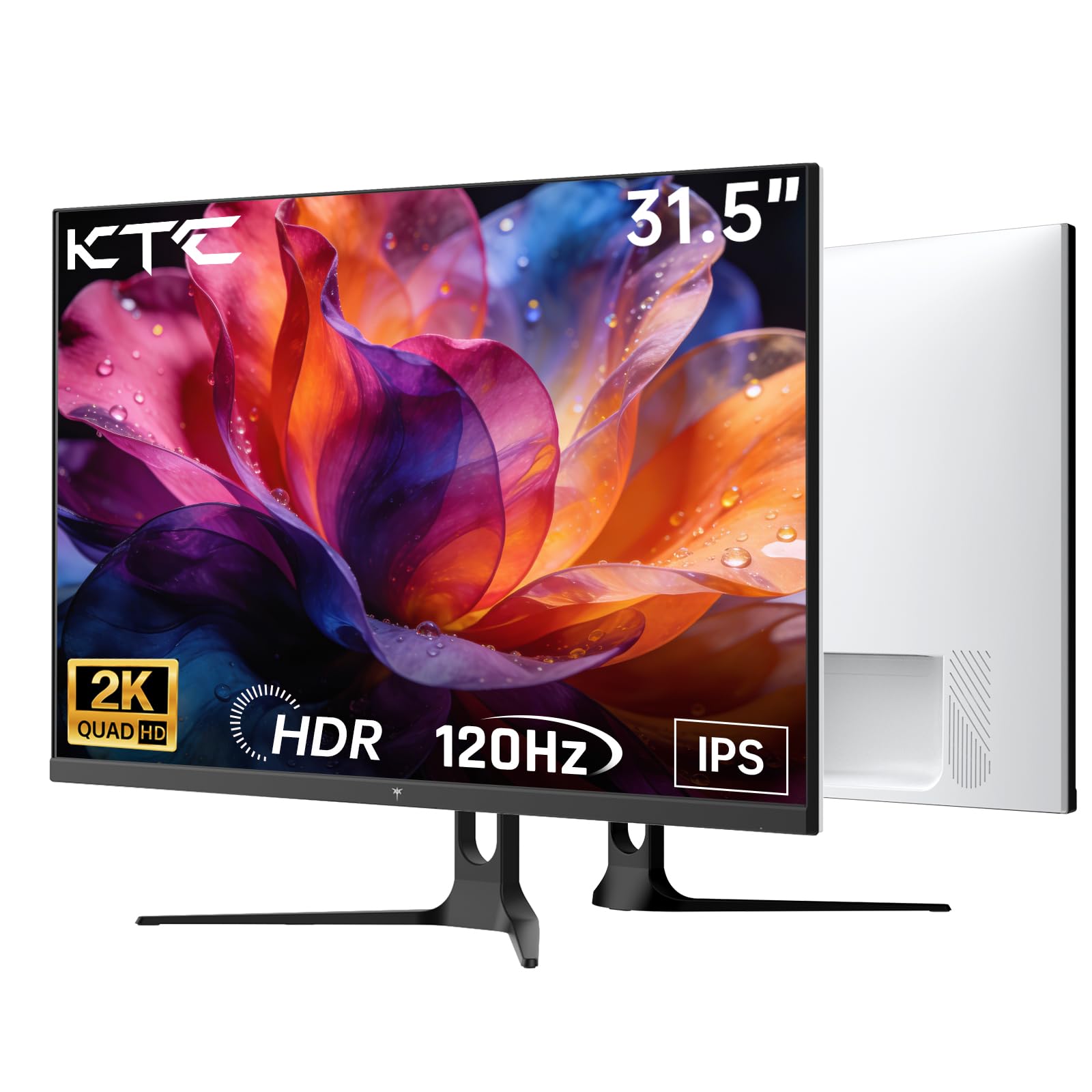
Hareupeun view of the KTC H32D6 31.5-inch monitor on its stand.
Konektipitas
Connect your monitor to a power source and your computer using the appropriate cables:
- Connect the power adapter to the monitor's DC input port, then plug the power cord into an electrical outlet.
- For video input, connect one end of the HDMI or DisplayPort cable to your computer's graphics card and the other end to the corresponding port on the monitor.
- If desired, connect headphones or external speakers to the earphone jack.

Close-up of the monitor's rear panel, highlighting the HDMI 2.0 ports (x2), DisplayPort 1.4 (x1), and earphone jack.
video ieu nyadiakeun leuwihview of the KTC 32 Inch 2K 120Hz Computer Monitor, showcasing its features and benefits in a dynamic presentation.
Parentah Operasi
Daya Hurung/Pareuman
Press the power button (usually located on the back or bottom right of the monitor) to turn the monitor on or off. The power indicator light will illuminate when the monitor is on.
Navigasi Menu dina Layar (OSD).
The monitor features an intuitive OSD menu for adjusting various settings. Use the joystick or buttons (depending on your model) on the back of the monitor to navigate the menu:
- Pencét joystick/tombol pikeun muka menu OSD.
- Move the joystick up/down or left/right to select menu options.
- Pencét joystick/tombol deui pikeun mastikeun hiji pilihan atawa ngasupkeun sub-menu.
- To exit the OSD menu, navigate to the 'Exit' option or hold the joystick/button for a few seconds.
Nyaluyukeun setelan tampilan
Dina menu OSD, anjeun tiasa nyaluyukeun setelan sapertos:
- Resolusi: Set to QHD (2560x1440) for optimal clarity.
- Laju Refresh: Adjust to 120Hz for ultra-smooth visuals.
- Caang & Kontras: Fine-tune for your preferred viewpangalaman.
- Setélan warna: Adjust color temperature, gamma, and other color parameters.

An image demonstrating the superior clarity of QHD (2560x1440) resolution compared to FHD (1920x1080) on the monitor screen.

A visual representation of smooth motion on the monitor, illustrating the benefit of a 120Hz refresh rate for seamless visuals.
Sync adaptif
This monitor supports Adaptive Sync technology (FreeSync, G-Sync Compatible) to eliminate screen tearing and stuttering during gaming or fast-paced video. Ensure Adaptive Sync is enabled in both your monitor's OSD settings and your graphics card control panel for optimal performance.

A side-by-side comparison showing the visual difference with Adaptive Sync ON (smooth image) and OFF (screen tearing) during fast-paced action.
Rojongan HDR10
The monitor supports HDR10, providing a wider range of colors and contrast for a more immersive viewing experience. To utilize HDR10, ensure your content and graphics card support HDR, and enable it in your operating system display settings.

An image highlighting the enhanced color and contrast provided by HDR10 technology.
Fitur Perawatan Panon
The KTC H32D6 monitor includes Low Blue Light and Flicker-Free technologies to reduce eye fatigue during prolonged use. These features are designed to provide a more comfortable viewpangalaman.

An image illustrating the eye care features, including low blue light and flicker-free technology, designed to reduce eye strain.
Adjustment Dengdekkeun
The monitor stand allows for tilt adjustment from -5° to 20°. Gently adjust the monitor panel to your desired viewsudut pikeun kanyamanan ergonomis.

An image demonstrating the wide 178-degree viewing angle provided by the IPS panel, ensuring consistent image quality from various positions.
Pangropéa
Pangropéa anu leres mastikeun umur panjang sareng kinerja optimal monitor anjeun.
- Ngabersihan layar: Lembut usap layar nganggo lawon anu lemes, garing, teu aya serat. Pikeun tanda pengkuh, enteng dampen the cloth with water or a screen-cleaning solution specifically designed for monitors. Never spray liquid directly onto the screen.
- Ngabersihan Casing: Anggo kaén anu lembut sareng garing pikeun ngabersihan monitor casing. Hindarkeun pembersih abrasive atanapi pangleyur.
- Pareuman Lamun Teu Dipake: Turn off the monitor when not in use to save energy and extend its lifespan.
- Ngahindarkeun halangan: Pastikeun liang ventilasi dina monitor henteu katutup pikeun nyegah panas teuing.
Pamérésan masalah
Upami anjeun mendakan masalah sareng monitor anjeun, tingal masalah sareng solusi umum ieu:
| Masalah | Solusi anu mungkin |
|---|---|
| Henteu aya gambar dina layar | Ensure the power cable is securely connected and the monitor is turned on. Check that the video cable (HDMI/DP) is firmly connected to both the monitor and your computer. Select the correct input source via the OSD menu. |
| Gambarna kedip-kedip atanapi teu stabil | Check the video cable connection. Ensure your graphics card drivers are up to date. Verify that the refresh rate is set correctly in your computer's display settings. Enable Adaptive Sync if supported by your graphics card. |
| Warna némbongan lepat | Adjust color settings (brightness, contrast, color temperature) in the OSD menu. Ensure HDR is correctly configured in your operating system if you are using HDR content. |
| Monitor not recognized by computer | Restart your computer. Try a different video port or cable. Update your graphics card drivers. |
spésifikasi
Key technical specifications for the KTC H32D6 monitor:
| Fitur | Spésifikasi |
|---|---|
| merek | CTC |
| Nomer modél | H32D6 |
| Ukuran layar | 31.5 inci |
| Resolusi | QHD Lebar 1440p (2560 x 1440 Piksel) |
| Refresh Laju | 100 Hz (up to 120Hz overclocked) |
| Tipe tampilan | IPS |
| Waktu Tanggapan | 7 Milidetik |
| Rasio Aspék | 16:9 |
| Caang | 350 Candela (cd/m²) |
| Babandingan Kontras | 1000:1 |
| Viewdina Angle | 178 darajat |
| Warna Gamut | 109% sRGB |
| Picture Quality Enhancement | HDR10 |
| Konektipitas | 2 x HDMI 2.0, 1 x DisplayPort 1.4, Earphone Jack |
| Sync adaptif | FreeSync, G-Sync Compatible |
| Fitur tambahan | Eye Care, Flicker-Free, Tilt Adjustment, VESA 100x100mm Compatible |
| Konsumsi Daya | 48 Watt |
| Ukuran barang (D x W x H) | 7.09 "D x 28.23" W x 20.08" H |
Garansi sareng Rojongan
Émbaran jaminan
This KTC H32D6 monitor comes with a 3-Taun Garansi Produsén. Garansi ieu nyertakeun cacad dina bahan sareng pagawean dina panggunaan normal. Punten tahan bukti pameseran anjeun pikeun klaim garansi.
The warranty does not cover damage caused by misuse, accidents, unauthorized modifications, or external factors such as power surges.
Rojongan Palanggan
For technical assistance, warranty claims, or any other inquiries, please contact KTC customer support through the official website or the contact information provided with your purchase. You may also refer to the Quick Start Guide for additional support resources.