
1. Bubuka
This manual provides detailed instructions for the safe and efficient use of your MUNBYN MC240 Bluetooth Thermal Label Printer. Please read this manual thoroughly before operating the device and retain it for future reference. Proper use ensures optimal performance and longevity of your printer.

Figure 1.1: MUNBYN MC240 Printer in operation with accompanying labels and mobile application interface.
2. Produk Langkungview
2.1. Fitur konci
- Smart Dual Connectivity: Connects wirelessly via the MUNBYN Print App (iOS/Android) or via USB to Windows, Mac, and Chromebook.
- Flexible Dual Printing Modes: Features a built-in paper bin for rolls up to 52mm wide (approx. 50–150 labels) and supports an external feed option for larger labels (1.57"–4.3" sizes).
- Portable Battery Design: Integrated rechargeable battery allows for printing 4x6 shipping labels without a power outlet.
- Kasaluyuan Wide Label: Supports various thermal label sizes, including 1.97'' x 1.18'' (50mm x 30mm) labels.
2.2. Eusi Paket
Saatos unboxing, mangga pastikeun sadaya item aya:
- MUNBYN MC240 Thermal Label Printer
- Kabel USB
- Adaptor kakuatan
- Gancang Mimitian Guide
- Sample Thermal Labels
3. Setélan
3.1. Loading Thermal Labels
The MUNBYN MC240 supports both internal roll loading and external fanfold label feeding.
- Open the printer cover by gently lifting it.
- For roll labels, place the label roll into the built-in paper bin. Ensure the labels feed smoothly through the printer's mechanism. The built-in bin accommodates rolls up to 52mm in width.
- For fanfold labels, feed them from the rear external slot.
- Tutup panutup printer kalawan aman.

Figure 3.1: Loading labels into the MUNBYN MC240 printer, demonstrating both internal roll and external fanfold label options.
3.2. Nyambungkeun Printer
The printer offers both Bluetooth and USB connectivity.
3.2.1. Bluetooth Connection (iOS/Android)
- Unduh MUNBYN Print App ti toko aplikasi alat Anjeun.
- Pastikeun printer diaktipkeun sareng Bluetooth diaktipkeun dina alat sélulér anjeun.
- Open the MUNBYN Print App and follow the in-app instructions to pair with your MC240 printer.
3.2.2. USB Connection (Windows/Mac/Chromebook)
- Sambungkeun printer ka komputer Anjeun nganggo kabel USB nu disadiakeun.
- Install the appropriate printer drivers for your operating system. Drivers can typically be found on the official MUNBYN websitus.
- Once drivers are installed, the printer should appear in your computer's list of available printers.

Figure 3.2: Connectivity options for the MUNBYN MC240 printer, including Bluetooth for mobile and USB for desktop devices.
4. Parentah Operasi
4.1. Powering on / Pareum
- Pikeun ngahurungkeun, pencét terus tombol daya dugi ka lampu indikator hurung.
- Pikeun mareuman, pencét terus tahan tombol daya deui dugi ka lampu indikator pareum.
4.2. Printing from the MUNBYN Print App
- Pastikeun printer anjeun disambungkeun via Bluetooth ka alat mobile Anjeun.
- Open the MUNBYN Print App.
- Select or create your desired label design. The app offers over 2,000 templates and 3,500 pre-made elements for customization.
- Adjust print settings such as label size and quantity.
- Tap the 'Print' button to send the job to the printer.

Figure 4.1: The MUNBYN Print App interface for label customization and printing.
4.3. Nyitak tina Komputer
- Ensure your printer is connected via USB to your computer and drivers are installed.
- Open the document or application from which you wish to print (e.g., shipping software, word processor).
- Pilih 'Cetak' tina menu aplikasi.
- Choose the MUNBYN MC240 from the list of available printers.
- Adjust print settings, such as paper size (to match your labels) and orientation, as needed.
- Click 'Print' to send the job.
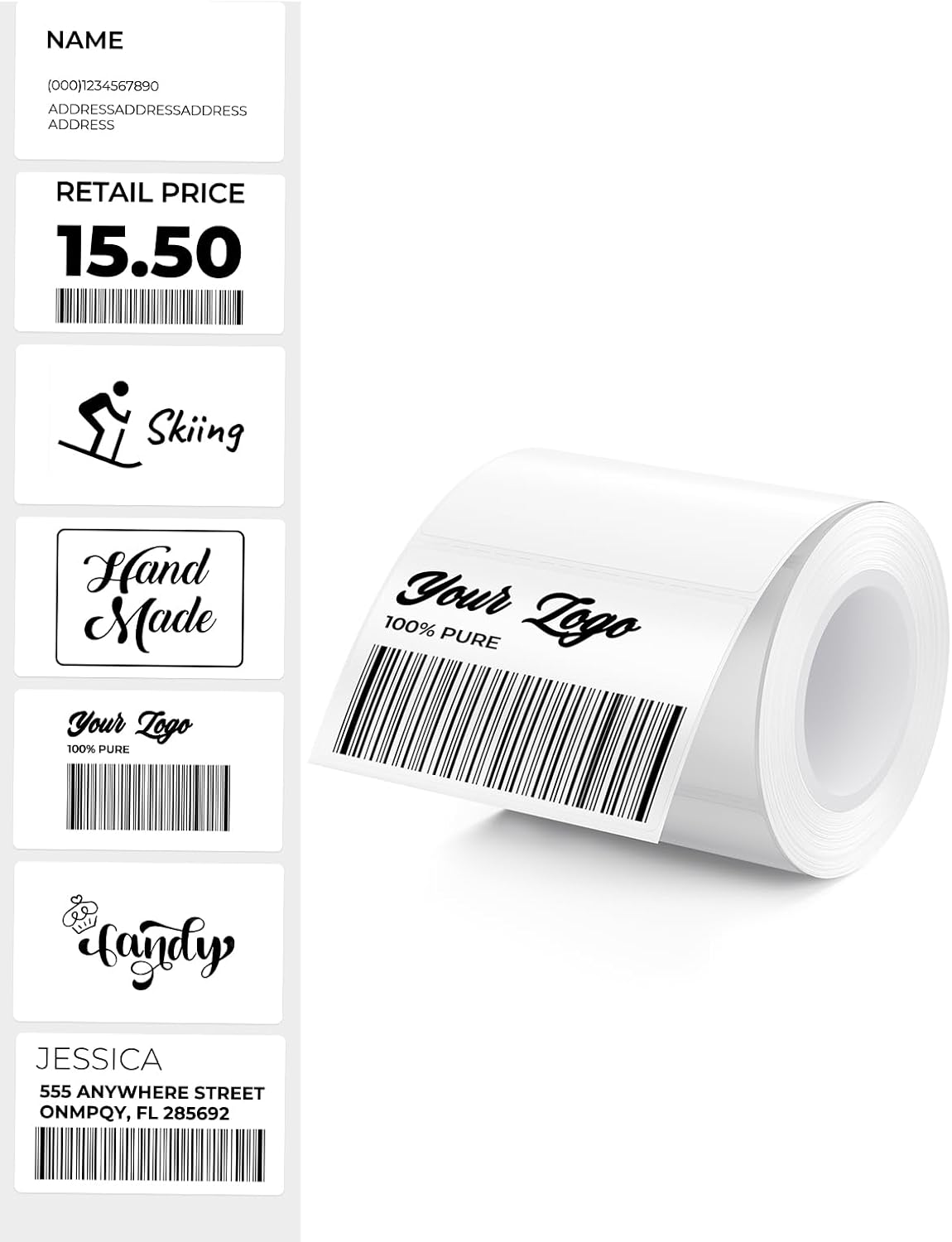
Gambar 4.2: Kelamples of labels that can be printed with the MUNBYN MC240.
5. Pangropéa
5.1. Ngabersihan Print Head
Regular cleaning of the print head ensures clear and consistent print quality.
- Pareuman printer tur pegatkeun sambungan tina sumber kakuatan.
- Buka panutup printer.
- Usap sirah citak sacara lalaunan nganggo kapas sacara saksamaampened with isopropyl alcohol. Do not use water or abrasive cleaners.
- Ngidinan sirah print nepi ka garing sagemblengna saméméh nutup panutup sarta powering on printer.
5.2. Panyimpenan
Store the printer in a cool, dry place away from direct sunlight and extreme temperatures. When not in use for extended periods, ensure the printer is powered off and disconnected.
6. Cara ngungkulan
If you encounter issues with your MUNBYN MC240 printer, refer to the following common problems and solutions:
| Masalah | Mungkin Cukang lantaranana | Solusi |
|---|---|---|
| Printer teu hurung | Low battery or no power connection | Charge the printer or connect to a power source. |
| Label teu nyoco leres | Labels improperly loaded or jammed | Ensure labels are loaded correctly and clear any jams. Refer to Section 3.1. |
| Kualitas cetak goréng | Dirty print head or incorrect label type | Clean the print head (Section 5.1). Ensure you are using direct thermal labels. |
| Kagagalan sambungan Bluetooth | Printer not discoverable or app issue | Ensure printer is on and in pairing mode. Restart the app and your device's Bluetooth. Refer to Section 3.2.1. |
| USB printing not working | Missing or incorrect drivers | Install or update printer drivers from the MUNBYN website. Refer to Section 3.2.2. |
7. Spésifikasi
- model: MC240
- Métode percetakan: Langsung Thermal
- Konektipitas: Bluetooth, USB
- OS anu didukung: iOS, Android, Windows, Mac, Chromebook
- Label Width (Internal Bin): Up to 52mm (approx. 50-150 labels per roll)
- Label Width (External Feed): 1.57" – 4.3" (40mm – 110mm)
- Batré: Rechargeable (Portable operation)
- Included Labels: 1.97'' x 1.18'' (50mm x 30mm), 230 labels/roll
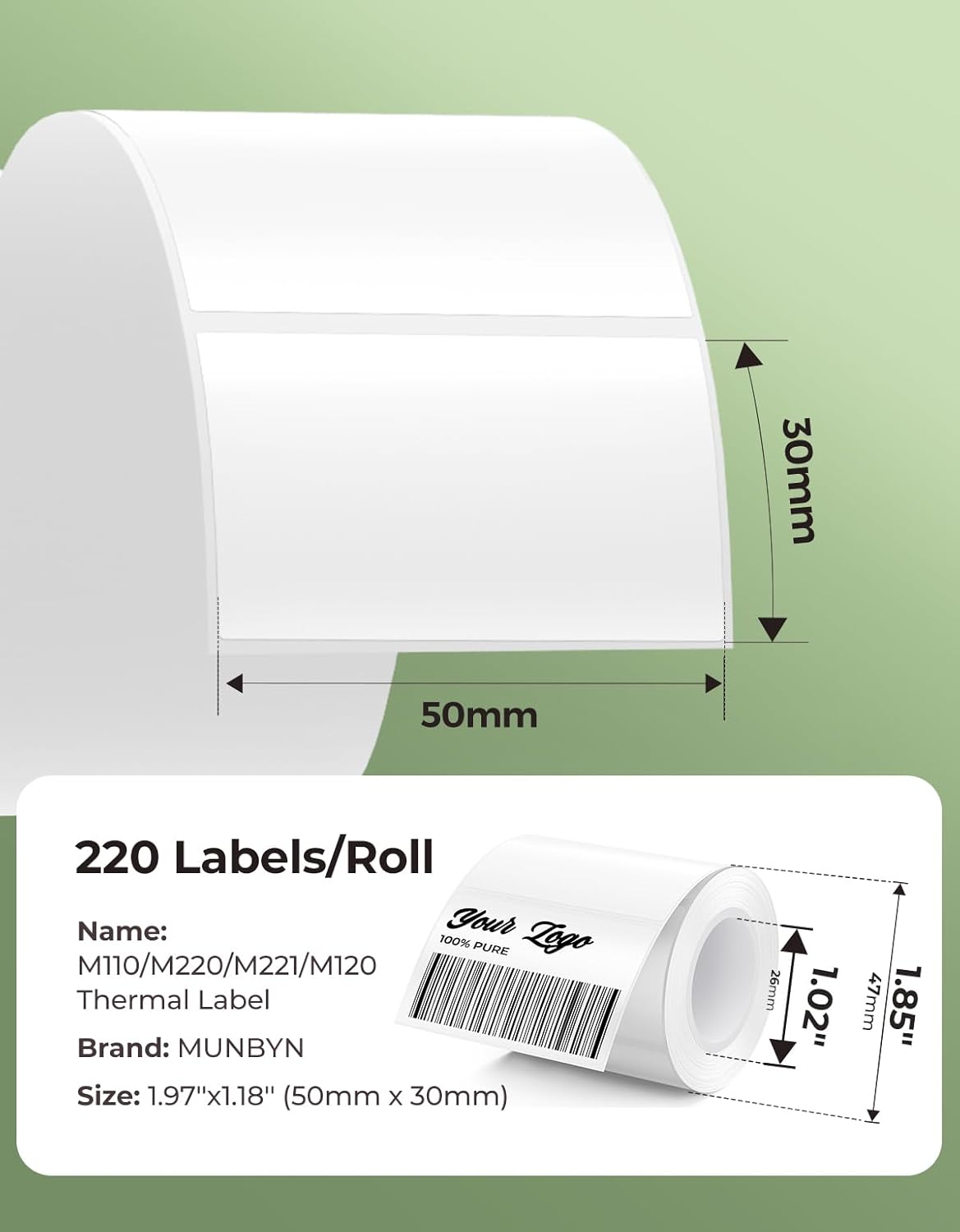
Gambar 7.1: Kelample label dimensions compatible with the MUNBYN MC240 printer.
8. Jaminan & Dukungan
The MUNBYN MC240 Bluetooth Thermal Label Printer comes with a standard manufacturer's warranty. For specific warranty terms, registration, or technical support, please visit the official MUNBYN websitus atanapi ngahubungan layanan palanggan maranéhna. Simpen resi pameseran anjeun salaku bukti pameseran.
Dukungan Online: Nganjang www.munbyn.com for FAQs, driver downloads, and contact information.