1. Bubuka
Thank you for choosing the KTC H25T7-3 24.5 Inch 240Hz FHD Gaming Monitor. This manual provides essential information for setting up, operating, and maintaining your monitor. Please read it thoroughly before use to ensure optimal performance and safety.
Émbaran Kasalametan
- Ulah ngalaan monitor ka hujan atawa Uap pikeun nyegah seuneu atawa shock listrik.
- Ulah muka monitor casing. Henteu aya bagian anu tiasa dilayanan ku pangguna di jero. Rujuk sadayana jasa ka tanaga anu mumpuni.
- Teundeun monitor dina tempat nu datar, stabil pikeun nyegah ragrag.
- Mastikeun ventilasi ditangtoskeun sabudeureun monitor pikeun nyegah overheating.
- Use only the power adapter and cables provided by KTC.
2. Naon dina Box
Pariksa yén sadaya barang-barang ieu aya dina pakét anjeun:
- KTC H25T7-3 24.5" FHD 240Hz Monitor (x1)
- Monitor Stand (x1)
- Pituduh Mimitian Gancang (QSG) (x1)
- DisplayPort (DP) Cable (x1)
- Adaptor Daya (x1)
- Kabel Daya (x1)
3. Produk Langkungview
The KTC H25T7-3 is a 24.5-inch Full HD (1920x1080) gaming monitor featuring a Fast IPS panel, 240Hz refresh rate, and 1ms MPRT response time for smooth visuals. It supports HDR400 and Adaptive-Sync technology to enhance your viewpangalaman jeung kaulinan.
Fitur konci
- 24.5" FHD Fast IPS Panel: Delivers crisp 1080p resolution with wide 178° viewdina sudut.
- 240Hz Refresh Rate & 1ms MPRT: Ensures ultra-smooth motion and minimal ghosting.
- Téknologi Adaptif-Sync: Synchronizes the monitor's refresh rate with your GPU for tear-free gameplay.
- Dukungan HDR400: Provides enhanced contrast and color depth for a more immersive visual experience.
- Nangtung ergonomis: Offers tilt, pivot, and height adjustments for personalized viewing kanyamanan.
- Fitur Perawatan Mata: Low blue light and flicker-free technology reduce eye strain during extended use.
- Sababaraha Pilihan Konektipitas: Includes 2x HDMI 2.0, 1x DisplayPort 1.4, and 1x USB 2.0.

Gambar 3.1: Leuwihview of KTC H25T7-3 monitor features including Fast IPS, 240Hz, HDR400, and adjustable stand.
4. Setélan
4.1 Ngarakit Stand
- Taliti cabut monitor jeung nangtung komponén tina bungkusan.
- Ngagantelkeun dasar nangtung kana beuheung nangtung ngagunakeun screws disadiakeun.
- Align the assembled stand with the mounting slot on the back of the monitor and secure it firmly.

Gambar 4.1: Hareupeun view of the KTC H25T7-3 monitor with its stand assembled.
4.2 Pemasangan Tembok VESA (Opsional)
The monitor supports a 100x100mm VESA mount. To wall mount the monitor:
- Cabut dudukan tina monitor upami parantos napel.
- Attach your VESA-compatible wall mount bracket to the four screw holes on the back of the monitor. Ensure the screws are appropriate for the VESA standard and do not overtighten.
- Follow the instructions provided with your VESA mount for secure installation.

Gambar 4.2: Tukangeun view of the KTC H25T7-3 monitor, highlighting the input ports and VESA mounting area.
4.3 Nyambungkeun Kabel
Connect the necessary cables to the corresponding ports on the monitor and your computer/device:
- kakuatan: Connect the power adapter to the monitor's DC input and then plug the power cord into a power outlet.
- DisplayPort (DP): For optimal performance (240Hz, Adaptive-Sync), connect the provided DisplayPort cable from your graphics card to the monitor's DP 1.4 port.
- HDMI: Alternatively, connect an HDMI cable from your device to one of the monitor's HDMI 2.0 ports.
- USB: The USB 2.0 port can be used for firmware upgrades or connecting peripherals.
5. Parentah Operasi
5.1 Daya Hurung/Pareuman
Press the power button (usually located on the back or bottom of the monitor) to turn the monitor on or off. The power indicator light will illuminate when the monitor is on.
5.2 Napigasi Menu OSD
The On-Screen Display (OSD) menu is controlled by a joystick button, typically located on the back of the monitor. Use the joystick to navigate through the menu options and adjust settings.
- Push In: Enter/Confirm selection.
- Naek turun: Napigasi ngaliwatan pilihan ménu.
- Kénca/Katuhu: Saluyukeun nilai atanapi pindah antara sub-menu.
5.3 Nyaluyukeun Setélan Témbongkeun
Aksés menu OSD pikeun ngonpigurasikeun rupa-rupa setélan tampilan:
- Caang/Kontras: Atur tingkat luminansi sareng kontras sacara umum.
- Setélan warna: Setel suhu warna, gamma, sareng nilai RGB individu.
- Modeu Gambar: Select from preset modes (e.g., Standard, Game, Movie, sRGB) or customize your own.
- Laju Refresh: Ensure your graphics card output is set to 240Hz for optimal performance.
- Adaptif-Sync: Enable this feature in the OSD menu and your graphics card control panel to eliminate screen tearing.
- HDR: Activate HDR400 for compatible content to experience enhanced dynamic range.
- Cahaya Biru Rendah: Adjust the blue light filter to reduce eye strain.

Figure 5.1: Visual representation of the 240Hz refresh rate for smooth motion.
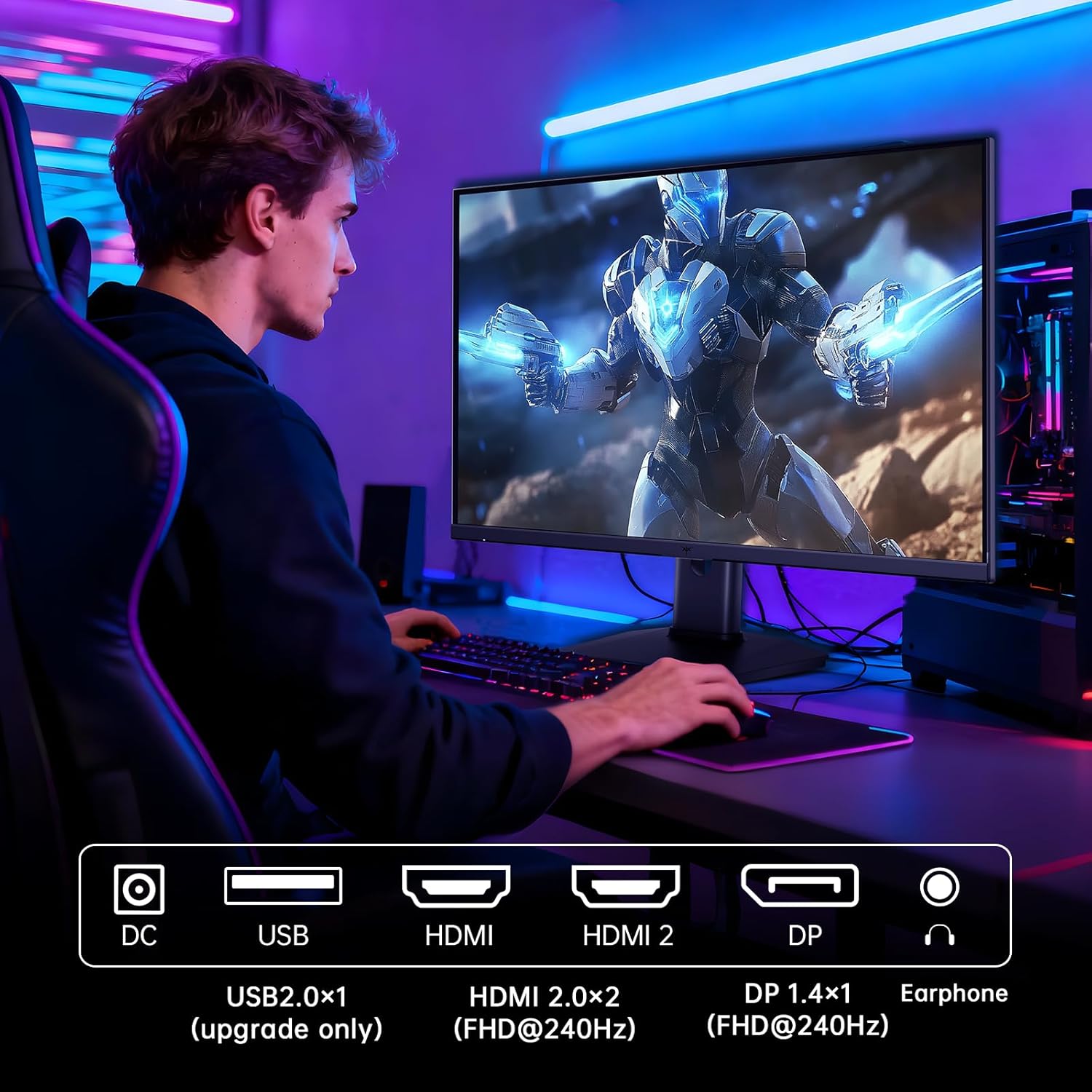
Figure 5.2: Comparison showing the effect of Adaptive-Sync on reducing stuttering and screen tearing.

Figure 5.3: Illustration of HDR400 technology delivering clear details in dark areas compared to HDR10.

Figure 5.4: Diagram illustrating hardware blue light reduction technology to filter harmful blue light bands.
5.4 Pangaluyuan ergonomic
Stand monitor ngamungkinkeun pikeun sababaraha panyesuaian pikeun ngaoptimalkeun anjeun viewposisi dina:
- Dengdekkeun: Adjust the screen angle forward or backward (-5° to 20°).
- Pangsi: Rotate the screen 90° for portrait mode.
- Penyesuaian Jangkungna: Naékkeun atanapi turunkeun layar dugi ka 110mm.
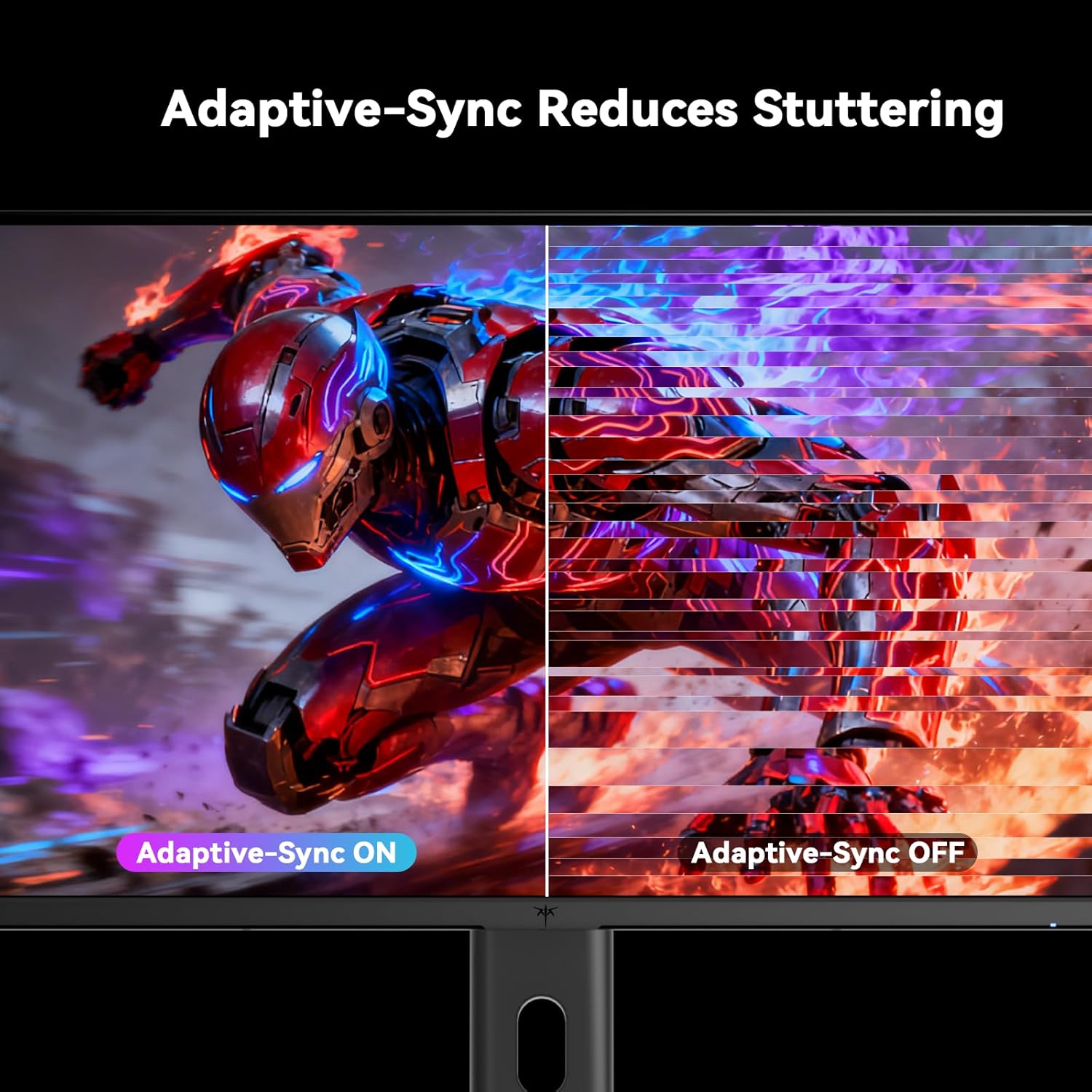
Figure 5.5: Diagram showing the tilt, pivot, and height adjustment capabilities of the monitor stand.
5.5 Video Produk Resmi
Video 5.1: An official product video from KTC-Official showcasing the 24.5 Inch FHD 240Hz Gaming Monitor, demonstrating its features and performance.
6. Pangropéa
6.1 Ngabersihan Monitor
Pikeun ngabersihan layar monitor jeung casing:
- Salawasna cabut monitor tina stop kontak sateuacan beberesih.
- Anggo kaén anu lemes sareng teu aya serat anu hampang dampdisampurnakeun ku cai atanapi pembersih layar anu henteu abrasif.
- Ulah menyemprot cleaner langsung kana layar.
- Ulah nganggo bénzéna, pangencer, pembersih anu dumasar kana amonia, atanapi bahan abrasif.
6.2 Perawatan Umum
- Keep the monitor away from direct sunlight, excessive heat, or cold.
- Hindarkeun nempatkeun barang beurat dina monitor atanapi kabelna.
- Ulah meungpeuk bukaan ventilasi dina monitor.
7. Cara ngungkulan
Upami anjeun mendakan masalah sareng monitor anjeun, tingal masalah sareng solusi umum ieu:
| Masalah | Mungkin Cukang lantaranana | Solusi |
|---|---|---|
| Taya kakuatan | kabel kakuatan teu disambungkeun; Stop kontak listrik teu jalan | Ensure power cable is securely connected. Test the power outlet with another device. |
| Taya sinyal | Video cable not connected; Incorrect input source selected; Computer/device not powered on | Check video cable connections. Select the correct input source via the OSD menu. Ensure your computer/device is on. |
| Layar kedip-kedip | Incorrect refresh rate; Cable issue; Adaptive-Sync not enabled | Set refresh rate to 240Hz. Try a different video cable. Enable Adaptive-Sync in OSD and GPU settings. |
| Image distortion/poor quality | Incorrect resolution; Graphics driver issue; Monitor settings | Set resolution to 1920x1080. Update graphics drivers. Adjust OSD settings (brightness, contrast, color). |
7.1 Reset pabrik
If problems persist, you may perform a factory reset through the OSD menu. This will revert all monitor settings to their default values.
8. Spésifikasi
Detailed technical specifications for the KTC H25T7-3 monitor:
| Fitur | Spésifikasi |
|---|---|
| Nomer modél | H25T7-3 |
| Ukuran layar | 24.5 inci |
| Tipe Panel | IPS gancang |
| Resolusi | FHD 1080p (1920 x 1080 piksel) |
| Rasio Aspék | 16:9 |
| Refresh Laju | 240Hz |
| Waktu Tanggapan | 1 ms (MPRT) |
| Sync adaptif | Sumuhun |
| Rojongan HDR | HDR400 |
| Warna Gamut | 114% sRGB |
| Babandingan Kontras | 1000:1 |
| Warna tampilan | 16.7 Juta |
| Caang | 350 cd/m² |
| Viewdina Angle | 178° (H/V) |
| Konektipitas | 2x HDMI 2.0, 1x DisplayPort 1.4, 1x USB 2.0 |
| VESA Gunung kasaluyuan | 100 x 100 mm |
| Pangaluyuan Ergonomic | Tilt, Pivot, Height |
| Ukuran produk (kalayan stand) | 7.6 x 21.97 x 18.23 inci |
| Beurat barang (kalayan nangtung) | 11.58 pon |
| Voltage | 12 Volt (DC) |
9. Garansi jeung Rojongan
9.1 Émbaran jaminan
KTC monitors are designed and manufactured to the highest quality standards. For specific warranty terms and conditions, please refer to the warranty card included with your product or visit the official KTC websitus. Simpen resi pameseran anjeun salaku bukti pameseran pikeun klaim garansi.
9.2 Rojongan Palanggan
If you have any questions, require technical assistance, or experience issues not covered in this manual, please contact KTC customer support. Contact details can typically be found on the official KTC websitus atawa dina Gancang Mimitian Guide.