
1. Bubuka jeung Leuwihview
Thank you for choosing the EWEADN V102 Wired Keyboard. This 98-key compact keyboard is designed for both gaming and productivity, offering a blend of functionality, comfort, and dynamic aesthetics. It features a dedicated media knob, an integrated display screen, and customizable RGB backlighting. This manual provides essential information for setting up, operating, maintaining, and troubleshooting your new keyboard.
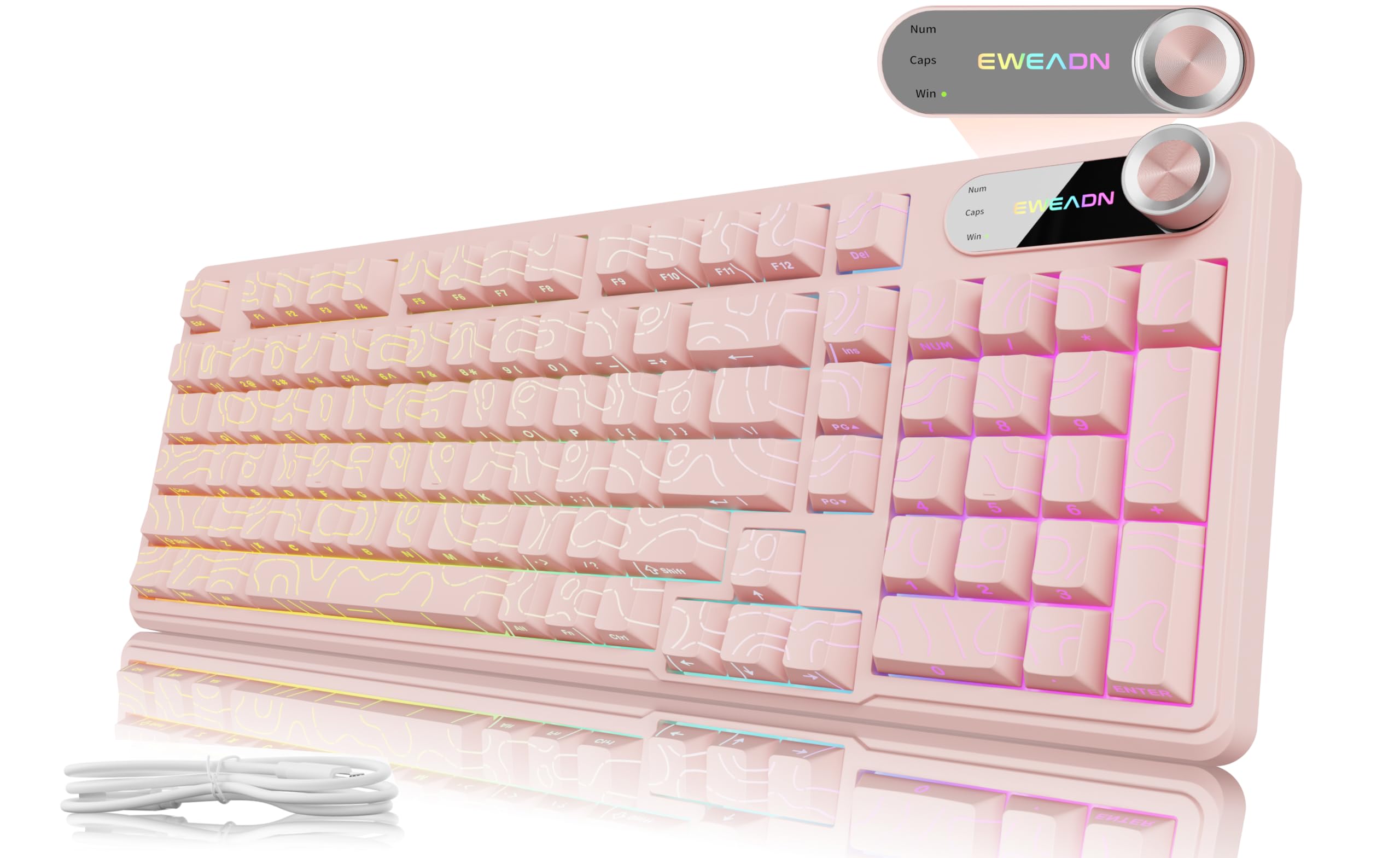
Figure 1: EWEADN V102 Wired Keyboard, Light Pink variant.
2. Naon dina Box
Mangga parios eusi pakét pikeun mastikeun yén sadaya barang aya:
- EWEADN V102 Keyboard x 1
- Kabel USB Tipe-C x 1
- Buku Panduan x 1

Figure 2: Included USB Type-C cable for keyboard connection.
3. Parentah Setup
- Sambungkeun kibor: Plug the USB Type-C cable into the port on the keyboard and the other end into an available USB port on your computer or device. The keyboard is plug-and-play, requiring no additional drivers for basic functionality.
- Saluyukeun Sudut Ketik: The keyboard features 2-stage adjustable feet on the underside. Flip them out to achieve your preferred typing angle for enhanced comfort.
- Kasaluyuan Sistim: The EWEADN V102 is compatible with Windows, Mac, Android, iOS, Xbox, PS4, and PS5. For Mac users, switch to Mac layout by pressing FN + S. For Windows, press FN + A.

Figure 3: Dual-System Connection for Windows and Mac layouts.

Figure 4: Adjustable typing angles for ergonomic comfort.
4. Parentah Operasi
4.1. Dedicated Knob & Display Screen
The smart rotary knob and built-in display screen provide intuitive control and real-time status updates:
- Backlight Mode Control: Press the knob once to cycle through 12 different RGB backlight modes.
- Penyesuaian Caang: Rotate the knob to adjust the backlight brightness (5 levels).
- Modeu Multimédia: Tahan FN + Knob to switch to multimedia mode. In this mode, rotating the knob controls volume, and pressing it mutes/unmutes audio.
- Layar tampilan: The screen shows the EWEADN logo and indicators for Caps Lock, Num Lock, and Win Lock status.

Figure 5: Smart Screen Display showing keyboard status.

Figure 6: Multi-Function Control Knob for lighting and multimedia.
4.2. Dynamic RGB Backlighting
Customize your keyboard's lighting with these shortcuts:
- Togél Lampu Latar: Pencét FN + Backspace to turn the backlight ON/OFF.
- Robah Éfék Cahaya: Pencét FN + INS to cycle through 12 stunning RGB lighting effects.
- Saluyukeun Caang: Pencét FN + PGUP pikeun ningkatkeun kacaangan, FN + PGDN to decrease brightness (5 levels).
- Adjust Lighting Speed: Pencét FN + "-" pikeun ngurangan laju, FN + "+" to increase speed (5 levels).

Figure 7: RGB Backlight controls and effects.
4.3. 98-Key Compact Layout
The 98% layout provides a full-featured experience, including a numeric keypad, while maintaining a compact footprint to save desk space.

Figure 8: Compact 98-key layout for efficiency.
5. Pangropéa
5.1. Spill Resistant Design
The EWEADN V102 keyboard features a spill-resistant design to protect against accidental liquid spills. In case of a spill, gently wipe the liquid off the surface and allow the keyboard to air dry completely before continued use. Avoid submerging the keyboard in water.

Figure 9: Spill-resistant design for enhanced durability.
6. Cara ngungkulan
If you encounter any issues with your EWEADN V102 keyboard, please refer to the following common troubleshooting steps:
- Keyboard Teu Ngabales: Ensure the USB Type-C cable is securely connected to both the keyboard and your device. Try plugging it into a different USB port.
- Lampu tukang teu jalan: Pariksa naha lampu tukang dipareuman nganggo FN + Backspace. Atur kacaangan ku FN + PGUP/PGDN.
- Incorrect Key Layout (Mac/Windows): Verify that the correct system layout is selected (FN + A pikeun Windows, FN + S for Mac).
- Fungsi Knob: If the knob is not controlling lighting or multimedia as expected, ensure you are in the correct mode (press or hold FN + Knob to switch).
- Sambungan Intermittent: Ensure the cable is not damaged and try connecting directly to your device without any hubs or adapters.
If the problem persists after trying these steps, please contact EWEADN customer support for further assistance.
7. Spésifikasi
| merek | EWEADN |
| Modél | V102 |
| Tata perenah | Kompak 98-Konci |
| Konektipitas | Kabel (USB Tipe-C) |
| Lampu tukang | Dynamic RGB (12 effects, 5 brightness levels, 5 speed levels) |
| Fitur husus | Dedicated Media Knob, Display Screen (Caps/Num/Win Lock), Spill Resistant, Adjustable Typing Angles |
| Alat nu cocog | Laptop, PC (Windows, Mac, Android, iOS, Xbox, PS4, PS5) |
| Item Beurat | 2.25 pon |
| Ukuran Paket | 17.56 x 6.97 x 2.36 inci |
| Bahan | palastik |
8. Garansi jeung Rojongan
Your EWEADN V102 keyboard is covered by a return policy allowing returns or replacements within 30 days of purchase. For any product inquiries, technical support, or warranty claims, please contact EWEADN customer service.
- Rojongan Email: eweadnkeyboard@outlook.com
- Dukungan Online: Visit the EWEADN Store on Amazon and click 'Ask a question'.
Figure 10: EWEADN Customer Support Information.