1. Bubuka
This manual provides essential information for the safe and efficient use of your Philips 43V-type 4K UHD Smart TV, model PUH7700. Please read these instructions carefully before operating the television and retain them for future reference.
2. Émbaran Kasalametan
Salawasna turutan pancegahan kaamanan dasar nalika nganggo televisi ieu pikeun ngirangan résiko kahuruan, kejutan listrik, sareng tatu.
- Ulah ngalaan televisi ka hujan atawa beueus.
- Entong meungpeung lawang angin.
- Pastikeun colokan listrik dipasang dina taneuh anu leres.
- Cabut colokan televisi nalika badai kilat atanapi nalika henteu dianggo kanggo waktos anu lami.
- Rujuk sadayana jasa ka tanaga jasa anu mumpuni.
3. Eusi Paket
Pastikeun yén sadaya item aya dina bungkusan:
- Philips 43V-type 4K UHD Smart TV (PUH7700)
- Stand x2 (with 4 screws)
- Jauh Jauh x1
- Manual Pitunjuk (dokumén ieu)
- Kabel Daya
- Screws x2 (ST4x9.5-10.5mm - for bottom stand attachment)
4. Setélan
4.1 Ngabongkar bungkusan TV
For safety, it is recommended that two people handle the unpacking process. Place the outer box vertically on a flat surface. Cut the tape and remove the locks at the bottom of the box. Carefully lift the outer box vertically to remove the TV. Remove the protective cushioning materials around the TV.
Video: This video demonstrates the unpacking process and stand attachment for a Philips 7700 series TV. It shows how to open the box, remove packaging, and secure the stand. Note that the video shows a 65-inch model, but the process is similar for the 43-inch model.
4.2 Ngagantelkeun Stand
Before attaching the stand, ensure you have a Phillips head screwdriver. Take out the base stands and confirm the model numbers (e.g., '65F-L' for left, '65F-R' for right) match your TV. Align the stand holes with the corresponding holes on the bottom of the TV. Insert the screws (M5 x 4) and tighten them securely. Repeat for the other side. Once both stands are attached, carefully lift the TV and place it upright on a stable surface. Ensure the stands are firmly fixed.
The power cord is located at the back of the TV. If wall mounting is required, please consult a professional.
4.3 Setup Awal
After connecting the power cable and turning on the TV, the Google TV logo will appear. Follow the on-screen instructions to pair your remote control. Press the 'HOME' and 'BACK' buttons simultaneously for 3 seconds to enter pairing mode. The lamp on the top left of the remote will flash, indicating pairing. Once paired, select 'Skip' using the central button on the remote if you wish to proceed without further remote pairing steps.
Video: This video guides you through the initial setup process for a Philips 7700 series TV. It covers remote pairing, language selection, connecting to Wi-Fi, logging into your Google account, and selecting TV mode.
- Pilihan Basa: Pilih basa anu anjeun pikaresep tina daptar.
- Setup Google TV: You can set up the TV using the Google TV app on your smartphone (scan QR code) or manually with the remote.
- TV Mode Selection: Select 'Home Mode' for efficient energy use in a home environment. Confirm your selection.
- Sambungan Wi-Fi: Select your Wi-Fi network and enter the password to connect. Note: Wi-Fi connection may require several attempts initially; this is not a malfunction.
- Google Account Login/Registration: Log in or register with your Google account.
- Layanan Google: Review and agree to Google's terms of service.
- Integrasi Google Home: Choose whether to add the TV to Google Home.
- Pilihan jasa: Select the streaming services you wish to use. The corresponding apps will be automatically installed. Some apps may not be available in all regions or require a separate subscription.
- Bantahan: Review the disclaimer terms.
- Pariksa Pembaruan Sistem: Navigate to Settings > System > Device Information > System Update to ensure your system is up to date.
5. Parentah Operasi
5.1 Fitur Smart TV (Google TV)
Your Philips TV comes with Google TV built-in, offering a seamless entertainment experience. Access movies, shows, and content from all your subscriptions directly from the home screen. Utilize Google's recommendation features to discover new content, search over 10,000 titles, and watch hundreds of free channels. Create personalized profiles for customized viewing.

Image: The Google TV interface displaying a wide array of streaming service applications, providing access to diverse content.
5.2 Kualitas Gambar sareng Sora
Pangalaman immersive viewing with 4K UHD resolution and Dolby Atmos sound.
- Resolusi 4K UHD: Enjoy ultra-high definition visuals (3840x2160) with crisp details, even on a large screen.
- Sora Dolby Atmos: Immerse yourself in movies and games with powerful, three-dimensional audio.
- HDR10/HLG Support: Enhanced HDR image expression for stunning detail in both bright and dark scenes.
- MEMC (Estimasi Gerak, Pampasan Gerak): Smoothly renders fast-moving scenes, ideal for sports and action movies, reducing blur.
- Blue Eye Care Technology: Philips' unique 'Blue Eye Care Technology' cuts 90% of harmful blue light, protecting your eyes during long viewing sessions without compromising picture quality. Certified by TÜV & UL.
- Bebas kedip-kedip: PWM dimming technology suppresses screen flicker, reducing eye strain and dryness for comfortable long-term viewing.
- AI Picture Engine: Philips' proprietary PixelPlus Ultra HD and AI picture engine deliver 4K clarity and three-dimensional images.

Image: A visual comparison illustrating the enhanced detail and clarity of 4K UHD resolution (3840x2160) compared to Full HD (1920x1080).

Image: A family enjoying an immersive viewing experience with Dolby Vision and Dolby Atmos, watching an underwater scene on their Philips TV.
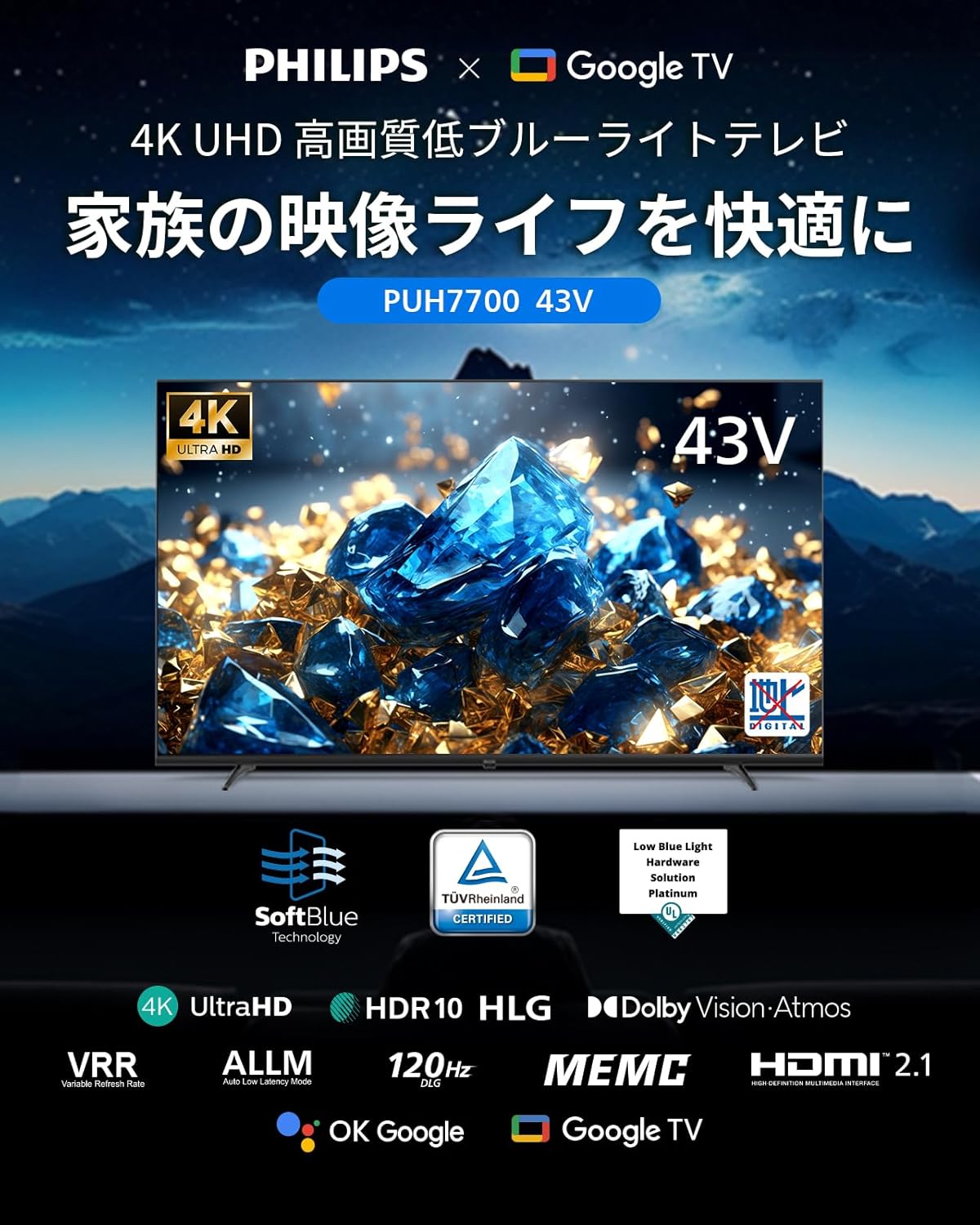
Image: A diagram illustrating Philips' Blue Eye Care Technology, which reduces harmful blue light by 90% to protect viewers' eyes.
5.3 Fitur kaulinan
- ALLM (Modeu Latency Lemah Otomatis): Automatically switches to game mode when a game console is connected, minimizing input lag for a smooth gaming experience.
- VRR (Variable Refresh Rate): Supports variable refresh rates for enhanced gaming immersion and smoother visuals, eliminating screen tearing and lag.
- DLG 120Hz: Simulates 120Hz refresh rate for smoother motion in games.

Image: A visual demonstration of ALLM, VRR, and MEMC technologies, showcasing improved responsiveness and smooth motion in gaming and fast-action scenes.
5.4 Konéktipitas
The TV offers versatile connectivity options:
- Port HDMI: 3 HDMI ports for connecting game consoles, desktop PCs, soundbars, and other devices. Supports HDMI ARC.
- Bluetooth 5.1: Connect wireless headphones, speakers, and other Bluetooth devices.
- USB: Two USB interfaces for media playback.
- Wifi: Supports 2.4GHz and 5GHz wireless LAN for internet connectivity.
- Chromecast Diwangun-di: Easily cast photos and videos from your iPhone or Android smartphone to the TV screen.
- LAN-RJ45: Pikeun sambungan internét kabel.
Gambar: A lengkep view of the TV's rear panel, highlighting the various input and output ports for comprehensive connectivity.

Image: A user casting content from a smartphone to the TV screen, illustrating the convenience of Chromecast built-in for sharing media.
5.5 Kontrol sora
The included remote control supports voice input and features direct buttons for popular apps like ABEMA, YouTube, Netflix, and Hulu. Use Google Assistant to search for movies, shows, and apps by voice. (Remote pairing is required for voice search functionality).

Image: The remote control featuring dedicated buttons for popular streaming services and a voice search function, allowing quick access to content.
5.6 Modeu Gambar
Pilih optimal viewing experience for any scene with various image modes:
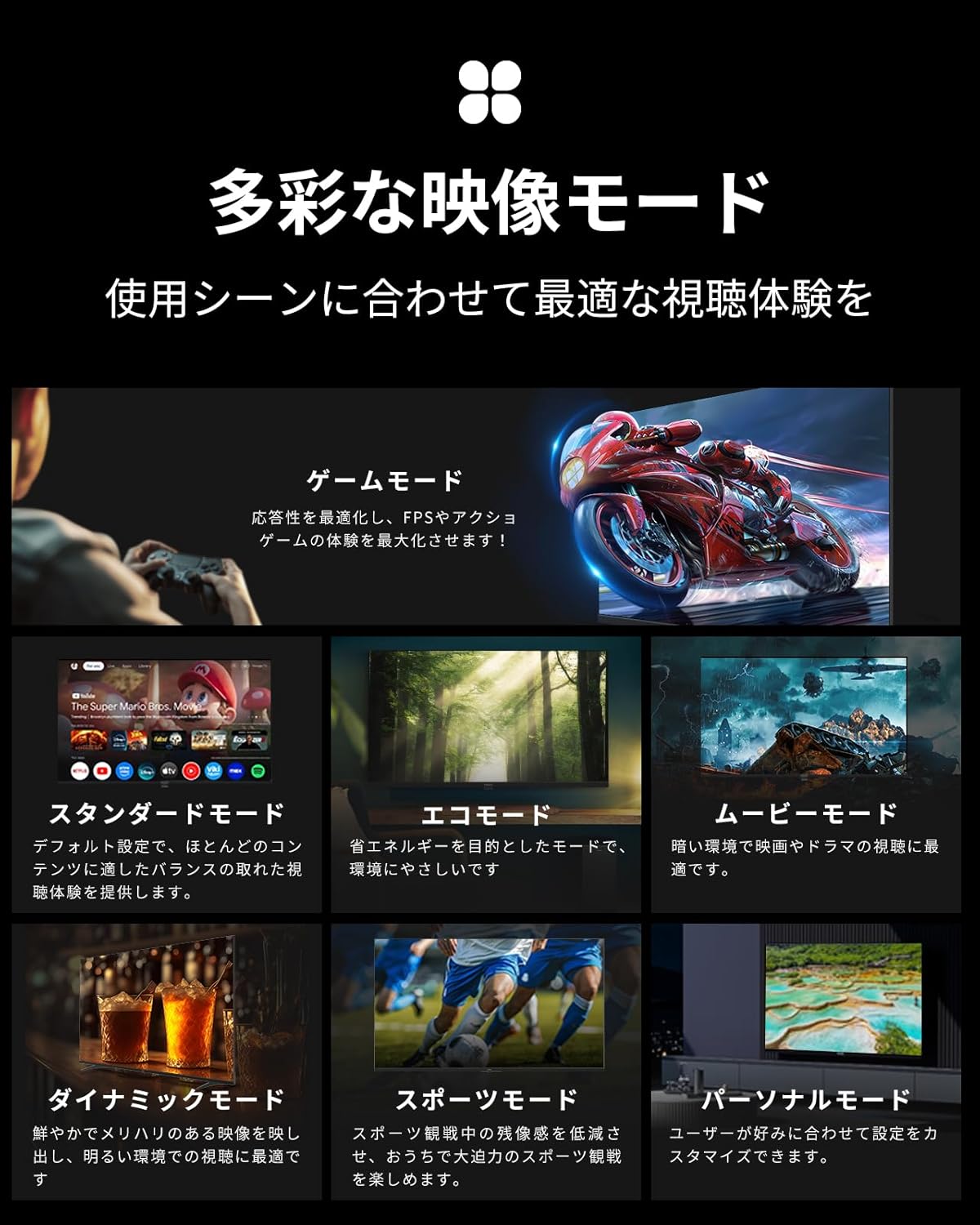
- Modeu Kaulinan: Optimizes responsiveness for FPS and action games.
- Modeu standar: Default setting for balanced viewing across most content.
- Modeu Eco: Energy-saving mode, environmentally friendly.
- Modeu Pilem: Best for movies and dramas in dark environments.
- Modeu dinamis: Vivid and sharp images, ideal for bright environments.
- Modeu Olahraga: Reduces motion blur for clear sports viewing.
- Personal Mode: Customize settings to your preference.
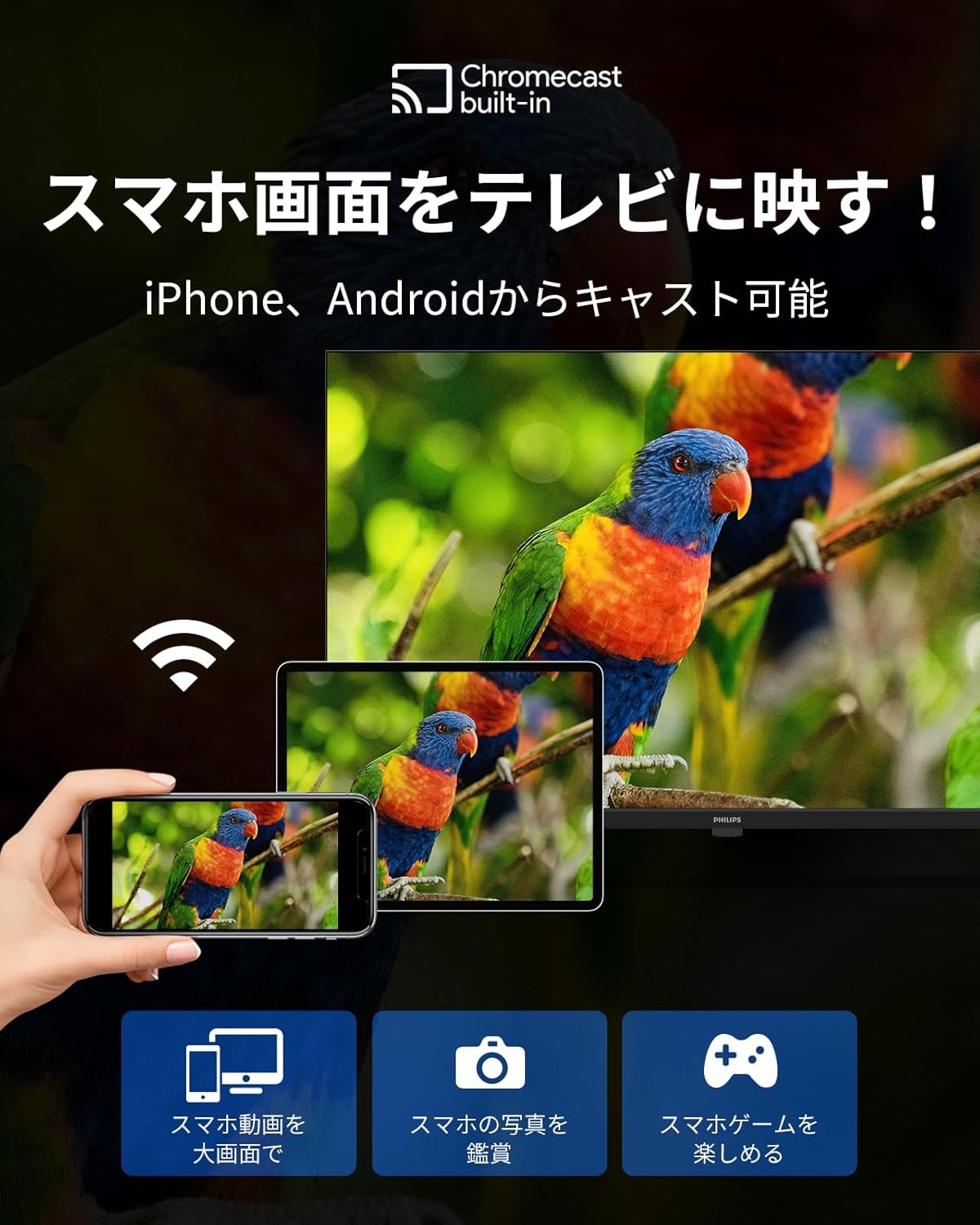
Image: A display of various image modes available on the TV, each optimized for different content types and viewdina lingkungan.
6. Pangropéa
- Ngabersihan layar: Gently wipe the screen with a soft, dry cloth. For stubborn marks, use a screen-specific cleaner applied to the cloth, not directly to the screen.
- beberesih Kabinet: Lap kabinet ku lawon anu lemes sareng garing. Entong nganggo pembersih atanapi pelarut anu abrasif.
- Ventilasi: Pastikeun bukaan ventilasi dina TV teu diblokir pikeun nyegah overheating.
7. Cara ngungkulan
Upami anjeun ngalaman masalah sareng TV anjeun, cobian solusi ieu sateuacan ngahubungi dukungan:
- Henteu aya kakuatan: Pastikeun kabel daya disambungkeun sacara aman ka TV sareng stopkontak. Coba outlet béda.
- Taya Gambar/Sora: Check that the correct input source is selected. Verify all cable connections (HDMI, etc.) are secure.
- Jauh Teu Gawé: Check the remote control batteries. Ensure the remote is paired correctly (refer to Initial Setup).
- Henteu aya sambungan internét: Verify your Wi-Fi password and network selection. Restart your router and the TV.
- Aplikasi Teu Ngamuat: Check your internet connection. Ensure the app is updated to the latest version.
- System Slow/Unresponsive: Balikan deui TV ku cara cabut colokan tina stop kontak sababaraha menit, teras colokkeun deui.
8. Spésifikasi
| Fitur | Spésifikasi |
|---|---|
| Nomer modél | PUH7700 |
| Ukuran layar | 43V-type (43 inches) |
| Resolusi | 3840 x 2160 (4K UHD) |
| Tipe tampilan | LCD VA |
| Rasio Aspék | 16:9 |
| Refresh Laju | 60Hz (DLG 120Hz) |
| Max Kaluaran Speaker | 8W + 8W |
| Vérsi Bluetooth | 5.1 |
| Wireless LAN | 2.4GHz / 5GHz |
| Konsumsi Daya | 110W |
| Ukuran (tanpa nangtung) | 957 x 559 x 87 mm |
| Dimensi (kalayan stand) | 957 x 614 x 258 mm |
| Beurat (tanpa nangtung) | 7.2 kg |
| Palabuhan HDMI | 3 |
| palabuhan USB | 2 |
| Standar Pemasangan Tembok | UKURAN 300 x 300 |

Image: A table outlining the detailed specifications of the Philips PUH7700 TV, including dimensions, resolution, refresh rate, and connectivity options, alongside recommended room sizes for various TV sizes.
9. Garansi jeung Rojongan
All Philips products sold are genuine. This product comes with a 365-day warranty period. In case of product defects under normal use, a free product exchange will be provided. (Excludes malfunctions caused by customer's intent or negligence).
If the product arrives damaged or scratched during delivery, please contact us for a free exchange.
Jam rojongan: Monday - Friday, 10:00 - 12:00 / 13:00 - 17:00 (Excluding Saturdays, Sundays, national holidays, summer holidays, and New Year holidays).


