1. Bubuka
The NETUM Pro is a versatile, ultra-thin, and lightweight document scanner designed for efficiency and portability. It supports scanning documents up to A3 size with a high resolution of 15 million pixels and 4K image quality. Equipped with advanced OCR technology supporting 192 languages, it converts scanned documents into editable text formats. Beyond scanning, it functions as a Web Camera and a Document Camera, making it ideal for remote work, online classes, and presentations. Its foldable design ensures easy storage and transport, compatible with both Windows and Mac operating systems.
2. Eusi Paket
Punten parios yén sadaya barang aya dina pakét anjeun:
- NETUM Pro Foldable Scanner Unit x1
- USB-A to USB-C Cable x1 (for Windows)
- USB-C to USB-C Cable x1 (for Mac)
- Japanese Instruction Manual x1
- USB Memory Stick x1 (containing software)
- Klip Kabel x2
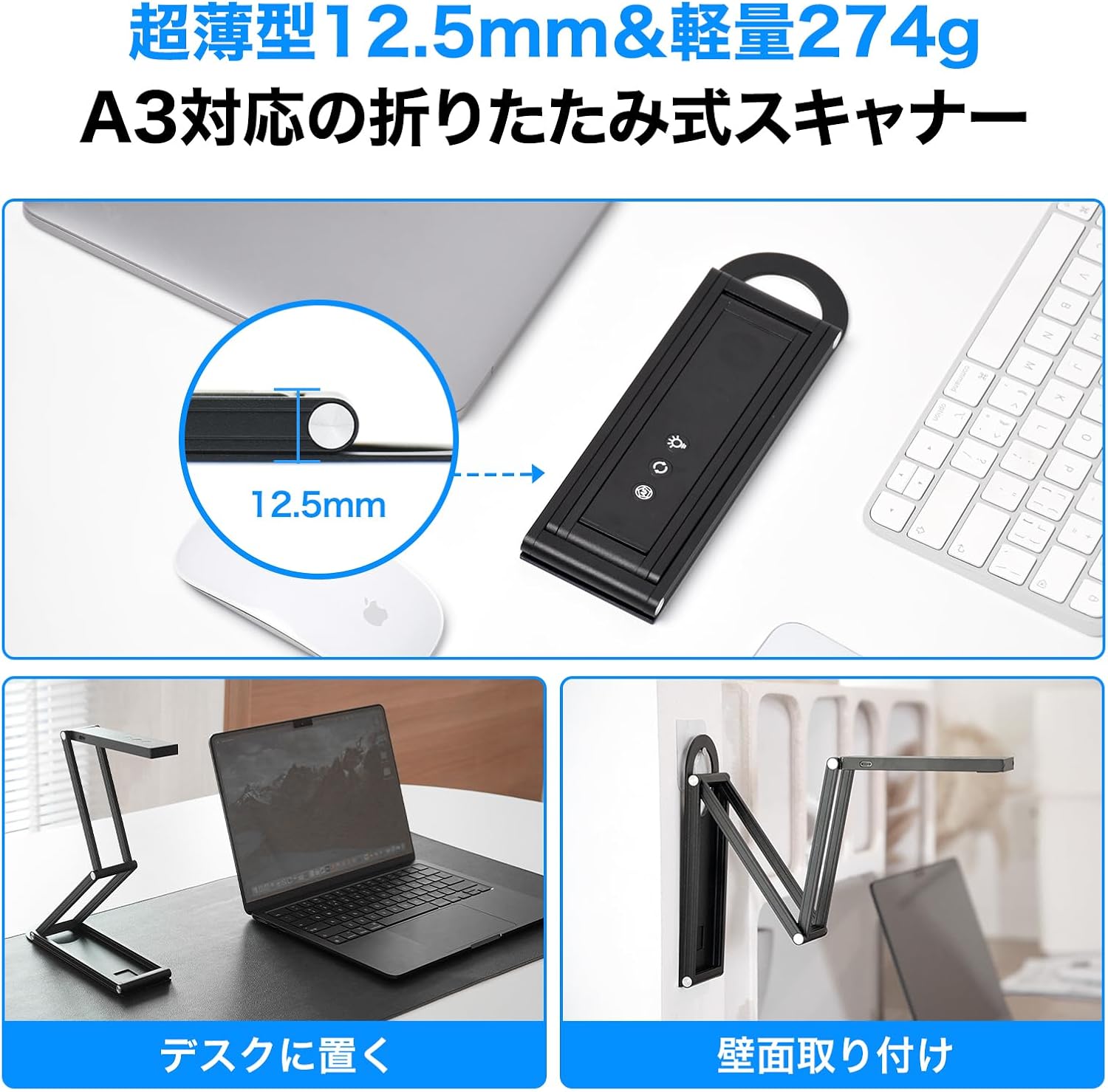
Image: The package includes the scanner unit, USB cables for Windows and Mac, a Japanese instruction manual, a USB memory stick with software, and two cable clips.
3. Fitur Produk
- Ultra-Thin Foldable Design: With a thickness of 12.5mm and weighing only 274g, this scanner is thinner than most smartphones, making it highly portable and easy to store in a business bag. It supports scanning documents up to A3 size, from business cards to large format papers.
- Pencitraan Resolusi Tinggi: Features a 15-megapixel camera with 4K resolution (up to 3840x2880px), capturing fine details of text and textures. An auto-focus button allows for instant focus adjustment.
- Dedicated Software (NetumScan Pro): Includes specialized software for Windows and Mac, offering various image correction functions such as automatic background removal, automatic trimming, and dual-sided merging.
- Advanced OCR Technology: Integrated high-precision OCR supports 192 languages with over 90% recognition accuracy, converting scanned documents into editable text formats.
- Web & Document Camera Functionality: The 360-degree rotatable camera head and adjustable auxiliary light ensure clear images for remote lessons, teleconferences, and presentations. It can be used as a webcam by adjusting the camera to eye level.

Image: The NETUM Pro scanner in its compact, folded state, highlighting its compatibility with Mac and Windows, 4K resolution, OCR, and Web Camera functions.

Image: The scanner's projection area, demonstrating its capability to scan documents up to A3 size with automatic continuous scanning and high-speed operation.
4. Setup Guide
- Unfold the Scanner: Gently unfold the scanner from its compact state into an upright position. Ensure it is stable on a flat surface.
- Nyambung ka Komputer: Use the provided USB cable to connect the scanner to your Windows or Mac computer. The scanner is powered via USB.
- Pamasangan parangkat lunak: Insert the USB memory stick into your computer and install the 'NetumScan Pro' software. Follow the on-screen instructions for installation. For Mac users, scan the QR code on the seal to download the software.
- Posisi: Place the document or object you wish to scan directly under the camera lens. Ensure adequate lighting, using the built-in LED light if necessary.

Image: Demonstrates flexible setup options, including placing the scanner on a desk next to a laptop or mounting it on a wall for versatile scanning angles.
5. Parentah Operasi
5.1. Document Scanning
- Ngajalankeun Software: Open the 'NetumScan Pro' application on your computer.
- Dokumén tempat: Position the document or book page flat under the camera. The software will automatically detect the edges of the document.
- Adjust Focus/Light: Press the auto-focus button on the scanner head for instant clarity. Use the LED light button to adjust brightness (2 levels) if the environment is dim.
- Scan: Click the 'Scan' button within the software. For continuous scanning of multiple pages, use the continuous scan mode.
- Pos-Proses: The software offers automatic image correction, such as de-skewing, cropping, and background removal. You can also manually adjust these settings.
- OCR and Export: Utilize the OCR function to convert scanned images into editable text formats (Word, Excel, PDF, TXT, JPG, PNG, TIF). Select the desired output format and language (192 languages supported).
Video: Demonstrates the scanning process, including OCR functionality and automatic correction of scanned documents. This video is provided by a seller.
Video: Shows continuous scanning of a book, highlighting the ease of digitizing multiple pages quickly. This video is provided by a seller.
5.2. Web Camera / Document Camera Mode
The NETUM Pro can be used as a versatile Web Camera or Document Camera for various applications:
- Kaméra Dokumén: Position the camera over documents, textbooks, or 3D objects to project them onto your screen for presentations or remote teaching. The 360-degree rotatable head allows for flexible viewdina sudut.
- Web Kaméra: Adjust the camera head to face you for video calls and conferences. The adjustable height and angle ensure you appear natural and clear.
Video: Hiji pintonan video bubukacasing the Innex DC500's capabilities as both a document camera and a webcam, demonstrating its versatility in various settings. This video is provided by a seller.
Video: Demonstrates the autofocus feature of the Ideao DC400 document camera, showing how to achieve clear focus on documents and objects. This video is provided by a seller.

Image: Illustrates the use of the NETUM Pro as a document camera for displaying written work and as a web camera for video conferencing, showing its adaptability.
6. Software Installation & Usage
The 'NetumScan Pro' software is essential for unlocking the full potential of your NETUM Pro scanner. It provides a user-friendly interface for scanning, editing, and managing your documents.
6.1. Pamasangan
- Windows: Insert the provided USB memory stick and run the installer. Follow the prompts to complete the installation.
- Mac: Scan the QR code provided in the package to download the 'NetumScan Pro' software for Mac. Install the application as instructed.
6.2. Key Software Features
- Koreksi Gambar: Automatically corrects skewed images, removes backgrounds, and trims documents to size.
- OCR (Pangakuan Karakter Optik): Converts scanned text into editable formats, supporting 192 languages.
- Scan kontinyu: Efficiently scans multiple pages in sequence, ideal for books and multi-page documents.
- File Manajemén: Organize, save, and export scanned documents in various formats (PDF, Word, Excel, TXT, JPG, PNG, TIF).

Image: Displays the 'NetumScan Pro' software interface, highlighting features like OCR, smart background removal, QR code recognition, continuous scanning, video recording, and various image processing options.
7. Pangropéa
- beberesih: Use a soft, dry cloth to clean the scanner's lens and body. Avoid abrasive cleaners or solvents.
- Panyimpenan: When not in use, fold the scanner into its compact form and store it in a dry, dust-free environment to protect it from damage.
- Apdet parangkat lunak: Regularly check for software updates to ensure optimal performance and access to the latest features.
8. Cara ngungkulan
- Panyeken Teu Dideteksi: Ensure the USB cable is securely connected to both the scanner and the computer. Try a different USB port or cable. Restart the computer and the scanner.
- Kualitas Gambar goréng: Check that the document is flat and well-lit. Use the built-in LED light if necessary. Ensure the camera lens is clean. Adjust focus using the auto-focus button. Verify software settings for resolution and image quality.
- OCR Not Working Correctly: Ensure the document is clear and the text is legible. Select the correct language for OCR in the software settings.
- Masalah parangkat lunak: If the software is unresponsive or crashes, try restarting the application or your computer. Reinstall the software if the problem persists.
9. Spésifikasi
| Fitur | Spésifikasi |
|---|---|
| merek | NETUM |
| Nomer modél | NETUM Pro |
| Jenis scanner | Document Scanner (ID cards, text, photos, business cards, receipts, etc.) |
| Téhnologi konektipitas | USB |
| Resolusi | Max 4480x3360 (adjustable via software) |
| Sarat Sistim minimum | Windows/Mac |
| Item Beurat | 470 g |
| Ukuran Paket | 23.9 x 11.2 x 3.4 cm |
| Warna | Hideung |
10. Garansi jeung Rojongan
The NETUM Pro comes with a Garansi produk 1 taun covering initial defects, malfunctions during use, and transit damage. For any product issues or inquiries, please contact customer support using the contact information provided with your purchase or in your order history. Registering as a LINE member may extend your warranty.
Please note that parallel imported products or imitations may not receive official support or warranty. Ensure you purchase from an authorized retailer for genuine products and full support.


