1. Bubuka
This manual provides essential information for the safe and effective operation, setup, and maintenance of your ComMarker X 6W UV Engraving Machine Omni X. Please read this manual thoroughly before using the device to ensure optimal performance and safety.
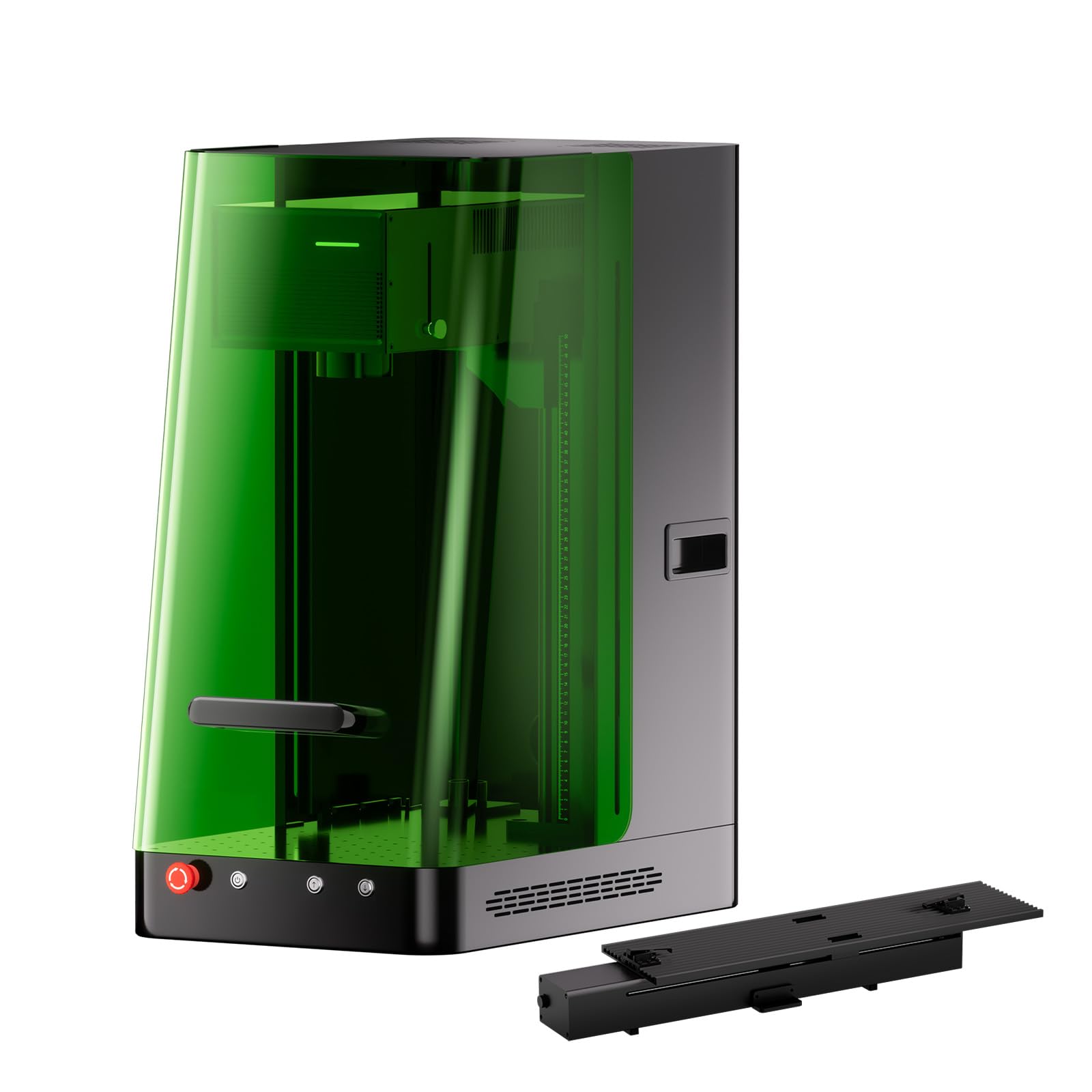
Figure 1: ComMarker X 6W UV Engraving Machine Omni X with included slider bundle components.
2. Émbaran Kasalametan
The ComMarker X 6W UV Engraving Machine is a Class 1 Laser Product. Adherence to safety guidelines is paramount to prevent injury and ensure proper operation.
2.1 Pancegahan Kasalametan Umum
- Always wear appropriate laser safety goggles when operating the machine.
- Pastikeun mesin disimpen dina permukaan anu stabil sareng rata.
- Jaga wewengkon gawé beresih jeung bébas tina bahan kaduruk.
- Do not attempt to bypass safety features such as the smart cover sensor or emergency stop button.
- Operate the machine in a well-ventilated area to dissipate any fumes produced during engraving.
2.2 Laser Classification and Output
Alat ieu digolongkeun kana a KELAS 1 LASER PRODUK according to IEC 60825-1 (Report Number: 2501Q25848E-SFA1, FDA Accession No.: 2521455-000). The maximum power output is 1.95mW.

Figure 2: Safety features of the ComMarker Omni X, including the OD 5+ laser light proof enclosure, smart cover with sensor, and emergency stop button.
2.3 Darurat eureun
In case of any malfunction or emergency, immediately press the red emergency stop button located on the front of the machine. This will cut power to the laser and stop all operations.
3. Produk Langkungview jeung Komponén
The ComMarker X 6W UV Engraving Machine Omni X comes with several components to facilitate various engraving tasks.

Figure 3: All included components for the ComMarker X UV Engraving Machine.
3.1 Komponén Kaasup
- ComMarker X Laser Engraver Unit
- Ngalih Kaki
- Kabel Data
- Adaptor kakuatan
- Lift Motor Cable
- Caang
- Pangawasa
- Flange
- 70x70mm Field Lens
- 150x150mm Field Lens
- Adaptor OTG
- USB Girang
- Placing Helper
- Allen rengkuh Siapkeun
- Goggles (Laser Safety Glasses)
- Praview Pembantu
- Platform ngangkat
- Rupa-rupa Screws
4. Parentah Setup
Follow these steps for the initial setup of your ComMarker X UV Engraving Machine.
4.1 Ngabongkar sareng Nempatkeun
- Sacara saksama miceun sadaya komponén tina bungkusan. Simpen bungkusan pikeun transportasi atanapi neundeun ka hareup.
- Place the main engraver unit on a sturdy, flat, and level surface in a well-ventilated area.
- Ensure there is adequate space around the machine for operation and heat dissipation.
4.2 Connecting Power and Data
- Connect the Power Adaptor to the machine and then to a suitable power outlet (110V).
- Connect the Data Cable from the engraver to your computer or control device.
- If using the Foot Switch, connect it to the designated port on the machine.
- Attach the Lift Motor Cable if using the electric lifting column.
4.3 Pamasangan parangkat lunak
Install the ComMarker software (ComMarker App or ComMarker Studio) from the provided USB Drive or download it from the official ComMarker website. The machine is also Lightburn compatible.
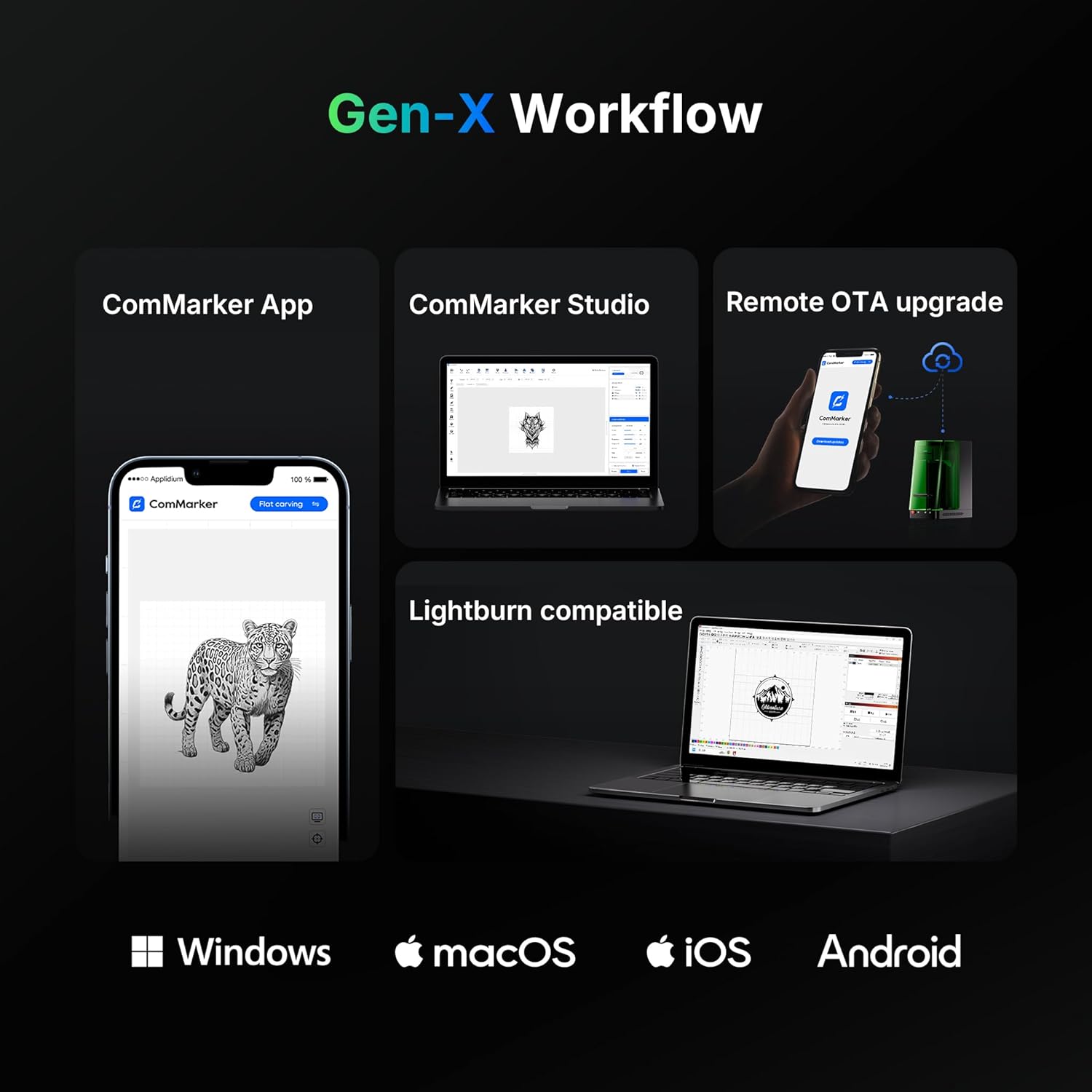
Figure 4: ComMarker Gen-X Workflow, illustrating software compatibility across Windows, macOS, iOS, and Android platforms.
5. Parentah Operasi
This section outlines the basic steps for operating your ComMarker X UV Engraving Machine.
5.1 Ngahurungkeun sareng Ngainisialisasi
- Pastikeun sadaya sambungan aman.
- Press the power button on the machine.
- Launch the ComMarker software on your computer or mobile device.
5.2 Material Placement and Auto-Focus
- Place the material to be engraved on the work platform. For precise positioning, use the Placing Helper.
- The ComMarker X features an auto-focus system with LiDAR ranging. Activate the auto-focus function via the software or the one-button control on the electric lifting column. The machine will automatically adjust the laser height for optimal focus (0.0019mm accuracy).
- Utilize the dual red light positioning for accurate alignment of your engraving design.

Figure 5: The ComMarker X UV Engraving Machine in operation, demonstrating precise laser marking on a metal surface.
5.3 Design and Engraving Process
- Import or create your design within the ComMarker software.
- Select the appropriate material settings and engraving parameters (e.g., speed, power). The UV laser supports a wide range of materials including PE, PVC, PP, PS, PLA, PC, PMMA, polyoxymethylene (POM), nylon, ABS, aluminum, gold, platinum, silver, titanium, brass, stainless steel, wood, cloth, glass, and cardboard.
- Ngagunakeun Preview Helper to visualize the engraving area before starting.
- Initiate the engraving process. The machine's smart cover sensor will ensure operation only when the cover is closed.
- For 3D internal engraving, follow specific software instructions for depth and layer settings.
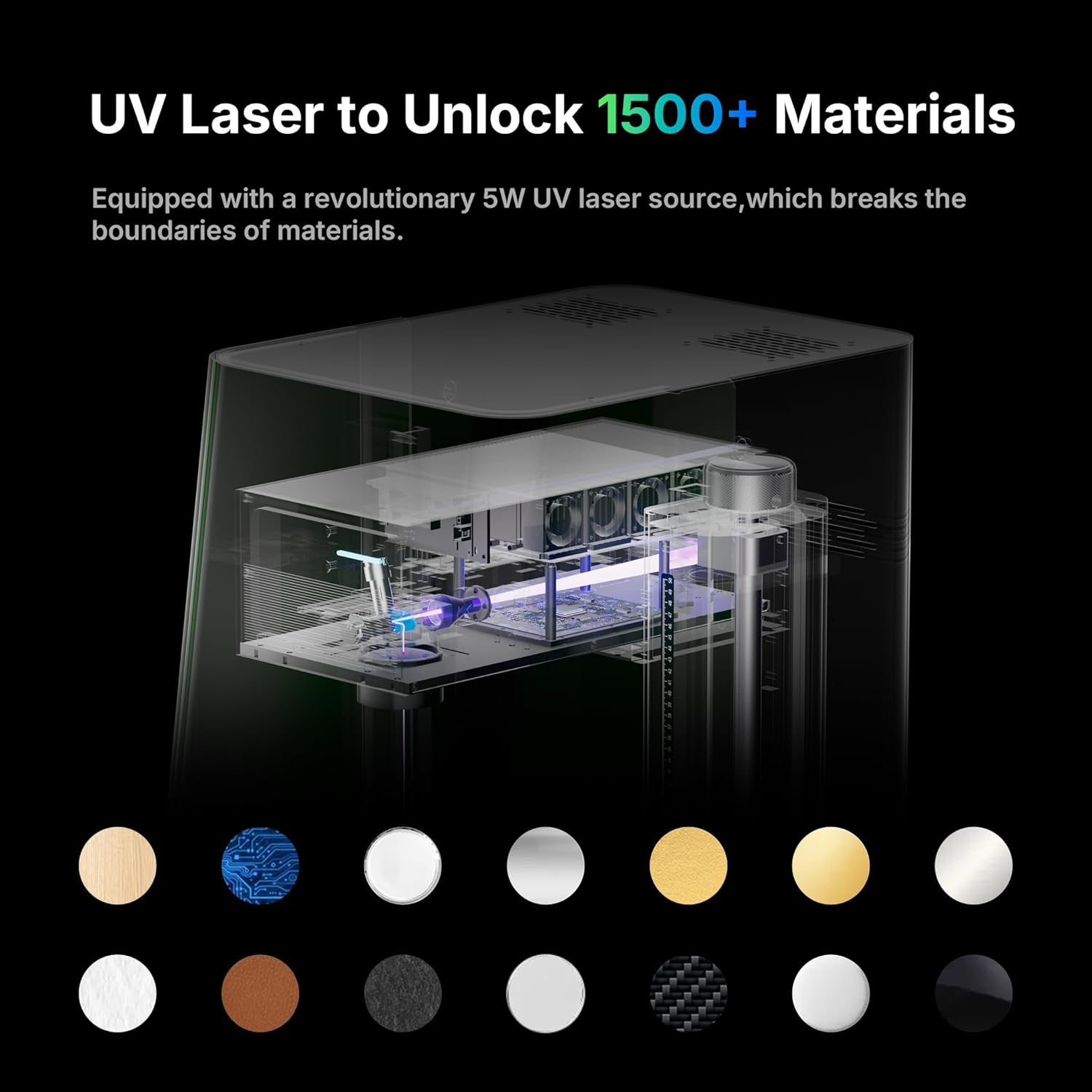
Figure 6: The versatility of the UV laser, capable of engraving over 1500 types of materials.
5.4 Fitur canggih
- 3D Internal Engraving: The Omni X supports 3D internal engraving, allowing for intricate designs within transparent materials.
- Batch Marking: The machine can automatically generate and mark QR codes/barcodes in sequence without manual input, ideal for small-batch production.
- Slider Extension: The 150x400mm working area with slider extension allows for engraving larger items or multiple items in a batch.
6. Pangropéa
Regular maintenance ensures the longevity and optimal performance of your ComMarker X UV Engraving Machine.
6.1 beberesih
- Pastikeun mesin pareum sareng dicabut tina colokan sateuacan dibersihkeun.
- Gently ngusap surfaces exterior ku kaen lemes, garing.
- Periodically clean the work platform and lens with a lint-free cloth and appropriate lens cleaning solution to remove dust and debris.
- The machine offers 99.72% dust isolation, but regular cleaning of the internal components (if accessible and safe) is recommended by a qualified technician.
6.2 Apdet parangkat lunak
Regularly check for and install remote OTA (Over-The-Air) software updates to ensure you have the latest features and performance enhancements.
7. Cara ngungkulan
Bagian ieu ngabahas masalah umum anu anjeun tingali sareng solusi poténsialna.
7.1 Isu umum jeung Solusi
- Mesin teu hurung:
- Check if the power cable is securely connected to both the machine and the power outlet.
- Pastikeun stop kontakna tiasa dianggo. - Laser teu hurung:
- Verify that the smart cover is fully closed. The machine will not operate if the cover is open.
- Check software settings to ensure the laser power is not set to zero.
- Ensure the emergency stop button is not engaged. - Engraving quality is poor or inconsistent:
- Re-run the auto-focus procedure to ensure correct focal distance.
- Clean the laser lens for any dust or debris.
- Adjust engraving parameters (speed, power) for the specific material being used.
- Ensure the material is flat and securely placed on the work platform. - Software not connecting to machine:
- Check the data cable connection between the machine and your computer.
- Restart both the machine and the software.
- Ensure the correct drivers are installed (if applicable). - Perlindungan overheat: The machine features overheat protection. If the temperature reaches a warning value, the device automatically stops working to prevent damage. Allow the machine to cool down before resuming operation.
If you encounter issues not listed here or cannot resolve a problem, please contact ComMarker customer support.
8. Spésifikasi
| Fitur | Spésifikasi |
|---|---|
| Produsén | ComMarker |
| Nomer modél | Omni X |
| Jenis laser | UV Laser |
| Daya laser | 6 Watt |
| Panjang gelombang | 355nm |
| Métode Cooling | Hawa cooling |
| Nyirian Speed | 0 - 10000mm/s |
| Akurasi Ukiran | 0.0019 mm |
| Sistem Pokus | Auto-Focus with LiDAR Ranging System |
| Wewengkon Gawé | 150 x 400mm (with slide extension) |
| Voltage | 110V |
| Item Beurat | 60 pon |
| Dimensi produk | 19 x 13 x 27 inci |
| Kelas laser | KELAS 1 LASER PRODUK |
| Modeu Operasi | Otomatis |
9. Garansi jeung Rojongan
9.1 Émbaran jaminan
The ComMarker X 6W UV Engraving Machine Omni X comes with a 1 Taun Produsén Garansi. Garansi ieu nyertakeun cacad dina bahan sareng pagawean dina panggunaan normal. Punten tahan bukti pameseran anjeun pikeun klaim garansi.
9.2 Rojongan Palanggan
For technical assistance, troubleshooting, or warranty inquiries, please contact ComMarker customer support through their official website or the contact information provided with your product. You can also visit the ComMarker Store on Amazon pikeun sumber tambahan.