1. Bubuka
This manual provides detailed instructions for the installation, operation, and maintenance of your Imagebon 11.3" QLED Android 8Core Carplay Screen. Please read this manual thoroughly before using the device to ensure proper functionality and safety.
Fitur konci:
- Powerful 8-Core Android Performance with 4GB RAM and 64GB Storage.
- 11.3-Inch IN-CELL QLED Display for exceptional clarity and touch response.
- Built-in Google Play Store for access to various applications (YouTube, Netflix, Spotify, etc.).
- Split-Screen Display for multitasking (e.g., navigation and media simultaneously).
- Dual-Band Wi-Fi (2.4GHz & 5GHz) and Bluetooth for reliable connectivity.
- 1080P High-Definition Rear Camera with night vision support.
- Flexible Navigation Options including Apple CarPlay, Android Auto, and direct app navigation.
- Voice Control for hands-free operation and enhanced driving safety.
- Over-The-Air (OTA) Updates for system improvements and new features.
- Personalized Wallpaper customization via SD card.
2. Naon dina Box
Saatos muka bungkusan, pariksa yén sadaya item di handap ieu kalebet:
- 11.3" QLED Android Carplay Screen Unit
- 10m Reversing Camera (1080P)
- Kabel AUX
- Antena GPS
- Long Arm Suction Cup Bracket
- Braket Perekat
- Car Charger (with Type-C cable)
- Manual pamaké

Image: All components included in the Imagebon 11.3 inch Carplay Screen package. This includes the main screen, a 10m reversing camera, an AUX cable, a GPS antenna, a long arm suction cup bracket, an adhesive bracket, a car charger with a Type-C cable, and the user manual.
3. Setélan
3.1 Pasang Alat
The Imagebon Carplay Screen offers flexible mounting options to suit your vehicle's dashboard.
- Choose your mount: Select either the Long Arm Suction Cup Bracket for windshield mounting or the Adhesive Bracket for dashboard mounting.
- Attach the bracket to the screen: Securely connect the chosen bracket to the back of the Carplay screen. The magnetic attachment point ensures a firm connection.
- Position the screen: Place the screen in a location that provides optimal visibility without obstructing your driving view. Ensure the mount is stable.

Image: The Imagebon 11.3 inch Carplay Screen securely mounted on a car dashboard, demonstrating its placement and the mounting mechanism.
3.2 Powering Alat
Connect the provided car charger to your vehicle's cigarette lighter socket. Plug the Type-C end of the cable into the designated power port on the Carplay screen.
3.3 Connecting the Rear Camera
If using the 1080P rear camera, connect its cable to the AV-IN port on the Carplay screen. Follow the camera's specific installation instructions for optimal placement and wiring in your vehicle.
3.4 Pilihan Kaluaran Audio
The device supports multiple audio output methods to integrate with your car's sound system:
- Audio Asli: Use the built-in speakers of the Carplay screen.
- Bluetooth: Pair your smartphone to the Carplay screen via Bluetooth for wireless audio streaming.
- Pamancar FM: Tune your car's FM radio to an unused frequency and set the Carplay screen to transmit audio on the same frequency.
- Kabel AUX: Connect the provided AUX cable from the Carplay screen's AUX port to your car's auxiliary input.

Image: A visual representation of the four available audio output methods for the Imagebon 11.3 inch Carplay Screen: native audio, FM transmission, AUX cable connection, and Bluetooth audio.
4. Parentah Operasi
4.1 Ngahurungkeun Mimiti sareng Pilihan Basa
Once powered on, the device will boot up and prompt you to select your preferred language. Follow the on-screen instructions.
4.2 Connecting to Apple CarPlay / Android Auto
To use Apple CarPlay or Android Auto, ensure Bluetooth and Wi-Fi are enabled on your smartphone.
- On the Carplay screen, select either "CarPlay" or "Android Auto".
- On your smartphone, go to Bluetooth settings and search for the device name (e.g., "T88-RX724B3").
- Pair your phone with the Carplay screen. A pairing request will appear on your phone; confirm the code.
- Once paired, the Carplay/Android Auto interface will appear on the screen.
Video: This video demonstrates the quick and easy process of connecting a smartphone to the Imagebon 11.3 inch Carplay Screen via Bluetooth to activate Apple CarPlay. It shows the pairing request and the seamless transition to the CarPlay interface.
4.3 Using Google Play Store and Pre-installed Apps
The device comes with pre-installed apps like YouTube and Netflix. You can download additional apps from the Google Play Store by connecting the device to a Wi-Fi network (e.g., your phone's hotspot).

Image: The Google Play Store is shown on the Carplay screen, highlighting the ability to download and install a wide range of applications directly onto the device.
4.4 Split-Screen Display
Activate split-screen mode to run two applications simultaneously. For example, view navigation on one side and a media player on the other.

Image: The split-screen feature of the Imagebon 11.3 inch Carplay Screen is illustrated, showing how users can simultaneously view navigation and entertainment applications.
4.5 Kontrol sora
Utilize voice commands for hands-free operation of navigation, music playback, and calls. This feature enhances driving safety by allowing you to keep your hands on the wheel.
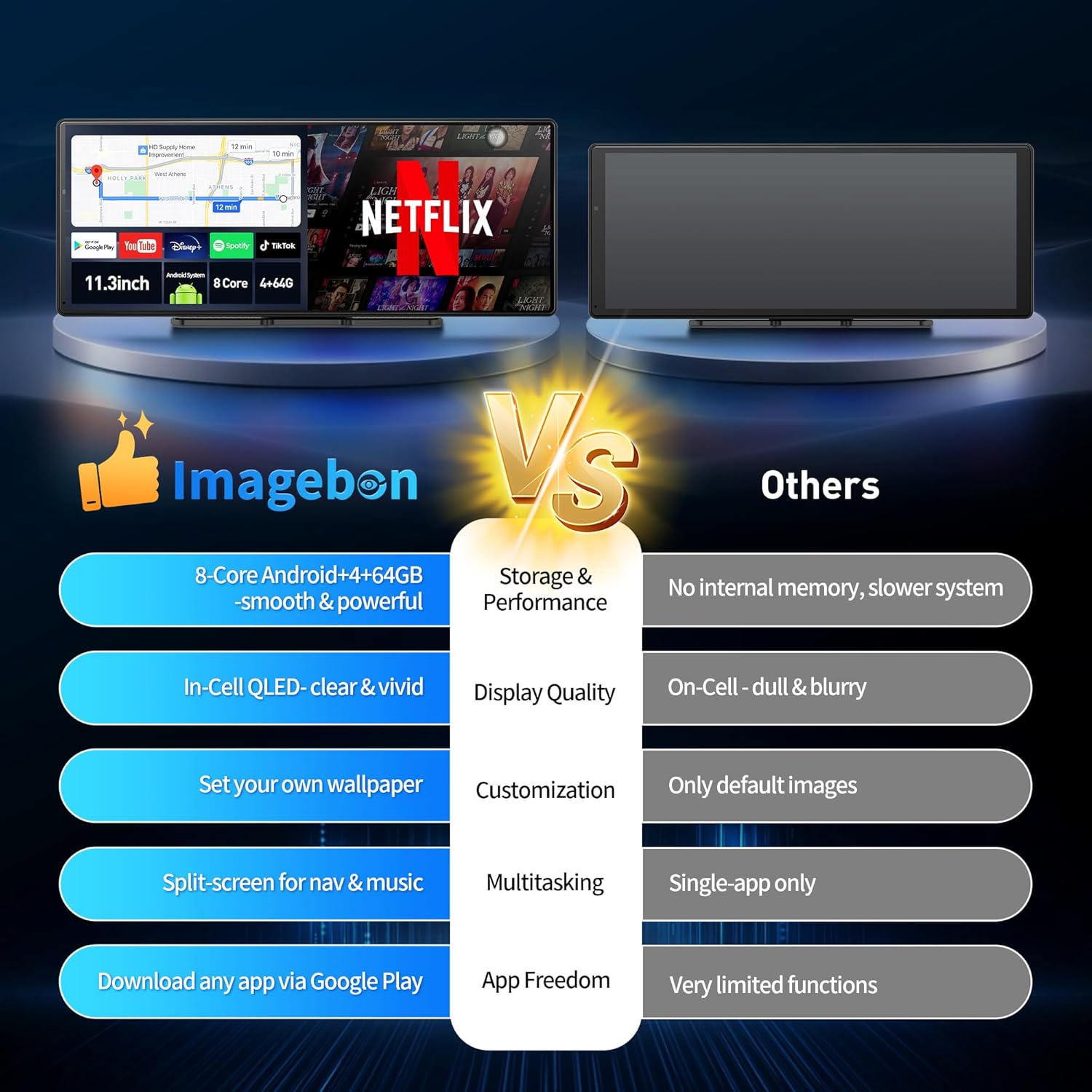
Image: The voice control feature is depicted on the Carplay screen, demonstrating how users can interact with navigation and music using voice commands for a safer driving experience.
4.6 Kaméra tukang View
When the vehicle is in reverse, the 1080P rear camera view will automatically display on the screen, providing a clear and wide view tina sakuliling anjeun.
Video: This video showcases the 1080P rear camera functionality of the Imagebon 11.3 inch Carplay Screen, demonstrating its clear view and parking assistance lines.
5. Pangropéa
To ensure the longevity and optimal performance of your Imagebon Carplay Screen, follow these maintenance guidelines:
- beberesih: Use a soft, dry cloth to clean the screen. Avoid abrasive cleaners or solvents that could damage the display.
- Suhu: Hindarkeun ngalaan alat ka suhu anu ekstrim (panas pisan atanapi tiis pisan) kanggo waktos anu berkepanjangan.
- Panyimpenan: Lamun nyimpen alat keur lila, pegatkeun sambungan tina kakuatan tur nyimpen dina tempat tiis tur garing.
- Apdet parangkat lunak: Regularly check for Over-The-Air (OTA) updates to ensure your device has the latest features and security patches.

Image: The Over-The-Air (OTA) update screen on the Imagebon 11.3 inch Carplay device, illustrating the process of updating the system software.
6. Cara ngungkulan
If you encounter issues with your Carplay screen, refer to the following common solutions:
- Alat teu hurung: Ensure the car charger is securely plugged into both the vehicle's socket and the device. Check if the vehicle's power outlet is functioning.
- CarPlay / Android Auto henteu nyambung: Verify that Bluetooth and Wi-Fi are enabled on your smartphone. Ensure the device is properly paired. Try restarting both your phone and the Carplay screen.
- Henteu aya kaluaran audio: Check your selected audio output method (Bluetooth, FM, AUX, native speaker) and ensure it's correctly configured. Adjust the volume on both the Carplay screen and your car's stereo.
- Layar teu ngaréspon: Try restarting the device. If the issue persists, perform a factory reset (refer to the settings menu).
- Kaméra tukang teu némbongan: Ensure the rear camera cable is securely connected to the AV-IN port. Check the camera's power supply and functionality.
7. Spésifikasi
| Ukuran tampilan | 11.3 inci |
| Tipe tampilan | IN-CELL QLED |
| Prosesor | 8-Core Android Processor |
| Ram | 4GB |
| Panyimpenan | 64GB |
| Konektipitas | Dual-Band Wi-Fi (2.4GHz & 5GHz), Bluetooth |
| Kaméra tukang | 1080P High-Definition with Night Vision |
| Sistem operasi | Android |
| Item Beurat | 3.61 pon |
| Ukuran Paket | 12.2 x 5.83 x 4.41 inci |
8. Garansi jeung Rojongan
For warranty information, technical support, or any inquiries regarding your Imagebon Carplay Screen, please refer to the contact details provided in the packaging or visit the official Imagebon websitus. Simpen resi pameseran anjeun pikeun klaim jaminan.


