1. Bubuka
This manual provides essential information for setting up, operating, maintaining, and troubleshooting your new Thunderobot Zero 16 Pro Gaming Laptop. Please read this guide thoroughly to ensure optimal performance and longevity of your device. The Thunderobot Zero 16 Pro is engineered for high-performance gaming and demanding tasks, featuring advanced hardware and a robust design.

Image: The Thunderobot Zero 16 Pro Gaming Laptop, showcasing its sleek design and vibrant RGB keyboard.
2. Setélan
Follow these steps for the initial setup of your Thunderobot Zero 16 Pro Gaming Laptop:
- Unboxing: Kaluarkeun laptop sareng sadaya asesoris tina bungkusna kalayan ati-ati. Pastikeun sadaya komponén aya: laptop, adaptor daya, sareng dokuméntasi.
- Sambungan Daya: Connect the power adapter to the laptop's power input port and then plug it into a wall outlet. It is recommended to fully charge the battery before the first use.
- Boot munggaran: Open the laptop lid and press the power button. The system will guide you through the initial Windows 11 Home setup process, including language selection, network connection, and user account creation.
- Apdet parangkat lunak: After completing the initial setup, connect to the internet and check for system and driver updates to ensure optimal performance and security.
3. Ngoperasikeun Laptop Anjeun
The Thunderobot Zero 16 Pro is designed for powerful and immersive computing experiences. Here's an overview of its key operational features:
3.1 Performance Hardware
- Prosesor: Equipped with the Intel Core Ultra 9 275HX processor, featuring 24 cores and turbo speeds up to 5.40GHz for seamless multitasking and demanding applications.
- Grafik: Features the NVIDIA GeForce RTX 5080 graphics card with 16GB GDDR7 memory, providing exceptional visual performance for gaming and content creation.
- Mémori: Comes with 64GB DDR5 RAM, ensuring high-speed data processing and smooth operation across multiple applications.
- Panyimpenan: Includes a 2TB PCIe M.2 SSD for ultra-fast boot times, rapid application loading, and ampkapasitas neundeun.

Gambar: Detil view of the Intel Core Ultra 9 275HX processor and NVIDIA GeForce RTX 5080 graphics, highlighting their specifications.
3.2 Fitur tampilan
The laptop boasts a 16-inch QHD+ (2560x1600) Bionic Eye-Care Display with a 360Hz refresh rate. This display offers a wide color gamut, enhanced contrast, and advanced eye-care technology for comfortable and vivid viewing. To achieve the highest 360Hz refresh rate, ensure the dedicated graphics direct connection mode is enabled in the Control Center.
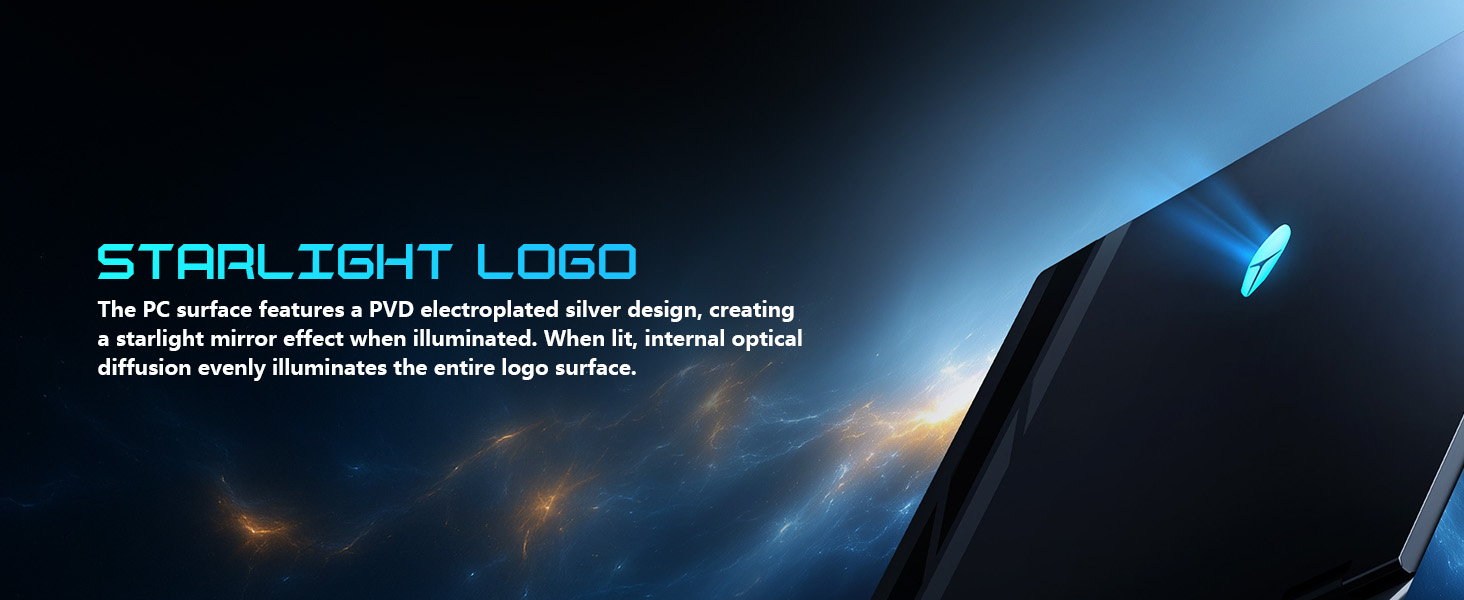
Image: Visual representation of the 16-inch Bionic Hummingbird Eye-Care Display, detailing its high refresh rate, resolution, and eye-care features.
3.3 Keyboard and Lighting
The full-size keyboard features Per-Key Customizable RGB lighting, allowing for personalized aesthetics. It also includes a dedicated numeric keypad for enhanced productivity. The laptop incorporates a "Spectra" RGB Lighting System with 156 RGB light beads throughout the machine, including the chassis and logo.
- One-Click Mode Switching: Easily toggle between performance profiles (e.g., Quiet, Balance, Turbo) using dedicated keys.
- One-Click Cooling: Instantly activate maximum cooling with a dedicated key for intense gaming sessions.

Image: The laptop's keyboard, showcasing its Per-Key RGB lighting and quick-access buttons for performance and cooling modes.

Image: Close-up of the laptop's design, highlighting the "Spectra" RGB lighting system and the illuminated Thunderobot logo.
3.4 Konéktipitas
The Thunderobot Zero 16 Pro offers extensive connectivity options:
- Port USB: 3x USB-A (USB 3.2 Gen1/Gen2), 1x USB-C (Thunderbolt 5).
- Kaluaran Video: HDMI 2.1.
- Jaringan: RJ-45 Ethernet port, Wi-Fi 6E for high-speed wireless internet.
- Audio: 3.5mm audio port.
- Nirkabel: Bluetooth for connecting peripherals.

Image: A detailed diagram illustrating the location and types of ports and slots on the Thunderobot Zero 16 Pro laptop.
3.5 AI Intelligent Control Center
The AI Intelligent Control Center software allows you to manage and customize your laptop's performance and lighting settings. This includes switching between Quiet, Balance, and Turbo modes, adjusting RGB lighting zones (keyboard, strip, logo), and monitoring CPU/GPU status. Note: System mode switching in Control Center requires the device to be connected to a power source.

Image: The AI Intelligent Control Center interface, showing options for performance tuning, lighting adjustment, and comprehensive system customization.
Video: Hiji leuwihview of the Thunderobot Zero 16 Pro, demonstrating its features including the display, keyboard, ports, and the AI Intelligent Control Center.
Video: A demonstration of the Thunderobot Series Display, highlighting its visual quality and features.
4. Pangropéa
Proper maintenance ensures the longevity and optimal performance of your gaming laptop.
4.1 Sistim cooling
The Thunderobot Zero 16 Pro features a robust cooling system designed for high-performance demands. It includes dual Night Owl fans, 7 extended heat pipes, and 316 ultra-thin copper fins, creating a large thermal surface area for efficient heat dissipation. Regularly clean the fan vents to prevent dust buildup, which can impede airflow and reduce cooling efficiency.

Gambar: Hiji internal view of the laptop's advanced cooling system, showing the dual Night Hawk fans, high-efficiency heat pipes, and ultra-thin fin array.
4.2 Perawatan Umum
- beberesih: Anggo lawon anu lemes sareng henteu ngaganggu pikeun ngabersihkeun layar sareng bagian luarna. Pikeun tanda anu bandel,ampen lawon jeung cai atawa cleaner aman layar. Hindarkeun bahan kimia anu kasar.
- Panyimpenan: Simpen laptop di tempat anu tiis sareng garing, jauh tina sinar panonpoé langsung sareng suhu anu ekstrim.
- Perawatan batré: For optimal battery health, avoid consistently discharging the battery to 0% or keeping it at 100% for extended periods. Periodically allow the battery to discharge to around 20-30% before recharging.
- Pangropéa parangkat lunak: Regularly update your operating system, drivers, and antivirus software to maintain performance and security.
5. Cara ngungkulan
Bagian ieu ngabahas masalah umum anu anjeun tingali:
- Display Not Reaching 360Hz: If your display is not achieving the advertised 360Hz refresh rate, ensure that the dedicated graphics direct connection mode is enabled within the AI Intelligent Control Center. This setting is crucial for utilizing the full potential of the display.
- Battery Drains While Plugged In: Under heavy load, especially during intense gaming or demanding tasks, the laptop's power consumption might exceed the 280W supplied by the power brick. This can lead to a slow battery drain even when plugged in. This is normal behavior for high-performance gaming laptops. To mitigate this, ensure no other power-intensive devices are charging from the laptop's USB ports during peak usage.
- RGB Keyboard Customization Issues: If you are unable to properly change individual key colors or lighting effects, verify that the AI Intelligent Control Center software is up-to-date and running correctly. Some advanced customization options may require specific software versions or settings.
- Overheating: If the laptop feels excessively hot, ensure the cooling vents are clear of obstructions. Activate the one-click cooling function or set the fan profile to 'Turbo Mode' in the Control Center. If the issue persists, consider cleaning the internal fans (professional service recommended).
6. Spésifikasi
| Fitur | Rincian |
|---|---|
| Prosesor | Intel Core Ultra 9 275HX (24 Cores, up to 5.4 GHz) |
| Grafika | NVIDIA GeForce RTX 5080 (16GB GDDR7) |
| Ram | 64 GB DDR5 (4800 MHz) |
| Panyimpenan | 2 TB PCIe M.2 SSD |
| tampilan | 16-inch QHD+ (2560 x 1600 pixels), 360Hz, 500 nits, 4ms response |
| Sistem operasi | Windows 11 Imah |
| Konektipitas | 3x USB-A 3.0, 1x Thunderbolt 5 (USB-C), 1x HDMI 2.1, 1x RJ-45, 1x 3.5mm Audio Jack, Wi-Fi 6E, Bluetooth |
| kibor | Per-Key RGB Backlit, Numeric Keypad |
| Sistim cooling | Dual Night Owl Fans, 7 Heat Pipes, 316 Ultra-Thin Copper Fins |
| Ukuran (L x W x H) | 14.09 x 10.52 x 1.03 inci |
| Beurat | 12 pon |
| Warna | Hideung |
7. Garansi jeung Rojongan
Every Thunderobot laptop includes a 12-garansi sasih, offering expert support, thorough diagnostics, and genuine parts if a repair is needed. Additionally, we provide a garansi 90 poé on all warranty replacement parts, ensuring hassle-free repairs. Your complete satisfaction is our commitment.
For technical support, troubleshooting assistance, or warranty claims, please visit the official Thunderobot support website or contact our customer service team. Keep your purchase receipt and product serial number readily available for faster service.


