1. Bubuka
This manual provides essential information for setting up, operating, and maintaining your KTC H34S5 34-inch UWQHD Curved Gaming Monitor. Please read this manual thoroughly before using the product to ensure proper function and longevity.

Gambar 1: Hareupeun view of the KTC H34S5 34-inch UWQHD Curved Gaming Monitor.
2. Eusi Paket
Pastikeun yén sadaya item anu didaptarkeun di handap kalebet kana pakét anjeun:
- 34 Inch Curved Monitor (x1)
- Monitor Base (x1)
- Pituduh Mimitian Gancang (QSG) (x1)
- DisplayPort (DP) Cable (x1)
- Adaptor Daya (x1)
- 3-Pin Power Cord (x1)

Figure 2: Illustration of monitor dimensions and included accessories.
3. Setélan
3.1 Majelis Monitor
- Carefully remove the monitor and its base from the packaging.
- Attach the monitor base to the stand column. Ensure it clicks securely into place.
- Attach the assembled stand to the back of the monitor. Align the mounting points and press firmly until it locks.
3.2 Nyambungkeun ka Alat
Monitor ieu nawiskeun sababaraha pilihan konéktivitas:
- DisplayPort (DP 1.4): Use the provided DP cable for resolutions up to 3440x1440 at 180Hz. Connect one end to the monitor's DP input and the other to your computer's DP output.
- HDMI (HDMI 2.0): Use an HDMI cable (not included) for resolutions up to 3440x1440 at 100Hz. Connect one end to the monitor's HDMI input and the other to your device's HDMI output.
- USB 2.0: This port is for firmware upgrades only.
- Audio Kaluar: Connect external speakers or headphones to this port.
After connecting, power on your monitor and connected device. Select the correct input source using the monitor's On-Screen Display (OSD) menu.

Figure 3: Monitor rear panel with input ports labeled.
4. Parentah Operasi
4.1 Menu dina layar (OSD).
The OSD menu allows you to adjust various monitor settings. Refer to the Quick Start Guide for detailed instructions on navigating the OSD using the monitor's control buttons.
4.2 Picture-in-Picture (PIP) and Picture-by-Picture (PBP) Modes
The monitor supports PIP and PBP modes, allowing you to display content from multiple input sources simultaneously. These modes enhance multitasking efficiency.
- Picture-in-Picture (PIP): Displays a smaller window from a secondary input source over the main display.
- Gambar-demi-Gambar (PBP): Divides the screen into multiple sections, each displaying content from a different input source.
Access these settings through the OSD menu to configure and activate them according to your needs.

Figure 4: Monitor demonstrating Picture-in-Picture and Picture-by-Picture modes.
5. Fitur
5.1 Display Performance
- 34-Inch UWQHD Curved Display: The 3440 x 1440 resolution with a 21:9 aspect ratio and 1500R curvature provides an expansive and immersive viewpangalaman.
- Warna warni: Enjoy accurate and vivid colors with 125% sRGB color gamut area, 1.07 billion colors, and 300cd/m² brightness. The HVA panel with a 4000:1 contrast ratio and HDR support delivers detailed visuals.
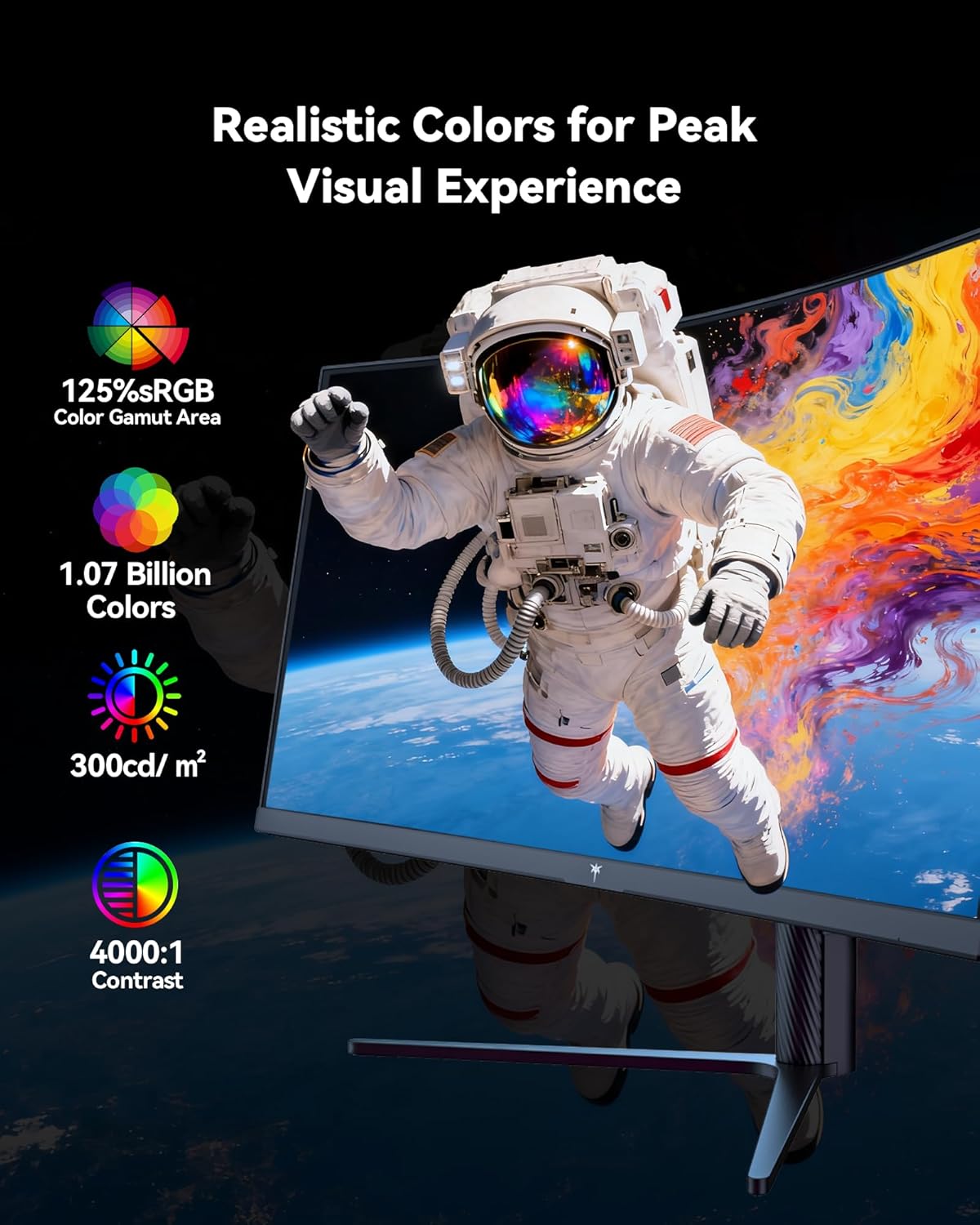
Figure 5: Visual representation of the monitor's color and contrast capabilities.
5.2 Fitur kaulinan
- High Refresh Rate & Fast Response Time: A 180Hz refresh rate and 1ms MPRT (Moving Picture Response Time) ensure smooth, fluid motion and minimize ghosting during fast-paced gaming.
- Téknologi singkronisasi adaptif: This feature synchronizes the monitor's refresh rate with your graphics card's frame rate, eliminating screen tearing and stuttering for a seamless gaming experience.

Figure 6: Comparison of display with Adaptive Sync ON versus OFF.
5.3 Desain ergonomic
The monitor's stand allows for various adjustments to optimize your viewkanyamanan:
- Dengdekkeun: -5 ° ka 20 °
- Putar: ± 45°
- Pangsi: ± 5°
- Penyesuaian Jangkungna: Up to 110mm (±5mm)
The monitor is also VESA compatible (100mm x 100mm) for alternative mounting solutions.

Figure 7: Ergonomic adjustment capabilities and physical dimensions.
6. Spésifikasi
| Fitur | Spésifikasi |
|---|---|
| Dimensi produk | 6.22 x 27.99 x 20.4 inci |
| Item Beurat | 16.75 pon |
| Nomer modél | H34S5 |
| Ukuran layar | 34 inci |
| Rasio Aspék | 21:9 |
| Resolusi | 3440 x 1440 Pixels (UWQHD) |
| Refresh Laju | 180Hz (DP 1.4), 100Hz (HDMI 2.0) |
| Waktu Tanggapan | 1 ms MPRT |
| Curvature | 1500R |
| Caang Gambar | 300 Candela per Méter Pasagi |
| Babandingan Kontras | 4000:1 |
| Beungeut layar | Matte |
| Kasaluyuan VESA | 100 mm x 100 mm |
| Konektipitas | HDMI 2.0 x 2, DP 1.4 x 2, USB 2.0 (for upgrade), Audio Out |
7. Pangropéa
To ensure optimal performance and longevity of your monitor, follow these maintenance guidelines:
- beberesih: Ngusap layar nganggo kaén anu lembut sareng teu aya serat. Pikeun tanda nekad, make solusi beberesih monitor-spésifik dilarapkeun ka lawon, teu langsung ka layar.
- Ventilasi: Ensure adequate airflow around the monitor by keeping vents clear of obstructions.
- Panyimpenan: Upami henteu dianggo salami lami, simpen monitor di tempat anu tiis sareng garing, langkung saé disimpen dina bungkus aslina.
- kakuatan: Use only the provided power adapter and cord. Disconnect power during electrical storms or when leaving the monitor unattended for long periods.
8. Cara ngungkulan
Upami anjeun mendakan masalah sareng monitor anjeun, tingali léngkah-léngkah ngungkulan umum ieu:
- Henteu aya kakuatan: Ensure the power cord is securely connected to both the monitor and a working power outlet. Check the power adapter connection.
- Henteu aya sinyal: Verify that the video cable (DP or HDMI) is correctly connected to both the monitor and your computer. Ensure the correct input source is selected in the OSD menu. Try a different video cable or port if available.
- Masalah Tampilan (Kedip-kedip, Gambar Terdistorsi): Check your computer's display settings to ensure the resolution and refresh rate are compatible with the monitor's specifications. Update your graphics card drivers. If Adaptive Sync is enabled, try disabling it to see if the issue persists.
- Piksel maot: While rare, a small number of dead pixels may be present on LCD panels. If you notice a significant number or they interfere with your viewing experience, contact customer support.
Pikeun pitulung salajengna, tingal bagian Garansi sarta Rojongan.
9. Garansi jeung Rojongan
KTC provides a three-year warranty for this monitor. For any issues or technical support, please contact KTC customer service. They aim to respond within 12 hours.
You can typically find contact information on the KTC official websitus atawa ngaliwatan platform pameseran Anjeun.
10. Video produk
Lalajo video produk resmi pikeun visual leuwihview of the KTC H34S5 34-Inch Curved Gaming Monitor's features and design.
Video 1: Resmi réngséview of the KTC 34-Inch Curved Gaming Monitor (H34S5).